
本页内容
- 先决条件
- 步骤 1 - 配置防火墙
- 步骤 2 - 安装 Git
- 步骤 3 - 安装 Nginx
- 步骤 4 - 安装 PHP 并配置 PHP
- 步骤 5 - 安装 Composer
- 步骤 6 - 安装并配置 PostgreSQL
- 步骤 7 - 安装 Nodejs 和 Yarn
- 步骤 8 - 安装 Yarn
- 步骤 8 - 安装 Redis
- 步骤 9 - 安装并配置 RabbitMQ
- 步骤 10 - 下载 Kbin
- 步骤 11 - 配置环境文件
- 步骤 12 - 安装 Kbin
- 步骤 13 - 安装 SSL
- 步骤 14 - 配置 Nginx
- 步骤 15 - 安装并配置 Supervisor
- 步骤 16 - 访问 Kbin
- 结语
Kbin 是一个开源的、类 Reddit 的联邦宇宙(Fediverse)内容聚合器与微博客平台。它允许你创建和管理社区,并能够与其他 ActivityPub 服务(包括 Mastodon、Pleroma 和 Peertube)进行通信。
虽然已经有一些广受欢迎的 Kbin 实例可供你加入和使用,但你也可以为自己的亲友运行一个属于自己的 Kbin 实例。在本教程中,你将学习如何在 Ubuntu 22.04 服务器上安装 Kbin。
先决条件
- 运行 Ubuntu 22.04 的服务器。
- 一个非 root 的 sudo 用户。
- 一个类似 example.com 的完全限定域名(FQDN)。
- 确保系统所有软件包都已更新。$ sudo apt update $ sudo apt upgrade
- 系统需要安装以下少量软件包。$ sudo apt install wget curl nano ufw software-properties-common dirmngr apt-transport-https gnupg2 ca-certificates lsb-release ubuntu-keyring unzip -y 其中部分软件包可能已经在你的系统上安装过了。
- 我们的安装还需要访问控制列表(ACL)才能正常工作,请安装它。$ sudo apt install acl
运行 Ubuntu 22.04 的服务器。
一个非 root 的 sudo 用户。
一个类似 example.com 的完全限定域名(FQDN)。
确保系统一切均已更新。
$ sudo apt update
$ sudo apt upgrade
系统需要安装以下少量软件包。
$ sudo apt install wget curl nano ufw software-properties-common dirmngr apt-transport-https gnupg2 ca-certificates lsb-release ubuntu-keyring unzip -y
其中部分软件包可能已经在你的系统上安装过了。
我们的安装还需要访问控制列表(ACL)才能正常工作,请安装它。
$ sudo apt install acl
步骤 1 - 配置防火墙
第一步是配置防火墙。Ubuntu 默认自带 ufw(Uncomplicated Firewall,简易防火墙)。
检查防火墙是否正在运行。
$ sudo ufw status
你将看到如下输出。
Status: inactive
放行 SSH 端口,以免启用防火墙时中断当前的连接。
$ sudo ufw allow OpenSSH
同时放行 HTTP 和 HTTPS 端口。
$ sudo ufw allow http
$ sudo ufw allow https
启用防火墙
$ sudo ufw enable
Command may disrupt existing ssh connections. Proceed with operation (y|n)? y
Firewall is active and enabled on system startup
再次检查防火墙的状态。
$ sudo ufw status
你应该会看到类似的输出。
Status: active

To                         Action      From
--                         ------      ----
OpenSSH                    ALLOW       Anywhere
80/tcp                     ALLOW       Anywhere
443                        ALLOW       Anywhere
OpenSSH (v6)               ALLOW       Anywhere (v6)
80/tcp (v6)                ALLOW       Anywhere (v6)
443 (v6)                   ALLOW       Anywhere (v6)
步骤 2 - 安装 Git
Git 通常会随 Ubuntu 服务器一起安装,但如果没有安装,你应该使用以下命令进行安装。
$ sudo apt install git
验证安装。
$ git --version
git version 2.34.1
使用基本信息配置 Git。
$ git config --global user.name "Your Name"
$ git config --global user.email "
[email protected]
"
步骤 3 - 安装 Nginx
Ubuntu 自带的 Nginx 版本较旧。要安装最新版本,你需要下载官方的 Nginx 软件仓库。
导入 Nginx 的签名密钥。
$ curl https://nginx.org/keys/nginx_signing.key | gpg --dearmor \
	| sudo tee /usr/share/keyrings/nginx-archive-keyring.gpg >/dev/null
添加 Nginx 稳定版的软件仓库。
$ echo "deb [signed-by=/usr/share/keyrings/nginx-archive-keyring.gpg arch=amd64] \
http://nginx.org/packages/ubuntu `lsb_release -cs` nginx" \
    | sudo tee /etc/apt/sources.list.d/nginx.list
更新系统软件源。
$ sudo apt update
安装 Nginx。
$ sudo apt install nginx
验证安装。
$ nginx -v
nginx version: nginx/1.24.0
启动 Nginx 服务。
$ sudo systemctl start nginx
步骤 4 - 安装 PHP 并配置 PHP
Ubuntu 22.04 自带 PHP 8.1.2 版本,已经有些过时。我们将通过 Ondrej 的 PHP 软件仓库安装最新的 PHP 8.2 版本。
$ sudo add-apt-repository ppa:ondrej/php
接下来,安装 PHP 以及 Kbin 所需的扩展。
$ sudo apt install php8.2-common php8.2-fpm php8.2-cli php8.2-amqp php8.2-pgsql php8.2-gd php8.2-curl php8.2-simplexml php8.2-dom php8.2-xml php8.2-redis php8.2-mbstring php8.2-intl unzip
验证安装。
$ php --version
PHP 8.2.7 (cli) (built: Jun  8 2023 15:27:40) (NTS)
Copyright (c) The PHP Group
Zend Engine v4.2.7, Copyright (c) Zend Technologies
    with Zend OPcache v8.2.7, Copyright (c), by Zend Technologies
打开文件 /etc/php/8.2/fpm/pool.d/www.conf 。
$ sudo nano /etc/php/8.2/fpm/pool.d/www.conf
我们需要将 PHP 进程的 Unix 用户/组设置为 nginx 。在文件中找到 user=www-data 和 group=www-data 这两行,并将它们改为 nginx 。
...
; Unix user/group of processes
; Note: The user is mandatory. If the group is not set, the default user's group
;       will be used.
; RPM: apache user chosen to provide access to the same directories as httpd
user = nginx
; RPM: Keep a group allowed to write in log dir.
group = nginx
...
在文件中找到 listen.owner = www-data 和 listen.group = www-data 这两行,并将它们改为 nginx 。
; Set permissions for unix socket, if one is used. In Linux, read/write
; permissions must be set in order to allow connections from a web server. Many
; BSD-derived systems allow connections regardless of permissions. The owner
; and group can be specified either by name or by their numeric IDs.
; Default Values: user and group are set as the running user
;                 mode is set to 0660
listen.owner = nginx
listen.group = nginx
按下 Ctrl + X,并在提示时输入 Y 以保存文件。
将 PHP-FPM 的内存限制从 128 MB 提高到 512 MB。
$ sudo sed -i 's/memory_limit = 128M/memory_limit = 512M/' /etc/php/8.2/fpm/php.ini
将文件上传大小限制提高到 8 MB。
$ sudo sed -i 's/upload_max_filesize = 2M/upload_max_filesize = 8M/' /etc/php/8.2/fpm/php.ini
重启 PHP-FPM 服务。
$ sudo systemctl restart php8.2-fpm
将 PHP 会话目录的属组更改为 Nginx。
$ sudo chgrp -R nginx /var/lib/php/sessions
步骤 5 - 安装 Composer
Composer 是 PHP 的依赖管理工具,Kbin 安装时需要用到它。获取 Composer 安装脚本文件。
$ php -r "copy('https://getcomposer.org/installer', 'composer-setup.php');"
运行安装脚本来生成 Composer 可执行文件。
$ php composer-setup.php
删除安装脚本文件。
$ php -r "unlink('composer-setup.php');"
将 composer.phar 可执行文件移动到 /usr/local/bin 目录。
$ sudo mv composer.phar /usr/local/bin/composer
验证 Composer 安装。
$ composer --version
Composer version 2.5.8 2023-06-09 17:13:21
步骤 6 - 安装并配置 PostgreSQL
Ubuntu 22.04 默认自带 PostgreSQL 14。我们将改用 PostgreSQL 15。
运行以下命令以添加 PostgreSQL 的 GPG 密钥。
$ curl https://www.postgresql.org/media/keys/ACCC4CF8.asc | gpg --dearmor | sudo tee /usr/share/keyrings/postgresql-key.gpg >/dev/null
将 APT 软件仓库添加到你的软件源列表。
$ sudo sh -c 'echo "deb [signed-by=/usr/share/keyrings/postgresql-key.gpg arch=amd64] http://apt.postgresql.org/pub/repos/apt $(lsb_release -cs)-pgdg main" > /etc/apt/sources.list.d/pgdg.list'
更新系统软件源。
$ sudo apt update
现在,你可以使用以下命令安装 PostgreSQL。
$ sudo apt install postgresql postgresql-contrib
postgresql-contrib 软件包包含一些额外的实用工具。
检查 PostgreSQL 服务的状态。
$ sudo systemctl status postgresql
? postgresql.service - PostgreSQL RDBMS
     Loaded: loaded (/lib/systemd/system/postgresql.service; enabled; vendor preset: enabled)
     Active: active (exited) since Sat 2023-06-17 09:15:50 UTC; 3h 40min ago
   Main PID: 26989 (code=exited, status=0/SUCCESS)
        CPU: 1ms

Jun 17 09:15:50 nspeaks systemd[1]: Starting PostgreSQL RDBMS...
Jun 17 09:15:50 nspeaks systemd[1]: Finished PostgreSQL RDBMS.
你可以看到该服务默认已启用并正在运行。
启动 PostgreSQL 命令行终端。
$ sudo -i -u postgres psql
创建 Kbin 数据库。
postgres=# CREATE DATABASE kbin;
创建 Kbin 用户并设置一个强密码。
postgres-# CREATE USER kbinuser WITH PASSWORD 'Your_Password';
将数据库的所有者更改为 Kbin 用户。
postgres-# ALTER DATABASE kbin OWNER TO kbinuser;
退出命令行终端。
postgres-# \q
验证你的凭据是否有效。
$ psql --username kbinuser --password --host localhost kbin
Password:
psql (15.3 (Ubuntu 15.3-1.pgdg22.04+1))
SSL connection (protocol: TLSv1.3, cipher: TLS_AES_256_GCM_SHA384, compression: off)
Type "help" for help.

kbin=>
输入 \q 退出命令行终端。
步骤 7 - 安装 Nodejs 和 Yarn
Ubuntu 22.04 自带 Node v12,已经过时。我们将安装最新的 Node LTS 版本,在撰写本教程时其版本为 v18。
从 NodeSource 获取 Node v18 安装脚本。
$ curl -sL https://deb.nodesource.com/setup_lts.x -o nodesource_setup.sh
运行安装脚本。
$ sudo bash nodesource_setup.sh
安装 Node.js。
$ sudo apt install nodejs
验证 Node.js 版本。
$ node -v
v18.16.1
删除安装脚本文件。
$ rm nodesource_setup.sh
步骤 8 - 安装 Yarn
导入 Yarn 的 GPG 密钥。
$ curl -sL https://dl.yarnpkg.com/debian/pubkey.gpg | gpg --dearmor | sudo tee /usr/share/keyrings/yarnkey.gpg >/dev/null
将 Yarn 源添加到系统软件仓库列表。
$ echo "deb [signed-by=/usr/share/keyrings/yarnkey.gpg] https://dl.yarnpkg.com/debian stable main" | sudo tee /etc/apt/sources.list.d/yarn.list
更新你的系统软件仓库列表。
$ sudo apt update
安装 Yarn
$ sudo apt install yarn
验证安装。
$ yarn --version
1.22.19
步骤 8 - 安装 Redis
Magento 使用 Redis 进行会话和缓存存储。这完全是可选的,你也可以使用数据库来存储会话。但 Redis 的表现更好。最新版本的 Magento 可配合 Redis 7.0 使用。Ubuntu 自带 Redis 6.0,因此我们将使用 Redis 软件仓库进行安装。
导入官方的 Redis GPG 密钥。
$ curl -fsSL https://packages.redis.io/gpg | sudo gpg --dearmor -o /usr/share/keyrings/redis-archive-keyring.gpg
将 APT 软件仓库添加到你的软件源列表。
$ echo "deb [signed-by=/usr/share/keyrings/redis-archive-keyring.gpg] https://packages.redis.io/deb $(lsb_release -cs) main" | sudo tee /etc/apt/sources.list.d/redis.list
更新系统软件仓库列表。
$ sudo apt update
执行以下命令以安装 Redis 服务。
$ sudo apt install redis
确认 Redis 版本。
$ redis-server -v
Redis server v=7.0.11 sha=00000000:0 malloc=jemalloc-5.2.1 bits=64 build=3af367a78d5e21e9
让我们使用以下命令验证服务连接。
$ redis-cli
你将切换到 Redis 命令行终端。
第一步是为 Redis 默认用户设置密码。请将 Your_Redis_Password 替换为你自己设置的强密码。请务必在密码前加上 > 字符。
127.0.0.1:6379> acl setuser default >Your_Redis_Password
测试 Redis 认证。
127.0.0.1:6379> AUTH Your_Redis_Password
OK
对服务执行 Ping。
127.0.0.1:6379> ping
PONG
输入 exit 退出服务。
如果你愿意,可以使用以下命令来生成 Redis 密码。
$ openssl rand 60 | openssl base64 -A
OaYOuq6J9HhxMV0sGCeZbaGecphCl4GBfVkCOPkNjkQE1FX9DKpGSCJcDb8UV+AuFKA8tR1PgjGequn1
步骤 9 - 安装并配置 RabbitMQ
Kbin 需要 RabbitMQ 来进行消息队列处理。我们将从 Ubuntu 软件仓库安装它。
$ sudo apt install rabbitmq-server
创建一个 Rabbit 用户。请设置一个强密码。
$ sudo rabbitmqctl add_user kbin StrongPassword
将该用户设为管理员。
$ sudo rabbitmqctl set_user_tags kbin administrator
步骤 10 - 下载 Kbin
在下载 Kbin 之前,我们需要创建一个 Kbin 用户账户。
$ adduser kbin
将 kbin 用户添加到 sudo 组。
$ sudo usermod -aG sudo kbin
以 kbin 用户身份登录。
$ su - kbin
创建 /var/www/html/kbin 目录。
$ sudo mkdir /var/wwww/html/kbin -p
切换到该目录。
$ cd /var/www/html/kbin
为该目录赋予适当的权限,以便当前登录的用户能够执行相关操作。
$ sudo chown $USER:$USER kbin
将 Kbin 的 Git 仓库克隆到当前文件夹。请务必在命令末尾加上句点(.)以表示当前文件夹。
$ git clone https://codeberg.org/Kbin/kbin-core.git .
创建 public/media 目录。
$ mkdir public/media
赋予其完整权限。
$ chmod 777 public/media
步骤 11 - 配置环境文件
生成 Mercure 的 JWT 密钥。
$ node -e "console.log(require('crypto').randomBytes(32).toString('hex'))"
再次使用相同的命令生成 App 密钥。
$ node -e "console.log(require('crypto').randomBytes(32).toString('hex'))"
在 Kbin 目录中创建并打开 .env 文件进行编辑。
$ nano .env
将以下代码粘贴其中。请在以下文件中使用上面生成的密钥。
# Run "composer dump-env prod" to compile .env files for production use (requires symfony/flex >=1.2).
# https://symfony.com/doc/current/best_practices.html#use-environment-variables-for-infrastructure-configuration

# kbin variables
SERVER_NAME="nspeaks.xyz" # production
KBIN_DOMAIN=nspeaks.xyz
KBIN_TITLE=Howtoforge
KBIN_DEFAULT_LANG=en
KBIN_FEDERATION_ENABLED=true

[email protected]


[email protected]

KBIN_JS_ENABLED=true
KBIN_REGISTRATIONS_ENABLED=true
KBIN_API_ITEMS_PER_PAGE=25
#KBIN_STORAGE_URL=/media
KBIN_META_TITLE="Kbin Lab"
KBIN_META_DESCRIPTION="content aggregator and micro-blogging platform for the fediverse"
KBIN_META_KEYWORDS="kbin, content agregator, open source, fediverse"
KBIN_HEADER_LOGO=false
KBIN_CAPTCHA_ENABLED=false

# Redis
REDIS_PASSWORD=YourRedisPassword
REDIS_DNS=redis://default:${REDIS_PASSWORD}@localhost:6379

###> symfony/framework-bundle ###
APP_ENV=prod
APP_SECRET=427f5e2940e5b2472c1b44b2d06e0525
###< symfony/framework-bundle ###

###> doctrine/doctrine-bundle ###
# Format described at https://www.doctrine-project.org/projects/doctrine-dbal/en/latest/reference/configuration.html#connecting-using-a-url
# IMPORTANT: You MUST configure your server version, either here or in config/packages/doctrine.yaml
#
POSTGRES_DB=kbin
POSTGRES_USER=kbin
POSTGRES_PASSWORD=Your_Password
POSTGRES_VERSION=15
DATABASE_URL="postgresql://${POSTGRES_USER}:${POSTGRES_PASSWORD}@127.0.0.1:5432/${POSTGRES_DB}?serverVersion=${POSTGRES_VERSION}&charset=utf8"
###< doctrine/doctrine-bundle ###

###> symfony/messenger ###
# Choose one of the transports below
RABBITMQ_PASSWORD=RabbitMQPassword
MESSENGER_TRANSPORT_DSN=amqp://kbin:${RABBITMQ_PASSWORD}@rabbitmq:5672/%2f/messages
#MESSENGER_TRANSPORT_DSN=doctrine://default
#MESSENGER_TRANSPORT_DSN=redis://${REDIS_PASSWORD}@redis:6379/messages
###< symfony/messenger ###

###> symfony/mailgun-mailer ###
#MAILER_DSN=mailgun+smtp://
[email protected]
:key@default?region=us
MAILER_DSN=smtp://AKIA3FIG4NVFH4TXXEXY:BJQvNI9U6JqSuUFQ9Ffd22Dvom/8KNwk7EIrFTRai02/@email-smtp.us-west-2.amazonaws.com:465
###< symfony/mailgun-mailer ###

###> symfony/mercure-bundle ###
# See https://symfony.com/doc/current/mercure.html#configuration
# The URL of the Mercure hub, used by the app to publish updates (can be a local URL)
MERCURE_URL=https://example.com/.well-known/mercure
# The public URL of the Mercure hub, used by the browser to connect
MERCURE_PUBLIC_URL=https://example.com/.well-known/mercure
# The secret used to sign the JWTs
MERCURE_JWT_SECRET="!ChangeThisMercureHubJWTSecretKey!"
###< symfony/mercure-bundle ###

###> symfony/lock ###
LOCK_DSN=flock
###< symfony/lock ###
按下 Ctrl + X,并在提示时输入 Y 以保存文件。
步骤 12 - 安装 Kbin
使用 Composer 安装 Kbin 所需的软件包。
$ composer install --prefer-dist --no-dev
$ composer dump-env prod
清除缓存。
$ APP_ENV=prod APP_DEBUG=0 php bin/console cache:clear
$ composer clear-cache
为 media 文件夹赋予适当的权限。
$ sudo chown kbin:nginx public/media
使用 setfacl 命令设置适当的文件和目录权限。以下命令会检测当前使用的 Web 服务器(Nginx),并为现有及未来的文件和文件夹设置权限。
$ HTTPDUSER=$(ps axo user,comm | grep -E '[a]pache|[h]ttpd|[_]www|[w]ww-data|[n]ginx' | grep -v root | head -1 | cut -d\  -f1)
$ sudo setfacl -dR -m u:"$HTTPDUSER":rwX -m u:$(whoami):rwX var
$ sudo setfacl -R -m u:"$HTTPDUSER":rwX -m u:$(whoami):rwX var
创建并迁移 PostgreSQL 数据库。
$ php bin/console doctrine:database:create
$ php bin/console doctrine:migrations:migrate
系统会提示你是否要继续进行数据迁移。输入 yes 以继续。
WARNING! You are about to execute a migration in database "kbin" that could result in schema changes and data loss. Are you sure you wish to continue? (yes/no) [yes]:
 > yes

[notice] Migrating up to DoctrineMigrations\Version20230615203020
[notice] finished in 1373.9ms, used 24M memory, 79 migrations executed, 667 sql queries

[OK] Successfully migrated to version : DoctrineMigrations\Version20230615203020
安装并构建 Kbin 站点的公共前端。
$ yarn install
$ yarn build
为 Kbin 创建一个新的管理员用户。
$ php bin/console kbin:user:create username
[email protected]
 password
授予该用户管理员权限。
$ php bin/console kbin:user:admin username
更新密钥。
$ php bin/console kbin:ap:keys:update
步骤 13 - 安装 SSL
我们需要安装 Certbot 来生成 SSL 证书。你可以使用 Ubuntu 的软件仓库安装 Certbot,也可以通过 Snapd 工具获取最新版本。我们将使用 Snapd 版本。
Ubuntu 22.04 默认已安装 Snapd。运行以下命令以确保你的 Snapd 版本是最新的。
$ sudo snap install core && sudo snap refresh core
安装 Certbot。
$ sudo snap install --classic certbot
使用以下命令,通过创建指向 /usr/bin 目录的符号链接,确保 Certbot 命令可以运行。
$ sudo ln -s /snap/bin/certbot /usr/bin/certbot
运行以下命令以生成 SSL 证书。
$ sudo certbot certonly --nginx --agree-tos --no-eff-email --staple-ocsp --preferred-challenges http -m
[email protected]
 -d example.com
上述命令会将证书下载到你的服务器上的 /etc/letsencrypt/live/example.com 目录。
生成 Diffie-Hellman 组证书。
$ sudo openssl dhparam -dsaparam -out /etc/ssl/certs/dhparam.pem 4096
检查 Certbot 续期调度服务。
$ sudo systemctl list-timers
你会发现 snap.certbot.renew.service 是被安排运行的其中一个服务。
NEXT                        LEFT          LAST                        PASSED       UNIT                       ACTIVATES
Wed 2023-06-28 10:09:00 UTC 20min left    Wed 2023-06-28 09:39:00 UTC 9min ago     phpsessionclean.timer      phpsessionclean.service
Wed 2023-06-28 11:13:02 UTC 1h 24min left Wed 2023-06-28 04:41:28 UTC 5h 7min ago  ua-timer.timer             ua-timer.service
Wed 2023-06-28 12:11:00 UTC 2h 22min left n/a                         n/a          snap.certbot.renew.timer   snap.certbot.renew.service
对该流程进行一次预演(dry run),以检查 SSL 续期是否正常工作。
$ sudo certbot renew --dry-run
如果你没有看到任何错误,说明一切就绪。你的证书将自动续期。
步骤 14 - 配置 Nginx
创建并打开文件 /etc/nginx/conf.d/kbin.conf 进行编辑。
$ sudo nano /etc/nginx/conf.d/kbin.conf
将以下代码粘贴其中。
server {
    listen       443 ssl http2;
    listen       [::]:443 ssl http2;
    server_name  example.com;

    access_log  /var/log/nginx/kbin.access.log;
    error_log   /var/log/nginx/kbin.error.log;

    # SSL
    ssl_certificate         /etc/letsencrypt/live/example.com/fullchain.pem;
    ssl_certificate_key     /etc/letsencrypt/live/example.com/privkey.pem;
    ssl_trusted_certificate /etc/letsencrypt/live/example.com/chain.pem;
    ssl_session_timeout  1d;
    ssl_session_cache shared:SSL:50m;
    ssl_session_tickets off;
    ssl_protocols TLSv1.2 TLSv1.3;
    ssl_prefer_server_ciphers on;
    ssl_ciphers ECDHE-ECDSA-AES128-GCM-SHA256:ECDHE-RSA-AES128-GCM-SHA256:ECDHE-ECDSA-AES256-GCM-SHA384:ECDHE-RSA-AES256-GCM-SHA384:ECDHE-ECDSA-CHACHA20-POLY1305:ECDHE-RSA-CHACHA20-POLY1305:DHE-RSA-AES128-GCM-SHA256:DHE-RSA-AES256-GCM-SHA384;
    ssl_ecdh_curve X25519:prime256v1:secp384r1:secp521r1;
    ssl_stapling on;
    ssl_stapling_verify on;
    ssl_dhparam /etc/ssl/certs/dhparam.pem;
    # use https://blog.cloudflare.com/announcing-1111 Cloudfare+Apnic labs, It is free and secure
    resolver 1.1.1.1 1.0.0.1 [2606:4700:4700::1111] [2606:4700:4700::1001] valid=300s;

    root /var/www/html/kbin/public;

    index index.php;

    location / {
        try_files $uri $uri/ /index.php;
    }

    # Pass PHP Scripts To FastCGI Server
    location ~* \.php$ {
        try_files $uri =404;
        fastcgi_index  index.php;
        fastcgi_pass unix:/run/php-fpm/www.sock; # Depends On The PHP Version
        fastcgi_param SCRIPT_FILENAME  $realpath_root$fastcgi_script_name;
        fastcgi_param DOCUMENT_ROOT $realpath_root;
        include fastcgi_params;
    }

    # deny access to writable files/directories
    location ~* ^/sites/*/(documents|edi|era) {
        deny all;
        return 404;
    }

    # deny access to certain directories
    location ~* ^/(contrib|tests) {
	    deny all;
        return 404;
    }

    # Alternatively all access to these files can be denied
    location ~* ^/(admin|setup|acl_setup|acl_upgrade|sl_convert|sql_upgrade|gacl/setup|ippf_upgrade|sql_patch)\.php {
        deny all;
        return 404;
    }

    location = /favicon.ico {
        log_not_found off;
        access_log off;
    }

    location = /robots.txt  {
        log_not_found off;
        access_log off;
    }

    location ~ /\. {
        deny all;
    }
}

# enforce HTTPS
server {
    listen       80;
    listen       [::]:80;
    server_name  example.com;
    return 301   https://$host$request_uri;
}
请注意,Nginx 配置中使用的根目录是 /var/www/html/kbin/public/ 。
完成后,按下 Ctrl + X,并在提示时输入 Y 以保存文件。
打开文件 /etc/nginx/nginx.conf 进行编辑。
$ sudo nano /etc/nginx/nginx.conf
在 include /etc/nginx/conf.d/*.conf; 这一行之前添加以下行。
server_names_hash_bucket_size 64;
按下 Ctrl + X,并在提示时输入 Y 以保存文件。
验证 Nginx 配置文件的语法。
$ sudo nginx -t
nginx: the configuration file /etc/nginx/nginx.conf syntax is ok
nginx: configuration file /etc/nginx/nginx.conf test is successful
重启 Nginx 服务。
$ sudo systemctl restart nginx
步骤 15 - 安装并配置 Supervisor
Supervisor 是一个进程管理器,我们将用它作为 Kbin 消息工作进程(RabbitMQ)的进程监视器。第一步是安装 Supervisor。
$ sudo apt install supervisor
创建 /etc/supervisor/conf.d/messenger-worker.conf 文件并打开进行编辑。
$ sudo nano /etc/supervisor/conf.d/messenger-worker.conf
将以下代码粘贴其中。
[program:messenger-kbin]
command=php /var/www/html/kbin/bin/console messenger:consume async --time-limit=3600
user=kbin
numprocs=2
startsecs=0
autostart=true
autorestart=true
startretries=10
process_name=%(program_name)s_%(process_num)02d
stderr_logfile=/var/log/supervisor/%(program_name)s_stderr.log
stderr_logfile_maxbytes=10MB
stdout_logfile=/var/log/supervisor/%(program_name)s_stdout.log
stdout_logfile_maxbytes=10MB

[program:messenger-ap]
command=php /var/www/html/kbin/bin/console messenger:consume async_ap --time-limit=3600
user=kbin
numprocs=2
startsecs=0
autostart=true
autorestart=true
startretries=10
process_name=%(program_name)s_%(process_num)02d
stderr_logfile=/var/log/supervisor/%(program_name)s_stderr.log
stderr_logfile_maxbytes=10MB
stdout_logfile=/var/log/supervisor/%(program_name)s_stdout.log
stdout_logfile_maxbytes=10MB
按下 Ctrl + X,并在提示时输入 Y 以保存文件。
运行以下命令以重新读取并更新新的配置文件。
$ sudo supervisorctl reread
$ sudo supervisorctl update
启动所有 Supervisor 服务。
$ sudo supervisorctl start all
步骤 16 - 访问 Kbin
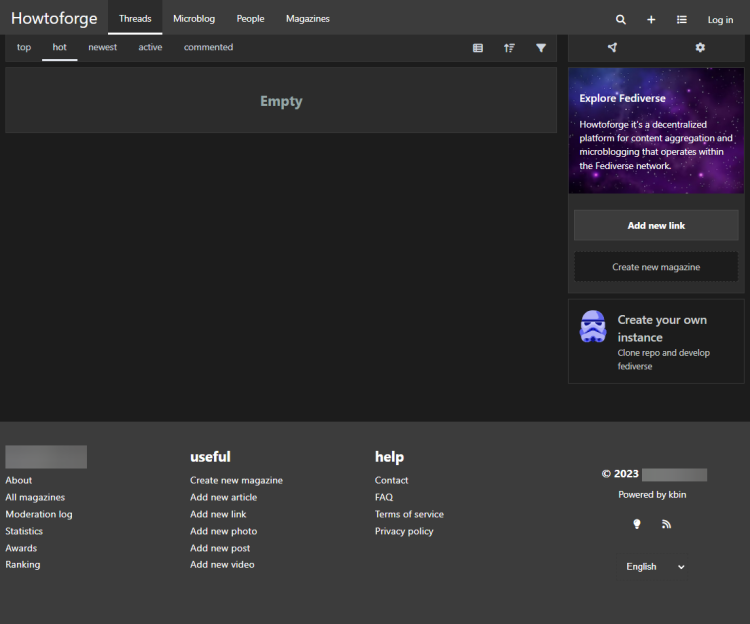
打开 URL https://example.com,你将看到如下 Kbin 主页。
点击顶部的“Log in”链接以打开登录页面。
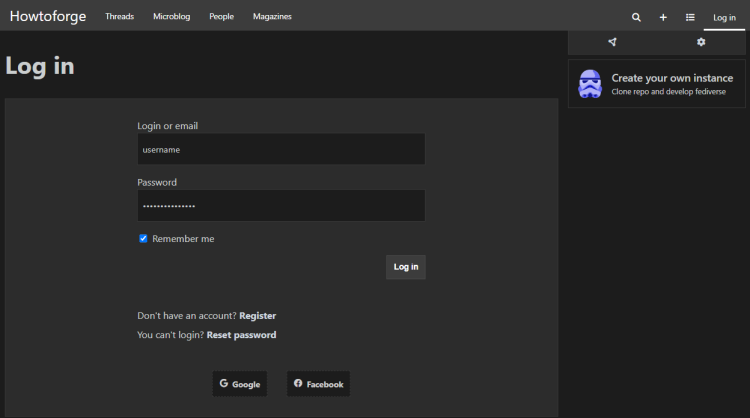
输入在第 12 步创建的凭据,然后点击“Log in”按钮继续。你将返回 Kbin 主页。从此处起你就可以开始使用 Kbin 了。
结语
至此,我们在 Ubuntu 22.04 服务器上安装类 Reddit 内容聚合器 Kbin 的教程就结束了。如果你有任何疑问,请在下方评论区留言。