
本页内容
- 准备工作
- 步骤 1 - 配置防火墙与 SELinux
- 步骤 2 - 安装 Git
- 步骤 3 - 安装 Docker
- 步骤 4 - 下载 Discourse
- 步骤 5 - 配置 Discourse:设置域名、配置暴露端口、配置 SMTP 设置、内存设置(可选)、GeoLite2 设置(可选)
- 步骤 6 - 安装 Discourse
- 步骤 7 - 安装 Nginx
- 步骤 8 - 安装 SSL
- 步骤 9 - 配置 Nginx
- 步骤 10 - 访问并完成 Discourse 安装
- 步骤 11 - Discourse 命令:命令行激活管理员、备份 Discourse、升级 Discourse、停止 Discourse、查看 Discourse 日志、Rails / Unicorn 日志、Nginx 日志、Redis 日志、PostgreSQL 日志
- 结论
- 配置 SELinux
- 设置域名
- 配置暴露端口
- 配置 SMTP 设置
- 内存设置(可选)
- GeoLite2 设置(可选)
- 通过命令行激活 Discourse 管理员
- 备份 Discourse
- 升级 Discourse
- 停止 Discourse
- 查看 Discourse 日志
- Rails / Unicorn 日志
- Nginx 日志
- Redis 日志
- PostgreSQL 日志
Discourse 是一个使用 Ruby 语言构建的开源社区讨论平台。它被设计用作论坛、聊天软件或邮件列表。它可以轻松与其他平台集成,并能够通过插件进行扩展。
在本教程中,你将学习如何在运行 Rocky Linux 9 的服务器上,配合 Nginx 服务器安装 Discourse 论坛。
准备工作
- 一台运行 Rocky Linux 9 的服务器,至少具备 1GB 内存和 1 核 CPU。在内存为 1GB 或更少的系统上,Discourse 安装过程会自动创建一个交换分区。因此,建议在至少拥有 2GB 内存的系统上安装。
- 一个具有 sudo 权限的非 root 用户。
- 一个指向该服务器的域名(discourse.example.com)。
- 所有软件包均已更新。 $ sudo dnf update
- 系统需要的一些软件包。 $ sudo dnf install wget curl nano unzip yum-utils -y 其中部分软件包可能已经在你的系统上安装。
一台运行 Rocky Linux 9 的服务器,至少具备 1GB 内存和 1 核 CPU。在内存为 1GB 或更少的系统上,Discourse 安装过程会自动创建一个交换分区。因此,建议在至少拥有 2GB 内存的系统上安装。
一个具有 sudo 权限的非 root 用户。
一个指向该服务器的域名(discourse.example.com)。
所有软件包均已更新。
$ sudo dnf update
系统需要的一些软件包。
$ sudo dnf install wget curl nano unzip yum-utils -y
其中部分软件包可能已经在你的系统上安装。
步骤 1 - 配置防火墙
第一步是配置防火墙。Rocky Linux 使用 Firewalld 防火墙。检查防火墙的状态。
$ sudo firewall-cmd --state
running
防火墙使用不同的区域(zone),我们将使用默认的公共(public)区域。列出防火墙当前启用的所有服务和端口。
$ sudo firewall-cmd --permanent --list-services
它应当显示如下输出。
cockpit dhcpv6-client ssh
Discourse 需要 HTTP 和 HTTPS 端口才能正常运行。打开这些端口。
$ sudo firewall-cmd --permanent --add-service=http
$ sudo firewall-cmd --permanent --add-service=https
添加伪装(masquerade),因为该应用程序需要与其他实例通信。
$ sudo firewall-cmd --permanent --add-masquerade
重新加载防火墙以应用更改。
$ sudo firewall-cmd --reload
再次列出所有服务。
$ sudo firewall-cmd --permanent --list-services
你应当得到如下输出。
cockpit dhcpv6-client http https ssh
配置 SELinux
由于 SELinux 的访问策略,即使你打开了端口,Discourse 也可能无法访问。配置 SELinux 以允许网络连接。
$ sudo setsebool -P httpd_can_network_connect 1
步骤 2 - 安装 Git
安装 Git。
$ sudo dnf install git
确认安装。
$ git --version
git version 2.31.1
运行以下命令来配置 Git 安装。
$ git config --global user.name "Your Name"
$ git config --global user.email "
[email protected]
"
步骤 3 - 安装 Docker
Rocky Linux 自带较旧版本的 Docker。要安装最新版本,首先需要安装官方的 Docker 软件仓库。
$ sudo yum-config-manager \
    --add-repo \
    https://download.docker.com/linux/centos/docker-ce.repo
安装最新版本的 Docker。
$ sudo dnf install docker-ce docker-ce-cli containerd.io
尝试安装 Docker 时,你可能会遇到以下错误。
ror:
 Problem: problem with installed package buildah-1:1.26.2-1.el9_0.x86_64
  - package buildah-1:1.26.2-1.el9_0.x86_64 requires runc >= 1.0.0-26, but none of the providers can be installed
  - package containerd.io-1.6.9-3.1.el9.x86_64 conflicts with runc provided by runc-4:1.1.3-2.el9_0.x86_64
  - package containerd.io-1.6.9-3.1.el9.x86_64 obsoletes runc provided by runc-4:1.1.3-2.el9_0.x86_64
  - cannot install the best candidate for the job
如果你遇到上述错误,请使用以下命令。
$ sudo dnf install docker-ce docker-ce-cli containerd.io --allowerasing
启用并运行 Docker 守护进程。
$ sudo systemctl enable docker --now
验证它是否正在运行。
? docker.service - Docker Application Container Engine
     Loaded: loaded (/usr/lib/systemd/system/docker.service; enabled; vendor preset: disabled)
     Active: active (running) since Sat 2023-01-20 06:49:44 UTC; 6s ago
TriggeredBy: ? docker.socket
       Docs: https://docs.docker.com
   Main PID: 99263 (dockerd)
      Tasks: 8
     Memory: 28.1M
        CPU: 210ms
     CGroup: /system.slice/docker.service
             ??99263 /usr/bin/dockerd -H fd:// --containerd=/run/containerd/containerd.sock
默认情况下,Docker 需要 root 权限。如果你希望每次运行 docker 命令时不必使用 sudo,可以将你的用户名添加到 docker 用户组。
$ sudo usermod -aG docker $(whoami)
你需要注销服务器并以同一用户重新登录才能使此更改生效,或者也可以使用以下命令。
$ su - ${USER}
确认你的用户已添加到 Docker 用户组。
$ groups
navjot wheel docker
步骤 4 - 下载 Discourse
将官方的 Discourse Docker GitHub 仓库克隆到 /var/discourse 目录。
$ sudo git clone https://github.com/discourse/discourse_docker.git /var/discourse
切换到 Discourse 目录。
$ cd /var/discourse
移除 containers 目录的写入和可执行权限。
$ sudo chmod 700 containers
步骤 5 - 配置 Discourse
通过复制示例文件 standalone.yml 来创建配置文件 app.yml。
$ sudo cp samples/standalone.yml containers/app.yml
打开 app.yml 进行编辑。
$ sudo nano containers/app.yml
设置域名
将变量 DISCOURSE_HOSTNAME 设置为你为论坛选择的域名。如果你没有域名,也可以在这里使用 IP 地址。
DISCOURSE_HOSTNAME: 'discourse.example.com'
配置暴露端口
将 "80:80" 这一行修改为 "8080:80"。由于我们将使用 Nginx 占用 80 端口,这会将 Discourse 的外部 HTTP 端口改为 8080。将 "443:443" 这一行注释掉,因为我们将在外部安装 SSL。
expose:
  - "8080:80"   # http
  #- "443:443" # https
为管理员配置电子邮件地址
使用变量 DISCOURSE_DEVELOPER_EMAILS 设置你的管理员账户和开发者的电子邮件地址。此步骤是必需的,否则你的论坛将无法完成引导启动。
DISCOURSE_DEVELOPER_EMAILS: '
[email protected]
,
[email protected]
'
配置 SMTP 设置
根据你使用的事务性电子邮件服务,填写以下变量。
DISCOURSE_SMTP_ADDRESS: smtp.example.com
DISCOURSE_SMTP_PORT: 587
DISCOURSE_SMTP_USER_NAME:
[email protected]

DISCOURSE_SMTP_PASSWORD: your_smtp_password
#DISCOURSE_SMTP_ENABLE_START_TLS: true           # (optional, default true)
DISCOURSE_SMTP_DOMAIN: discourse.example.com    # (required by some providers)
DISCOURSE_NOTIFICATION_EMAIL:
[email protected]
    # (address to send notifications from)
内存设置(可选)
如果你的服务器内存较低,可以相应地配置以下变量,以减少 Discourse 的内存占用。
db_shared_buffers: '128MB'
UNICORN_WORKERS: 2
变量 db_shared_buffers 通常设置为可用内存的 25%。
GeoLite2 设置(可选)
如果你希望 Discourse 具备 IP 查询功能,请注册免费的 Maxmind Geolite2 账户并获取许可证密钥。将该许可证密钥作为以下变量的值粘贴进去。
DISCOURSE_MAXMIND_LICENSE_KEY: your_maxmind_license_key
按 Ctrl + X 保存文件,并在提示时输入 Y。
步骤 6 - 安装 Discourse
运行以下命令来引导(bootstrap)你的 Discourse 容器。
$ sudo ./launcher bootstrap app
启动 Discourse 应用程序。
$ sudo ./launcher start app
打开端口以测试 Discourse 应用程序。
$ sudo firewall-cmd --permanent --add-port=8080/tcp
现在你可以在浏览器中访问 http://yourserver_IP:8080 或 http://discourse.example.com:8080 来打开论坛。你将看到如下界面。
步骤 7 - 安装 Nginx
Rocky Linux 9 自带较旧版本的 Nginx。你需要下载官方的 Nginx 软件仓库来安装最新版本。
创建并打开 /etc/yum.repos.d/nginx.repo 文件,以创建官方的 Nginx 软件仓库。
$ sudo nano /etc/yum.repos.d/nginx.repo
将以下代码粘贴到其中。
[nginx-stable]
name=nginx stable repo
baseurl=http://nginx.org/packages/centos/$releasever/$basearch/
gpgcheck=1
enabled=1
gpgkey=https://nginx.org/keys/nginx_signing.key
module_hotfixes=true

[nginx-mainline]
name=nginx mainline repo
baseurl=http://nginx.org/packages/mainline/centos/$releasever/$basearch/
gpgcheck=1
enabled=0
gpgkey=https://nginx.org/keys/nginx_signing.key
module_hotfixes=true
按 Ctrl + X 保存文件,并在提示时输入 Y。
安装 Nginx 服务器。
$ sudo dnf install nginx
验证安装。
$ nginx -v
nginx version: nginx/1.22.1
启用并启动 Nginx 服务器。
$ sudo systemctl enable nginx --now
检查服务器的状态。
$ sudo systemctl status nginx
? nginx.service - nginx - high performance web server
     Loaded: loaded (/usr/lib/systemd/system/nginx.service; enabled; vendor preset: disabled)
     Active: active (running) since Sun 2023-01-20 07:49:55 UTC; 1s ago
       Docs: http://nginx.org/en/docs/
    Process: 230797 ExecStart=/usr/sbin/nginx -c /etc/nginx/nginx.conf (code=exited, status=0/SUCCESS)
   Main PID: 230798 (nginx)
      Tasks: 3 (limit: 12355)
     Memory: 2.8M
        CPU: 13ms
     CGroup: /system.slice/nginx.service
             ??230798 "nginx: master process /usr/sbin/nginx -c /etc/nginx/nginx.conf"
             ??230799 "nginx: worker process"
             ??230800 "nginx: worker process"
步骤 8 - 安装 SSL
要使用 Let's Encrypt 安装 SSL 证书,我们需要安装 Certbot 工具。
我们将为此使用 Snapd 软件包安装器。由于 Rocky Linux 没有自带它,需要安装 Snapd 安装器。它需要 EPEL 软件仓库才能工作。
$ sudo dnf install epel-release
安装 Snapd。
$ sudo dnf install snapd
启用并启动 Snap 服务。
$ sudo systemctl enable snapd --now
安装 Snap core 软件包,并确保你的 Snapd 版本是最新的。
$ sudo snap install core && sudo snap refresh core
创建 Snapd 工作所需的链接。
$ sudo ln -s /var/lib/snapd/snap /snap
$ echo 'export PATH=$PATH:/var/lib/snapd/snap/bin' | sudo tee -a /etc/profile.d/snapd.sh
执行以下命令来安装 Certbot。
$ sudo snap install --classic certbot
使用以下命令,通过创建指向 /usr/bin 目录的符号链接,确保 Certbot 命令可以运行。
$ sudo ln -s /snap/bin/certbot /usr/bin/certbot
验证安装。
$ certbot --version
certbot 1.32.2
生成 SSL 证书。
$ sudo certbot certonly --nginx --agree-tos --no-eff-email --staple-ocsp --preferred-challenges http -m
[email protected]
 -d discourse.example.com
上述命令会将证书下载到服务器上的 /etc/letsencrypt/live/discourse.example.com 目录。
生成 Diffie-Hellman 组证书。
$ sudo openssl dhparam -dsaparam -out /etc/ssl/certs/dhparam.pem 4096
要检查 SSL 续期是否正常工作,可以对该过程进行一次试运行(dry run)。
$ sudo certbot renew --dry-run
如果没有看到错误,说明一切就绪。你的证书将自动续期。
步骤 9 - 配置 Nginx
创建并打开 /etc/nginx/conf.d/discourse.conf 文件进行编辑。
$ sudo nano /etc/nginx/conf.d/discourse.conf
将以下代码粘贴到其中。
# enforce HTTPS
server {
    listen       80;
    listen 		[::]:80;
    server_name  discourse.example.com;
    location / { return 301 https://$host$request_uri; }
}
server {
    listen       443 ssl http2;
    listen 		[::]:443 ssl http2;
    server_name  discourse.example.com;

    access_log  /var/log/nginx/discourse.access.log;
    error_log   /var/log/nginx/discourse.error.log;

    # SSL
    ssl_certificate         /etc/letsencrypt/live/discourse.example.com/fullchain.pem;
    ssl_certificate_key     /etc/letsencrypt/live/discourse.example.com/privkey.pem;
    ssl_trusted_certificate /etc/letsencrypt/live/discourse.example.com/chain.pem;
    ssl_session_timeout  5m;
    ssl_session_cache shared:SSL:10m;
    ssl_session_tickets off;
    ssl_protocols TLSv1.2 TLSv1.3;
    ssl_prefer_server_ciphers on;
    ssl_ciphers ECDHE-ECDSA-AES128-GCM-SHA256:ECDHE-RSA-AES128-GCM-SHA256:ECDHE-ECDSA-AES256-GCM-SHA384:ECDHE-RSA-AES256-GCM-SHA384:ECDHE-ECDSA-CHACHA20-POLY1305:ECDHE-RSA-CHACHA20-POLY1305:DHE-RSA-AES128-GCM-SHA256:DHE-RSA-AES256-GCM-SHA384;
    ssl_ecdh_curve X25519:prime256v1:secp384r1:secp521r1;
    ssl_stapling on;
    ssl_stapling_verify on;
    ssl_dhparam /etc/ssl/certs/dhparam.pem;
    resolver 8.8.8.8;

    http2_push_preload on; # Enable HTTP/2 Server Push
    # Enable TLSv1.3's 0-RTT. Use $ssl_early_data when reverse proxying to
    # prevent replay attacks.
    #
    # @see: https://nginx.org/en/docs/http/ngx_http_ssl_module.html#ssl_early_data
    ssl_early_data on;

    # Security / XSS Mitigation Headers
    # NOTE: X-Frame-Options may cause issues with the webOS app
    add_header X-Frame-Options "SAMEORIGIN";
    add_header X-XSS-Protection "1; mode=block";
    add_header X-Content-Type-Options "nosniff";
    add_header X-Early-Data $tls1_3_early_data;

    client_max_body_size 100m;

    location / {
        proxy_pass http://discourse.example.com:8080/;
        proxy_set_header Host $http_host;
        proxy_http_version 1.1;
        proxy_set_header X-Forwarded-Proto $scheme;
        proxy_set_header X-Forwarded-For $proxy_add_x_forwarded_for;
        proxy_set_header X-Real-IP $remote_addr;
    }
}

# This block is useful for debugging TLS v1.3. Please feel free to remove this
# and use the `$ssl_early_data` variable exposed by NGINX directly should you
# wish to do so.
map $ssl_early_data $tls1_3_early_data {
    "~." $ssl_early_data;
    default "";
}
完成后,按 Ctrl + X 保存文件,并在提示时输入 Y。
打开 /etc/nginx/nginx.conf 文件进行编辑。
$ sudo nano /etc/nginx/nginx.conf
在这一行 include /etc/nginx/conf.d/*.conf; 之前添加以下行。
server_names_hash_bucket_size 64;
按 Ctrl + X 保存文件,并在提示时输入 Y。
验证 Nginx 配置文件的语法。
$ sudo nginx -t
nginx: the configuration file /etc/nginx/nginx.conf syntax is ok
nginx: configuration file /etc/nginx/nginx.conf test is successful
重启 Nginx 服务以使新配置生效。
$ sudo systemctl restart nginx
步骤 10 - 访问并完成 Discourse 安装
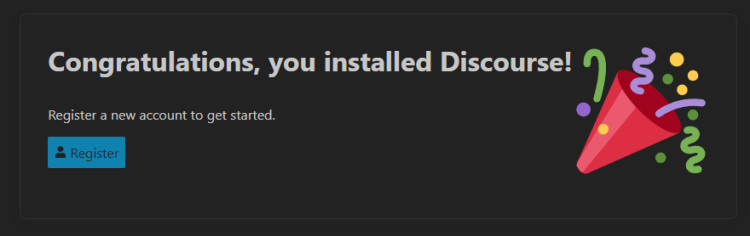
你可以在浏览器中访问 https://discourse.example.com 来打开论坛。你将看到如下界面。
点击 Register(注册)按钮继续。app.yml 文件中设置的电子邮件地址会为你预先填写。
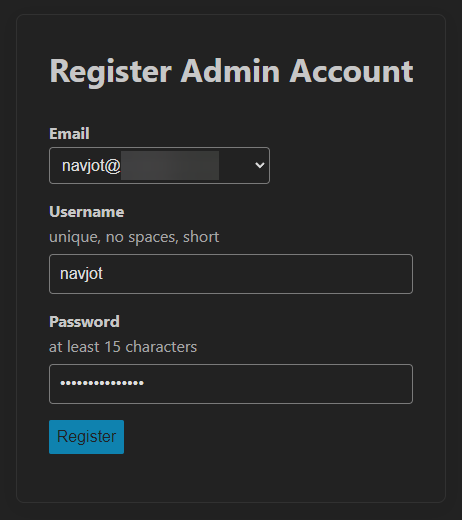
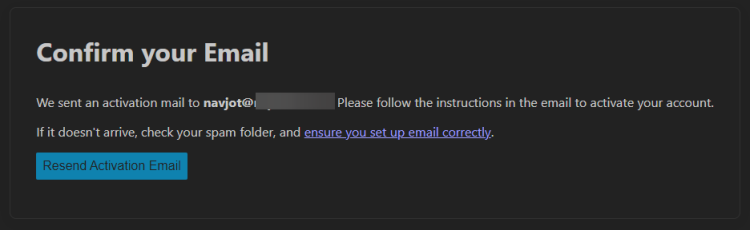
点击 Register(注册)按钮来注册管理员账户。你将进入电子邮件确认界面。
如果你的 SMTP 设置正确,你将收到一封用于激活账户的邮件。点击邮件中的链接以完成账户设置。
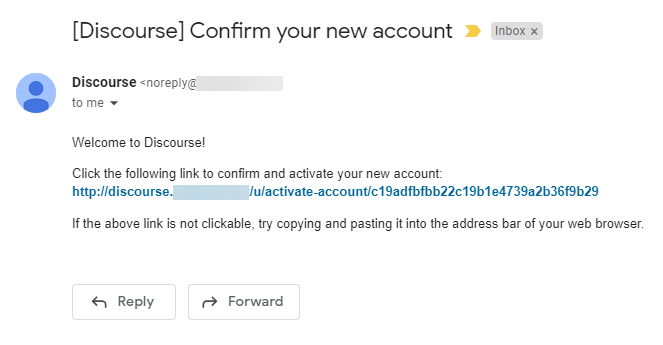
点击 Activate(激活)按钮以完成安装。

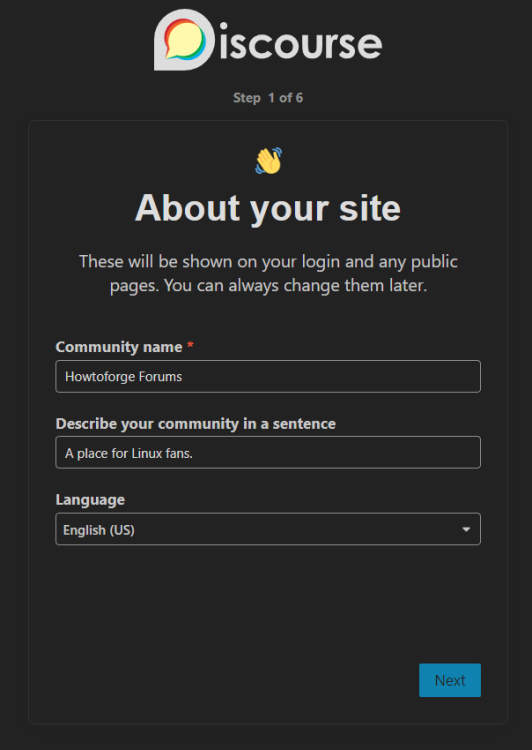
你将进入 Discourse 的安装向导界面。填写你的论坛名称和描述,并选择语言。点击 Next(下一步)按钮继续。
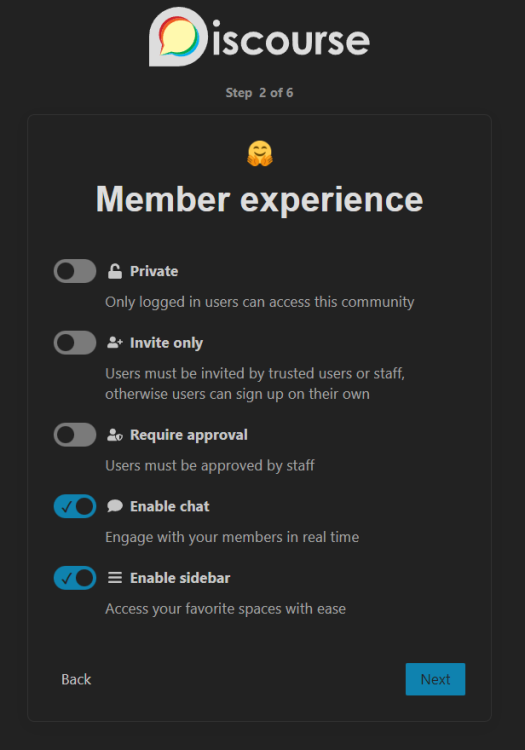
接下来,你将进入 Member Experience(成员体验)页面。根据你的需求选择相应选项,然后点击 Next(下一步)按钮继续。
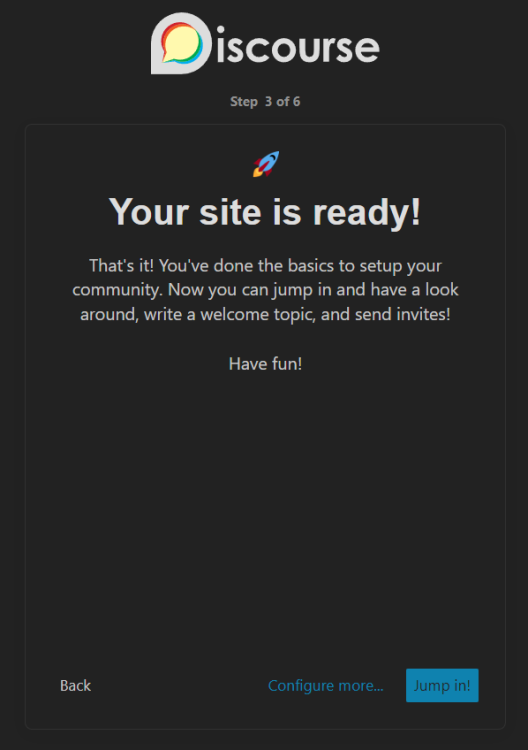
接下来,你将进入安装完成页面。你可以选择 Continue configuring(继续配置),或者直接 Jump in(开始使用)并使用论坛。这些设置之后仍可通过管理员设置进行配置。
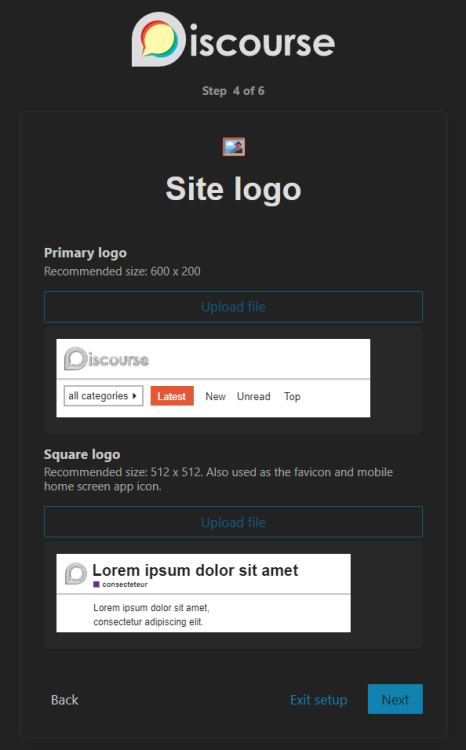
在本教程中,我们将选择 Configure more(更多配置)。你将进入相关页面,被要求设置论坛的徽标和横幅。点击 Next(下一步)按钮继续。
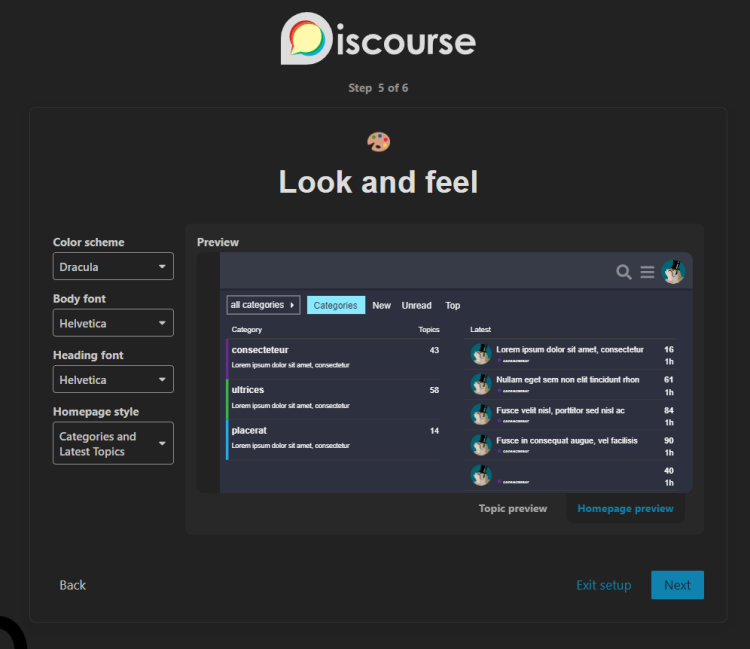
接下来,你将被要求设置论坛前端的基本样式选项。点击 Next(下一步)按钮继续。
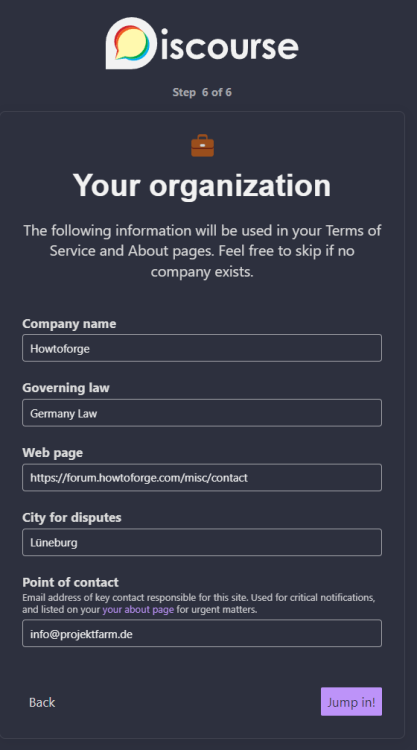
接下来,你将进入 Organization(组织)配置页面。填写相应的信息。
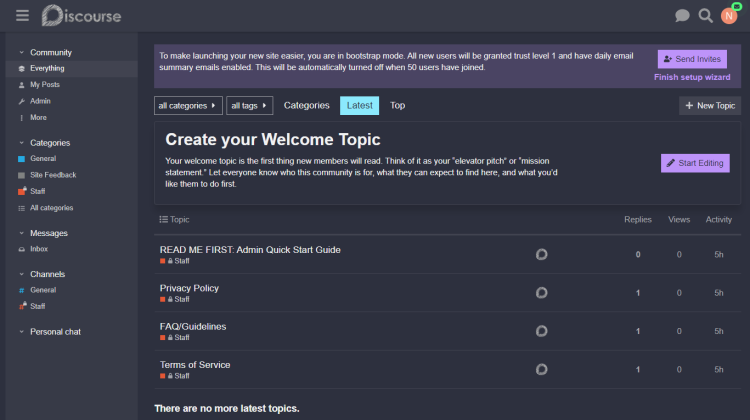
点击 Jump in!(开始使用)按钮继续。你将进入论坛首页。你的 Discourse 论坛已经准备就绪,可以使用了。
步骤 11 - Discourse 命令
通过命令行激活 Discourse 管理员
如果你没有收到激活邮件,可以通过命令行激活管理员账户。
切换到 Discourse 目录。
$ cd /var/discourse
进入 Discourse 容器 shell。
$ sudo ./launcher enter app
输入命令 rails c 以进入 Rails 命令提示符。
root@discourse-app:/var/www/discourse# rails c
你将看到如下提示符。
[1] pry(main)>
输入命令以定位管理员账户。
[1] pry(main)>  User.find_by_email("
[email protected]
")
=> #<User:0x00007fdf020229f0
 id: 1,
 username: "username",
 created_at: Fri, 20 Jan 2023 08:14:36.735552000 UTC +00:00,
 updated_at: Fri, 20 Jan 2023 14:14:12.094234000 UTC +00:00,
 name: nil,
 seen_notification_id: 4,
 last_posted_at: nil,
 password_hash: "98c774785bda45b4edbaea90eeb3bd5da00f65487ba6d0b3930082ce098bf174",
 salt: "ca175ea7f5653ce8122b76b68b549936",
 active: true,
 username_lower: "username",
 last_seen_at: Fri, 20 Jan 2023 23:01:21.001705000 UTC +00:00,
 admin: true,
 last_emailed_at: Fri, 20 Jan 2023 09:48:47.896200000 UTC +00:00,
 trust_level: 1,
 approved: false,
 approved_by_id: nil,
 approved_at: nil,
 previous_visit_at: Fri, 20 Jan 2023 21:28:23.665502000 UTC +00:00,
 suspended_at: nil,
 suspended_till: nil,
 date_of_birth: nil,
 views: 0,
 flag_level: 0,
 ip_address: #<IPAddr: IPv4:122.161.92.70/255.255.255.255>,
 moderator: false,
 title: nil,
 uploaded_avatar_id: nil,
 :
输入 q 返回提示符,然后依次输入以下命令。
[2] pry(main)> user.approved = true
[3] pry(main)> user.save
[4] pry(main)> EmailToken.confirm(user.email_tokens.first.token)
输入两次 exit 以返回 shell。你的管理员账户已激活,可以正常使用了。
备份 Discourse
默认情况下,Discourse 每 7 天备份一次数据库。你可以在 /var/discourse/shared/standalone/backups/default 目录中找到备份文件。
$ ls /var/discourse/shared/standalone/backups/default -al
total 1480
drwxr-xr-x. 2 navjot tape    4096 Jan 21 03:34 .
drwxr-xr-x. 3 navjot tape    4096 Jan 20 12:01 ..
-rw-r--r--. 1 navjot tape 1503748 Jan 21 03:34 myforum-backup-2023-01-21-033439-v20230119094939.tar.gz
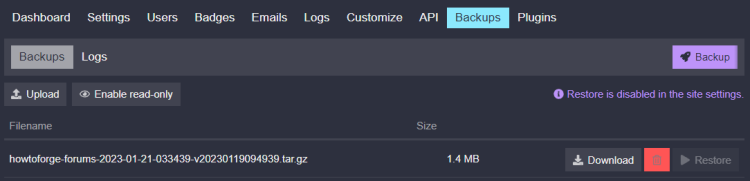
你可以通过访问 Admin >> Settings >> Backups(管理员 >> 设置 >> 备份)部分来配置备份设置。Discourse 允许你将备份存储在本地,或存储到类似 Amazon S3 的云存储中。
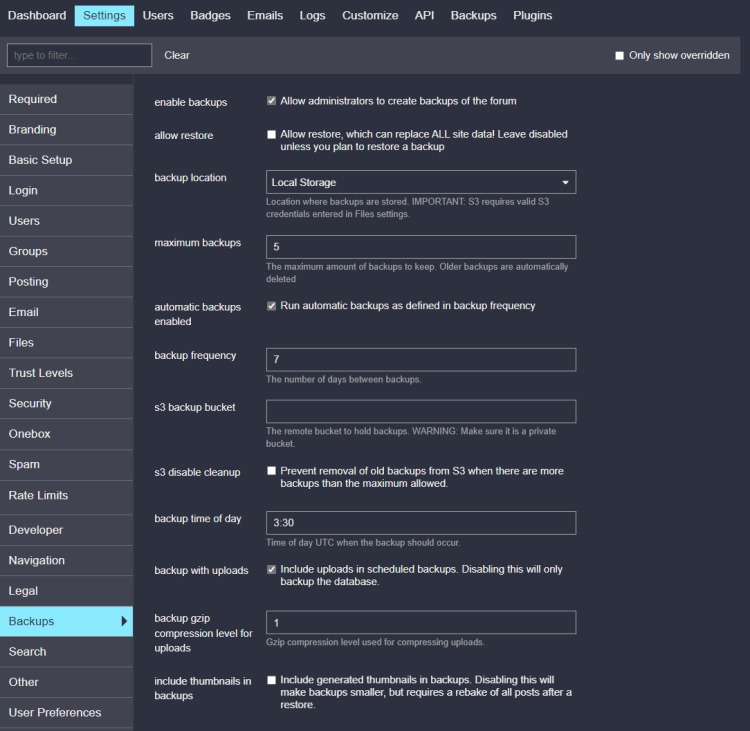
你可以从 Admin >> Backups(管理员 >> 备份)页面下载备份。恢复功能默认是禁用的。如果你要恢复数据库,需要从 Admin >> Settings >> Backups(管理员 >> 设置 >> 备份)部分启用 allow restore(允许恢复)选项。
升级 Discourse
要升级论坛,你可以使用两种方法之一。第一种是通过管理员仪表盘进行升级。第二种方法是使用命令行。
切换到 Discourse 目录。
$ cd /var/discourse
通过从 GitHub 获取最新文件来更新 Discourse 安装。
$ git pull
重新构建 Discourse。
$ sudo ./launcher rebuild app
每次你在 app.yml 文件中进行任何更改后,都需要重新构建 Discourse。修改完成后,运行上面的命令。它会销毁旧容器,引导创建一个新容器,并启动它。
停止 Discourse
$ sudo ./launcher stop app
查看 Discourse 日志
$ sudo ./launcher logs app
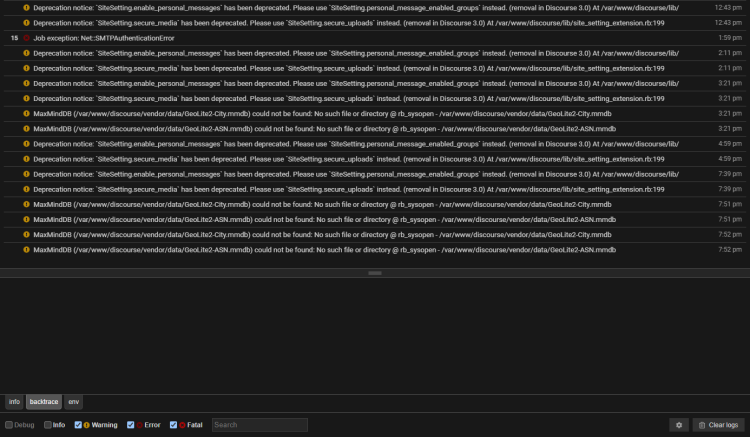
你也可以通过浏览器访问 https://discourse.example.com/logs/ 来查看详细的日志。你将看到类似的界面。
Rails / Unicorn 日志
Ruby on Rails 包含一个写入磁盘的非常详细的日志。此外,Web 服务器 unicorn 也会将日志记录到磁盘。你可以在 var/discourse/shared/standalone/log/rails 目录中查看它们。
$ ls /var/discourse/shared/standalone/log/rails -al
total 552
drwxr-xr-x. 2 navjot tape   4096 Jan 20 07:09 .
drwxr-xr-x. 4 root   root   4096 Jan 20 07:09 ..
-rw-r--r--. 1 navjot tape      0 Jan 20 07:09 production_errors.log
-rw-r--r--. 1 navjot tape 361031 Jan 21 11:46 production.log
-rw-r--r--. 1 navjot tape      0 Jan 20 07:09 sidekiq.log
-rw-r--r--. 1 navjot tape  60919 Jan 20 08:42 unicorn.stderr.log
-rw-r--r--. 1 navjot tape 119403 Jan 21 03:34 unicorn.stdout.log
Nginx 日志
Discourse 在 docker 容器内运行一个 Nginx 服务器。你可以在以下位置查看日志。
$ ls /var/discourse/shared/standalone/log/var-log/nginx -al
total 1852
drwxr-xr-x. 2   33 tape    4096 Jan 20 07:39 .
drwxrwxr-x. 5 root adm     4096 Jan 21 08:04 ..
-rw-r--r--. 1   33 tape 1878744 Jan 21 12:18 access.log
-rw-r--r--. 1   33 tape    1017 Jan 20 07:45 error.log
Redis 日志
你可以在以下位置获取 Redis 数据库服务器的日志。最新的日志条目会位于 current 文件中。
$ ls /var/discourse/shared/standalone/log/var-log/redis -al
total 140
drwxr-xr-x. 2 root root   4096 Jan 20 07:39 .
drwxrwxr-x. 5 root adm    4096 Jan 21 08:04 ..
-rw-r--r--. 1 root root 127002 Jan 21 12:17 current
-rw-------. 1 root root      0 Jan 20 07:39 lock
PostgreSQL 日志
你可以在以下位置查看 PostgreSQL 数据库日志。
ls /var/discourse/shared/standalone/log/var-log/postgres -al
total 20
drwxr-xr-x. 2 root root  4096 Jan 20 07:39 .
drwxrwxr-x. 5 root adm   4096 Jan 21 08:04 ..
-rw-r--r--. 1 root root 11400 Jan 21 03:34 current
-rw-------. 1 root root     0 Jan 20 07:39 lock
该目录中最新的条目位于 current 文件中。
其余的日志可以在 /var/discourse/shared/standalone/log/var-log 目录本身中找到。
ls /var/discourse/shared/standalone/log/var-log -al
total 100
drwxrwxr-x. 5 root adm   4096 Jan 21 08:04 .
drwxr-xr-x. 4 root root  4096 Jan 20 07:09 ..
-rw-r--r--. 1 root adm  40943 Jan 21 12:17 auth.log
-rw-r--r--. 1 root adm      0 Jan 20 08:41 kern.log
-rw-r-----. 1 root adm    750 Jan 21 08:04 messages
drwxr-xr-x. 2   33 tape  4096 Jan 20 07:39 nginx
drwxr-xr-x. 2 root root  4096 Jan 20 07:39 postgres
drwxr-xr-x. 2 root root  4096 Jan 20 07:39 redis
-rw-r--r--. 1 root adm  23041 Jan 21 12:17 syslog
-rw-r-----. 1 root adm     70 Jan 21 08:04 user.log
结论
本教程到此结束。你已经在 Rocky Linux 9 服务器上,配合 Nginx 代理 Web 服务器,使用 Docker 安装了 Discourse 论坛。如果你有任何问题,请在下方评论中留言。