
本教程适用于以下操作系统版本
- Ubuntu 24.04 (Noble Numbat)
- Ubuntu 22.04 (Jammy Jellyfish)
- Ubuntu 18.04 (Bionic Beaver)
- Ubuntu 16.04 (Xenial Xerus)
- Ubuntu 15.10 (Wily Werewolf)
- Ubuntu 15.04 (Vivid Vervet)
本页内容
- 功能特性
LAMP 是一套免费、开源且最流行的 Web 开发平台之一,它允许 Web 开发者在线构建、部署并管理网站与应用程序。它使用了四个开源组件:Linux 作为操作系统、Apache 作为 Web 服务器、MySQL 作为关系型数据库管理系统,以及 PHP/Perl/Python 作为面向对象的脚本语言。LAMP 技术栈是所有 Web 开发者的首选,因为它足以托管各种各样的网站框架,例如 Joomla、Drupal 和 WordPress。
功能特性
- LAMP 服务器免费且开源,任何人都可以下载其源代码,并进行修改与改进,从而提升其整体性能。
- 它具有可定制性。你可以将每个组件替换为其他开源方案,以满足特定应用的需求。
- 它拥有庞大的社区,因此你可以轻松获得支持。
- 它是一个成熟的技术栈,易于搭建。
本文将以向你展示如何在 Ubuntu 22.04 上安装 LAMP 服务器。
前置条件
- 一台运行 Ubuntu 22.04 的服务器。
- 至少 1 GB 内存和 5 GB 硬盘空间。
- 服务器上已配置 root 密码。
在 Ubuntu 22.04 上安装 Apache
Apache Web 服务器是 LAMP 技术栈的核心组件。默认情况下,Apache 软件包已包含在 Ubuntu 22.04 的默认软件源中。你只需运行以下命令即可轻松完成安装:
apt-get install apache2 -yApache 服务器安装完成后,使用以下命令启动并设置 Apache Web 服务开机自启:
systemctl start apache2
systemctl enable apache2
现在你可以使用以下命令检查 Apache 服务的状态:
systemctl status apache2你将在以下输出中看到 Apache 的状态:
? apache2.service - The Apache HTTP Server
     Loaded: loaded (/lib/systemd/system/apache2.service; enabled; vendor preset: enabled)
     Active: active (running) since Fri 2022-04-29 07:27:44 UTC; 4s ago
       Docs: https://httpd.apache.org/docs/2.4/
   Main PID: 923 (apache2)
      Tasks: 55 (limit: 4630)
     Memory: 5.1M
        CPU: 56ms
     CGroup: /system.slice/apache2.service
             ??923 /usr/sbin/apache2 -k start
             ??924 /usr/sbin/apache2 -k start
             ??925 /usr/sbin/apache2 -k start

Apr 29 07:27:44 ubuntu systemd[1]: Starting The Apache HTTP Server...
要查看 Apache 版本,请运行以下命令:
apache2ctl -version你将在以下输出中看到 Apache 版本:
Server version: Apache/2.4.52 (Ubuntu)
Server built:   2022-03-25T00:35:40
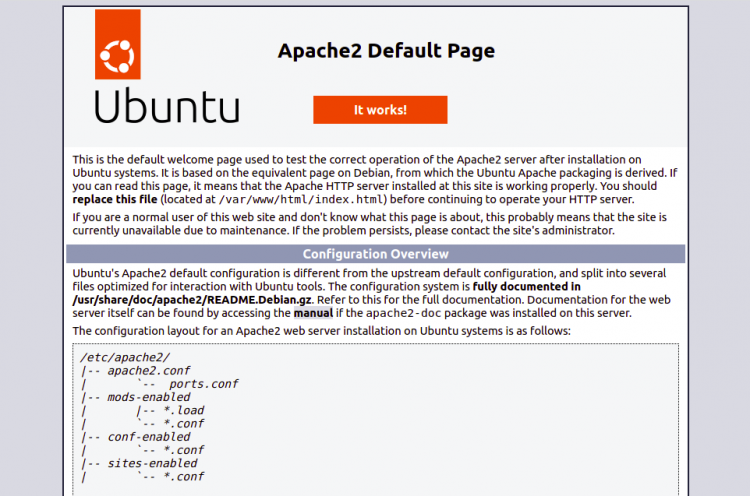
你也可以通过 Web 浏览器访问 http://your-server-ip 来测试 Apache 安装。你应该能在以下界面中看到 Apache 测试页:
完成后,你可以继续安装 PHP。
在 Ubuntu 22.04 上安装 PHP
PHP 是用于处理 PHP 页面的脚本语言。默认情况下,Ubuntu 22.04 提供最新的 PHP 8.1 版本。你可以连同其他扩展一起安装,如以下命令所示:
apt-get install php8.1 libapache2-mod-php8.1 php8.1-mysql php8.1-gd php8.1-curl php8.1-xml -yPHP 安装完成后,你可以使用以下命令验证 PHP 版本:
php --version你将在以下输出中看到 PHP 版本:
PHP 8.1.2 (cli) (built: Apr  7 2022 17:46:26) (NTS)
Copyright (c) The PHP Group
Zend Engine v4.1.2, Copyright (c) Zend Technologies
    with Zend OPcache v8.1.2, Copyright (c), by Zend Technologies
完成后,你可以继续安装 MySQL 服务器。
在 Ubuntu 22.04 上安装 MySQL 服务器
默认情况下,最新版本的 MySQL 已包含在 Ubuntu 22.04 的默认软件源中。你可以使用以下命令进行安装:
apt-get install mysql-server -yMySQL 服务器安装完成后,使用以下命令启动 MySQL 服务并设置为系统重启时自动启动:
systemctl start mysql
systemctl enable mysql
你可以使用以下命令检查 MySQL 的状态:
systemctl status mysql你将看到以下输出:
? mysql.service - MySQL Community Server
     Loaded: loaded (/lib/systemd/system/mysql.service; enabled; vendor preset: enabled)
     Active: active (running) since Fri 2022-04-29 07:43:21 UTC; 3s ago
    Process: 11468 ExecStartPre=/usr/share/mysql/mysql-systemd-start pre (code=exited, status=0/SUCCESS)
   Main PID: 11476 (mysqld)
     Status: "Server is operational"
      Tasks: 38 (limit: 4630)
     Memory: 358.2M
        CPU: 991ms
     CGroup: /system.slice/mysql.service
             ??11476 /usr/sbin/mysqld

Apr 29 07:43:20 ubuntu systemd[1]: Starting MySQL Community Server...
Apr 29 07:43:21 ubuntu systemd[1]: Started MySQL Community Server.
你也可以使用以下命令查看 MySQL 版本:
mysql --version你将看到以下输出:
mysql Ver 8.0.28-0ubuntu4 for Linux on x86_64 ((Ubuntu))
默认情况下,MySQL 并未进行安全加固,且 root 密码尚未设置。因此你需要运行以下脚本对其进行安全加固:
mysql_secure_installation如下所示设置一个新 MySQL 密码:
Securing the MySQL server deployment.

Connecting to MySQL using a blank password.

VALIDATE PASSWORD COMPONENT can be used to test passwords
and improve security. It checks the strength of password
and allows the users to set only those passwords which are
secure enough. Would you like to setup VALIDATE PASSWORD component?

Press y|Y for Yes, any other key for No:
Please set the password for root here.

New password:

Re-enter new password:
By default, a MySQL installation has an anonymous user,
allowing anyone to log into MySQL without having to have
a user account created for them. This is intended only for
testing, and to make the installation go a bit smoother.
You should remove them before moving into a production
environment.
如下所示删除匿名用户:
Remove anonymous users? (Press y|Y for Yes, any other key for No) : Y
Success.


Normally, root should only be allowed to connect from
'localhost'. This ensures that someone cannot guess at
the root password from the network.
如下所示禁止 root 用户远程登录:
Disallow root login remotely? (Press y|Y for Yes, any other key for No) : Y
Success.

By default, MySQL comes with a database named 'test' that
anyone can access. This is also intended only for testing,
and should be removed before moving into a production
environment.
如下所示删除测试数据库:
Remove test database and access to it? (Press y|Y for Yes, any other key for No) : Y
 - Dropping test database...
Success.

 - Removing privileges on test database...
Success.

Reloading the privilege tables will ensure that all changes
made so far will take effect immediately.
如下所示重新加载权限表:
Reload privilege tables now? (Press y|Y for Yes, any other key for No) : Y
Success.

All done!

Verify PHP Installation
安装完 LAMP 服务器后,你需要确认 Apache 是否能够正常处理 PHP 页面。
为此,创建一个示例 PHP 页面:
nano /var/www/html/info.php添加以下代码:
<?php
   phpinfo();
?>
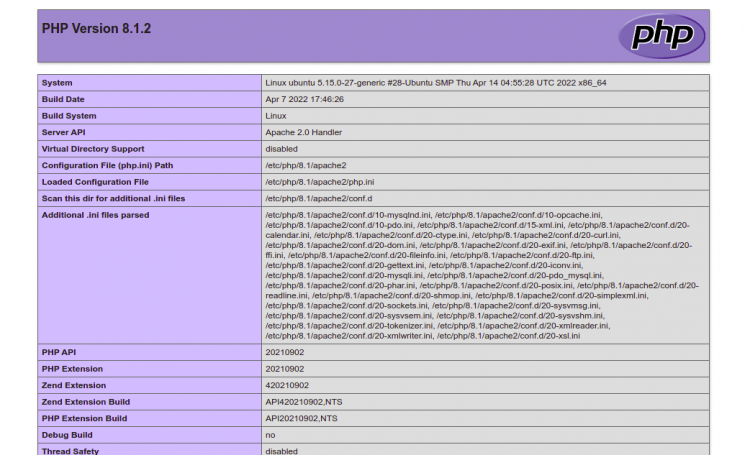
保存并关闭文件,然后打开 Web 浏览器,通过地址 http://your-server-ip/info.php 访问该 PHP 页面。你应该能在以下界面中看到 PHP 信息页:
总结
恭喜!你已成功在 Ubuntu 22.04 服务器上安装了 LAMP 服务器。现在你可以开始使用 LAMP 技术栈创建并托管自己的网站。如果你有任何问题,欢迎随时向我提问。