
本教程适用于以下操作系统版本
- Debian 12 (Bookworm)
- Debian 11 (Bullseye)
- Debian 10 (Buster)
本页内容
- 前提条件
- 步骤 1 - 配置防火墙
- 步骤 2 - 安装 OpenLiteSpeed 创建管理员密码
- 步骤 3 - 安装 MariaDB
- 步骤 4 - 安装 PHP
- 步骤 5 - 配置 MariaDB
- 步骤 6 - 配置 OpenLiteSpeed 将 HTTP 端口改回 80
- 步骤 7 - 配置 PHP 重启 PHP
- 步骤 8 - 创建虚拟主机
- 步骤 9 - 安装 SSL
- 步骤 10 - 测试站点
- 结论
- 创建管理员密码
- 将 HTTP 端口改回 80
- 重启 PHP
OpenLiteSpeed 是由 LiteSpeed Technologies 开发的 LiteSpeed Server 的轻量级开源版本。它支持 Apache 重写规则、HTTP/2 和 HTTP/3,以及 TLS v1.3 和 QUIC 协议。它自带基于 WebGUI 的管理面板,这使其与其他服务器不同,也更易于管理。
LOMP 栈是 Linux、OpenLiteSpeed、MySQL/MariaDB 和 PHP 的缩写。Litespeed 服务器以其速度著称,尤其是与 PHP 配合时,PHP 通过 LiteSpeed Server 应用程序编程接口(LSAPI)进行集成。LiteSpeed PHP(LSPHP)解释器通过 LSAPI 提供动态 PHP 页面。
在本教程中,我们将学习如何在 Debian 12 机器上安装 OpenLiteSpeed 服务器。
前提条件
- 一台运行 Debian 12 的服务器。
- 一个具有 sudo 权限的非 root 用户。
- 一个指向该服务器的完全限定域名(FQDN),例如 example.com。
- 无需禁用或配置 SELinux 即可与 OpenLiteSpeed 协同工作。
- 确保一切都已更新。 $ sudo apt update $ sudo apt upgrade
- 系统需要的一些软件包。$ sudo apt install wget curl nano ufw software-properties-common dirmngr apt-transport-https gnupg2 ca-certificates lsb-release debian-archive-keyring unzip -y 其中部分软件包可能已在你的系统上安装。
一台运行 Debian 12 的服务器。
一个具有 sudo 权限的非 root 用户。
一个指向该服务器的完全限定域名(FQDN),例如 example.com。
无需禁用或配置 SELinux 即可与 OpenLiteSpeed 协同工作。
确保一切都已更新。
$ sudo apt update
$ sudo apt upgrade
系统需要的一些软件包。
$ sudo apt install wget curl nano ufw software-properties-common dirmngr apt-transport-https gnupg2 ca-certificates lsb-release debian-archive-keyring unzip -y
其中部分软件包可能已在你的系统上安装。
步骤 1 - 配置防火墙
第一步是配置防火墙。Debian 默认附带 ufw(Uncomplicated Firewall)。
检查防火墙是否正在运行。
$ sudo ufw status
你将看到如下输出。
Status: inactive
允许 SSH 端口,以免启用防火墙时中断当前连接。
$ sudo ufw allow OpenSSH
同时允许 HTTP 和 HTTPS 端口。
$ sudo ufw allow http
$ sudo ufw allow https
开放与 OpenLiteSpeed 相关的端口。
$ sudo ufw allow 7080/tcp
启用防火墙
$ sudo ufw enable
Command may disrupt existing ssh connections. Proceed with operation (y|n)? y
Firewall is active and enabled on system startup
再次检查防火墙的状态。
$ sudo ufw status
你应该会看到类似的输出。
Status: active

To                         Action      From
--                         ------      ----
OpenSSH                    ALLOW       Anywhere
80/tcp                     ALLOW       Anywhere
443                        ALLOW       Anywhere
7080/tcp                   ALLOW       Anywhere
OpenSSH (v6)               ALLOW       Anywhere (v6)
80/tcp (v6)                ALLOW       Anywhere (v6)
443 (v6)                   ALLOW       Anywhere (v6)
7080/tcp (v6)              ALLOW       Anywhere (v6)
步骤 2 - 安装 OpenLiteSpeed
OpenLiteSpeed 并未为 Debian 12 提供软件包。因此,我们将从源代码构建自己的副本。
下载 OpenLiteSpeed 源代码文件。你可以从 OpenLiteSpeed 官方下载页面获取最新源代码文件的链接。
$ wget https://openlitespeed.org/packages/openlitespeed-1.7.18.src.tgz
解压文件。
$ tar -zxf openlitespeed-*.tgz
切换到解压后的目录。
$ cd openlitespeed-1.7.18
构建服务器软件包。
$ sudo ./build.sh
你可能需要等待 5-10 分钟让该过程完成。请忽略过程中出现的任何警告。完成后你将看到如下输出。
[100%] Linking CXX shared library modpagespeed.so
/usr/bin/ld: warning: 140.x25519-asm-x86_64.o.o: missing .note.GNU-stack section implies executable stack
/usr/bin/ld: NOTE: This behaviour is deprecated and will be removed in a future version of the linker
[100%] Built target modpagespeed
Start to pack files.
-e Building finished, please run ./install.sh for installation.
-e You may want to update the ols.conf to change the settings before installation.
-e Enjoy.
过程完成后,打开 ols.conf 文件进行编辑。
$ sudo nano ols.conf
按照下方所示编辑该文件。
#If you want to change the default values, please update this file.
#

SERVERROOT=/usr/local/lsws
OPENLSWS_USER=nobody
OPENLSWS_GROUP=nobody
OPENLSWS_ADMIN=navjot

[email protected]

OPENLSWS_ADMINSSL=yes
OPENLSWS_ADMINPORT=7080
USE_LSPHP7=yes
DEFAULT_TMP_DIR=/tmp/lshttpd
PID_FILE=/tmp/lshttpd/lshttpd.pid
OPENLSWS_EXAMPLEPORT=8088

#You can set password here
#OPENLSWS_PASSWORD=
不要在此处添加你的密码。我们稍后将使用命令行设置密码。完成后,按 Ctrl + X 并在提示时输入 Y 保存文件。
OpenLiteSpeed 已构建完成,接下来我们安装它。
$ sudo ./install.sh
安装脚本会为服务器安装并启用 lsws 服务。完成后你将看到如下输出。
Updating webcache manager, please waiting ...
Downloading latest shared code tar file...
Checking tar file md5...
Removing existing shared code directory...
Extracting downloaded shared code...
Removing local shared code tar file...
Updating lscmctl script...
Done!

-e Installation finished, Enjoy!

-e Your webAdmin password is kXjWTl5j, written to file /usr/local/lsws/adminpasswd.
启动 OpenLiteSpeed 服务器。
$ sudo systemctl start lsws
检查服务状态。
$ sudo systemctl status lsws
? lsws.service - LSB: lshttpd
     Loaded: loaded (/etc/init.d/lsws; generated)
     Active: active (running) since Wed 2023-09-27 15:55:13 UTC; 4h 18min ago
       Docs: man:systemd-sysv-generator(8)
      Tasks: 4 (limit: 4652)
     Memory: 79.2M
        CPU: 37.823s
     CGroup: /system.slice/lsws.service
             ??64164 "openlitespeed (lshttpd - main)"
             ??64171 "openlitespeed (lscgid)"
             ??64184 "openlitespeed (lshttpd - #01)"
             ??64185 "openlitespeed (lshttpd - #02)"

Sep 27 15:55:11 lomp systemd[1]: Starting lsws.service - LSB: lshttpd...
Sep 27 15:55:13 lomp systemd[1]: Started lsws.service - LSB: lshttpd.
检查已安装服务器的版本。
$ /usr/local/lsws/bin/lshttpd -v
LiteSpeed/1.7.18 Open (BUILD built: Tue Aug 29 12:59:39 UTC 2023)
        module versions:
        lsquic 3.2.0
        modgzip 1.1
        cache 1.64
        mod_security 1.4 (with libmodsecurity v3.0.9)
创建管理员密码
你可以使用安装过程中提供的管理员密码。不过,你应该通过重置来创建自己的密码。运行密码重置脚本。
$ sudo /usr/local/lsws/admin/misc/admpass.sh
你将看到如下输出。选择你的用户名并设置强密码。
Please specify the user name of administrator.
This is the user name required to login the administration Web interface.

User name [admin]: navjot

Please specify the administrator's password.
This is the password required to login the administration Web interface.

Password:
Retype password:
Administrator's username/password is updated successfully!
你现在可以使用新的管理员密码了。
打开 http://
你应该会看到登录页面。
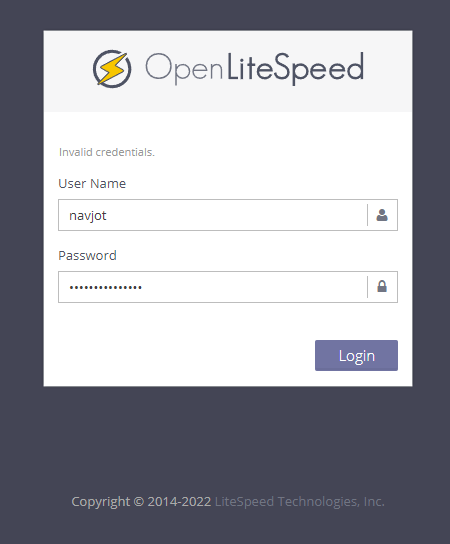
输入你之前设置的凭据,然后按“Login”按钮继续。
你将看到如下界面。
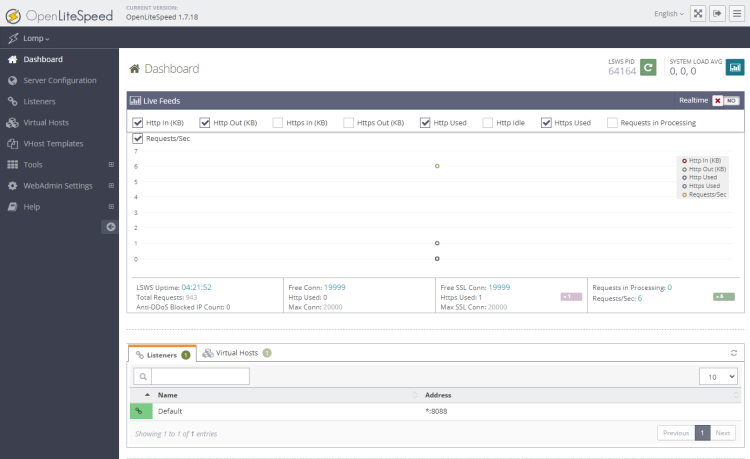
步骤 3 - 安装 MariaDB
Debian 不再随附 MySQL 服务器。因此,我们将使用 MySQL 的替代产品 MariaDB。但在继续之前,我们需要更新 LiteSpeed 仓库。通过安装程序添加的 Litespeed 仓库无法正常工作。
打开 /etc/apt/sources.list.d/lst_debian_repo.list 文件进行编辑。
$ sudo nano /etc/apt/sources.list.d/lst_debian_repo.list
通过添加 Debian 11(bullseye)来更改文件内容。我们不能使用 Debian 12(bookworm),因为该仓库尚未为其更新。
deb http://rpms.litespeedtech.com/debian/ bullseye main
完成后,按 Ctrl + X 并在提示时输入 Y 保存文件。
安装 MariaDB 服务器。
$ sudo apt install mariadb-server
MariaDB 服务在安装后自动启动并运行。
检查服务状态。
$ sudo systemctl status mariadb
你将看到如下输出。
? mariadb.service - MariaDB 10.11.3 database server
     Loaded: loaded (/lib/systemd/system/mariadb.service; enabled; preset: enabled)
     Active: active (running) since Fri 2023-09-29 01:21:09 UTC; 1min 26s ago
       Docs: man:mariadbd(8)
             https://mariadb.com/kb/en/library/systemd/
   Main PID: 361450 (mariadbd)
     Status: "Taking your SQL requests now..."
      Tasks: 10 (limit: 4652)
     Memory: 190.8M
        CPU: 411ms
     CGroup: /system.slice/mariadb.service
             ??361450 /usr/sbin/mariadbd
运行 MariaDB 安全脚本。
$ sudo mariadb-secure-installation
系统会要求输入 root 密码。直接按 Enter,因为我们尚未为其设置任何密码。
NOTE: RUNNING ALL PARTS OF THIS SCRIPT IS RECOMMENDED FOR ALL MariaDB
      SERVERS IN PRODUCTION USE!  PLEASE READ EACH STEP CAREFULLY!

In order to log into MariaDB to secure it, we'll need the current
password for the root user. If you've just installed MariaDB, and
haven't set the root password yet, you should just press enter here.

Enter current password for root (enter for none):
接下来,系统会询问你是否要切换到 Unix socket 认证方式。unix_socket 插件允许你使用操作系统凭据连接到 MariaDB 服务器。由于你已经拥有一个受保护的 root 账户,输入 n 继续。
OK, successfully used password, moving on...

Setting the root password or using the unix_socket ensures that nobody
can log into the MariaDB root user without the proper authorisation.

You already have your root account protected, so you can safely answer 'n'.

Switch to unix_socket authentication [Y/n] n
接下来,系统会询问你是否要更改 root 密码。在 Debian 12 上,root 密码与自动化系统维护紧密相关,因此应保持原样。输入 n 继续。
 ... skipping.

You already have your root account protected, so you can safely answer 'n'.

Change the root password? [Y/n] n
接下来,系统会询问一些问题以增强 MariaDB 安全性。输入 Y 以删除匿名用户、禁止 root 远程登录、删除测试数据库并重新加载权限表。
 ... skipping.

By default, a MariaDB installation has an anonymous user, allowing anyone
to log into MariaDB without having to have a user account created for
them.  This is intended only for testing, and to make the installation
go a bit smoother.  You should remove them before moving into a
production environment.

Remove anonymous users? [Y/n] y
 ... Success!

Normally, root should only be allowed to connect from 'localhost'.  This
ensures that someone cannot guess at the root password from the network.

Disallow root login remotely? [Y/n] y
 ... Success!

By default, MariaDB comes with a database named 'test' that anyone can
access.  This is also intended only for testing, and should be removed
before moving into a production environment.

Remove test database and access to it? [Y/n] y
 - Dropping test database...
 ... Success!
 - Removing privileges on test database...
 ... Success!

Reloading the privilege tables will ensure that all changes made so far
will take effect immediately.

Reload privilege tables now? [Y/n] y
 ... Success!

Cleaning up...

All done!  If you've completed all of the above steps, your MariaDB
installation should now be secure.

Thanks for using MariaDB!
你可以在命令行中输入 sudo mysql 或 sudo mariadb 进入 MariaDB shell。
步骤 4 - 安装 PHP
由于我们是从源代码构建的软件包,它会编译并构建一个不推荐使用的旧版本 PHP。你可以通过以下命令进行检查。
$ /usr/local/lsws/fcgi-bin/lsphp -v
PHP 5.6.40 (litespeed) (built: May 10 2023 23:03:31)
Copyright (c) 1997-2016 The PHP Group
Zend Engine v2.6.0, Copyright (c) 1998-2016 Zend Technologies
因此,我们需要构建并安装最新版本的 PHP。但在继续之前,我们需要安装构建工具。
$ sudo apt install build-essential autoconf libtool bison re2c pkg-config
下一步是安装 PHP 构建过程所需的软件包。
$ sudo apt install libssl-dev libsqlite3-dev zlib1g-dev libcurl4-openssl-dev libonig-dev libzip-dev libmemcached-dev libreadline-dev libgmp-dev libpng-dev libjpeg-dev libwebp-dev libxpm-dev libicu-dev libfreetype6-dev libxslt-dev libldb-dev libtidy-dev libvips-dev libsodium-dev libavif-dev libldap2-dev libxml2-dev libkrb5-dev libc-client2007e-dev libpq-dev libargon2-0 libargon2-dev libbz2-dev libffi-dev libc-client-dev libpspell-dev flex libgmp3-dev libmcrypt-dev libmhash-dev freetds-dev libmariadb-dev libmariadb-dev-compat libncurses5-dev libpcre3-dev libaspell-dev librecode-dev libsnmp-dev
接下来,下载 PHP 源代码。我们将下载撰写本文时可用的最新版本 PHP 8.2.10。
$ cd ~
$ wget https://www.php.net/distributions/php-8.2.11.tar.gz
解压文件。
$ tar -xzf php-8.2.11.tar.gz
切换到下载的目录。
$ cd php-8.2.11
接下来,使用以下选项运行 configure 脚本。--enable-litespeed 选项是必需的。
$ sudo ./configure --prefix=/usr/local/lsws/lsphp82 --enable-bcmath --enable-calendar --enable-exif --enable-ftp --enable-gd --enable-intl --enable-mbregex --enable-mbstring --enable-mysqlnd --enable-opcache --enable-shmop --enable-soap --enable-sockets --enable-sysvsem --enable-sysvshm --with-avif --with-curl --with-ffi --with-freetype --with-gettext --with-gmp --with-imap --with-imap-ssl --with-jpeg --with-kerberos --with-libxml --with-ldap --with-mysqli --with-mysql-sock=/run/mysqld/mysqld.sock --with-openssl --with-password-argon2 --with-pdo-mysql=mysqlnd --with-pdo-pgsql=/usr/bin/pg_config --with-pear --with-pspell --with-readline --with-sodium --with-tidy --with-webp --with-xpm --with-xsl --with-zip --with-zlib --enable-litespeed
脚本完成后,你应该会看到如下输出。
+--------------------------------------------------------------------+
| License:                                                           |
| This software is subject to the PHP License, available in this     |
| distribution in the file LICENSE. By continuing this installation  |
| process, you are bound by the terms of this license agreement.     |
| If you do not agree with the terms of this license, you must abort |
| the installation process at this point.                            |
+--------------------------------------------------------------------+

Thank you for using PHP.
编译源代码。
$ sudo make -j $(nproc)
完成后你将收到类似的输出。
/bin/bash /home/navjot/php-8.2.11/libtool --silent --preserve-dup-deps --tag CC --mode=link cc -shared -I/home/navjot/php-8.2.11/include -I/home/navjot/php-8.2.11/main -I/home/navjot/php-8.2.11 -I/home/navjot/php-8.2.11/ext/date/lib -I/usr/include/libxml2 -I/usr/include/x86_64-linux-gnu -I/usr/include/libpng16 -I/usr/include/freetype2 -I/usr/include/c-client -I/home/navjot/php-8.2.11/ext/mbstring/libmbfl -I/home/navjot/php-8.2.11/ext/mbstring/libmbfl/mbfl -I/usr/include/postgresql -I/usr/include/pspell -I/usr/include/tidy -I/home/navjot/php-8.2.11/TSRM -I/home/navjot/php-8.2.11/Zend  -D_GNU_SOURCE -I/usr/include/c-client  -fno-common -Wstrict-prototypes -Wformat-truncation -Wlogical-op -Wduplicated-cond -Wno-clobbered -Wall -Wextra -Wno-strict-aliasing -Wno-unused-parameter -Wno-sign-compare -g -O2 -fvisibility=hidden -Wimplicit-fallthrough=1 -DZEND_SIGNALS     -o ext/opcache/opcache.la -export-dynamic -avoid-version -prefer-pic -module -rpath /home/navjot/php-8.2.11/modules -L/usr/lib/x86_64-linux-gnu/mit-krb5 -L/usr/lib/x86_64-linux-gnu ext/opcache/ZendAccelerator.lo ext/opcache/zend_accelerator_blacklist.lo ext/opcache/zend_accelerator_debug.lo ext/opcache/zend_accelerator_hash.lo ext/opcache/zend_accelerator_module.lo ext/opcache/zend_persist.lo ext/opcache/zend_persist_calc.lo ext/opcache/zend_file_cache.lo ext/opcache/zend_shared_alloc.lo ext/opcache/zend_accelerator_util_funcs.lo ext/opcache/shared_alloc_shm.lo ext/opcache/shared_alloc_mmap.lo ext/opcache/shared_alloc_posix.lo ext/opcache/jit/zend_jit.lo ext/opcache/jit/zend_jit_gdb.lo ext/opcache/jit/zend_jit_vm_helpers.lo -lrt
/bin/bash /home/navjot/php-8.2.11/libtool --silent --preserve-dup-deps --tag CC --mode=install cp ext/opcache/opcache.la /home/navjot/php-8.2.11/modules

Build complete.
Don't forget to run 'make test'.
完成后,运行以下命令尝试检查版本。
$ ./sapi/litespeed/php -v
PHP 8.2.11 (litespeed) (built: Sep 28 2023 18:40:08)
Copyright (c) The PHP Group
Zend Engine v4.2.11, Copyright (c) Zend Technologies
安装 PHP。
$ sudo make install
你将看到如下输出。
Installing shared extensions:     /usr/local/lsws/lsphp82/lib/php/extensions/no-debug-non-zts-20220829/
Installing PHP CLI binary:        /usr/local/lsws/lsphp82/bin/
Installing PHP CLI man page:      /usr/local/lsws/lsphp82/php/man/man1/
Installing PHP LiteSpeed binary:  /usr/local/lsws/lsphp82/bin/
Installing phpdbg binary:         /usr/local/lsws/lsphp82/bin/
Installing phpdbg man page:       /usr/local/lsws/lsphp82/php/man/man1/
Installing PHP CGI binary:        /usr/local/lsws/lsphp82/bin/
Installing PHP CGI man page:      /usr/local/lsws/lsphp82/php/man/man1/
Installing build environment:     /usr/local/lsws/lsphp82/lib/php/build/
Installing header files:          /usr/local/lsws/lsphp82/include/php/
Installing helper programs:       /usr/local/lsws/lsphp82/bin/
  program: phpize
  program: php-config
Installing man pages:             /usr/local/lsws/lsphp82/php/man/man1/
  page: phpize.1
  page: php-config.1
Installing PEAR environment:      /usr/local/lsws/lsphp82/lib/php/
[PEAR] Archive_Tar    - installed: 1.4.14
[PEAR] Console_Getopt - installed: 1.4.3
[PEAR] Structures_Graph- installed: 1.1.1
[PEAR] XML_Util       - installed: 1.4.5
warning: pear/PEAR dependency package "pear/Archive_Tar" installed version 1.4.14 is not the recommended version 1.4.4
[PEAR] PEAR           - installed: 1.10.13
Wrote PEAR system config file at: /usr/local/lsws/lsphp82/etc/pear.conf
You may want to add: /usr/local/lsws/lsphp82/lib/php to your php.ini include_path
Installing PDO headers:           /usr/local/lsws/lsphp82/include/php/ext/pdo/
验证 PHP 安装。/usr/local/lsws/lsphp82/bin 目录下有两个可用的 PHP 二进制文件。一个是普通的 php(命令行版本),另一个是 Litespeed 版本的 lsphp。我们将使用的是第二个。
$ /usr/local/lsws/lsphp82/bin/lsphp -v
PHP 8.2.11 (litespeed) (built: Sep 28 2023 18:40:08)
Copyright (c) The PHP Group
Zend Engine v4.2.11, Copyright (c) Zend Technologies
你可以查看已启用的 PHP 模块列表。
$ /usr/local/lsws/lsphp82/bin/php --modules
[PHP Modules]
bcmath
calendar
Core
ctype
curl
date
dom
exif
FFI
fileinfo
filter
ftp
gd
gettext
gmp
hash
iconv
imap
intl
json
ldap
libxml
mbstring
mysqli
mysqlnd
openssl
pcre
PDO
pdo_mysql
pdo_pgsql
pdo_sqlite
Phar
posix
pspell
random
readline
Reflection
session
shmop
SimpleXML
soap
sockets
sodium
SPL
sqlite3
standard
sysvsem
sysvshm
tidy
tokenizer
xml
xmlreader
xmlwriter
xsl
zip
zlib

[Zend Modules]
将 php.ini-production 从安装文件夹复制到 /usr/local/lsws/lsphp82/lib 文件夹。
$ sudo cp php.ini-production /usr/local/lsws/lsphp82/lib/php.ini
我们稍后将配置 OpenLiteSpeed 以配合 PHP 工作。
打开 php.ini 进行编辑。
$ sudo nano /usr/local/lsws/lsphp82/lib/php.ini
找到 include_path 变量,并按如下所示更改其值。
$ ;;;;;;;;;;;;;;;;;;;;;;;;;
; Paths and Directories ;
;;;;;;;;;;;;;;;;;;;;;;;;;

; UNIX: "/path1:/path2"
include_path = /usr/local/lsws/lsphp82/lib/php
完成后,按 Ctrl + X 并在提示时输入 Y 保存文件。
步骤 5 - 配置 MariaDB
登录到 MariaDB shell。
$ sudo mysql
创建一个测试数据库。将 testdb 替换为你选择的合适数据库名称。
mysql> CREATE DATABASE testdb;
创建一个测试用户。将 testuser 替换为合适的用户名。将 Your_Password123 替换为强密码。
mysql> CREATE USER 'testuser'@'localhost' IDENTIFIED BY 'Your_Password123';
将该数据库的所有权限授予该用户。
mysql> GRANT ALL PRIVILEGES ON testdb.* TO 'testuser'@'localhost';
由于我们未修改 root 用户,你应该创建另一个用于执行管理任务的 SQL 用户,并采用密码认证。为该用户选择一个强密码。
MariaDB> GRANT ALL ON *.* TO 'navjot'@'localhost' IDENTIFIED BY 'Yourpassword32!' WITH GRANT OPTION;
刷新用户权限。
mysql> FLUSH PRIVILEGES;
退出 MySQL shell。
mysql> exit
步骤 6 - 配置 OpenLiteSpeed
将 HTTP 端口改回 80
让我们将默认 HTTP 端口改为 80。使用你刚刚创建的凭据登录位于 http://
从左侧访问 Listeners 部分。你将看到端口为 8080 的默认监听器。
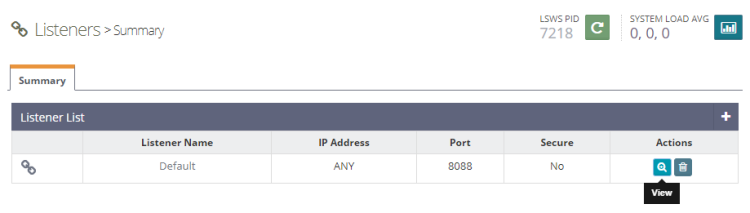
点击 View 按钮查看详细配置。在下一页的 Listener Default > General Page 下,点击 Edit 图标,并将端口从 8080 改为 80。
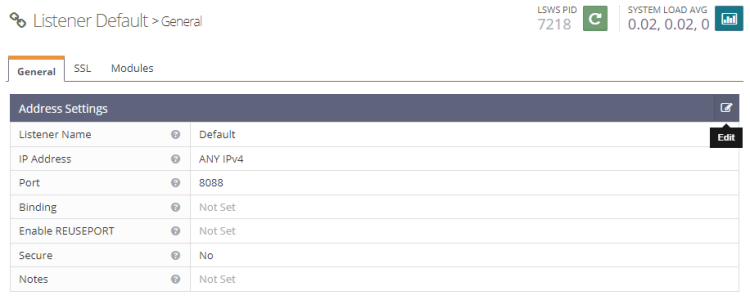
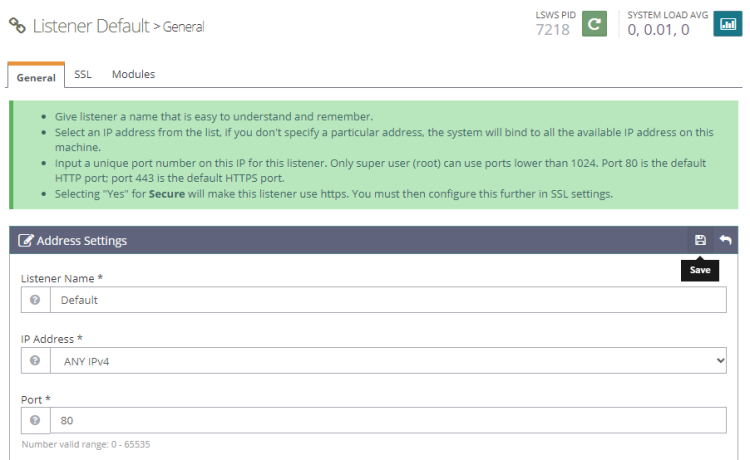
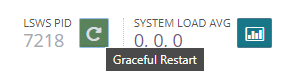
点击 Save,然后点击 Graceful restart 按钮重启服务器。
步骤 7 - 配置 PHP
在此步骤中,我们需要将我们自己的 PHP 8.2 与服务器关联。
点击左侧的 Server Configuration 部分,然后点击 External App 选项卡。你将看到已有的用于 PHP 的 LiteSpeed App。我们将对其进行一些修改。
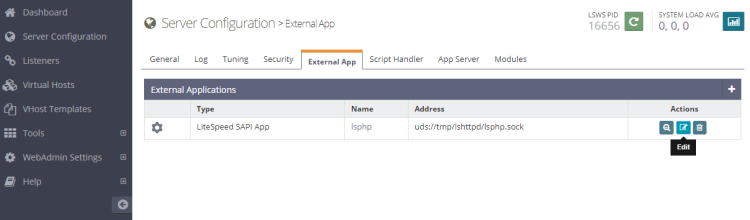
点击 Edit 按钮编辑 PHP 应用。
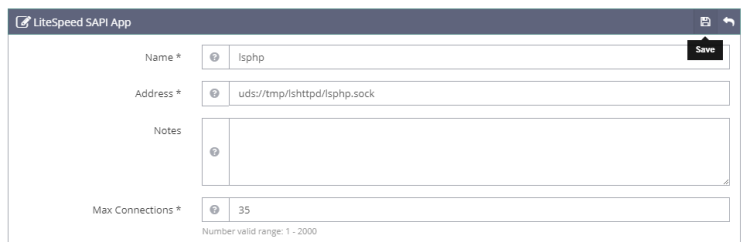
接下来,按照下方所示匹配配置。将所有其他字段留空。
Name: lsphp
Address: uds://tmp/lshttpd/lsphp.sock
Max Connections: 35
Environment: PHP_LSAPI_MAX_REQUESTS=500
             PHP_LSAPI_CHILDREN=35
             LSAPI_AVOID_FORK=200M
Initial Request Timeout (secs): 60
Retry Timeout : 0
Persistent Connection: Yes
Response Buffering: no
Start By Server: Yes(Through CGI Daemon)
Command: lsphp82/bin/lsphp
Back Log: 100
Instances: 1
Priority: 0
Memory Soft Limit (bytes): 2047M
Memory Hard Limit (bytes): 2047M
Process Soft Limit: 1400
Process Hard Limit: 1500
完成后点击 Save。
现在我们已创建了自己的 PHP 8.2 应用,需要让服务器开始使用它。由于我们编辑了默认监听器,它已经配置好了。点击 Graceful restart 按钮重启服务器。
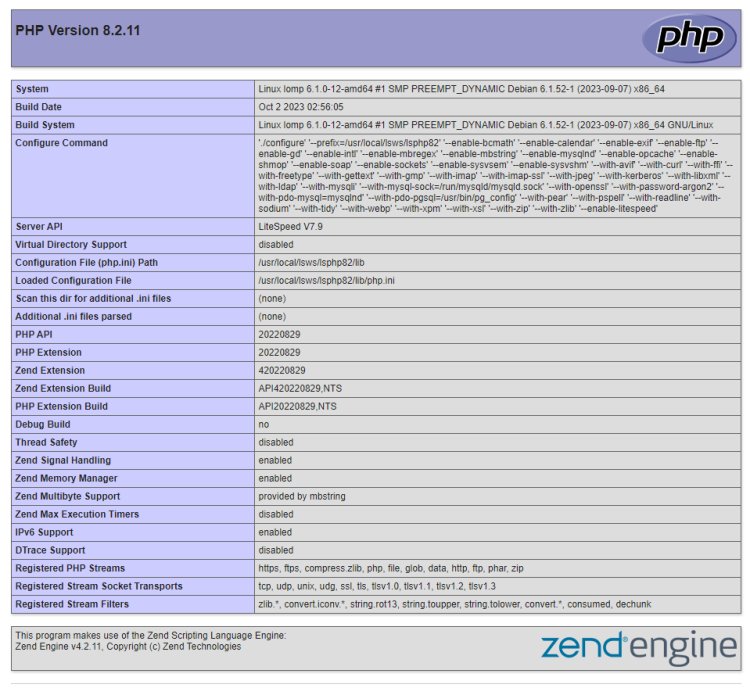
要测试你的 PHP 是否已正确切换,请在浏览器中访问 http://
重启 PHP
在 OpenLiteSpeed 上,如果你编辑了 php.ini 或安装了新的 PHP 模块,重启服务器不会显示更改。为此你需要重启 PHP 进程。首先,你需要找到 lsphp 进程的进程 ID。
$ ps aux | grep lsphp
nobody    500747  0.9  0.8 121104 34928 ?        S    05:58   0:00 lsphp
nobody    500748  0.0  0.4 121104 16760 ?        Ss   05:58   0:00 lsphp
navjot    500751  0.0  0.0   3876  1908 pts/0    S+   05:58   0:00 grep lsphp
手动结束 lsphp 进程。
$ sudo kill -9 500747
$ sudo kill -9 500748
重启服务器。
$ sudo systemctl restart lsws
步骤 8 - 创建虚拟主机
首先,我们需要为虚拟主机创建目录。
$ sudo mkdir /usr/local/lsws/example.com/{html,logs} -p
html 目录用于存放公共文件,logs 目录用于存放服务器日志。
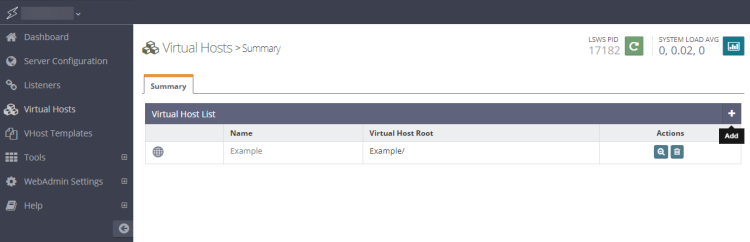
接下来,打开管理控制台,从左侧访问 Virtual Hosts 部分,然后点击 Add 按钮。
按指定内容填写各值
Virtual Host Name: example.com
Virtual Host Root: $SERVER_ROOT/example.com/
Config File: $SERVER_ROOT/conf/vhosts/$VH_NAME/vhconf.conf
Follow Symbolic Link: Yes
Enable Scripts/ExtApps: Yes
Restrained: Yes
External App Set UID Mode: Server UID
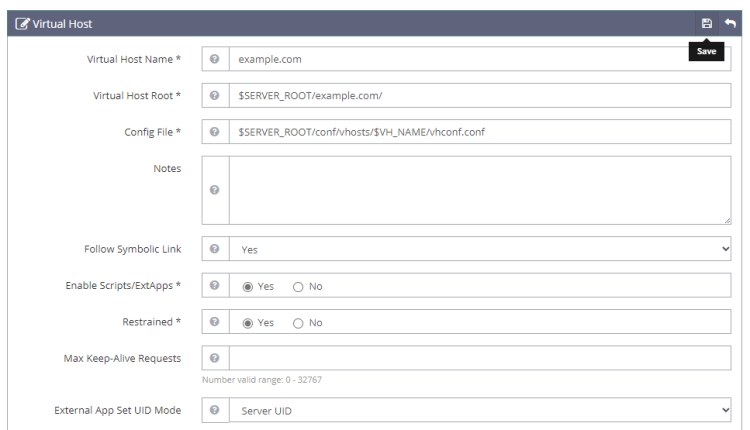
完成后点击 Save 按钮。由于配置文件目前尚不存在,你将看到如下错误。点击链接以创建配置文件。
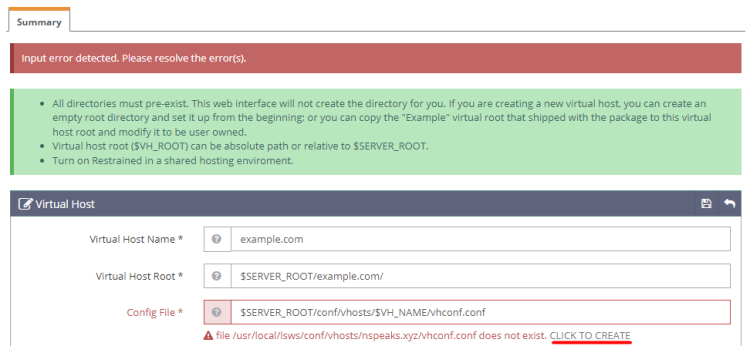
再次点击 Save 按钮以完成虚拟主机的创建。
虚拟主机创建完成后,进入 Virtual Hosts -> Choose Virtual Host(example.com) -> General,并按给定的内容修改配置。
Document Root: $VH_ROOT/html/
Domain Name: example.com
Enable GZIP Compression: Yes
Enable Brotli Compression: Yes
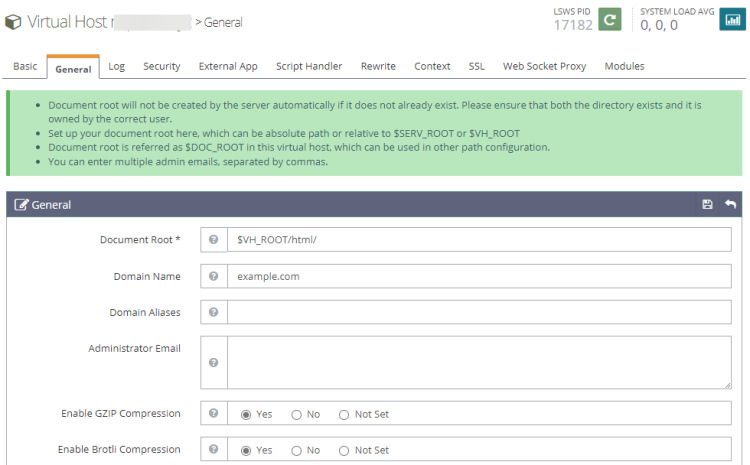
完成后点击 Save 按钮。接下来,我们需要设置索引文件。点击 General 部分下方 Index files 对应的编辑按钮。设置以下选项。
Use Server Index Files: No
Index files: index.php, index.html, index.htm
Auto Index: No
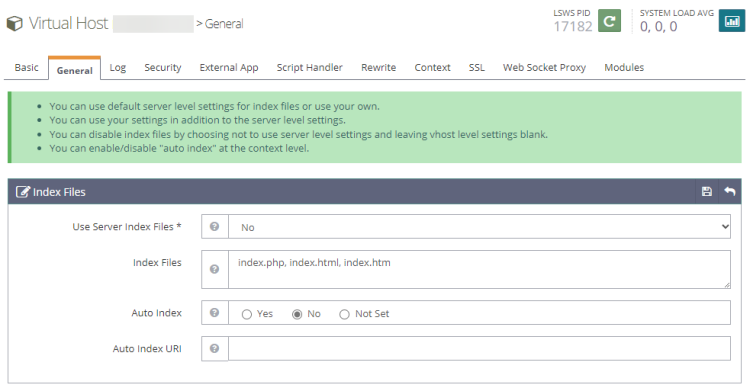
完成后点击 Save。接下来,我们需要选择日志文件。进入 Log 部分,点击 Virtual Host Log 对应的 Edit,并填写以下值。其他设置保持不变。
Use Server’s Log: Yes
File Name: $VH_ROOT/logs/error.log
Log Level: ERROR
Rolling Size (bytes): 10M
Keep Days: 30
Compress Archive: Not Set
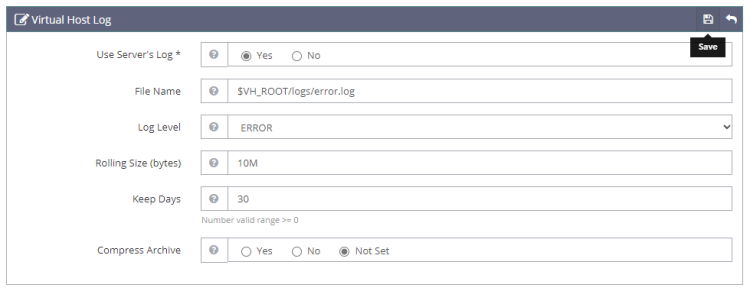
如果你在开发机器上,可以将 Log Level 选择为 DEBUG。
点击 Save,然后点击 Access Log 部分的加号以添加新条目。填写以下值。
Log Control: Own Log File
File Name: $VH_ROOT/logs/access.log
Piped Logger: Not Set
Log Format: Not Set
Log Headers: Not Set
Rolling Size (bytes): 10M
Keep Days: 30
Compress Archive: Not Set
Bytes log: Not Set
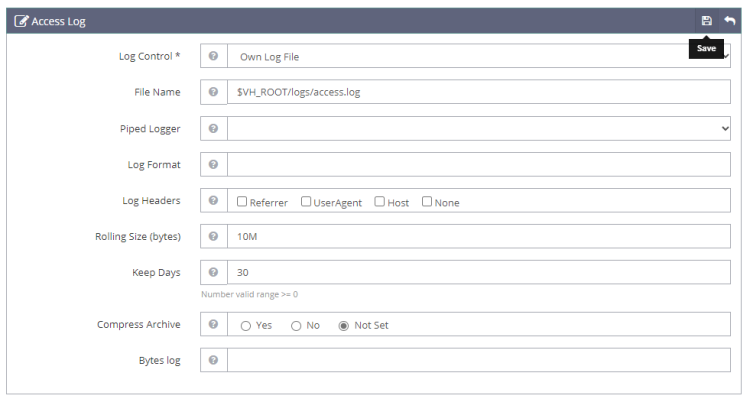
完成后点击 Save。接下来,我们需要在 Security 部分下配置 Access Control。设置以下值。
Allowed List: *
Denied List: Not set
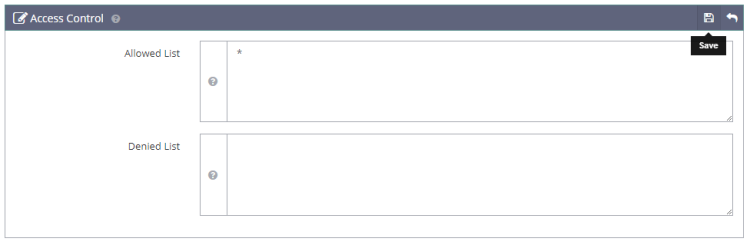
完成后点击 Save。接下来,我们需要设置 Script Handler Definition。点击加号(+)添加新的定义。设置以下值。
Suffixes: php
Handler Type: LiteSpeed SAPI
Handler Name: [Server Level]: lsphp
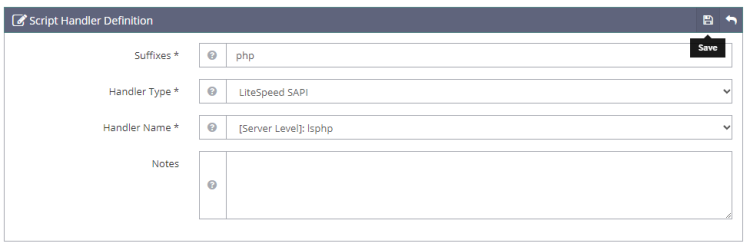
完成后点击 Save。接下来,我们需要在 Rewrite 部分下设置 Rewrite Control。设置以下值。
Enable Rewrite: Yes
Auto Load from .htaccess: Yes
Log Level: Not Set
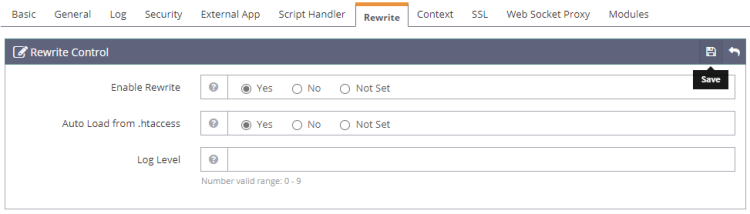
完成后点击 Save。最后,我们需要设置 Listeners。进入 Listeners 部分,点击 Default Listener 对应的 View 按钮。然后,点击 Virtual Host Mappings 对应的 Add 按钮以添加新的映射,并设置以下值。
Virtual Host: example.com
Domains: example.com

完成后点击 Save。现在,点击 Graceful restart 按钮以应用上述所有更改并重启服务器。
步骤 9 - 安装 SSL
在 OpenLiteSpeed 中设置 SSL 需要我们配置两份证书:一份用于整个服务器的自签名证书,以及一份 Let's Encrypt 站点专用证书。
管理面板已预装一份自签名证书,位于 /usr/local/lsws/admin/conf 目录中。
让我们先为整个服务器创建自签名证书。
$ cd ~
$ openssl req -x509 -days 365 -newkey rsa:4096 -keyout key.pem -out cert.pem -nodes
你将看到类似的输出。
-----
You are about to be asked to enter information that will be incorporated
into your certificate request.
What you are about to enter is what is called a Distinguished Name or a DN.
There are quite a few fields but you can leave some blank
For some fields there will be a default value,
If you enter '.', the field will be left blank.
-----
Country Name (2 letter code) [XX]:
State or Province Name (full name) []:
Locality Name (eg, city) [Default City]:
Organization Name (eg, company) [Default Company Ltd]:
Organizational Unit Name (eg, section) []:
Common Name (eg, your name or your server's hostname) []:example.com
Email Address []:
[email protected]
你可以直接按 Enter 跳过所有字段并将其留空。在 Common name 中填写你的域名,并填写你的电子邮件地址。
为自签名证书创建目录。
$ sudo mkdir /usr/local/lsws/certs
将证书复制到 /usr/local/lsws/certs 目录。
$ sudo mv *.pem /usr/local/lsws/certs
我们需要安装 Certbot 来生成 Let's Encrypt 提供的免费 SSL 证书。
你可以通过 Debian 的仓库安装 Certbot,也可以使用 Snapd 工具获取最新版本。我们将使用 Snapd 版本。Debian 12 默认未安装 Snapd。
安装 Snapd 软件包。
$ sudo apt install -y snapd
运行以下命令以确保你的 Snapd 版本是最新的。
$ sudo snap install core
$ sudo snap refresh core
执行以下命令安装 Certbot。
$ sudo snap install --classic certbot
使用以下命令创建到 /usr/bin 目录的符号链接,以确保 Certbot 命令可以运行。
$ sudo ln -s /snap/bin/certbot /usr/bin/certbot
验证安装。
$ certbot --version
certbot 2.6.0
运行以下命令以生成 SSL 证书。
获取 SSL 证书。webroot 目录被设置为之前配置的公共 HTML 目录。
$ sudo certbot certonly --webroot -w /usr/local/lsws/example.com/html/ --agree-tos --no-eff-email --staple-ocsp --preferred-challenges http -m
[email protected]
 -d example.com
生成 Diffie-Hellman 组证书。
$ sudo openssl dhparam -dsaparam -out /etc/ssl/certs/dhparam.pem 4096
检查 Certbot 续期调度服务。
$ sudo systemctl list-timers
你会发现 snap.certbot.renew.service 是被安排运行的服务之一。
NEXT                        LEFT        LAST                        PASSED       UNIT                         ACTIVATES
.....
Sat 2023-09-30 18:12:21 UTC 2h 59min left  Sat 2023-09-30 14:22:18 UTC 50min ago   apt-daily.timer            apt-daily.service
Sat 2023-09-30 18:54:00 UTC 3h 41min left  -                           -           snap.certbot.renew.timer   snap.certbot.renew.service
Sun 2023-10-01 00:00:00 UTC 8h left        -                           -           dpkg-db-backup.timer       dpkg-db-backup.service
要检查 SSL 续期是否正常工作,可以对过程进行一次试运行(dry run)。
$ sudo certbot renew --dry-run
如果未看到错误,说明一切就绪。你的证书将自动续期。
现在打开管理控制台,进入 Listeners >> Add New Listener,并添加以下值。
Listener Name: SSL
IP Address: ANY IPv4
Port: 443
Secure: Yes
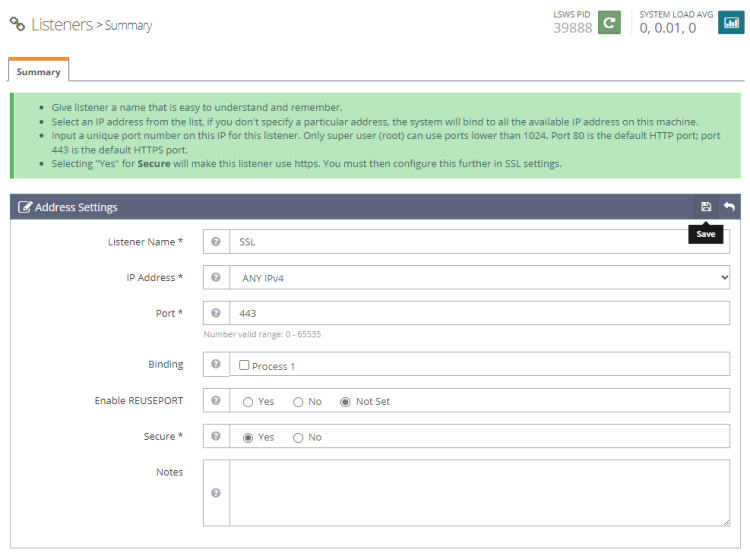
完成后点击 Save。接下来,点击 SSL,点击 Add 按钮,进入 SSL Listener 下的 Virtual Host Mappings 部分,并填写以下值。
Virtual Host: example.com
Domains: example.com
完成后点击 Save。接下来,进入 Listeners >> SSL Listener >> SSL Tab >> SSL Private Key & Certificate(Edit 按钮),并为我们之前创建的自签名证书填写以下值。
Private Key File: /home/user/key.pem
Certificate File: /home/user/cert.pem
Chained Certificate: Yes
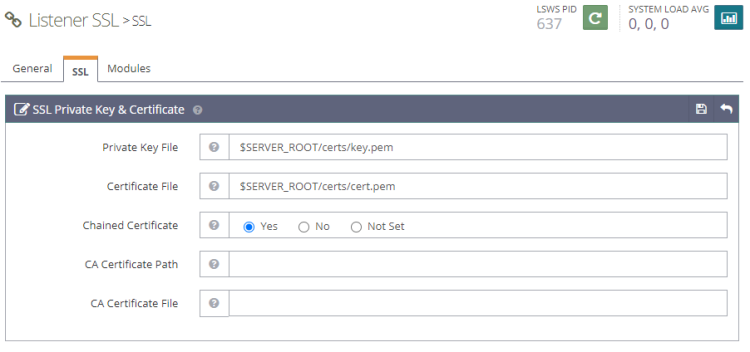
完成后点击 Save。接下来,进入 Listeners >> SSL Listener >> SSL Tab >> SSL Protocol(Edit 按钮),并填写以下 SSL 协议和密码详情的值。
Protocol Version: TLS v1.2 TLS v1.3
Ciphers: ECDHE-ECDSA-AES128-GCM-SHA256:ECDHE-RSA-AES128-GCM-SHA256:ECDHE-ECDSA-AES256-GCM-SHA384:ECDHE-RSA-AES256-GCM-SHA384:ECDHE-ECDSA-CHACHA20-POLY1305:ECDHE-RSA-CHACHA20-POLY1305:DHE-RSA-AES128-GCM-SHA256:DHE-RSA-AES256-GCM-SHA384:DHE-RSA-CHACHA20-POLY1305
Enable ECDH Key Exchange: Yes
Enable DH Key Exchange: Yes
DH Parameter: /etc/ssl/certs/dhparam.pem
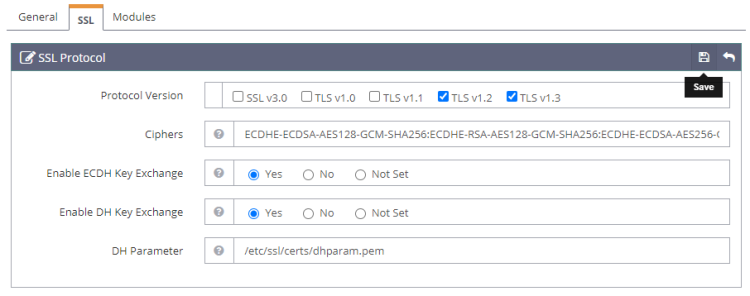
完成后点击 Save。接下来,进入 Virtual Hosts >> example.com >> SSL Tab >> SSL Private Key & Certificate(Edit 按钮),并使用 Let's Encrypt 证书填写以下值。
Private Key File: /etc/letsencrypt/live/example.com/privkey.pem
Certificate File: /etc/letsencrypt/live/example.com/fullchain.pem
Chained Certificate: Yes
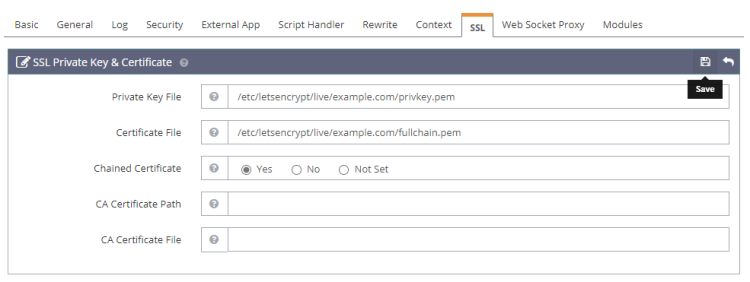
完成后点击 Save。接下来,进入 Virtual Hosts >> example.com >> SSL Tab >> OCSP Stapling(Edit 按钮),并填写以下值以启用 OCSP Stapling。
Enable OCSP Stapling: Yes
OCSP Response Max Age(Secs): 300
OCSP Responder: http://r3.o.lencr.org
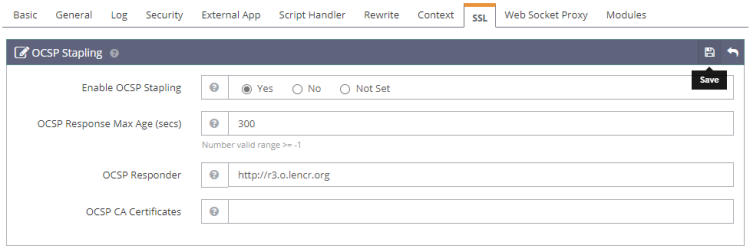
完成后点击 Save。接下来,进入 Virtual Hosts >> example.com >> SSL Tab >> Security(Edit 按钮),并填写以下值以启用 HTTP3/QUIC 协议。
Enable HTTP3/QUIC: Yes
我们不需要启用其他选项,因为它们默认已开启。
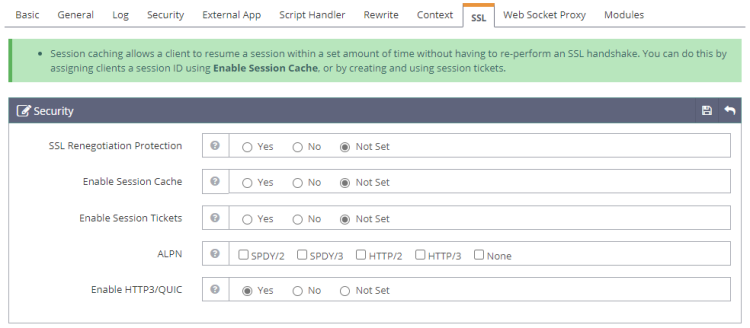
完成后点击 Save。
点击 Graceful restart 按钮重启服务器。
步骤 10 - 测试站点
在你的 html 目录中创建一个测试文件。
$ sudo nano /usr/local/lsws/example.com/html/index.php
将以下代码粘贴到 Nano 编辑器中。
<html>
<head>
    <h2>OpenLiteSpeed Server Install Test</h2>
</head>
    <body>
    <?php echo '<p>Hello,</p>';

    // Define PHP variables for the MySQL connection.
    $servername = "localhost";
    $username = "testuser";
    $password = "Your_Password123";

    // Create a MySQL connection.
    $conn = mysqli_connect($servername, $username, $password);

    // Report if the connection fails or is successful.
    if (!$conn) {
        exit('<p>Your connection has failed.<p>' .  mysqli_connect_error());
    }
    echo '<p>You have connected successfully.</p>';
    ?>
</body>
</html>
按 Ctrl + X,并在提示时输入 Y 保存文件。在浏览器中打开 URL https://example.com,你应该会看到如下页面。
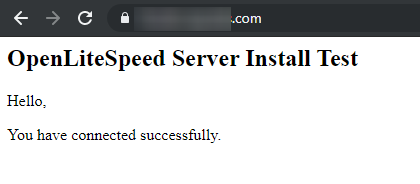
测试站点已完全可用。你可以开始使用该服务器来提供动态的 PHP 网站和应用程序。
结论
至此,我们关于在 Debian 12 服务器上安装 LOMP 栈(OpenLiteSpeed、MySQL 和 PHP)的教程就结束了。如果你有任何问题,请在下方评论中留言。