
本页内容
- 先决条件
- 第 1 步 - 配置防火墙
- 第 2 步 - 安装 Git
- 第 3 步 - 安装 Node
- 第 4 步 - 安装 MariaDB 服务器
- 第 5 步 - 下载 Umami
- 第 6 步 - 配置 Umami 创建 MySQL 凭据并填充数据库 配置 Umami 环境变量
- 第 7 步 - 运行 Umami
- 第 8 步 - 安装 Nginx
- 第 9 步 - 使用 Let's Encrypt 安装 SSL
- 第 10 步 - 配置 Nginx
- 第 11 步 - 建立站点并收集统计数据
- 第 12 步 - 更新 Umami
- 结论
- 创建 MySQL 凭据并填充数据库
- 配置 Umami 环境变量
Umami 是一款非常轻量、开源、自托管的网站分析解决方案。它是 Google Analytics 及其他付费分析方案的一个注重隐私的良好替代选择。使用 Umami 的主要优势之一是它不会在用户浏览器中放置任何 Cookie,这意味着你无需在网站上弹出烦人的 Cookie 横幅。
在本教程中,我们将学习如何在 Debian 12 服务器上安装 Umami 分析工具,并用它来追踪网站。
先决条件
- 一台运行 Debian 12 的服务器。
- 一个具有 sudo 权限的非 root 用户。
- 一个指向该服务器的完全限定域名(FQDN),例如 umami.example.com。
- Uncomplicated Firewall(UFW)已启用并正在运行。
- 更新所有软件。$ sudo apt update && sudo apt upgrade
- 安装系统所需的必要软件包。其中部分软件包可能已在你的系统上安装。$ sudo apt install wget curl nano ufw software-properties-common dirmngr apt-transport-https gnupg2 ca-certificates lsb-release debian-archive-keyring unzip -y
一台运行 Debian 12 的服务器。
一个具有 sudo 权限的非 root 用户。
一个指向该服务器的完全限定域名(FQDN),例如 umami.example.com。
Uncomplicated Firewall(UFW)已启用并正在运行。
更新所有软件。
$ sudo apt update && sudo apt upgrade
安装系统所需的必要软件包。其中部分软件包可能已在你的系统上安装。
$ sudo apt install wget curl nano ufw software-properties-common dirmngr apt-transport-https gnupg2 ca-certificates lsb-release debian-archive-keyring unzip -y
第 1 步 - 配置防火墙
第一步是配置防火墙。Ubuntu 默认自带 ufw(Uncomplicated Firewall)。
检查防火墙是否正在运行。
$ sudo ufw status
你应当得到如下输出。
Status: inactive
允许 SSH 端口,以免启用防火墙时中断当前的连接。
$ sudo ufw allow OpenSSH
同时允许 HTTP 和 HTTPS 端口。
$ sudo ufw allow http
$ sudo ufw allow https
启用防火墙
$ sudo ufw enable
Command may disrupt existing ssh connections. Proceed with operation (y|n)? y
Firewall is active and enabled on system startup
再次检查防火墙的状态。
$ sudo ufw status
你应当看到类似的输出。
Status: active

To                         Action      From
--                         ------      ----
OpenSSH                    ALLOW       Anywhere
80/tcp                     ALLOW       Anywhere
443                        ALLOW       Anywhere
OpenSSH (v6)               ALLOW       Anywhere (v6)
80/tcp (v6)                ALLOW       Anywhere (v6)
443 (v6)                   ALLOW       Anywhere (v6)
第 2 步 - 安装 Git
克隆 Umami 的官方仓库需要 Git。安装 Git。
$ sudo apt install git
验证安装。
$ git --version
git version 2.39.2
设置初始配置变量。
$ git config --global user.name "Your Name"
$ git config --global user.email "
[email protected]
"
第 3 步 - 安装 Node
Umami 是一款运行在 Nodejs 上的 JavaScript 应用。我们将使用 Nodesource 的安装脚本来安装 Node。由于 Node v16.0 是当前稳定版本,我们将安装该版本。
下载并导入 Nodesource 的 GPG 密钥
$ curl -fsSL https://deb.nodesource.com/gpgkey/nodesource-repo.gpg.key | sudo gpg --dearmor -o /usr/share/keyrings/nodesource.gpg
创建 Node 的 Deb 仓库。
$ NODE_MAJOR=18
$ echo "deb [signed-by=/usr/share/keyrings/nodesource.gpg] https://deb.nodesource.com/node_$NODE_MAJOR.x nodistro main" | sudo tee /etc/apt/sources.list.d/nodesource.list
更新 Debian 系统的软件包仓库列表。
$ sudo apt update
安装 Node。
$ sudo apt install nodejs
验证 Node 的安装。
$ node --version
v18.18.0
第 4 步 - 安装 MariaDB 服务器
Debian 12 默认不附带 MySQL,且官方尚未发布对应的软件包。因此,我们将使用 MariaDB。
Debian 12 自带 MariaDB 10.11.4,我们将安装该版本。不过你也可以从仓库安装最新版本。
$ sudo apt install mariadb-server
检查 MySQL 的版本。
$ mysql --version
mysql  Ver 15.1 Distrib 10.11.4-MariaDB, for debian-linux-gnu (x86_64) using  EditLine wrapper
运行 MariaDB 的安全安装脚本。
$ sudo mariadb-secure-installation
系统会要求输入 root 密码。直接按回车,因为我们尚未为其设置任何密码。
NOTE: RUNNING ALL PARTS OF THIS SCRIPT IS RECOMMENDED FOR ALL MariaDB
      SERVERS IN PRODUCTION USE!  PLEASE READ EACH STEP CAREFULLY!

In order to log into MariaDB to secure it, we'll need the current
password for the root user. If you've just installed MariaDB, and
haven't set the root password yet, you should just press enter here.

Enter current password for root (enter for none):
接下来,系统会询问是否切换到 Unix socket 认证方式。unix_socket 插件允许你使用操作系统凭据连接 MariaDB 服务器。由于你已经拥有一个受保护的 root 账户,输入 n 继续。
OK, successfully used password, moving on...

Setting the root password or using the unix_socket ensures that nobody
can log into the MariaDB root user without the proper authorisation.

You already have your root account protected, so you can safely answer 'n'.

Switch to unix_socket authentication [Y/n] n
接下来,系统会询问是否要更改 root 密码。在 Debian 12 中,root 密码与自动化系统维护紧密关联,因此不应更改。输入 n 继续。
 ... skipping.

You already have your root account protected, so you can safely answer 'n'.

Change the root password? [Y/n] n
接下来,系统会提出一些问题以增强 MariaDB 的安全性。输入 Y 以删除匿名用户、禁止 root 远程登录、删除测试数据库并重新加载权限表。
 ... skipping.

By default, a MariaDB installation has an anonymous user, allowing anyone
to log into MariaDB without having to have a user account created for
them.  This is intended only for testing, and to make the installation
go a bit smoother.  You should remove them before moving into a
production environment.

Remove anonymous users? [Y/n] y
 ... Success!

Normally, root should only be allowed to connect from 'localhost'.  This
ensures that someone cannot guess at the root password from the network.

Disallow root login remotely? [Y/n] y
 ... Success!

By default, MariaDB comes with a database named 'test' that anyone can
access.  This is also intended only for testing, and should be removed
before moving into a production environment.

Remove test database and access to it? [Y/n] y
 - Dropping test database...
 ... Success!
 - Removing privileges on test database...
 ... Success!

Reloading the privilege tables will ensure that all changes made so far
will take effect immediately.

Reload privilege tables now? [Y/n] y
 ... Success!

Cleaning up...

All done!  If you've completed all of the above steps, your MariaDB
installation should now be secure.

Thanks for using MariaDB!
你可以在命令行中输入 sudo mysql 或 sudo mariadb 来进入 MariaDB shell。
第 5 步 - 下载 Umami
第一步是安装 Yarn 包管理器。我们可以使用 NPM 来安装它。
$ sudo npm install -g yarn
由于 Umami 是一个 Node 应用,且没有公开的 webroot 目录,因此我们无需通过 /var/www 目录来托管它。
克隆 Umami 的 GitHub 仓库。
$ git clone https://github.com/mikecao/umami.git
切换到新创建的目录。
$ cd umami
安装 Umami 的模块。
$ yarn install
第 6 步 - 配置 Umami
创建 MySQL 凭据并填充数据库
进入 MySQL shell。输入你的 root 密码以继续。
$ sudo mysql
创建 umami 用户。请确保密码满足之前设定的要求。
mysql> CREATE USER 'umamiuser'@'localhost' IDENTIFIED BY 'YourPassword';
创建 umami 数据库。
mysql> CREATE DATABASE umami;
授予该用户对 umami 数据库的权限。
mysql> GRANT ALL PRIVILEGES ON umami.* TO 'umamiuser'@'localhost';
由于我们不会修改 root 用户,你应当再创建一个使用密码认证的 SQL 用户来执行管理任务。请为该用户选择一个强密码。
MariaDB> GRANT ALL ON *.* TO 'navjot'@'localhost' IDENTIFIED BY 'Yourpassword32!' WITH GRANT OPTION;
刷新权限。
mysql> FLUSH PRIVILEGES;
退出 Shell。
mysql> exit
配置 Umami 环境变量
我们需要一个强 App secret 用于日志记录。为此,我们将使用 OpenSSL 命令。
$ openssl rand 30 | openssl base64 -A
bu4orqfdlG+Dh3Otau4oWSBbI9kGWSkGfYc/WiH/
创建一个 .env 文件来存储 Umami 安装的环境变量。
$ touch .env
打开该文件进行编辑。
$ nano .env
将以下代码粘贴进去。你需要对密码中的任何特殊字符进行编码,用于数据库连接 URL。可以使用 meyerweb 编码器来完成。在我们的例子中,# 被转换为 %23。数据库连接 URL 以我们要连接到的数据库名结尾。将之前生成的 app secret 用于 APP_SECRET 变量。DISABLE_TELEMETRY=1 选项会禁用应用向 Umami 服务器发送匿名数据。TRACKER_SCRIPT_NAME 变量有助于避免你的脚本被广告拦截器屏蔽。为其取一个独特的名称,最好与你的网站唯一相关。
DATABASE_URL=mysql://umamiuser:YourPassword@localhost:3306/umami
APP_SECRET=bu4orqfdlG+Dh3Otau4oWSBbI9kGWSkGfYc/WiH/
DISABLE_TELEMETRY=1
TRACKER_SCRIPT_NAME=custom
第 7 步 - 运行 Umami
现在一切已准备就绪,构建 Umami 应用。
$ yarn build
下一步是启动应用。我们可以使用 yarn start 命令来启动应用,但这意味着你需要保持终端打开,Umami 才能运行。因此,我们需要一种在后台运行 Umami 的方式。为此,我们将安装 PM2(Node 高级生产进程管理器)。
安装 PM2。
$ sudo yarn global add pm2
global 选项表示我们将 PM2 安装到全局,因此需要使用 sudo 权限来运行该命令。
启动 Umami 应用。
$ pm2 start yarn --name umami -- start
你将会得到如下输出。
[PM2] Starting /usr/bin/yarn in fork_mode (1 instance)
[PM2] Done.
??????????????????????????????????????????????????????????????????????????????????????????????????????????????????????????????????????
? id ? name     ? namespace   ? version ? mode    ? pid      ? uptime ? ?    ? status    ? cpu      ? mem      ? user     ? watching ?
??????????????????????????????????????????????????????????????????????????????????????????????????????????????????????????????????????
? 0  ? umami    ? default     ? N/A     ? fork    ? 2020     ? 0s     ? 0    ? online    ? 0%       ? 18.8mb   ? navjot   ? disabled ?
??????????????????????????????????????????????????????????????????????????????????????????????????????????????????????????????????????
使用 PM2 保存 Umami 应用,以便后续使用。
$ pm2 save
[PM2] Saving current process list...
[PM2] Successfully saved in /home/navjot/.pm2/dump.pm2
如果 Umami 崩溃或被杀死,它会自动重启,但在系统重启时不会。我们需要创建一个 systemd 脚本,以确保它在系统重启时也能重新启动。运行以下命令生成启动脚本。
$ pm2 startup
生成的输出会提供一条命令,用于将 PM2 设置为开机启动。在你的环境中,输出会显示当前的用户名。运行以下命令生成启动脚本。
$ sudo env PATH=$PATH:/usr/bin /usr/local/share/.config/yarn/global/node_modules/pm2/bin/pm2 startup systemd -u navjot --hp /home/navjot
第 8 步 - 安装 Nginx
Debian 12 自带较旧版本的 Nginx。要安装最新版本,你需要下载官方的 Nginx 仓库。
导入 Nginx 的签名密钥。
$ curl https://nginx.org/keys/nginx_signing.key | gpg --dearmor \
    | sudo tee /usr/share/keyrings/nginx-archive-keyring.gpg >/dev/null
添加 Nginx 稳定版的仓库。
$ echo "deb [signed-by=/usr/share/keyrings/nginx-archive-keyring.gpg] \
http://nginx.org/packages/debian `lsb_release -cs` nginx" \
    | sudo tee /etc/apt/sources.list.d/nginx.list
更新系统仓库。
$ sudo apt update
安装 Nginx。
$ sudo apt install nginx
验证安装。在 Debian 系统上,以下命令需要配合 sudo 才能运行。
$ sudo nginx -v
nginx version: nginx/1.24.0
启动 Nginx。
$ sudo systemctl start nginx
检查服务状态。
$ sudo systemctl status nginx
? nginx.service - nginx - high performance web server
     Loaded: loaded (/lib/systemd/system/nginx.service; enabled; preset: enabled)
     Active: active (running) since Tue 2023-10-10 11:19:45 UTC; 9s ago
       Docs: https://nginx.org/en/docs/
    Process: 3646 ExecStart=/usr/sbin/nginx -c /etc/nginx/nginx.conf (code=exited, status=0/SUCCESS)
   Main PID: 3647 (nginx)
      Tasks: 3 (limit: 4652)
     Memory: 2.4M
        CPU: 8ms
     CGroup: /system.slice/nginx.service
             ??3647 "nginx: master process /usr/sbin/nginx -c /etc/nginx/nginx.conf"
             ??3648 "nginx: worker process"
             ??3649 "nginx: worker process"

Oct 10 11:19:45 umami systemd[1]: Starting nginx.service - nginx - high performance web server...
Oct 10 11:19:45 umami systemd[1]: Started nginx.service - nginx - high performance web server.
第 9 步 - 使用 Let's Encrypt 安装 SSL
我们需要安装 Certbot 来生成 Let's Encrypt 提供的免费 SSL 证书。
你可以使用 Debian 的仓库安装 Certbot,也可以通过 Snapd 工具获取最新版本。我们将使用 Snapd 版本。
Debian 12 默认未安装 Snapd。安装 Snapd 软件包。
$ sudo apt install snapd
确保你的 Snapd 版本是最新的。
$ sudo snap install core
$ sudo snap refresh core
安装 Certbot。
$ sudo snap install --classic certbot
使用以下命令,通过创建指向 /usr/bin 目录的符号链接,确保 Certbot 命令可以运行。
$ sudo ln -s /snap/bin/certbot /usr/bin/certbot
验证安装。
$ certbot --version
certbot 2.7.0
生成 SSL 证书。
$ sudo certbot certonly --nginx --agree-tos --no-eff-email --staple-ocsp --preferred-challenges http -m
[email protected]
 -d umami.example.com
上述命令会将证书下载到服务器上的 /etc/letsencrypt/live/umami.example.com 目录。
生成 Diffie-Hellman 组证书。
$ sudo openssl dhparam -dsaparam -out /etc/ssl/certs/dhparam.pem 4096
检查 Certbot 续期调度服务。
$ sudo systemctl list-timers
你会发现 snap.certbot.renew.service 是计划运行的服务之一。
NEXT                        LEFT        LAST                        PASSED       UNIT                         ACTIVATES
.....
Tue 2023-10-10 14:24:00 UTC 1h 55min left -                           -            snap.certbot.renew.timer   snap.certbot.renew.service
Wed 2023-10-11 00:00:00 UTC 11h left      -                           -            dpkg-db-backup.timer       dpkg-db-backup.service
Wed 2023-10-11 00:00:00 UTC 11h left      Tue 2023-10-10 00:00:04 UTC 12h ago      exim4-base.timer           exim4-base.service
对该过程进行一次预演(dry run),以检查 SSL 续期是否正常工作。
$ sudo certbot renew --dry-run
如果未出现任何错误,说明一切就绪。你的证书将自动续期。
第 10 步 - 配置 Nginx
创建并打开文件 /etc/nginx/conf.d/umami.conf 进行编辑。
$ sudo nano /etc/nginx/conf.d/umami.conf
将以下代码粘贴进去。
server {
    listen       443 ssl http2;
    listen       [::]:443 ssl http2;
    server_name  umami.example.com;

    access_log  /var/log/nginx/umami.access.log;
    error_log   /var/log/nginx/umami.error.log;

    # SSL
    ssl_certificate      /etc/letsencrypt/live/umami.example.com/fullchain.pem;
    ssl_certificate_key  /etc/letsencrypt/live/umami.example.com/privkey.pem;
    ssl_trusted_certificate /etc/letsencrypt/live/umami.example.com/chain.pem;
    ssl_session_timeout  5m;
    ssl_session_cache shared:MozSSL:10m;
    ssl_session_tickets off;
    ssl_protocols TLSv1.2 TLSv1.3;
    ssl_prefer_server_ciphers on;
    ssl_ciphers ECDHE-ECDSA-AES128-GCM-SHA256:ECDHE-RSA-AES128-GCM-SHA256:ECDHE-ECDSA-AES256-GCM-SHA384:ECDHE-RSA-AES256-GCM-SHA384:ECDHE-ECDSA-CHACHA20-POLY1305:ECDHE-RSA-CHACHA20-POLY1305:DHE-RSA-AES128-GCM-SHA256:DHE-RSA-AES256-GCM-SHA384;
    ssl_ecdh_curve X25519:prime256v1:secp384r1:secp521r1;
    ssl_stapling on;
    ssl_stapling_verify on;
    ssl_dhparam /etc/ssl/certs/dhparam.pem;
    resolver 8.8.8.8;

    location / {
      proxy_pass http://localhost:3000;
      proxy_set_header X-Real-IP $remote_addr;
      proxy_set_header Host $host;
      proxy_set_header X-Forwarded-For $proxy_add_x_forwarded_for;
  }
}
# enforce HTTPS
server {
    listen       80;
    listen       [::]:80;
    server_name  umami.example.com;
    return 301   https://$host$request_uri;
}
完成后,按 Ctrl + X 并在提示时输入 Y 来保存文件。
打开文件 /etc/nginx/nginx.conf 进行编辑。
$ sudo nano /etc/nginx/nginx.conf
在 include /etc/nginx/conf.d/*.conf; 这一行之前添加以下行。
server_names_hash_bucket_size 64;
按 Ctrl + X 并在提示时输入 Y 来保存文件。
验证 Nginx 配置文件的语法。
$ sudo nginx -t
nginx: the configuration file /etc/nginx/nginx.conf syntax is ok
nginx: configuration file /etc/nginx/nginx.conf test is successful
重启 Nginx 服务以使新配置生效。
$ sudo systemctl restart nginx
第 11 步 - 建立站点并收集统计数据
在浏览器中打开 URL https://umami.example.com,界面将如下所示。
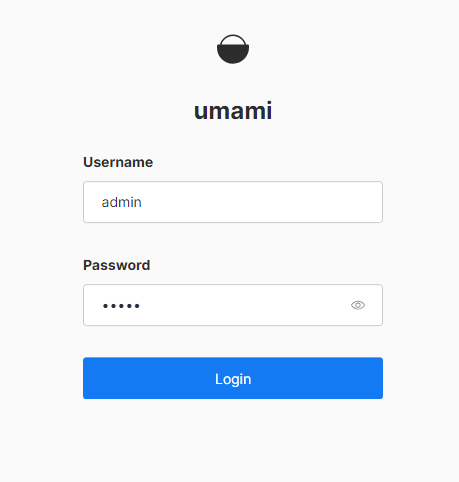
Umami 在安装过程中会生成一个默认的管理员账户,用户名为 admin,密码为 umami。使用这些凭据登录。
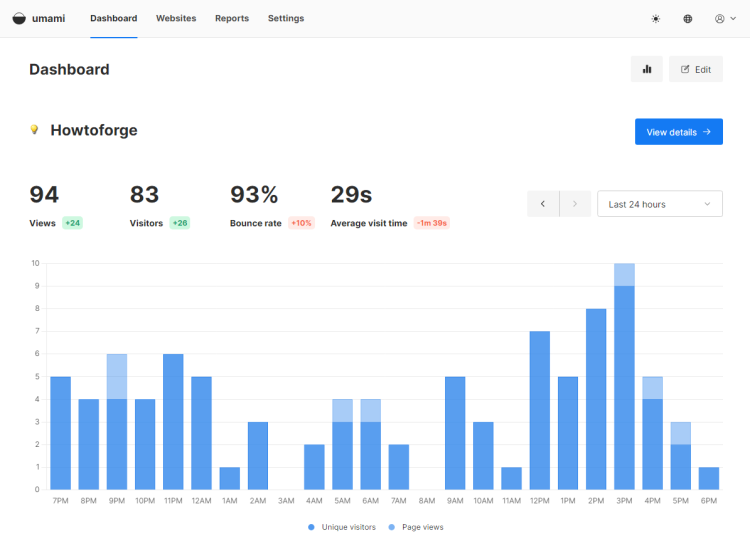
登录后,你将看到如下页面。
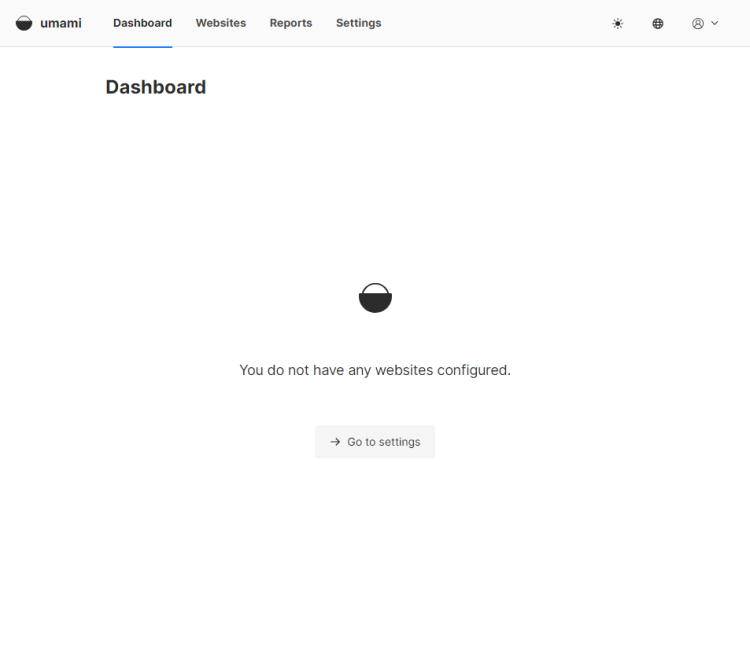
访问设置页面,点击 Add website(添加网站)开始。
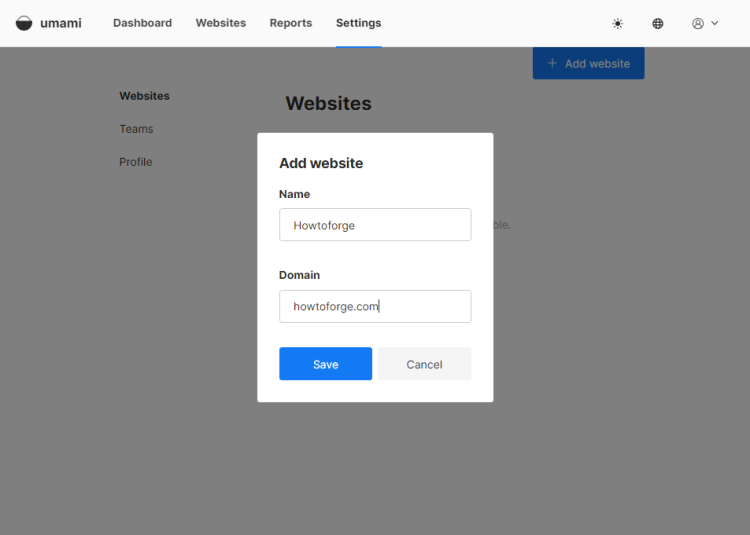
添加站点后,点击 Edit(编辑)按钮,然后切换到 Tracking code(追踪代码)标签页以获取代码。
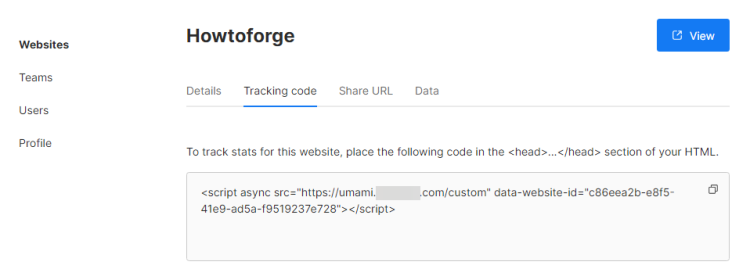
将代码粘贴到你的 header 或 footer HTML 标签之间,几分钟后,Umami 就会开始获取数据。
第 12 步 - 更新 Umami
要更新 Umami,请切换到 Umami 的安装目录。
$ cd ~/umami
停止 Umami 应用。
$ pm2 stop umami
安装任何新增或更新的依赖项。
$ yarn install
重新构建 Umami 应用。
$ yarn build
启动 Umami 应用。
$ pm2 start umami
结论
至此,我们关于在 Debian 12 服务器上安装并配置 Umami 分析工具的教程就结束了。如果你有任何问题,请在下方评论中留言。