
本教程适用于以下操作系统版本
- Ubuntu 22.04 (Jammy Jellyfish)
- Ubuntu 20.04 (Focal Fossa)
本页内容
- 先决条件
- 安装 Apache、MySQL 和 PHP
- 为 Magento 创建数据库
- 安装 Composer
- 在 Ubuntu 22.04 上下载并安装 Magento
- 为 Magento 配置 Apache
- 访问 Magento Web 界面
- 使用 Let's Encrypt SSL 保护 Magento
- 结论
Magento 是一个开源的、最受欢迎的电子商务平台之一,可帮助程序员创建电商网站。它使用 PHP 编写,允许你创建灵活的购物车系统。它完全可定制,并能让你在几分钟内开发并上线一个功能完善的在线商店。Magento 提供免费的社区版和商业版,社区版免费且面向小型企业设计,而商业版则面向中大型企业设计。
本教程将向你展示如何在 Ubuntu 22.04 上安装 Magento。
先决条件
- 一台运行 Ubuntu 22.04 的服务器。
- 一个指向你服务器 IP 的有效域名。
- 服务器上已配置 root 密码。
安装 Apache、MySQL 和 PHP
首先,使用以下命令安装 Apache 网页服务器和 MySQL 数据库服务器:
apt install apache2 mysql-server -yMagento 仅支持 PHP 7.3 到 7.4 版本。但是,PHP 7.4 并未包含在 Ubuntu 22.04 的默认软件源中,因为它默认提供的是 PHP 8.1。因此你需要从 PHP Ondrej 软件源安装 PHP 7.4。
首先,使用以下命令安装所需的依赖项:
apt install software-properties-common -y接下来,使用以下命令添加 PHP Ondrej 软件源:
add-apt-repository ppa:ondrej/php添加软件源后,使用以下命令更新软件源并安装 PHP 及其他所需依赖项:
apt update -y
apt install php7.4 libapache2-mod-php7.4 php7.4-common php7.4-gmp php7.4-curl php7.4-soap php7.4-bcmath php7.4-intl php7.4-mbstring php7.4-xmlrpc php7.4-mysql php7.4-gd php7.4-xml php7.4-cli php7.4-zip -y
接下来,编辑 PHP 配置文件并修改默认设置:
nano /etc/php/7.4/apache2/php.ini修改以下值:
file_uploads = On
allow_url_fopen = On
short_open_tag = On
memory_limit = 512M
upload_max_filesize = 128M
max_execution_time = 3600
保存并关闭文件,然后重启 Apache 服务以应用配置更改:
systemctl restart apache2完成后,你可以进入下一步。
为 Magento 创建数据库
Magento 使用 MySQL 作为数据库后端,因此你需要为 Magento 创建一个数据库和用户。
首先,使用以下命令登录 MySQL shell:
mysql连接到 MySQL 后,使用以下命令为 Magento 创建用户和数据库:
mysql> CREATE DATABASE magento2;
mysql> CREATE USER 'magento2'@'localhost' IDENTIFIED BY 'password';
接下来,授予 Magento2 数据库的所有权限:
mysql> GRANT ALL PRIVILEGES ON magento2.* TO 'magento2'@'localhost';接下来,使用以下命令刷新权限并退出 MySQL:
mysql> FLUSH PRIVILEGES;
mysql> EXIT;
安装 Composer
Composer 是 PHP 的依赖管理器,用于安装你的 PHP 项目所需的 PHP 依赖项。
首先,使用以下命令安装 Curl 命令行工具:
apt-get install curl -y接下来,使用以下命令安装 Composer:
curl -sS https://getcomposer.org/installer -o composer-setup.php
php composer-setup.php --install-dir=/usr/local/bin --filename=composer
Composer 安装完成后,你将看到以下输出:
All settings correct for using Composer
Downloading...

Composer (version 2.3.5) successfully installed to: /usr/local/bin/composer
Use it: php /usr/local/bin/composer
你可以使用以下命令检查 Composer 版本:
composer --version你将看到以下输出:
Composer version 2.3.5 2022-04-13 16:43:00
在 Ubuntu 22.04 上下载并安装 Magento
在本节中,我们将使用 Composer 下载 Magento 2.4.3 版本。为此,你需要登录 Magento 网站后创建一个访问密钥:https://marketplace.magento.com/customer/accessKeys/ 。创建访问密钥后,运行以下命令在你的服务器上下载 Magento:
cd /var/www/html
composer create-project --repository-url=https://repo.magento.com/ magento/project-community-edition=2.4.3 magento2
系统会要求你提供访问密钥以下载 Magento,如下图所示:
Creating a "magento/project-community-edition=2.4.3" project at "./magento2"
Warning from repo.magento.com: You haven't provided your Magento authentication keys. For instructions, visit https://devdocs.magento.com/guides/v2.3/install-gde/prereq/connect-auth.html
    Authentication required (repo.magento.com):
      Username: a6b333ad41629bac913eaabb9b8e053c
      Password:
Do you want to store credentials for repo.magento.com in /root/.config/composer/auth.json ? [Yn] Y
Installing magento/project-community-edition (2.4.3)
  - Downloading magento/project-community-edition (2.4.3)
  - Installing magento/project-community-edition (2.4.3): Extracting archive
Created project in /var/www/html/magento2
Loading composer repositories with package information
Info from https://repo.packagist.org: #StandWithUkraine
Magento 下载完成后,为 Magento 目录设置正确的属主和权限:
chown -R www-data:www-data /var/www/html/magento2/
cd /var/www/html/magento2
find var generated vendor pub/static pub/media app/etc -type f -exec chmod g+w {} +
find var generated vendor pub/static pub/media app/etc -type d -exec chmod g+ws {} +
chown -R :www-data .
chmod u+x bin/magento
接下来,运行以下命令在你的服务器上安装 Magento:
bin/magento setup:install --base-url=http://magento.example.com --db-host=localhost --db-name=magento2 --db-user=magento2 --db-password=password --admin-firstname=Hitesh --admin-lastname=Jethva
[email protected]
 --admin-user=admin --admin-password=Magento@Secure1Password --language=en_US --currency=USD --timezone=America/Chicago --use-rewrites=1
你将遇到以下错误:
Could not validate a connection to Elasticsearch. No alive nodes found in your cluster
你可以使用以下命令解决此错误:
php bin/magento module:disable {Magento_Elasticsearch,Magento_InventoryElasticsearch,Magento_Elasticsearch6,Magento_Elasticsearch7}你应该看到以下输出:
The following modules have been disabled:
- Magento_Elasticsearch
- Magento_Elasticsearch6
- Magento_InventoryElasticsearch
- Magento_Elasticsearch7

Cache cleared successfully.
Generated classes cleared successfully. Please run the 'setup:di:compile' command to generate classes.
Info: Some modules might require static view files to be cleared. To do this, run 'module:disable' with the --clear-static-content option to clear them.
你还需要运行以下命令来禁用两步验证:
sudo -u www-data bin/magento module:disable Magento_TwoFactorAuth你将看到以下输出:
The following modules have been disabled:
- Magento_TwoFactorAuth

Cache cleared successfully.
Generated classes cleared successfully. Please run the 'setup:di:compile' command to generate classes.
Info: Some modules might require static view files to be cleared. To do this, run 'module:disable' with the --clear-static-content option to clear them.
现在,再次运行 Magento 安装命令以开始安装:
bin/magento setup:install --base-url=http://magento.example.com --db-host=localhost --db-name=magento2 --db-user=magento2 --db-password=password --admin-firstname=Hitesh --admin-lastname=Jethva
[email protected]
 --admin-user=admin --admin-password=Magento@Secure1Password --language=en_US --currency=USD --timezone=America/Chicago --use-rewrites=1
安装完成后,你将看到以下输出:
[Progress: 1359 / 1366]
Module 'Yotpo_Yotpo':
[Progress: 1360 / 1366]
Enabling caches:
Current status:
layout: 1
block_html: 1
full_page: 1
[Progress: 1361 / 1366]
Installing admin user...
[Progress: 1362 / 1366]
Caches clearing:
Cache cleared successfully
[Progress: 1363 / 1366]
Disabling Maintenance Mode:
[Progress: 1364 / 1366]
Post installation file permissions check...
For security, remove write permissions from these directories: '/var/www/html/magento2/app/etc'
[Progress: 1365 / 1366]
Write installation date...
[Progress: 1366 / 1366]
[SUCCESS]: Magento installation complete.
[SUCCESS]: Magento Admin URI: /admin_1u9o0y
Nothing to import.
现在,使用以下命令清除所有缓存并创建 Magento cron 任务:
sudo -u www-data bin/magento cache:flush
sudo -u www-data bin/magento cron:install
完成后,你可以进入下一步。
为 Magento 配置 Apache
接下来,你需要创建一个 Apache 虚拟主机配置文件,以便通过 Web 提供 Magento 服务。
nano /etc/apache2/sites-available/magento2.conf添加以下行:
<VirtualHost *:80>
     ServerAdmin
[email protected]

      DocumentRoot /var/www/html/magento2/
     ServerName magento.example.com

     <Directory /var/www/html/magento2/>
          Options FollowSymlinks
          AllowOverride All
          Require all granted
     </Directory>

     ErrorLog ${APACHE_LOG_DIR}/magento2_error.log
     CustomLog ${APACHE_LOG_DIR}/magento2_access.log combined

</VirtualHost>
保存并关闭文件,然后使用以下命令启用 Magento 虚拟主机和 Apache 重写模块:
a2ensite magento2.conf
a2enmod rewrite
接下来,重启 Apache 服务以应用更改:
systemctl restart apache2你也可以使用以下命令检查 Apache 状态:
systemctl status apache2你应该看到以下输出:
? apache2.service - The Apache HTTP Server
     Loaded: loaded (/lib/systemd/system/apache2.service; enabled; vendor preset: enabled)
     Active: active (running) since Fri 2022-04-29 09:03:19 UTC; 2s ago
       Docs: https://httpd.apache.org/docs/2.4/
    Process: 39790 ExecStart=/usr/sbin/apachectl start (code=exited, status=0/SUCCESS)
   Main PID: 39794 (apache2)
      Tasks: 6 (limit: 4630)
     Memory: 14.1M
        CPU: 132ms
     CGroup: /system.slice/apache2.service
             ??39794 /usr/sbin/apache2 -k start
             ??39795 /usr/sbin/apache2 -k start
             ??39796 /usr/sbin/apache2 -k start
             ??39797 /usr/sbin/apache2 -k start
             ??39798 /usr/sbin/apache2 -k start
             ??39799 /usr/sbin/apache2 -k start

Apr 29 09:03:19 ubuntu systemd[1]: Starting The Apache HTTP Server...
访问 Magento Web 界面
现在,打开你的网页浏览器,使用 URL http://magento.example.com/admin_1u9o0y 访问 Magento 仪表板。你将被重定向到 Magento 登录页面:
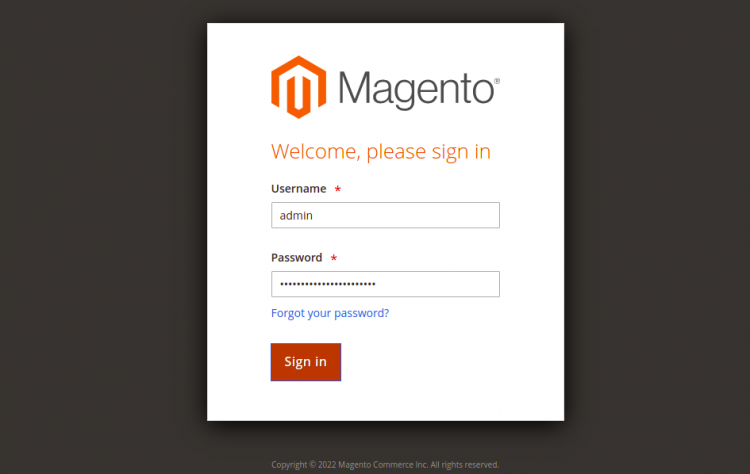
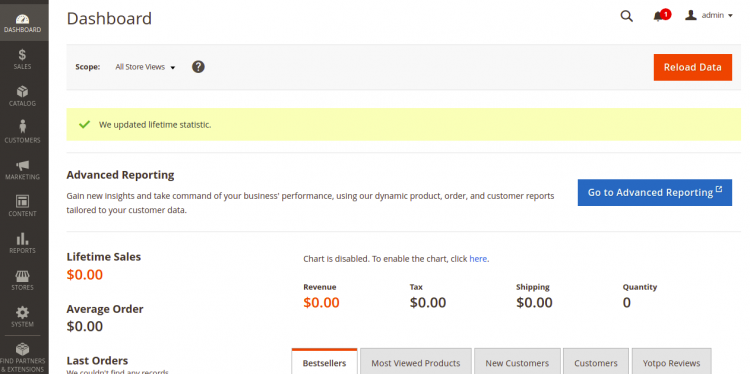
输入你的管理员用户名和密码,然后点击 Login 按钮。你应该在以下屏幕上看到 Magento 仪表板:
使用 Let's Encrypt SSL 保护 Magento
使用 Let's Encrypt SSL 保护你的网站始终是个好主意。你需要安装 Certbot 客户端来安装和管理 SSL。你可以使用以下命令进行安装:
apt-get install python3-certbot-apache -yCertbot 安装完成后,运行以下命令使用 Let's Encrypt SSL 保护你的网站:
certbot --apache -d magento.example.com系统会要求你提供电子邮件并接受服务条款,如下图所示:
Saving debug log to /var/log/letsencrypt/letsencrypt.log
Plugins selected: Authenticator standalone, Installer None
Enter email address (used for urgent renewal and security notices) (Enter 'c' to
cancel):
[email protected]


- - - - - - - - - - - - - - - - - - - - - - - - - - - - - - - - - - - - - - - -
Please read the Terms of Service at
https://letsencrypt.org/documents/LE-SA-v1.2-November-15-2017.pdf. You must
agree in order to register with the ACME server at
https://acme-v02.api.letsencrypt.org/directory
- - - - - - - - - - - - - - - - - - - - - - - - - - - - - - - - - - - - - - - -
(A)gree/(C)ancel: A

- - - - - - - - - - - - - - - - - - - - - - - - - - - - - - - - - - - - - - - -
Would you be willing to share your email address with the Electronic Frontier
Foundation, a founding partner of the Let's Encrypt project and the non-profit
organization that develops Certbot? We'd like to send you email about our work
encrypting the web, EFF news, campaigns, and ways to support digital freedom.
- - - - - - - - - - - - - - - - - - - - - - - - - - - - - - - - - - - - - - - -
(Y)es/(N)o: Y
Plugins selected: Authenticator apache, Installer apache
Obtaining a new certificate
Performing the following challenges:
http-01 challenge for magento.example.com
Enabled Apache rewrite module
Waiting for verification...
Cleaning up challenges
Created an SSL vhost at /etc/apache2/sites-available/magento-le-ssl.conf
Enabled Apache socache_shmcb module
Enabled Apache ssl module
Deploying Certificate to VirtualHost /etc/apache2/sites-available/magento-le-ssl.conf
Enabling available site: /etc/apache2/sites-available/magento-le-ssl.conf
接下来,选择是否将 HTTP 流量重定向到 HTTPS,如下图所示:
Please choose whether or not to redirect HTTP traffic to HTTPS, removing HTTP access.
- - - - - - - - - - - - - - - - - - - - - - - - - - - - - - - - - - - - - - - -
1: No redirect - Make no further changes to the webserver configuration.
2: Redirect - Make all requests redirect to secure HTTPS access. Choose this for
new sites, or if you're confident your site works on HTTPS. You can undo this
change by editing your web server's configuration.
- - - - - - - - - - - - - - - - - - - - - - - - - - - - - - - - - - - - - - - -
Select the appropriate number [1-2] then [enter] (press 'c' to cancel): 2
输入 2 并按下回车,为你的网站安装 Let's Encrypt SSL:
Enabled Apache rewrite module
Redirecting vhost in /etc/apache2/sites-enabled/magento.conf to ssl vhost in /etc/apache2/sites-available/magento-le-ssl.conf

- - - - - - - - - - - - - - - - - - - - - - - - - - - - - - - - - - - - - - - -
Congratulations! You have successfully enabled https://magento.example.com

You should test your configuration at:
https://www.ssllabs.com/ssltest/analyze.html?d=magento.example.com
- - - - - - - - - - - - - - - - - - - - - - - - - - - - - - - - - - - - - - - -

IMPORTANT NOTES:
 - Congratulations! Your certificate and chain have been saved at:
   /etc/letsencrypt/live/magento.example.com/fullchain.pem
   Your key file has been saved at:
   /etc/letsencrypt/live/magento.example.com/privkey.pem
   Your cert will expire on 2023-01-23. To obtain a new or tweaked
   version of this certificate in the future, simply run certbot again
   with the "certonly" option. To non-interactively renew *all* of
   your certificates, run "certbot renew"
 - If you like Certbot, please consider supporting our work by:

   Donating to ISRG / Let's Encrypt:   https://letsencrypt.org/donate
   Donating to EFF:                    https://eff.org/donate-le
现在,你可以使用 URL https://magento.example.com 安全地访问你的网站。
结论
恭喜!你已成功在 Ubuntu 22.04 上通过 Apache 安装了 Magento。希望本文能帮助你启动自己的在线购物车系统。如果你有任何问题,欢迎随时向我提问。