
本教程适用于以下操作系统版本
- Debian 12 (Bookworm)
- Debian 11 (Bullseye)
- Debian 10 (Buster)
- Debian 9 (Stretch)
- Debian 8 (Jessie)
- Debian 7 (Wheezy)
本页内容
- 1 环境要求
- 2 预备说明
- 3 Debian 基础系统
- 4 安装 SSH 服务器(可选)
- 5 安装一个 shell 编辑器(可选)
- 6 配置网络
- 7 更新你的 Debian 安装
- 8 Debian 12 VMWare 服务器镜像
- 9 链接
本教程通过大量截图详细演示如何安装 Debian 12(Bookworm)最小服务器。本指南的目的是提供一个最小化的系统配置,可作为 howtoforge.com 上我们其他 Debian 12 教程的基础。
1 环境要求
要安装 Debian 12 服务器系统,你需要准备以下内容:
- Debian Bookworm 网络安装 CD 可在此处获取:64Bit: https://cdimage.debian.org/debian-cd/current/amd64/iso-cd/debian-12.1.0-amd64-netinst.iso (x86_64 / amd64)
- 一条快速的互联网连接。
我将使用 Debian 12.1.0 64Bit(amd64)安装介质。
Debian 下载链接会经常变动。如果上面的链接已经失效,请前往此处获取最新的 Debian netinst 镜像:https://cdimage.debian.org/debian-cd/current/amd64/iso-cd/ 。
2 预备说明
在本教程中,我将使用主机名 server1.example.com,IP 地址 192.168.0.100,网关 192.168.0.1。你的设置可能与此不同,因此需要在适当的地方进行替换。
3 Debian 基础系统
将你的 Debian 12(Bookworm)网络安装 CD 插入系统(或插入已写入 iso 文件的 U 盘)并从它启动。当你使用 VMware 或 Virtualbox 等虚拟化软件时,请将 Debian 12 minimal iso 文件选作虚拟机 DVD 驱动器的源文件。你无需先将其刻录到 CD 或 DVD。
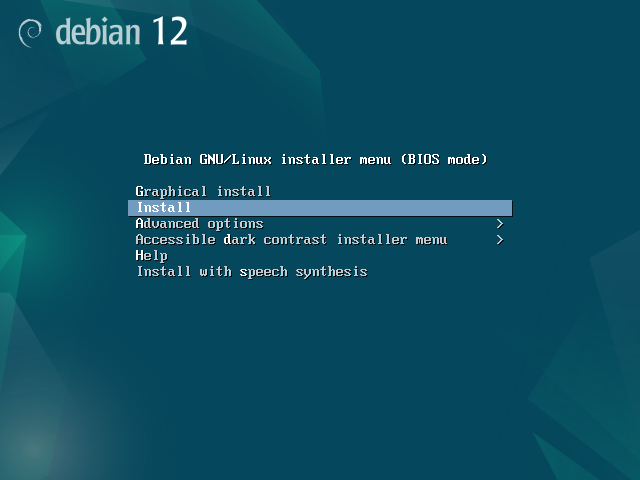
选择 Install(这将启动文本安装程序——如果你更喜欢图形界面安装程序,请选择 Graphical install):
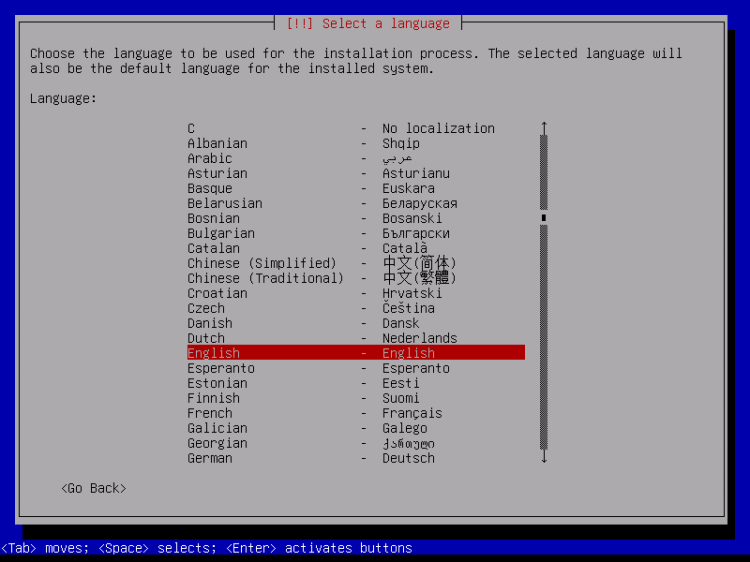
选择你的语言:
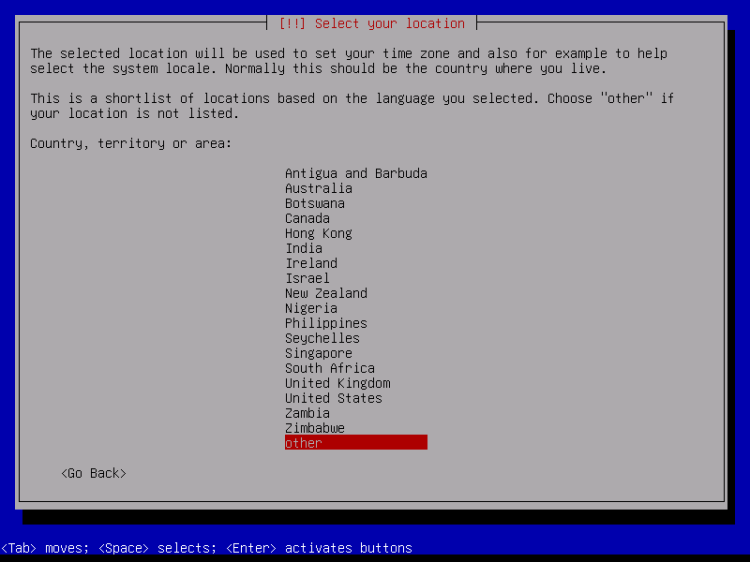
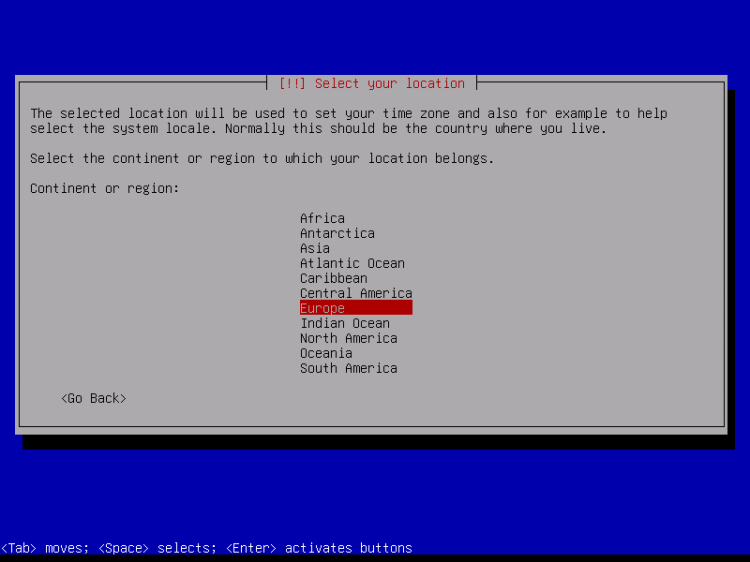
然后选择你的所在地区并选择键盘布局。后续的界面会因你的选择而不同。只需选择适合你的国家和键盘布局,因为它们决定了你的 Debian 系统在 shell 上使用的语言以及所使用的键盘布局。就我而言,我会使用德语键盘布局,但偏好将英语作为 shell 上的语言。
选择国家、地区或区域:
再次选择你的所在地区、区域以及语言区域和键盘:
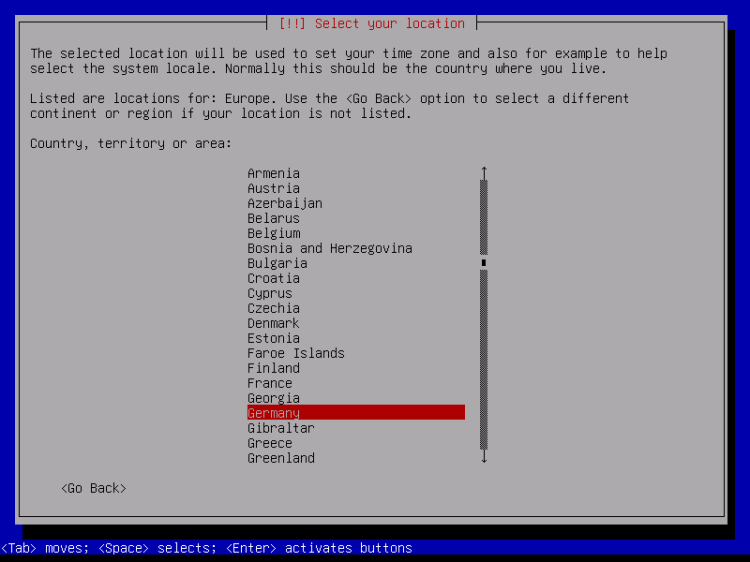
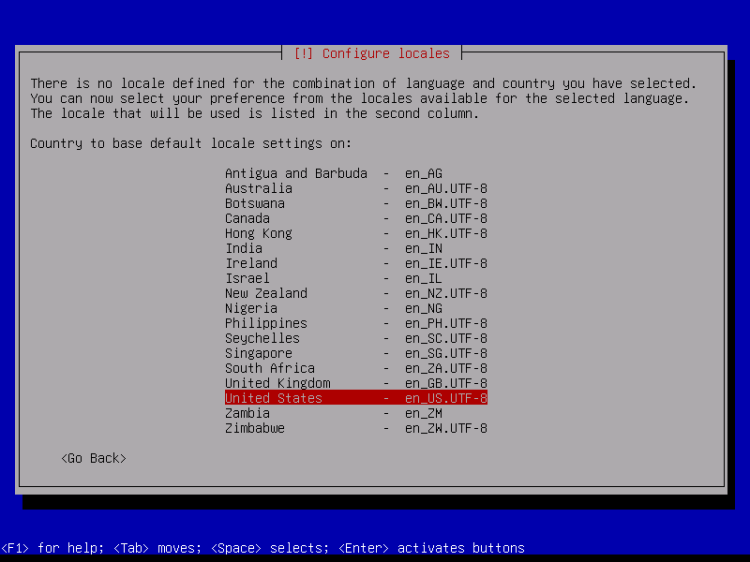
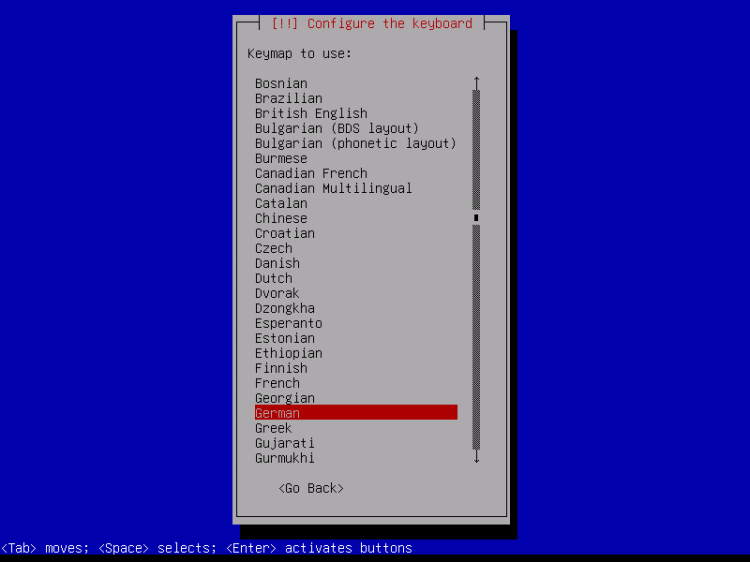
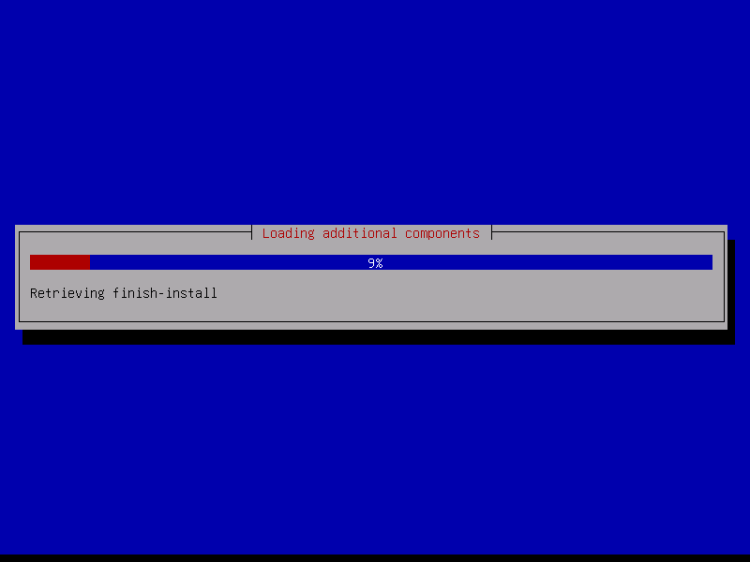
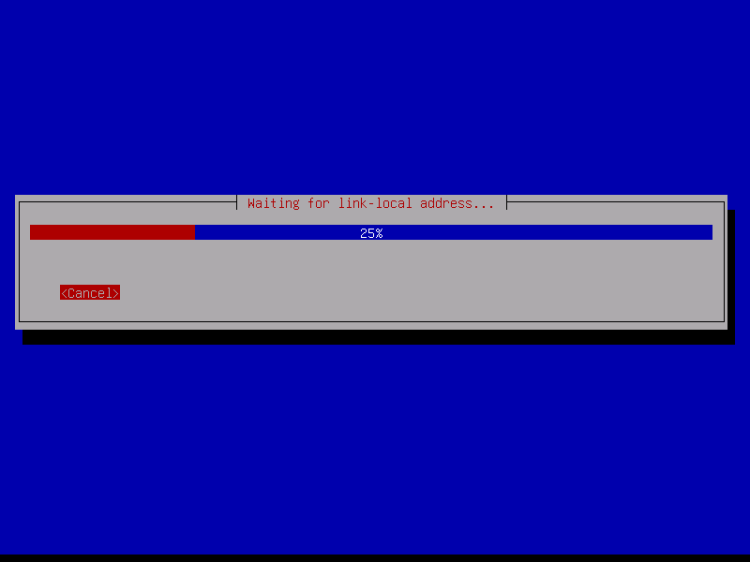
安装程序会检查安装 CD 和你的硬件,并在网络中存在 DHCP 服务器时使用 DHCP 配置网络:
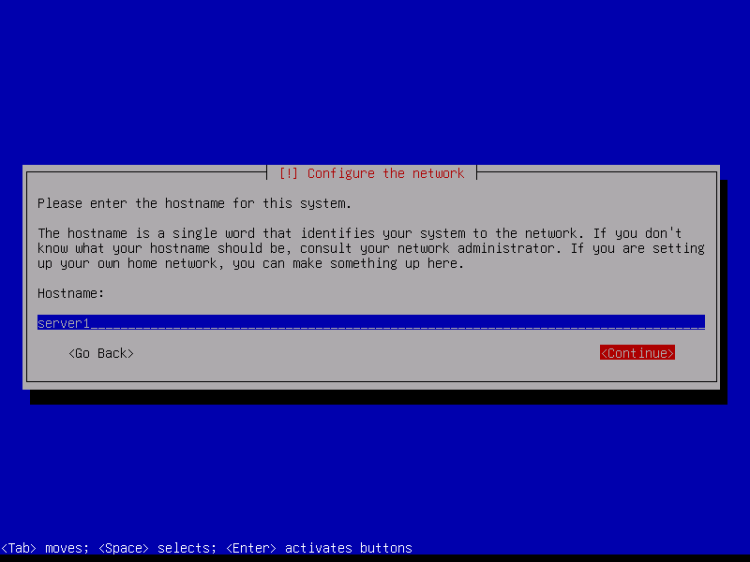
输入主机名。在本例中,我的系统名为 server1.example.com,因此我输入 server1:
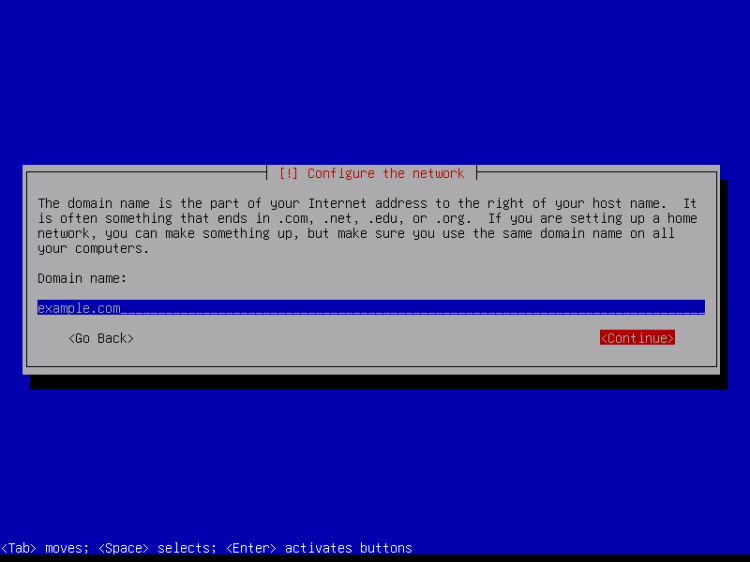
输入你的域名。在本例中,域名为 example.com:
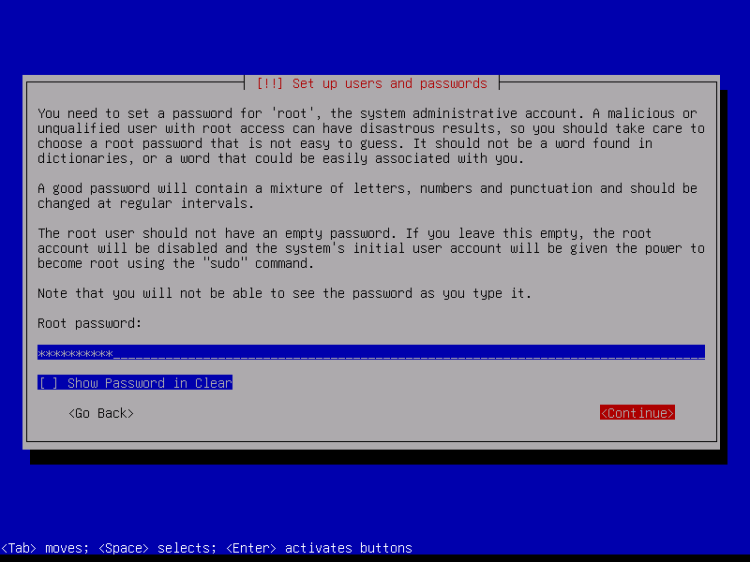
之后,为 root 用户设置一个密码:
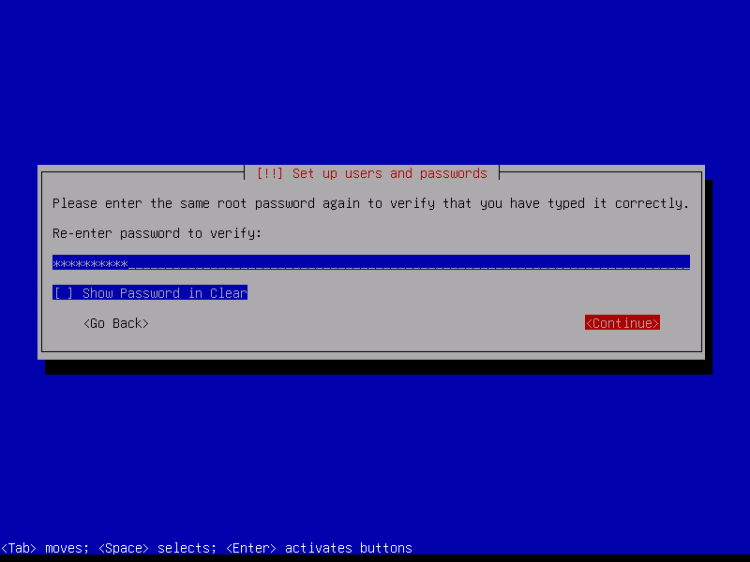
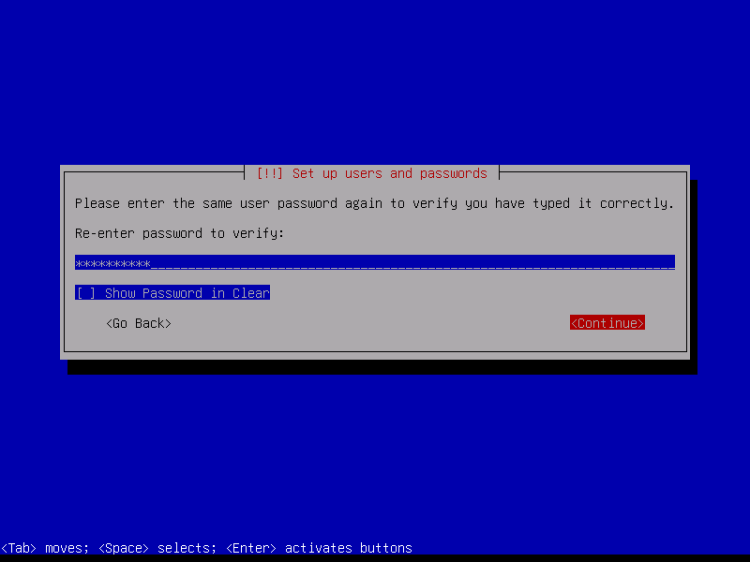
再次确认该密码以避免输入错误:
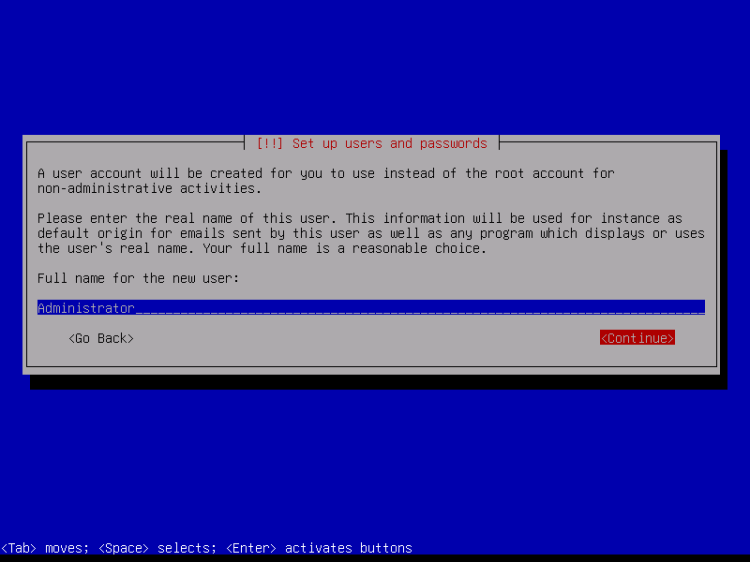
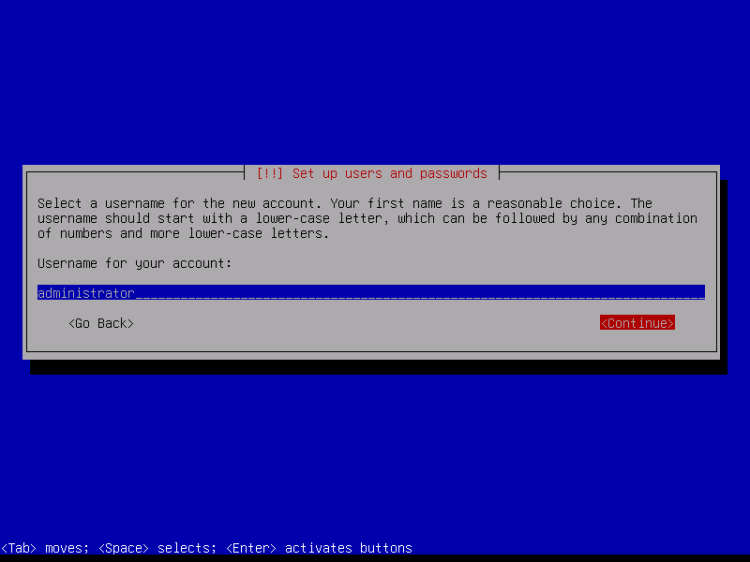
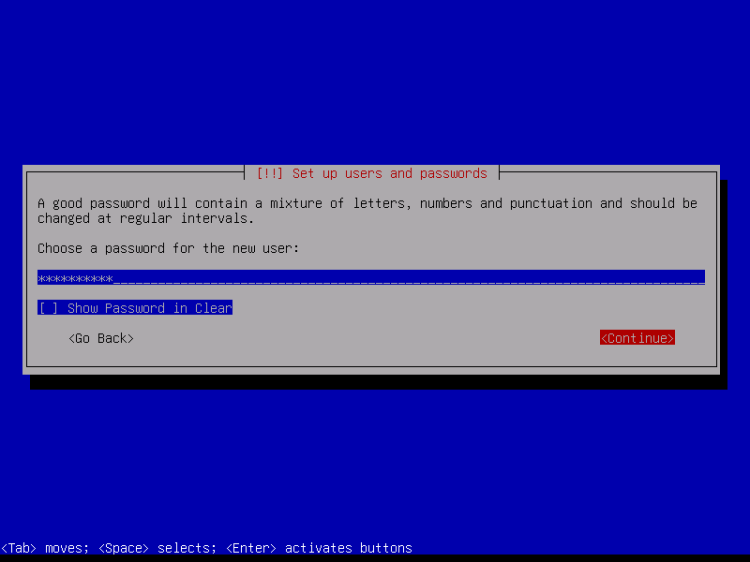
创建一个 Linux 用户账户,可以使用例如你的名字或昵称。在本示例安装中,我将选择名称为 "administrator",用户名为 administrator(不要使用用户名 admin,因为它是 Debian Linux 上的保留名称):
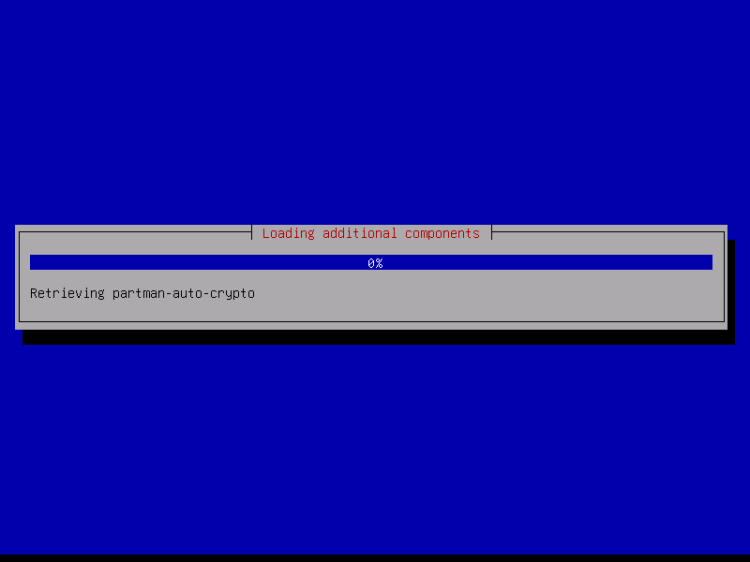
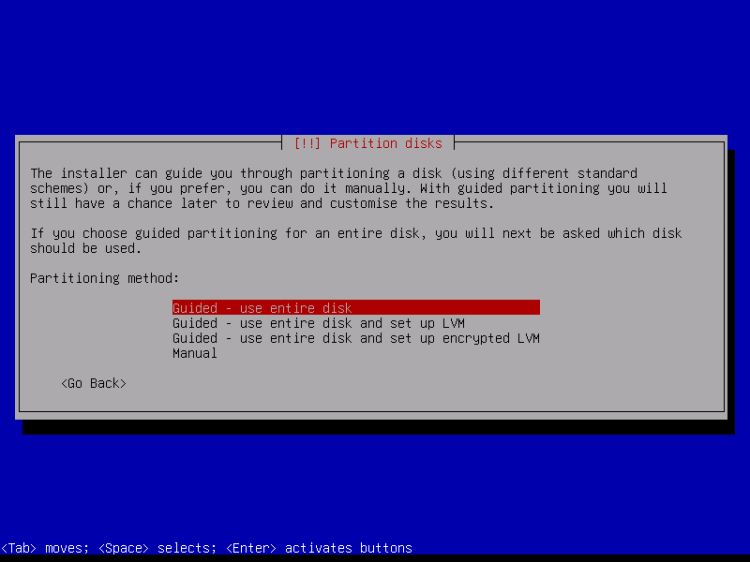
现在你需要对硬盘进行分区。为了简单起见,我选择「Guided - use entire disk(引导式 - 使用整块磁盘)」——这将为 / 文件系统创建一个大分区,并为 swap 创建另一个分区(当然,分区方式完全由你决定——如果你清楚自己在做什么,也可以手动设置分区)。对于像 ISPConfig 3 perfect server 教程那样的托管系统,你可能会希望例如为 / 分配 60GB,并分配一个较大的 /var 分区,因为所有网站和邮件数据都存储在 /var 的子目录中。
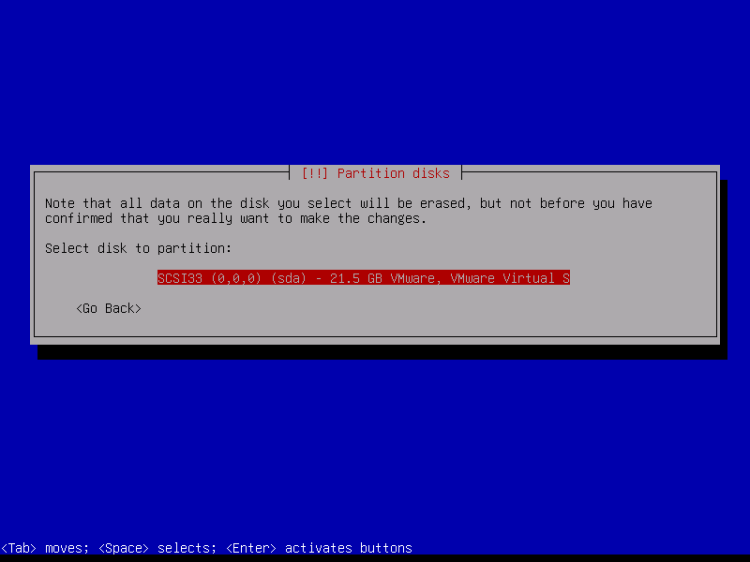
选择你要分区的磁盘:
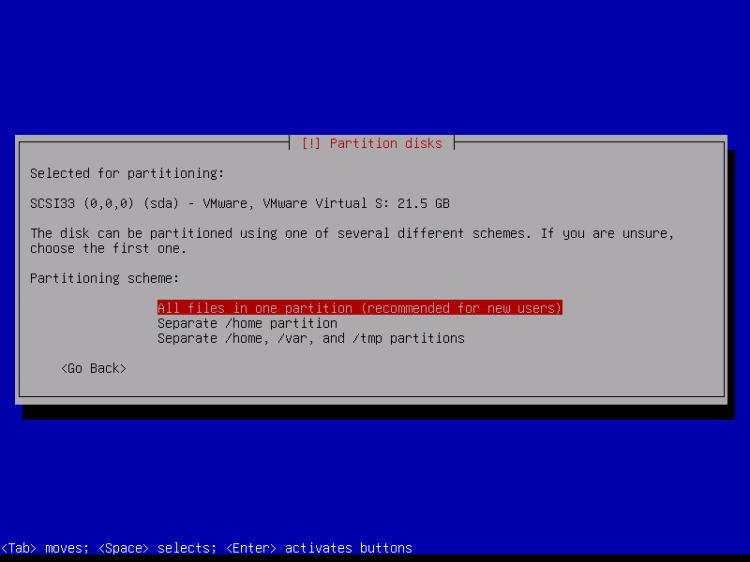
然后选择分区方案。如前所述,为了简单起见我选择「All files in one partition(推荐给新用户)」——在这里选择什么完全取决于你的喜好:
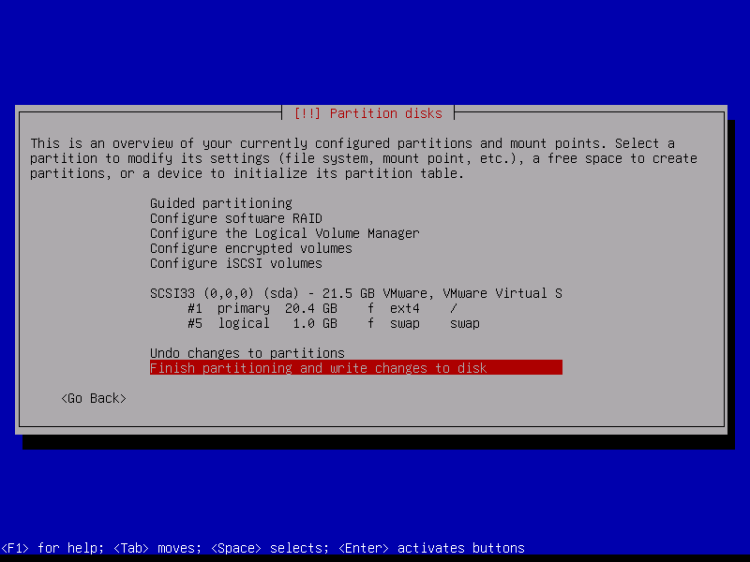
完成后,选择「Finish partitioning and write changes to disk(完成分区并将更改写入磁盘)」:
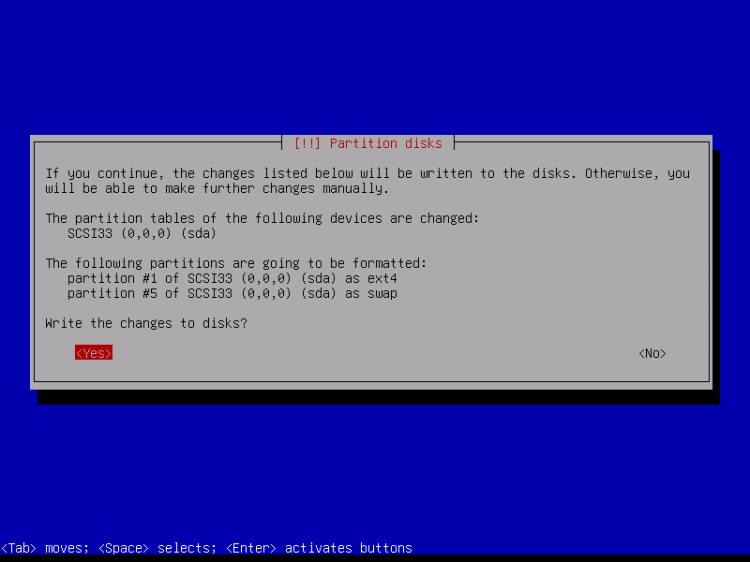
当被询问「Write changes to disk?(将更改写入磁盘?)」时,选择 Yes:
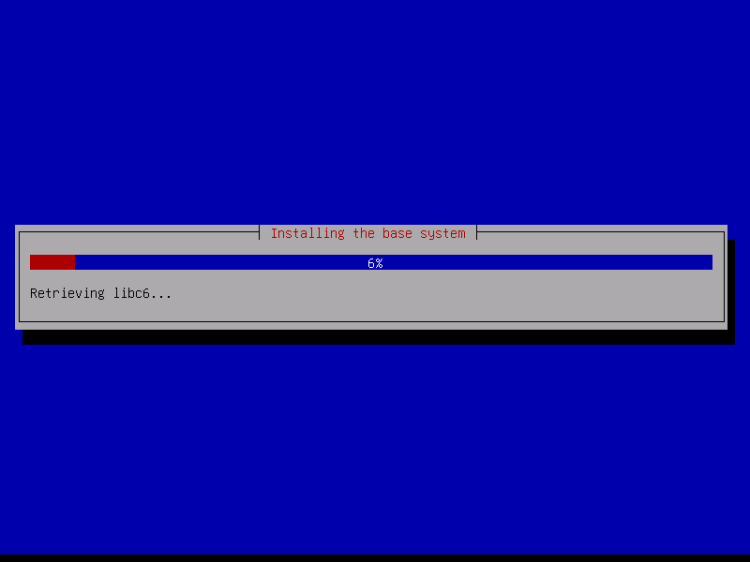
随后,你的新分区会被创建并格式化。分区创建完成,基础系统也安装好了:
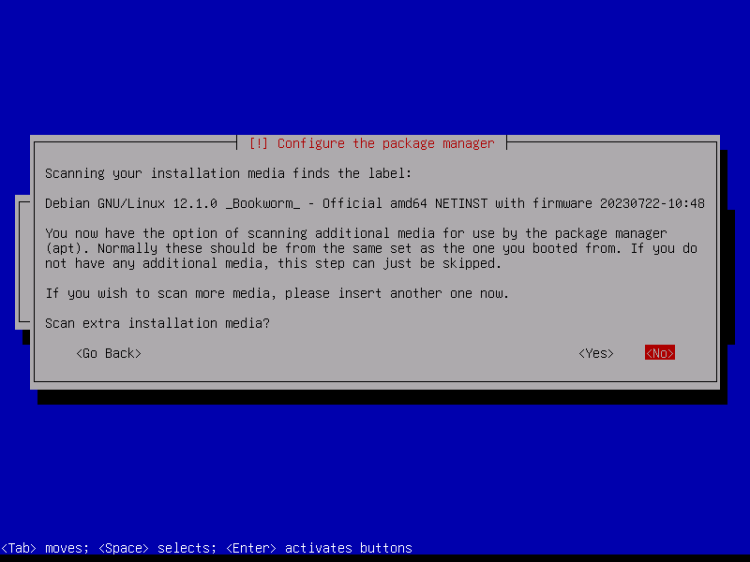
根据你的安装介质不同,可能会出现下面的界面。我将进行基于网络的安装(所有额外的安装包都从互联网下载),因此我在这里选择不扫描任何额外的安装盘。
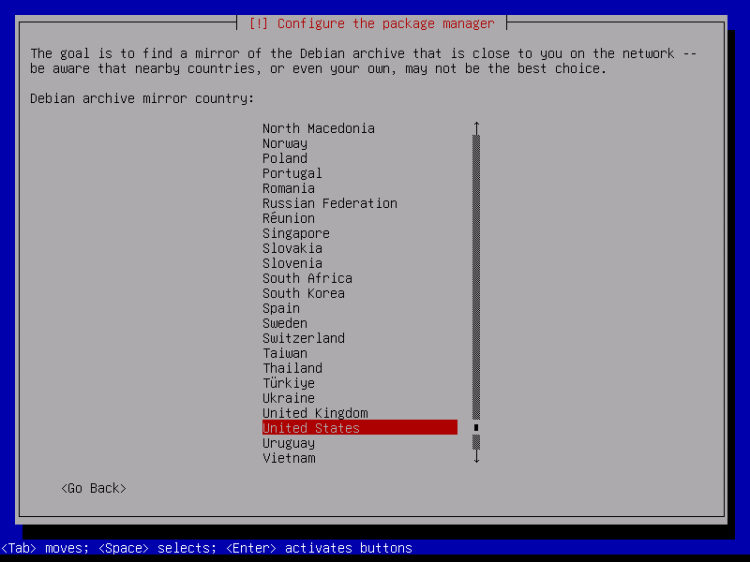
接下来,你必须配置 apt。因为我们使用的是 Debian Netinstall CD,它只包含最小化的软件包集合,所以我们必须使用网络镜像。选择你要使用的网络镜像所在的国家(通常就是你服务器系统所在的国家):
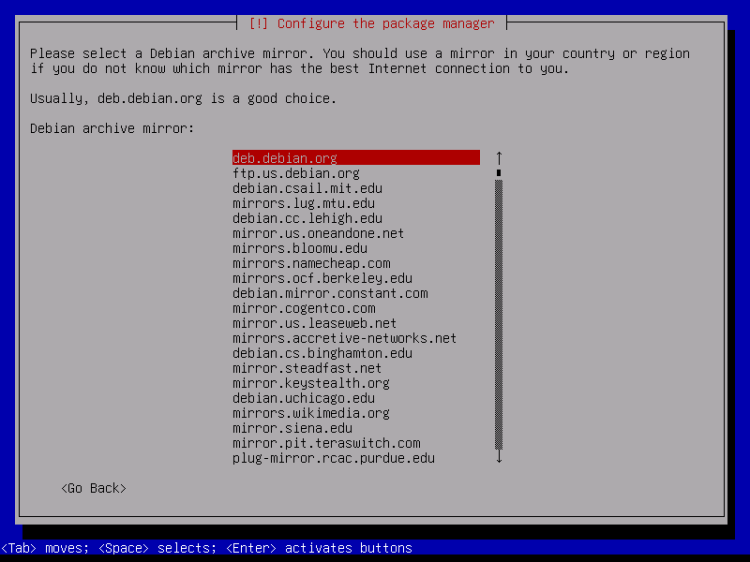
然后选择你想要使用的镜像(例如 deb.debian.org):
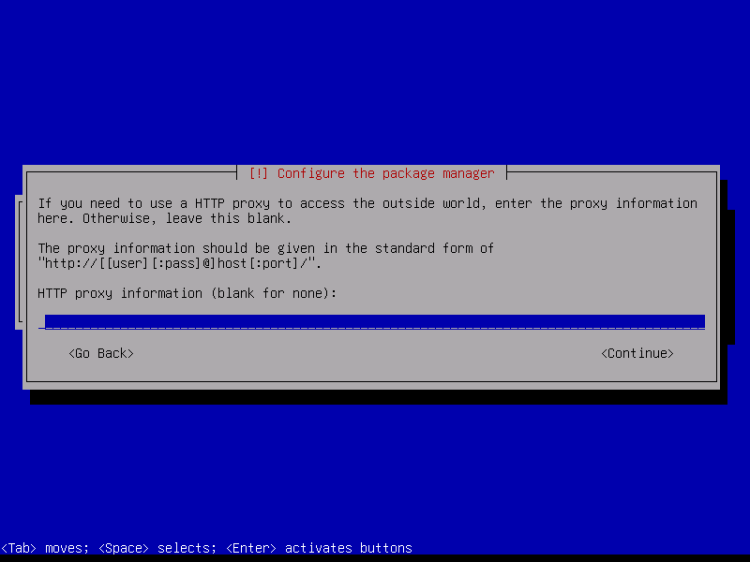
除非你使用 HTTP 代理,否则请将下面的字段留空并点击 Continue:
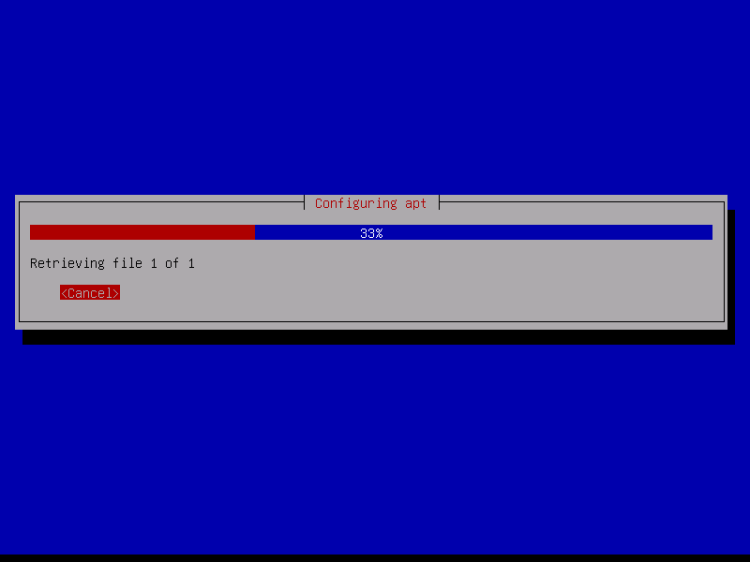
Apt 正在更新其软件包数据库:
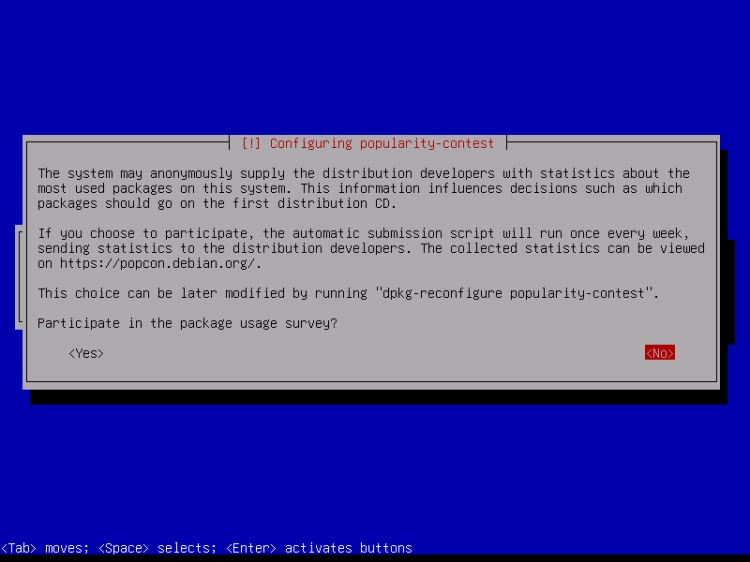
你可以通过选择 No 跳过软件包使用调查:
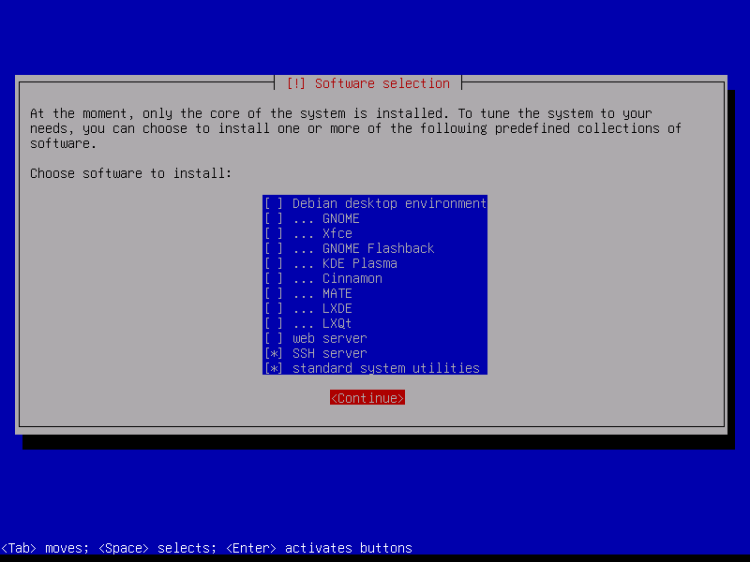
我们选择 Standard system utilities 和 SSH server(这样在安装完成后我可以立即用 PuTTY 等 SSH 客户端连接到系统),然后点击 Continue。
有人可能会说不应该在最小服务器上安装 Standard System Utilities。不过,依我看,你之后反正也会需要大部分标准工具,因此我会将它们作为基础配置的一部分安装到这台服务器上。
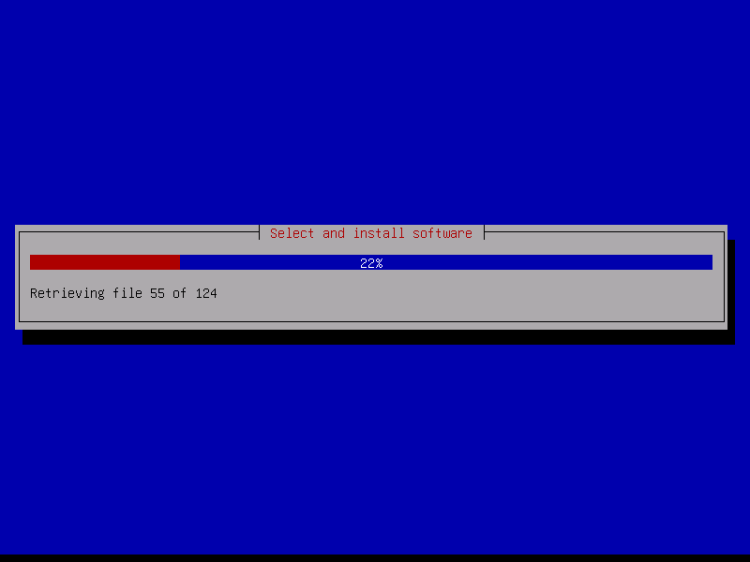
所需的软件包会被下载并安装到系统中:
当被询问「Install the GRUB boot loader to the master boot record?(将 GRUB 引导加载程序安装到主引导记录?)」时,选择 Yes:
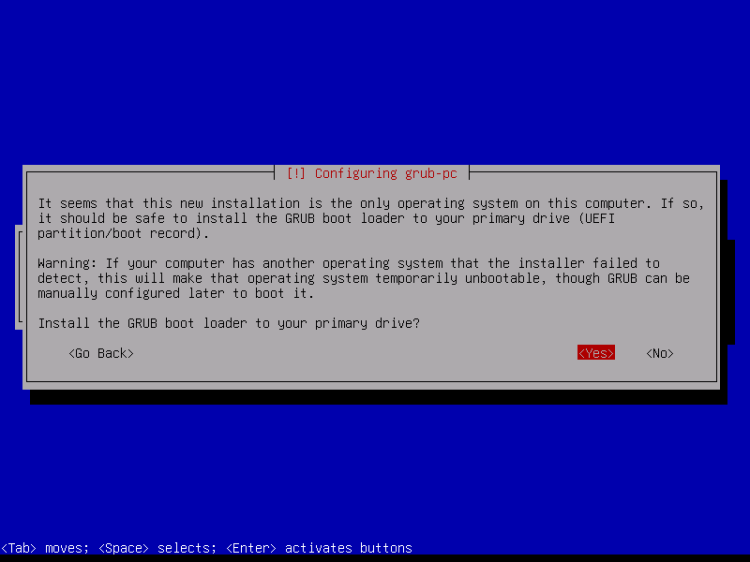
安装程序可能会询问将 Grub 安装到哪个分区。这台服务器只有一块硬盘,因此我在这里选择 /dev/sda。
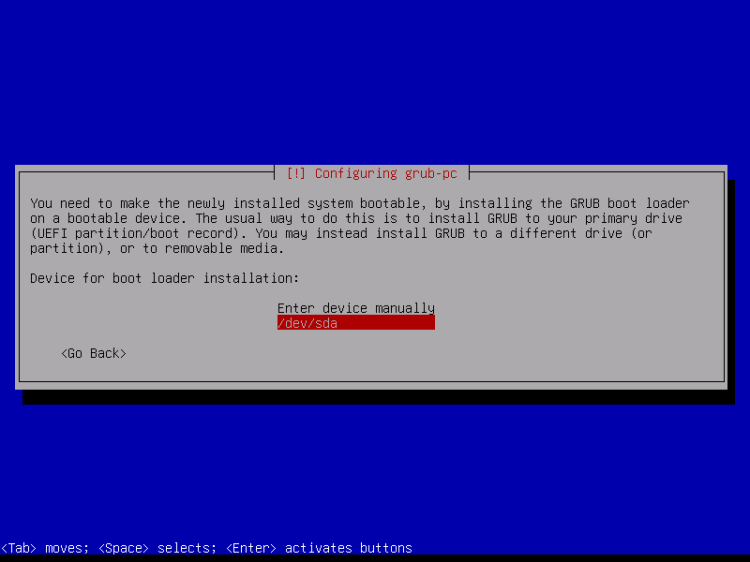
按下回车,安装程序会安装 Grub 并完成安装。
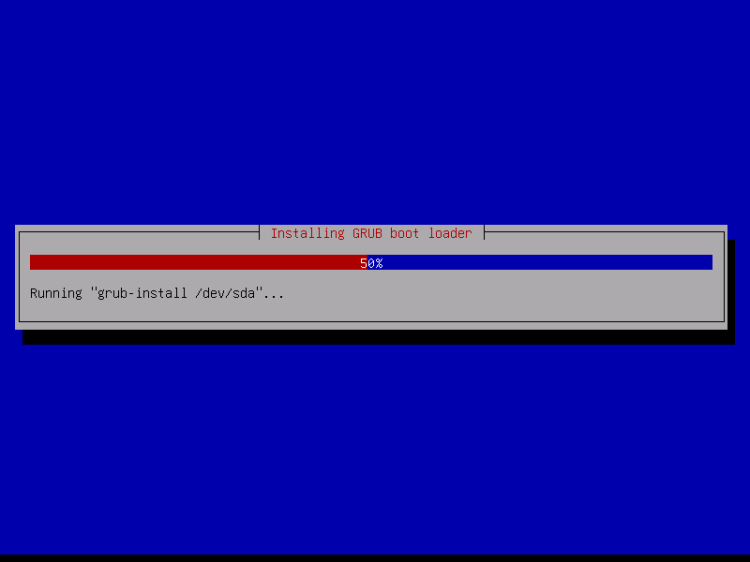
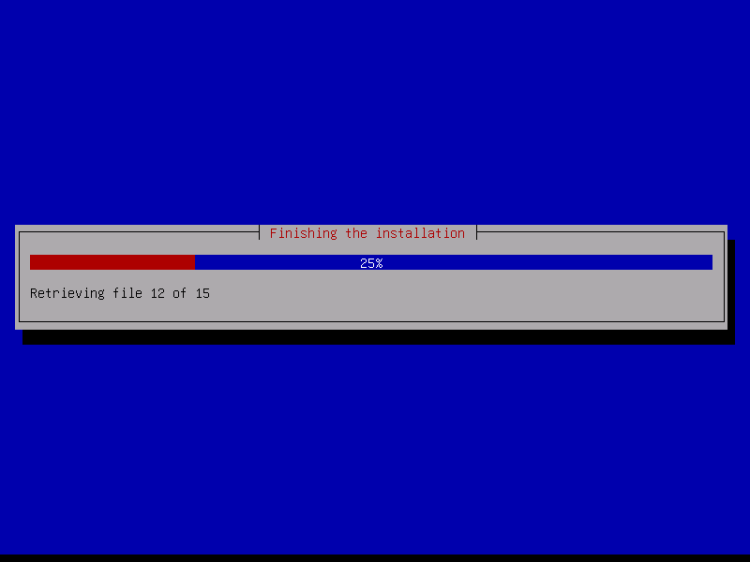
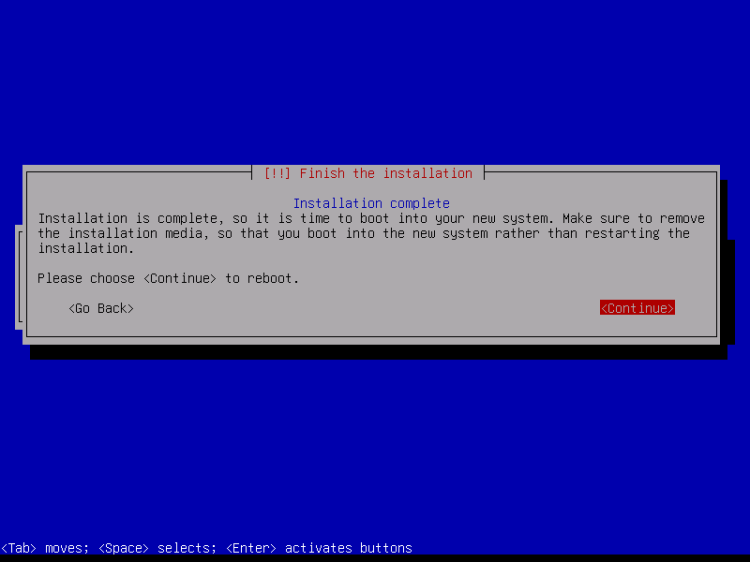
基础系统安装现已完成。从光驱中取出 Debian Netinstall CD 并点击 Continue 重启系统:
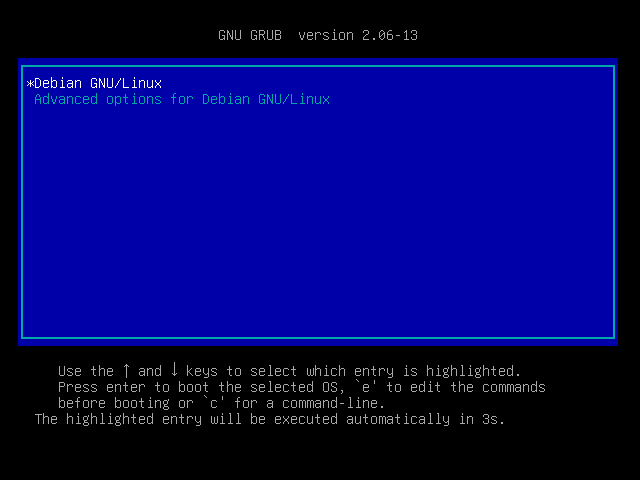
新安装的 Debian 10 服务器的首次启动:首先,你会看到 Grub 引导加载程序的启动界面,按回车或等待几秒,启动过程便会自动继续。
几秒钟后,应该会出现登录提示符。
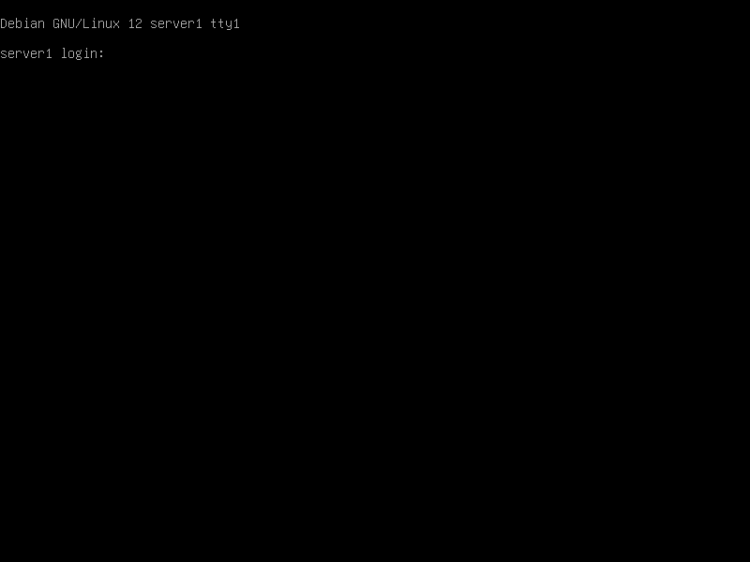
使用用户名 "root" 以及你在安装期间设置的 root 密码登录。当你通过 SSH 登录时,请使用用户名 "administrator",因为 root 用户已禁用远程登录。然后运行命令 "su -":
su -以成为 root 用户。重要的是,你要使用带 '-' 的 su 命令,或使用 'su --login',因为这是为 root 用户正确初始化 PATH 变量所必需的。
进入下一步……
4 安装 SSH 服务器(可选)
如果你在系统安装期间没有安装 OpenSSH 服务器,现在可以安装:
apt -y install ssh openssh-server从现在起,你可以使用 PuTTY 等 SSH 客户端从你的工作站连接到你的 Debian Jessie 服务器,并继续本教程的剩余步骤。
5 安装一个 shell 编辑器(可选)
我将使用 nano 作为我最喜欢的 shell 文本编辑器。其他人偏好 vi,它对初学者来说没那么容易上手。通过下面的命令,我将安装这两个编辑器:
apt -y install vim-nox nano(如果你使用其他文本编辑器,例如 joe 或 mc 内置的编辑器,则无需执行此步骤)。
6 配置网络
你可以通过以下命令获取当前 IP 地址:
ip a默认情况下,部分网络工具可能不可用。通过以下命令安装该软件包:
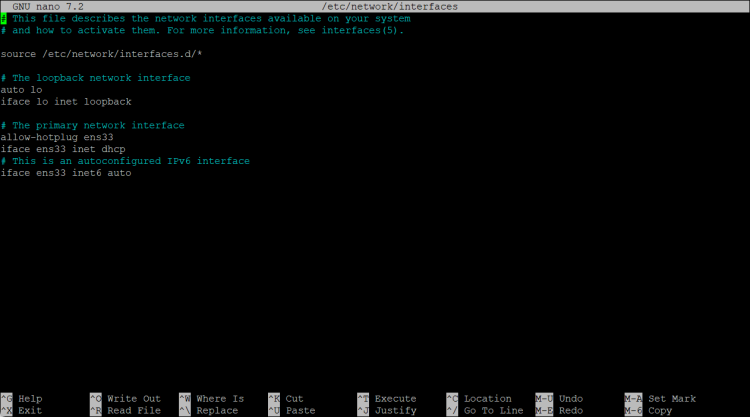
apt install net-tools因为 Debian 12 安装程序已将我们的系统配置为通过 DHCP 获取网络设置,而服务器应当拥有静态 IP 地址,所以我们现在必须修改它。编辑 /etc/network/interfaces 并根据你的需要进行调整(在本示例配置中,我将使用 IP 地址 192.168.0.100)(请注意,我将 allow-hotplug ens33 替换为 auto ens33;否则重启网络将无法生效,我们就不得不重启整个系统):
nano /etc/network/interfaces由 apt 安装程序创建的、启用 DHCP 的 interfaces 文件:
# This file describes the network interfaces available on your system
# and how to activate them. For more information, see interfaces(5).
source /etc/network/interfaces.d/*
# The loopback network interface
auto lo
iface lo inet loopback
# The primary network interface
allow-hotplug ens33
iface ens33 inet dhcp
# This is an autoconfigured IPv6 interface
iface ens33 inet6 auto
或以截图形式查看:
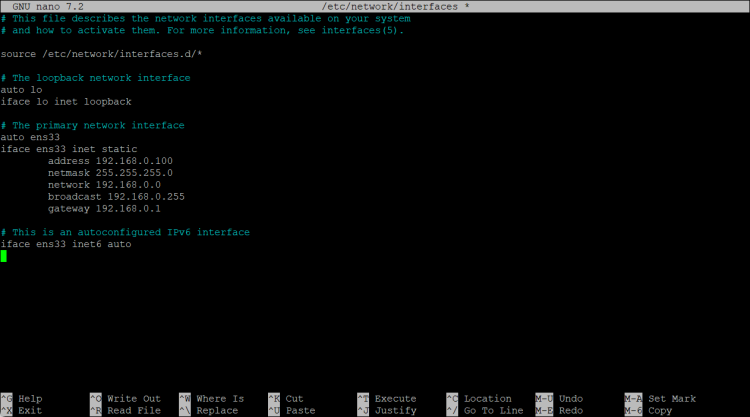
这里是编辑后、配置了静态 IP 192.168.0.100 的 interfaces 文件。
# This file describes the network interfaces available on your system
# and how to activate them. For more information, see interfaces(5).
source /etc/network/interfaces.d/*

# The loopback network interface
auto lo
iface lo inet loopback

# The primary network interface
auto ens33
iface ens33 inet static
        address 192.168.0.100
        netmask 255.255.255.0
        network 192.168.0.0
        broadcast 192.168.0.255
        gateway 192.168.0.1
# This is an autoconfigured IPv6 interface
iface ens33 inet6 auto
编辑后的文件应如下所示:
然后重启你的网络:
systemctl restart networking然后编辑 /etc/hosts。使其如下所示:
nano /etc/hosts127.0.0.1 localhost.localdomain localhost 192.168.0.100 server1.example.com server1 # The following lines are desirable for IPv6 capable hosts ::1 localhost ip6-localhost ip6-loopback ff02::1 ip6-allnodes ff02::2 ip6-allrouters
如果你在安装程序中未选择最终的主机名,现在请编辑主机名
nano /etc/hostname/etc/hostname 文件包含不带域名部分的主机名,因此在我们的例子中就是 "server1"。
然后重启服务器以应用主机名更改:
systemctl reboot重新登录后,运行以下命令:
hostname
hostname -f
以确认新的主机名已正确设置。输出应当为:
root@server1:/home/administrator# hostname
server1
root@server1:/home/administrator# hostname -f
server1.example.com
root@server1:/home/administrator#
7 更新你的 Debian 安装
首先,确保你的 /etc/apt/sources.list 包含 bookworm-updates 仓库(这能确保你始终获取最新的更新),并且 contrib、non-free 和 non-free-firmware 仓库已启用。
nano /etc/apt/sources.list#deb cdrom:[Debian GNU/Linux 12.1.0 _Bookworm_ - Official amd64 NETINST with firmware 20230722-10:48]/ bookworm main non-free-firmware deb http://deb.debian.org/debian/ bookworm main contrib non-free non-free-firmware deb-src http://deb.debian.org/debian/ bookworm main contrib non-free non-free-firmware deb http://security.debian.org/debian-security bookworm-security main contrib non-free non-free-firmware deb-src http://security.debian.org/debian-security bookworm-security main contrib non-free non-free-firmware # bookworm-updates, to get updates before a point release is made; # see https://www.debian.org/doc/manuals/debian-reference/ch02.en.html#_updates_and_backports deb http://deb.debian.org/debian/ bookworm-updates main contrib non-free non-free-firmware deb-src http://deb.debian.org/debian/ bookworm-updates main contrib non-free non-free-firmware # This system was installed using small removable media # (e.g. netinst, live or single CD). The matching "deb cdrom" # entries were disabled at the end of the installation process. # For information about how to configure apt package sources, # see the sources.list(5) manual.
运行
apt update以更新 apt 软件包数据库,并
apt upgrade以安装最新的更新(如果有的话)。
8 Debian 12 VMWare 服务器镜像
本教程以开箱即用的虚拟机镜像形式提供,格式为 ovf/ova,兼容 VMWare 和 Virtualbox。该虚拟机镜像使用以下登录信息:
SSH / Shell 登录
用户名:administrator 密码:howtoforge
用户名:root 密码:howtoforge
该 VM 的 IP 为 192.168.0.100。可以在文件 /etc/network/interfaces 中修改。请修改上述所有密码以保护该虚拟机。
9 链接
- Debian: http://www.debian.org/