
在本页
- 先决条件
- 在 Debian 11 上安装 Hugo
- 使用 Hugo 创建网站
- 创建 About 页面和示例文章
- 在您的网站上安装主题
- 构建并启动您的网站
- 访问 Hugo 网站
- 结论
Hugo 是一个用 Go 语言编写的免费开源网站框架。Hugo 提供了一个可靠且现代的静态网站生成器,使您能够轻松创建一个简单且快速的网站。它带有预制的模板以及其他功能,包括 SEO、评论、分析和其他功能。Hugo 网站无需任何昂贵的运行环境(如 PHP、Python、Ruby)即可运行,也不需要任何数据库。
在本文中,我们将向您展示如何在 Debian 11 上安装和使用 Hugo 网站生成器。
先决条件
- 一台运行 Debian 11 的服务器。
- 服务器上已配置 root 密码。
在 Debian 11 上安装 Hugo
默认情况下,Hugo 软件包包含在 Debian 11 的默认存储库中。您可以使用以下命令安装它:
apt-get install hugo -y安装 Hugo 后,您可以使用以下命令验证 Hugo 版本:
hugo version您应该会得到以下输出:
Hugo Static Site Generator v0.80.0/extended linux/amd64 BuildDate: 2021-07-18T09:31:51Z (debian 0.80.0-6+b5)
使用 Hugo 创建网站
在本节中,我们将创建一个名为 hugo.example.com 的新网站。
运行以下命令创建网站:
hugo new site hugo.example.com网站创建完成后,您应该会得到以下输出:
Congratulations! Your new Hugo site is created in /root/hugo.example.com.

Just a few more steps and you're ready to go:

1. Download a theme into the same-named folder.
   Choose a theme from https://themes.gohugo.io/ or
   create your own with the "hugo new theme
" command.
2. Perhaps you want to add some content. You can add single files
   with "hugo new
/
.
".
3. Start the built-in live server via "hugo server".

Visit https://gohugo.io/ for quickstart guide and full documentation.
您可以使用以下命令列出 Hugo 创建的所有文件:
ls -l hugo.example.com您将得到以下输出:
drwxr-xr-x 2 root root 4096 Nov 13 09:27 archetypes
-rw-r--r-- 1 root root   82 Nov 13 09:27 config.toml
drwxr-xr-x 2 root root 4096 Nov 13 09:27 content
drwxr-xr-x 2 root root 4096 Nov 13 09:27 data
drwxr-xr-x 2 root root 4096 Nov 13 09:27 layouts
drwxr-xr-x 2 root root 4096 Nov 13 09:27 static
drwxr-xr-x 2 root root 4096 Nov 13 09:27 themes
创建 About 页面和示例文章
首先,使用以下命令将目录切换到您的网站:
cd hugo.example.com接下来,使用以下命令创建一个 about 页面:
hugo new about.md您将得到以下输出:
/root/hugo.example.com/content/about.md created
接下来,使用以下命令编辑 about.md 页面:
nano content/about.md按如下所示修改文件:
---
title: "About Us"
date: 2021-11-13T09:28:18Z
draft: false
---

This is About Us page for this website.
接下来,使用以下命令创建一篇示例文章:
hugo new post/page.md您将得到以下输出:
/root/hugo.example.com/content/post/page.md created
接下来,使用以下命令编辑示例文章页面:
nano content/post/page.md按如下所示修改文件:
---
title: "Page"
date: 2021-11-13T09:29:29Z
draft: true
---

# Hugo Page

This is my first hugo website page!
完成后保存并关闭文件。
在您的网站上安装主题
接下来,您需要下载并设置一个主题才能访问您的 Hugo 网站。
首先,使用以下命令将目录切换到 themes:
cd themes接下来,使用以下命令下载 Hugo 主题:
wget https://github.com/digitalcraftsman/hugo-strata-theme/archive/master.zip接下来,使用以下命令解压缩下载的主题:
unzip master.zip接下来,使用以下命令重命名解压后的主题:
mv hugo-strata-theme-master hugo-strata-theme接下来,将 config.toml 的内容复制到您站点的配置中。
cat hugo-strata-theme/exampleSite/config.toml > ../config.toml接下来,使用以下命令编辑 config.toml 文件:
nano ../config.toml添加/修改以下行:
baseurl = "/"

[[menu.main]]
  name = "About"
  url  = "about"
  weight = 5
保存并关闭文件,然后为您的网站创建一个 index.html 文件:
cd ../
nano layouts/index.html
添加以下行:
{{ define "main" }}
        {{ if not .Site.Params.about.hide }}
                {{ partial "about" . }}
        {{ end }}

        {{ if not .Site.Params.portfolio.hide }}
                {{ partial "portfolio" . }}
        {{ end }}

        {{ if not .Site.Params.recentposts.hide }}
                {{ partial "recent-posts" . }}
        {{ end }}

        {{ if not .Site.Params.contact.hide }}
                {{ partial "contact" . }}
        {{ end }}
{{ end }}
保存并关闭文件。
构建并启动您的网站
现在,您需要构建网站才能使用它。您可以通过运行以下命令来构建:
hugo您将得到以下输出:
    {{ with .OutputFormats.Get "RSS" }}{{ .RelPermalink }}{{ end }}

                   | EN
-------------------+-----
  Pages            |  8
  Paginator pages  |  0
  Non-page files   |  0
  Static files     | 26
  Processed images |  0
  Aliases          |  2
  Sitemaps         |  1
  Cleaned          |  0

Total in 48 ms
接下来,使用以下命令启动 Hugo 服务器并将其与您的服务器 IP 绑定:
hugo server --bind=0.0.0.0 --baseUrl=http://104.245.34.233 -D -F您将得到以下输出:
    {{ with .OutputFormats.Get "RSS" }}{{ .RelPermalink }}{{ end }}

                   | EN
-------------------+-----
  Pages            | 11
  Paginator pages  |  0
  Non-page files   |  0
  Static files     | 26
  Processed images |  0
  Aliases          |  3
  Sitemaps         |  1
  Cleaned          |  0

Built in 42 ms
Watching for changes in /root/hugo.example.com/{archetypes,content,data,layouts,static,themes}
Watching for config changes in /root/hugo.example.com/config.toml
Environment: "development"
Serving pages from memory
Running in Fast Render Mode. For full rebuilds on change: hugo server --disableFastRender
Web Server is available at http://104.245.34.233:1313/ (bind address 0.0.0.0)
Press Ctrl+C to stop
此时,Hugo 服务器已启动并监听端口 1313。
访问 Hugo 网站
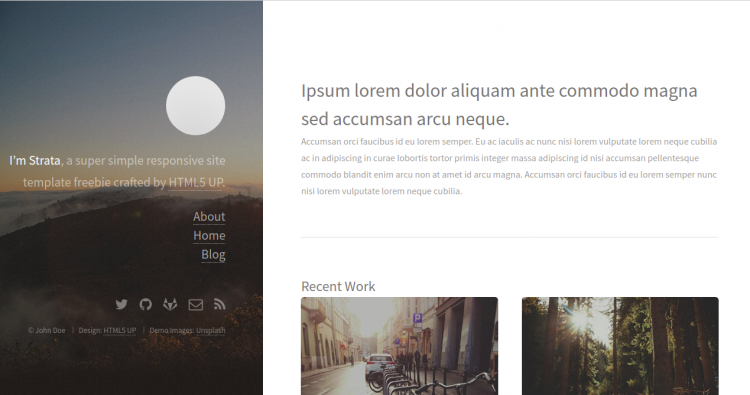
现在,打开 Web 浏览器并使用 URL http://your-server-ip:1313 访问您的网站。您应该会看到 Hugo 默认页面:
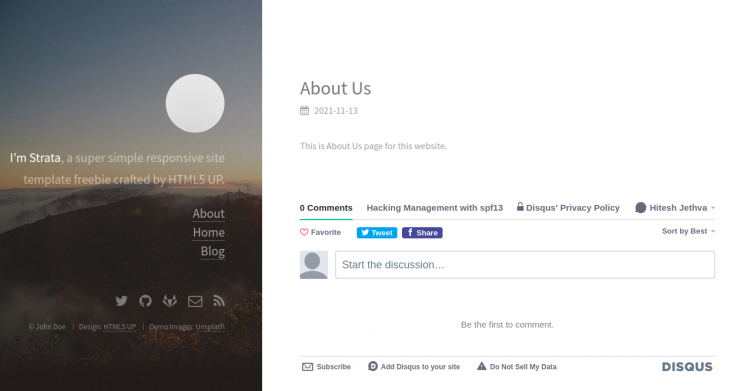
点击左侧窗格中的 About。您应该会在屏幕上看到您的 About 页面:
结论
恭喜!您已在 Debian 11 上成功安装 Hugo 并创建了一个网站。现在您可以使用 Hugo 轻松构建一个安全且快速的网站。