
本教程适用于以下操作系统版本
- Debian 12 (Bookworm)
- Debian 11 (Bullseye)
本页内容
- Prerequisites
- Basic Concepts You Must Know
- Installing Prometheus and Node Exporter
- Configuring Prometheus
- Adding Node Exporter to Prometheus Checking Node Exporter Status Adding New Job to Prometheus
- Basic Usage of Prometheus Dashboard
- Conclusion
- Checking Node Exporter Status
- Adding New Job to Prometheus
Prometheus 是一个开源的监控和告警平台。最初,Prometheus 由 Soundcloud 于 2012 年创建。此后,Prometheus 项目被一些知名公司采用,并已发展成为一个拥有非常活跃的开发者与社区的大型项目。2016 年,Prometheus 项目从 Cloud Native Computing Foundation (CNCF) 毕业。
本指南将向你展示如何在 Debian 12 服务器上安装 Prometheus 与 Node Exporter。
先决条件
在开始之前,请确保你具备以下条件:
- 一台 Debian 12 服务器。
- 一个具有 sudo 管理员权限的非 root 用户。
你必须了解的基本概念
基本上,Prometheus 通过 HTTP endpoints 从目标服务器收集数据和 metrics,然后将所有数据存储为 time series。在 Prometheus 中,time-series 数据通过 metric 名称和键值对(key/value)来标识。
Prometheus 通过 Prometheus Query Language (PromQL) 提供灵活性。你可以使用 PromQL 来查询 Prometheus 的 time-series 数据库。
在目标服务器上,你必须安装 'exporter' 应用程序,用于向 Prometheus 暴露所有数据和 metrics。'Node Exporter' 是用来监控 Linux 机器的常用 exporter。
Node Exporter 暴露来自 Linux 机器的硬件和内核相关的 metrics。它作为一个单独的二进制文件提供,用于向 Prometheus 服务器暴露数据和 metrics。
安装 Prometheus 与 Node Exporter
Prometheus 是一个用于收集系统 metrics 的开源监控系统。Prometheus 使用一个 exporter 来收集系统 metrics,例如 Node Exporter,它可以让你收集系统的 metrics。
在最新的 Debian 版本中,Prometheus 和 Node Exporter 都可在软件仓库中获取,并且可以使用 APT 包管理器进行安装。
首先,通过执行以下命令来更新并刷新你的 Debian 软件包索引。
sudo apt update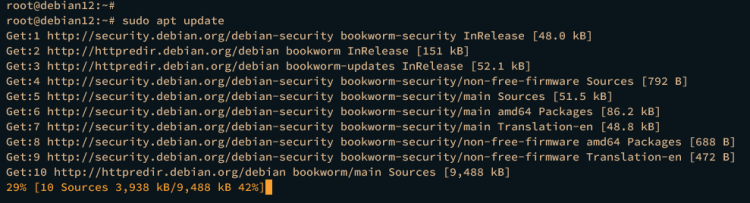
现在,通过下面的 apt 命令安装 Prometheus 和 Node Exporter。Debian 仓库提供的是 Prometheus 2.42.0 和 Node Exporter 1.5.0。
sudo apt install prometheus prometheus-node-exporter输入 Y 以继续安装。
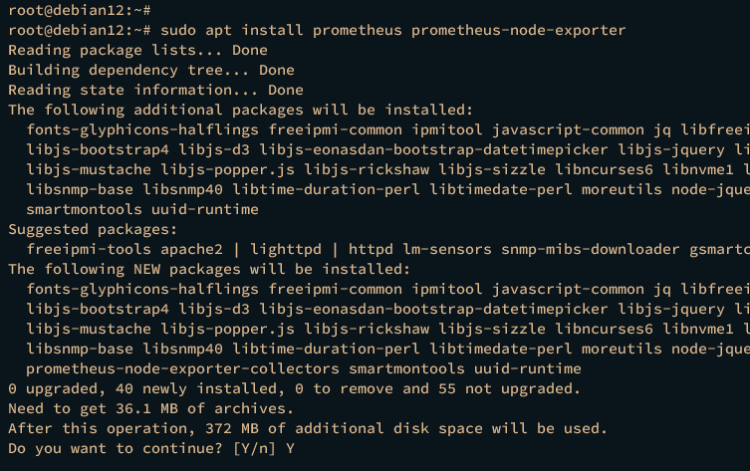
安装完成后,Prometheus 和 Node Exporter 都将作为 systemd 服务运行,并自动启用。Prometheus 对应的服务为 prometheus,而 Node Exporter 对应的服务为 prometheus-node-exporter。
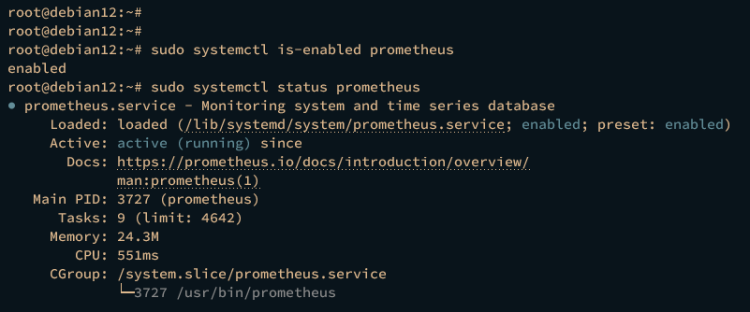
使用以下命令验证 prometheus 服务。
sudo systemctl is-enabled prometheus
sudo systemctl status prometheus
以下显示的输出表明 prometheus 服务正在运行且已启用。默认情况下,它运行在 9090 端口。
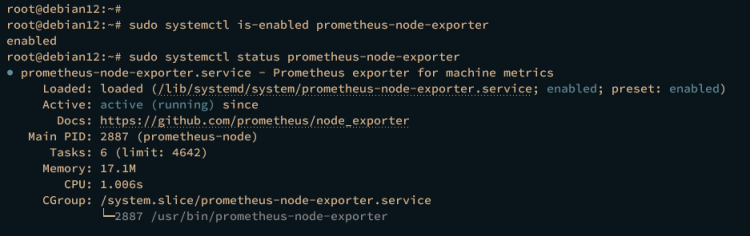
现在通过执行以下命令验证 prometheus-node-exporter 服务。
sudo systemctl is-enabled prometheus-node-exporter
sudo systemctl status prometheus-node-exporter
显示的输出将类似,表明 prometheus-node-exporter 服务正在运行且已启用。Node Exporter 的默认端口是 9100。
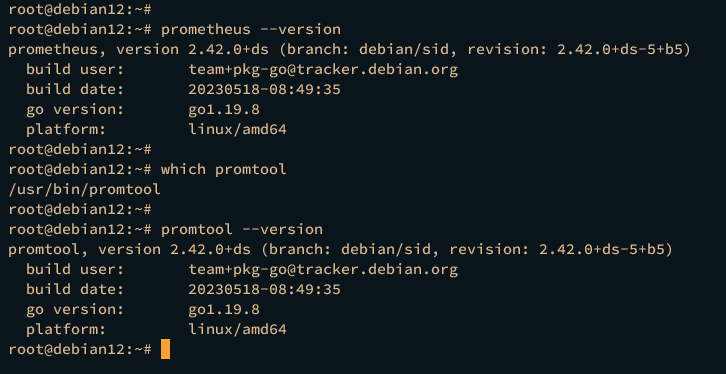
接下来,运行以下 prometheus 命令以验证 Prometheus 版本。
prometheus --version然后,像这样检查 promtool 的二进制路径及其版本。promtool 是用于管理 Prometheus 监控系统的命令行工具。
which promtool
promtool --version
根据显示的输出,已安装 Prometheus 和 promtool 2.42.0。
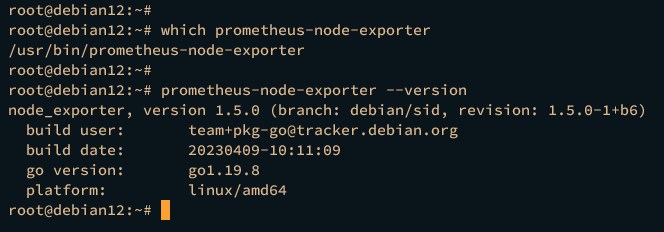
最后,使用以下命令验证 Node Exporter 的二进制路径 prometheus-node-exporter 及其版本。
which prometheus-node-exporter
prometheus-node-exporter --version
以下显示的输出确认已安装 Node Exporter 1.5。
配置 Prometheus
在安装 Prometheus 和 Node Exporter 之后,下一步你将通过编辑默认配置文件 prometheus.yml 来配置 Prometheus,该文件位于 Prometheus 的配置目录 /etc/prometheus 中。
使用以下 nano 编辑器命令打开默认的 Prometheus 配置 /etc/prometheus/prometheus.yml。
sudo nano /etc/prometheus/prometheus.yml在 scrape_configs 部分中,添加一个新的 job prometheus,其目标 endpoint 为 192.168.10.15:9090,即 Prometheus 服务器本身。
# A scrape configuration containing exactly one endpoint to scrape:
# Here it's Prometheus itself.
scrape_configs:
  # The job name is added as a label `job=<job_name>` to any timeseries scraped from this config.
  - job_name: "prometheus"
    # metrics_path defaults to '/metrics'
    # scheme defaults to 'http'.
    static_configs:
      - targets: ["192.168.10.15:9090"]
完成后保存文件并退出编辑器。
现在运行以下 systemctl 命令以重启 prometheus 服务并应用你所做的更改。
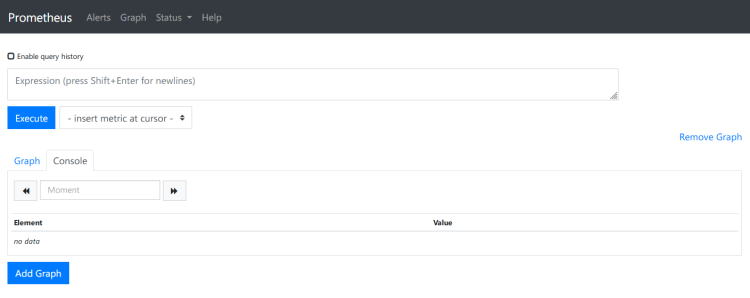
sudo systemctl restart prometheus现在启动你的网页浏览器并访问你的 Prometheus 安装地址,例如 http://192.168.10.15:9090。如果一切正常,你应该能在以下命令中看到 Prometheus dashboard。
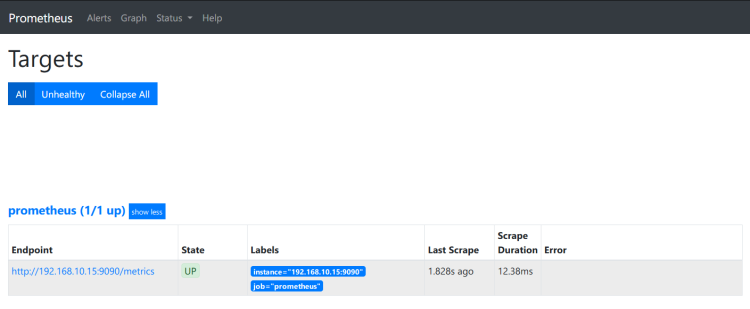
点击菜单 Status > Targets 以获取目标监控系统的 endpoint 列表。你应该能看到状态为 Up 的 endpoint prometheus。
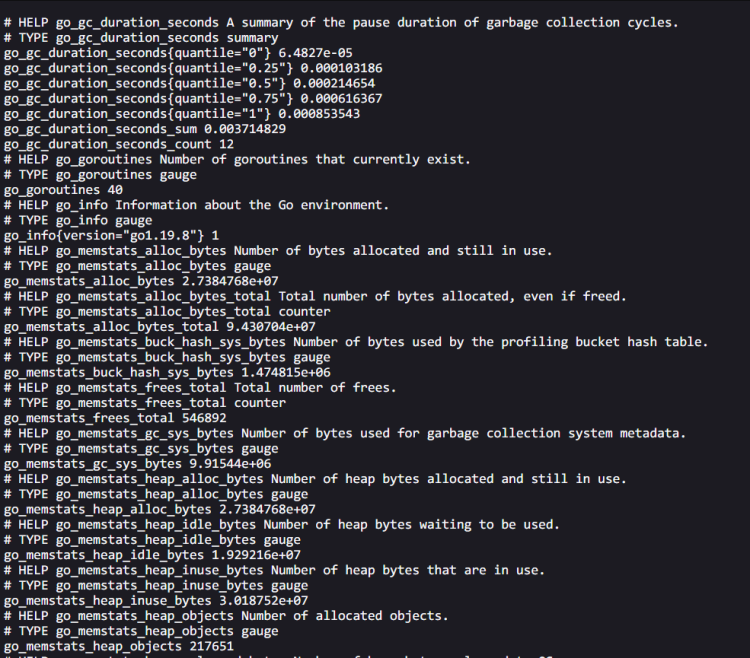
最后,你也可以通过访问路径 URL /metrics 来验证 Prometheus 的 metrics,例如 http://192.168.10.15:9090/metrics。你应该能看到由 Prometheus 生成的类似 metrics 数据。
将 Node Exporter 添加到 Prometheus
既然你已经配置了 Prometheus,下一步就是将 Node Exporter 添加到你的 Prometheus 安装中。Node Exporter 将从你的服务器收集 metrics。为此,你必须完成以下操作:
- 检查 Node Exporter 状态:这将确保 Node Exporter 在继续之前正在运行。
- 向 Prometheus 添加新的 Job:这将向你展示如何向 Prometheus 添加目标监控系统。
现在让我们开始。
检查 Node Exporter 状态
在将 Node Exporter 添加到 Prometheus 之前,你必须确保 Node Exporter 运行且没有任何错误。这可以通过检查 prometheus-node-exporter 服务状态、检查 Node Exporter 使用的 9100 端口,以及从你的浏览器访问 Node Exporter 的 metrics 来实现。
通过执行以下命令检查 prometheus-node-exporter 服务状态。
sudo systemctl status prometheus-node-exporter如果正在运行,prometheus-node-exporter 服务状态应如下所示:
现在运行以下命令以确保 9100 端口处于 LISTEN 状态,该端口由 Node Exporter 使用。
ss -tulpn | grep 9100以下输出确认 Node Exporter 使用 9100 端口。

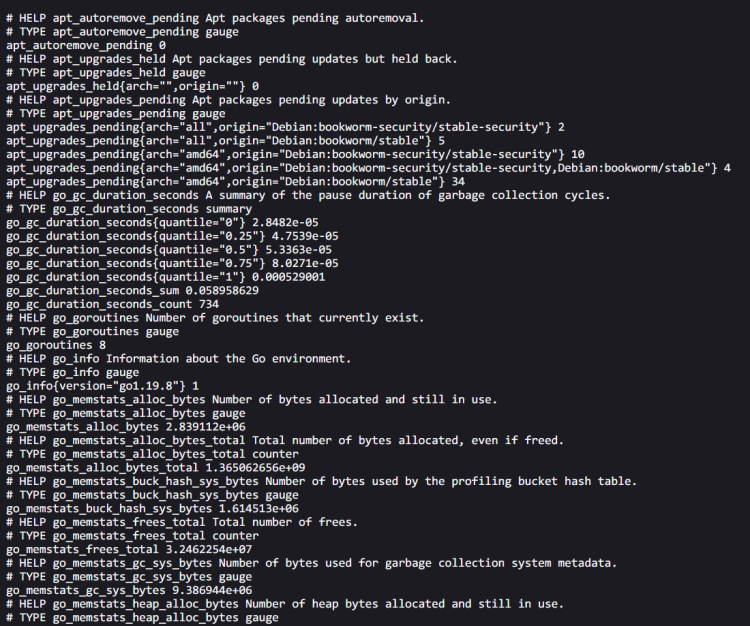
最后,打开你的网页浏览器并访问 Node Exporter 的 metrics URL,例如 http://192.168.10.15:9100/metrics。你应该能看到 Node Exporter 生成的 metrics,如下所示:
向 Prometheus 添加新的 Job
既然 Node Exporter 正在运行,你就可以将 Node Exporter 添加到 Prometheus 了。
使用以下 nano 编辑器命令打开 Prometheus 配置 /etc/prometheus/prometheus.yml。
sudo nano /etc/prometheus/prometheus.yml在 scrape_configs 部分中,添加一个新的 job prometheus-node-exporter,其 endpoint 为 Node Exporter 的 metrics,如下所示。
  - job_name: 'prometheus-node-exporter'
    scrape_interval: 5s
    static_configs:
      - targets: ['192.168.10.15:9100']
完成后保存文件并退出编辑器。
接下来,执行以下 systemctl 命令以重启 prometheus 服务并应用更改。
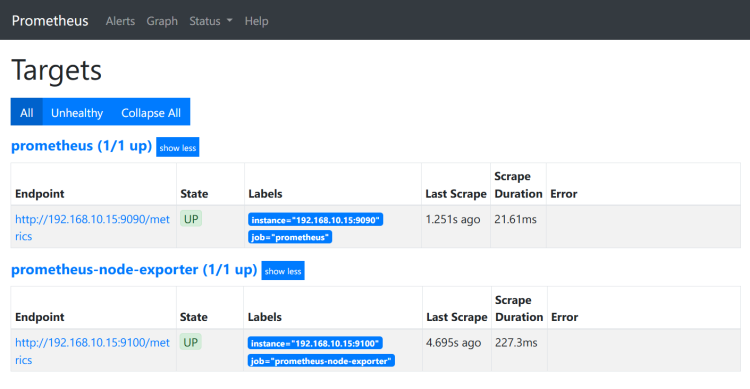
sudo systemctl restart prometheus最后,返回 Prometheus dashboard,然后点击 Status > Targets 菜单。如果一切顺利,你应该能在目标 endpoint 上看到 Node Exporter。
Prometheus Dashboard 的基本使用
在本节中,你将学习 Prometheus 和 Node Exporter 的基本查询,这些查询可以从 Prometheus dashboard 中执行。
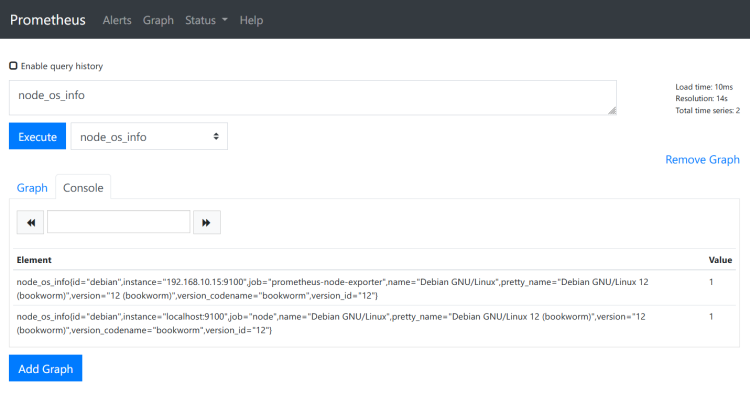
输入查询 node_os_info 并点击 Execute 按钮。node_os_info 是 Node Exporter 提供的用于检查操作系统详细信息的查询语言。
在 Console 部分,你应该能看到如下所示的详细主机信息:
接下来,输入另一个查询,例如 node_memory_Active_bytes,以检查目标服务器上的活动内存。在 Graph 部分,你应该能看到类似如下的结果:
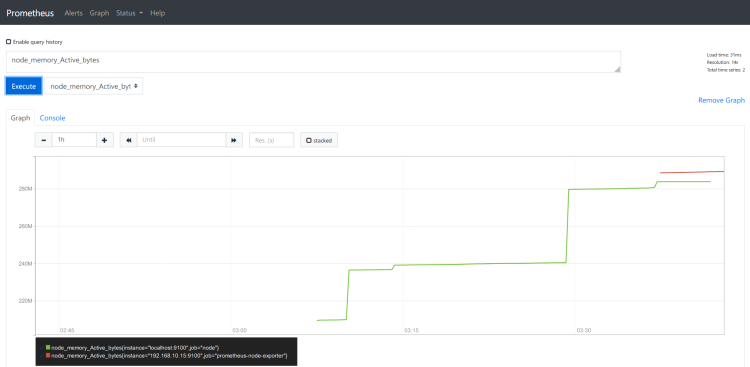
此外,你还可以使用 PromQL (Prometheus Query Language) 来获取特定数据,例如 node_memory_Active_bytes[5] 将显示最近 5 分钟的数据。
总结
总结一下,你已经一步步完成了在 Debian 12 服务器上安装 Prometheus 和 Node Exporter。你已经通过 APT 从 Debian 官方仓库安装了 Prometheus 和 Node Exporter。你还学习了用于测试查询的 Prometheus dashboard 的基本使用。现在你可以向你的监控系统安装其他组件,例如 Alert Manager 和 Grafana。