
本教程适用于以下操作系统版本
- Ubuntu 24.04(Noble Numbat)
- Ubuntu 22.04(Jammy Jellyfish)
- Ubuntu 18.04(Bionic Beaver)
本页内容
- 准备工作
- 安装并配置 MariaDB
- 在 Ubuntu 22.04 上安装 Pydio Cells
- 配置 Pydio Cells
- 访问 Pydio Cells Web 界面
- 为 Pydio Cells 创建 Systemd 服务文件
- 总结
Pydio Cells(又称 Pydio)是一个使用 Golang 语言编写的开源文件共享与同步应用程序。它运行在服务器或云端,用于与客户共享文件。它是一个自托管的文档共享与协作工具,允许你通过移动应用、桌面软件或网页浏览器,从任何地方共享和访问各种文档,例如文件、图片和视频。它提供了适用于 Linux、Windows 和 macOS 的原生客户端,以及适用于 Android 和 iOS 的移动客户端。
本指南将介绍如何在 Ubuntu 22.04 上安装 Pydio 文件共享应用程序。
准备工作
- 一台运行 Ubuntu 22.04 的服务器。
- 服务器上已配置 root 密码。
安装并配置 MariaDB
Pydio 使用 MariaDB 来存储数据,因此你必须在服务器上安装 MariaDB 数据库服务器。你可以通过运行以下命令来安装:
apt install mariadb-server -y安装 MariaDB 服务器后,你可以使用以下命令加固 MariaDB 安装:
mysql_secure_installation该脚本将设置 root 密码、删除匿名用户、禁止 root 远程登录,并移除测试数据库,如下所示:
Set root password? [Y/n] n
Remove anonymous users? [Y/n] y
Disallow root login remotely? [Y/n] y
Remove test database and access to it? [Y/n] y
Reload privilege tables now? [Y/n] y
接下来,以 root 用户身份登录 MariaDB:
mysql -u root -p登录后,使用以下命令创建数据库和用户:
CREATE DATABASE pydiodb;
CREATE USER 'pydiodb'@'localhost' IDENTIFIED BY 'password';
接下来,使用以下命令为 Pydio 授予所有权限:
GRANT ALL PRIVILEGES ON pydiodb.* to 'pydiouser'@'localhost';接下来,使用以下命令刷新权限并退出 MariaDB shell:
FLUSH PRIVILEGES;
EXIT;
在 Ubuntu 22.04 上安装 Pydio Cells
默认情况下,Ubuntu 22.04 的软件仓库中不提供 Pydio 软件包。因此你需要从其官方网站下载它。
你可以使用以下命令下载最新版本的 Pydio cells:
distribId=cells
wget -O /usr/bin/cells https://download.pydio.com/latest/${distribId}/release/{latest}/linux-amd64/${distribId}
下载完成后,使用以下命令为下载的文件设置适当的权限并将其绑定到 HTTP 端口:
chmod +x /usr/bin/cells
setcap 'cap_net_bind_service=+ep' /usr/bin/cells
接下来,使用以下命令验证 Pydio cells 版本:
cells version你将看到如下输出:
Pydio Cells Home Edition
 Version: 	4.0.5
 Built: 	01 Dec 22 04:24 +0000
 Git commit: 	406762a4b5bff7b60189291ad4ee16c69a94ecd7
 OS/Arch: 	linux/amd64
 Go version: 	go1.19.3
配置 Pydio Cells
接下来,使用以下命令配置 Pydio cells:
cells configure系统将要求你选择不同的安装类型。
Welcome to Pydio Cells Home Edition installation
Pydio Cells Home Edition (v4.0.5) will be configured to run on this machine.
Make sure to prepare access and credentials to a MySQL 5.6+ (or MariaDB equivalent) server.
Pick your installation mode when you are ready.

? Browser-based (requires a browser access)
选择基于浏览器的安装,然后按 Enter 键。配置完成 Pydio Cells 后,你将看到如下输出:
Use the arrow keys to navigate: ↓ ↑ → ←
? Installation mode:
  ? Browser-based (requires a browser access)
    Command line (performed in this terminal)

? Browser-based (requires a browser access)
Installation Server is starting...
Listening to: https://0.0.0.0:8080

2022-12-13T05:43:12.641Z	INFO	pydio.rest.config	starting	{"service": "pydio.rest.config", "hook router to": "/a/config"}
2022-12-13T05:43:12.659Z	INFO	pydio.rest.install	starting	{"service": "pydio.rest.install", "hook router to": "/a/install"}
Open a browser window to: [https://0.0.0.0:8080]
2022-12-13T05:43:14.741Z	INFO	pydio.server.caddy	? Created a new local CA at "rootCA.pem" ????
2022-12-13T05:43:14.858Z	INFO	pydio.server.caddy	? Created a new certificate valid for the following names ????
2022-12-13T05:43:14.858Z	INFO	pydio.server.caddy	 - "127.0.0.1"
2022-12-13T05:43:14.858Z	INFO	pydio.server.caddy	 - "139.84.138.121"
2022-12-13T05:43:14.859Z	INFO	pydio.server.caddy	 - "localhost"
2022-12-13T05:43:14.859Z	INFO	pydio.server.caddy	? The certificate is at "5b92168f4e3239411477f1f5f42539f4.pem"
 and the key at "5b92168f4e3239411477f1f5f42539f4-key.pem"
2022-12-13T05:43:14.859Z	INFO	pydio.server.caddy
2022-12-13T05:43:14.859Z	INFO	pydio.server.caddy
2022-12-13T05:43:14.859Z	INFO	pydio.server.caddy	???? If you are behind a reverse proxy, you can either install the RootCA on the proxy machine trust store, or configure your proxy to `insecure_skip_verify` for pointing to Cells.
2022-12-13T05:43:14.860Z	INFO	pydio.server.caddy	???? If you are developing locally, you may install the RootCA in your system trust store to see a green light in your browser!
2022-12-13T05:43:14.860Z	INFO	pydio.server.caddy	????  To easily install the RootCA in your trust store, use https://github.com/FiloSottile/mkcert. Set the $CAROOT environment variable to the rootCA folder then use 'mkcert -install'
2022-12-13T05:43:14.860Z	INFO	pydio.server.caddy
2022-12-13T05:43:14.862Z	WARN	pydio.server.caddy	admin - admin endpoint disabled
2022-12-13T05:43:14.862Z	INFO	pydio.server.caddy	tls.cache.maintenance - started background certificate maintenance{"cache": "0xc0002bdab0"}
2022-12-13T05:43:14.863Z	INFO	pydio.rest.install	ready
2022-12-13T05:43:14.864Z	INFO	pydio.web.install	ready
2022-12-13T05:43:14.865Z	INFO	pydio.rest.config	ready
2022-12-13T05:43:14.865Z	WARN	pydio.server.caddy	tls - stapling OCSP{"error": "no OCSP stapling for [localhost 127.0.0.1 139.84.138.121]: no OCSP server specified in certificate"}
2022-12-13T05:43:14.865Z	WARN	pydio.server.caddy	http - automatic HTTP->HTTPS redirects are disabled{"server_name": "srv0"}
2022-12-13T05:43:14.866Z	INFO	pydio.server.caddy	autosaved config (load with --resume flag) - {"file": "/root/.config/pydio/cells/caddy/autosave.json"}
2022-12-13T05:43:14.866Z	INFO	pydio.server.caddy	tls - cleaning storage unit{"description": "FileStorage:/root/.config/pydio/cells/caddy"}
2022-12-13T05:43:14.866Z	INFO	pydio.server.caddy	tls - finished cleaning storage units
至此,Pydio Cells 已安装并配置完成。你现在可以进入下一步。
访问 Pydio Cells Web 界面
你现在可以通过 URL https://your-server-ip:8080 访问 Pydio Cells。你应该会看到 Pydio Cells 许可协议页面:
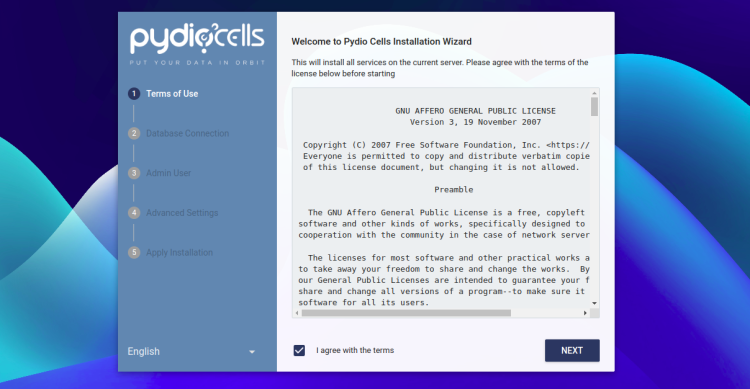
同意许可协议,然后点击 NEXT 按钮。你应该会看到数据库配置页面。
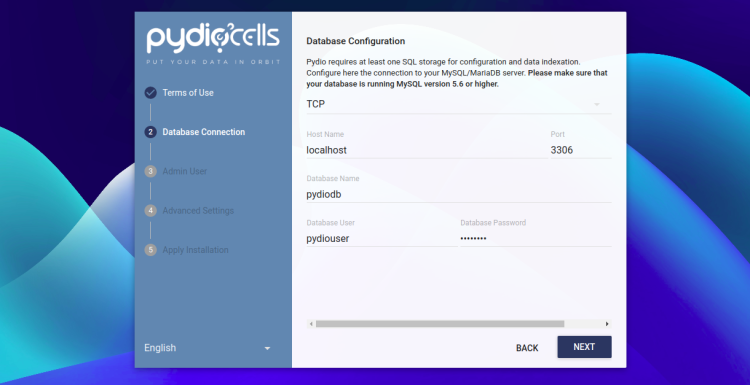
填写你的数据库配置,然后点击 NEXT 按钮。你应该会看到管理员用户创建页面:
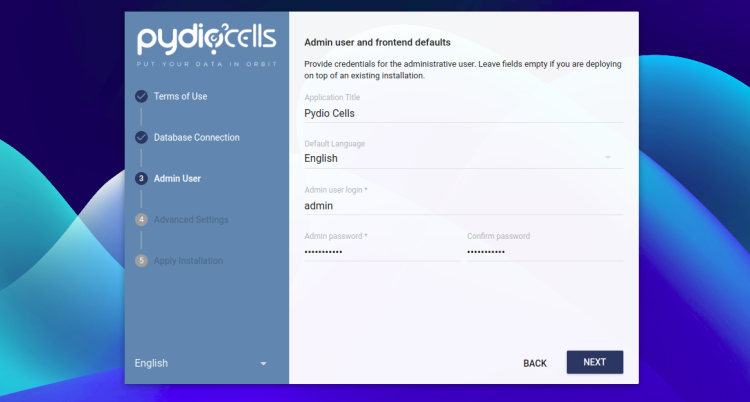
填写你的管理员用户名和密码,然后点击 NEXT 按钮。你应该会看到如下页面:
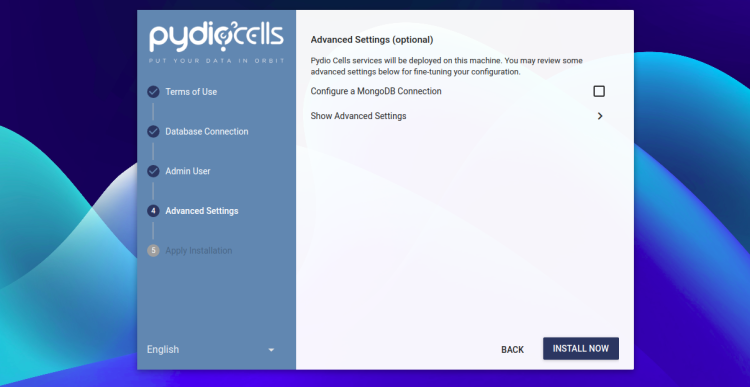
现在,点击 INSTALL NOW 按钮。你应该会看到 Pydio Cells 登录页面:
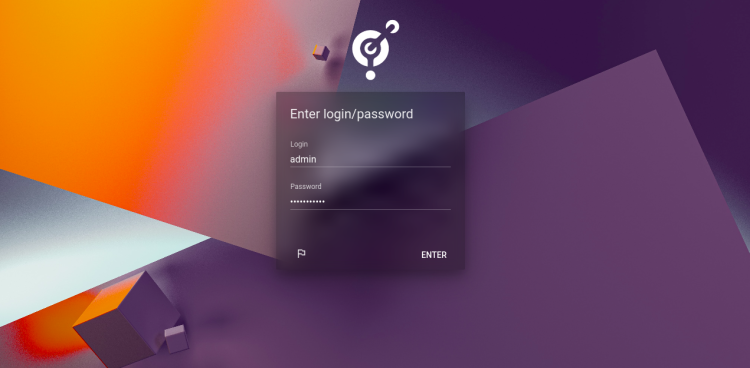
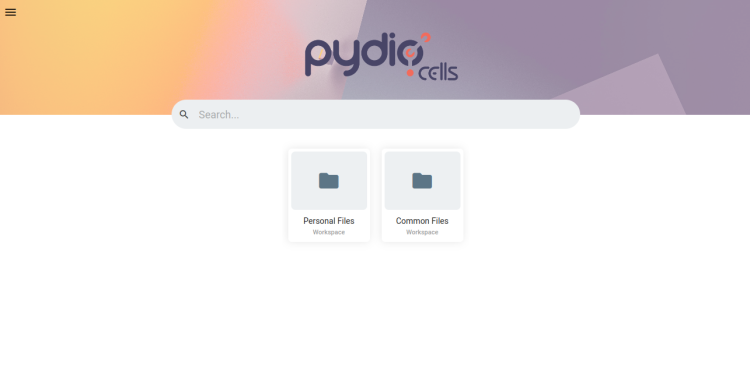
填写你的管理员用户名和密码,然后点击 ENTER 按钮。在如下页面中你应该会看到 Pydio 仪表盘:
为 Pydio Cells 创建 Systemd 服务文件
接下来,你需要创建一个 systemd 服务文件来管理 Pydio 服务。首先,按 CTRL+C 停止 Pydio 服务,然后使用以下命令创建 systemd 服务文件:
nano /etc/systemd/system/cells.service添加以下内容:
[Unit]
Description=Pydio Cells
Documentation=https://pydio.com
Wants=network-online.target
After=network-online.target
AssertFileIsExecutable=/usr/bin/cells

[Service]
User=root
Group=root
PermissionsStartOnly=true
AmbientCapabilities=CAP_NET_BIND_SERVICE
ExecStart=/usr/bin/cells start
Restart=on-failure
StandardOutput=journal
StandardError=inherit
LimitNOFILE=65536
TimeoutStopSec=5
KillSignal=INT
SendSIGKILL=yes
SuccessExitStatus=0
WorkingDirectory=/root

[Install]
WantedBy=multi-user.target
保存并关闭文件,然后重新加载 systemd 守护进程以使更改生效:
systemctl daemon-reload接下来,使用以下命令启动并启用 Pydio 服务:
systemctl enable cells
systemctl start cells
你也可以使用以下命令检查 Pydio 状态:
systemctl status cells你将看到如下输出:
? cells.service - Pydio Cells
     Loaded: loaded (/etc/systemd/system/cells.service; disabled; vendor preset: enabled)
     Active: active (running) since Sat 2022-12-13 11:34:24 UTC; 6s ago
       Docs: https://pydio.com
   Main PID: 25764 (cells)
      Tasks: 119 (limit: 2341)
     Memory: 421.6M
        CPU: 4.114s
     CGroup: /system.slice/cells.service
             ??25764 /usr/bin/cells start
             ??25769 /usr/bin/cells start --fork --config local --registry grpc://:8000 --broker grpc://:8003 ^pydio.grpc.jobs$
             ??25775 /usr/bin/cells start --fork --config local --registry grpc://:8000 --broker grpc://:8003 ^pydio.grpc.search$
             ??25781 /usr/bin/cells start --fork --config local --registry grpc://:8000 --broker grpc://:8003 ^pydio.gateway.websocket$
             ??25783 /usr/bin/cells start --fork --config local --registry grpc://:8000 --broker grpc://:8003 ^pydio.grpc.data.sync.pydiods1$
             ??25787 /usr/bin/cells start --fork --config local --registry grpc://:8000 --broker grpc://:8003 ^pydio.grpc.data.sync.personal$
             ??25790 /usr/bin/cells start --fork --config local --registry grpc://:8000 --broker grpc://:8003 ^pydio.grpc.data.sync.cellsdata$
             ??25802 /usr/bin/cells start --fork --config local --registry grpc://:8000 --broker grpc://:8003 ^pydio.grpc.data.sync.versions$
             ??25805 /usr/bin/cells start --fork --config local --registry grpc://:8000 --broker grpc://:8003 ^pydio.grpc.data.sync.thumbnail>
             ??25816 /usr/bin/cells start --fork --config local --registry grpc://:8000 --broker grpc://:8003 ^pydio.grpc.tasks$
             ??25819 /usr/bin/cells start --fork --config local --registry grpc://:8000 --broker grpc://:8003 ^pydio.grpc.data.objects.local1$
             ??25847 /usr/bin/cells start --fork --config local --registry grpc://:8000 --broker grpc://:8003 ^pydio.grpc.data.index.pydiods1$
             ??25848 /usr/bin/cells start --fork --config local --registry grpc://:8000 --broker grpc://:8003 ^pydio.grpc.data.index.personal$
             ??25849 /usr/bin/cells start --fork --config local --registry grpc://:8000 --broker grpc://:8003 ^pydio.grpc.data.index.cellsdat>
             ??25850 /usr/bin/cells start --fork --config local --registry grpc://:8000 --broker grpc://:8003 ^pydio.grpc.data.index.versions$
             ??25851 /usr/bin/cells start --fork --config local --registry grpc://:8000 --broker grpc://:8003 ^pydio.grpc.data.index.thumbnai>

Dec 13 12:34:29 ubuntu2204 cells[25764]: 2022-12-13T11:34:29.294Z        INFO        pydio.test.objects        Started
Dec 13 12:34:29 ubuntu2204 cells[25764]: 2022-12-13T11:34:29.307Z        INFO        pydio.gateway.grpc        Activating self-signed configura>
Dec 13 12:34:29 ubuntu2204 cells[25764]: 2022-12-13T11:34:29.308Z        INFO        pydio.gateway.grpc        Started
Dec 13 12:34:30 ubuntu2204 cells[25764]: 2022-12-13T11:34:30.191Z        INFO        pydio.grpc.data.index.pydiods1        Warning: no private >
Dec 13 12:34:30 ubuntu2204 cells[25764]: 2022-12-13T11:34:30.194Z        INFO        pydio.grpc.data.index.personal        Warning: no private >
Dec 13 12:34:30 ubuntu2204 cells[25764]: 2022-12-13T11:34:30.195Z        INFO        pydio.grpc.data.index.cellsdata        Warning: no private>
Dec 13 12:34:30 ubuntu2204 cells[25764]: 2022-12-13T11:34:30.204Z        INFO        pydio.grpc.data.index.thumbnails        Warning: no privat>
Dec 13 12:34:30 ubuntu2204 cells[25764]: 2022-12-13T11:34:30.212Z        INFO        pydio.grpc.data.index.versions        Warning: no private >
Dec 13 12:34:30 ubuntu2204 cells[25764]: 2022-12-13T11:34:30.326Z        INFO        pydio.gateway.proxy        Restarting proxy        {"caddy>
你现在可以通过 URL https://your-server-ip:8080 访问 Pydio Cells 仪表盘。
总结
恭喜!你已成功在 Ubuntu 22.04 上安装并配置了 Pydio Cells。现在你可以在自己的服务器上部署 Pydio Cells,从 Pydio 仪表盘上传你的文件、文档和图片,并通过任意移动应用或网页浏览器访问它。如果你有任何问题,欢迎随时向我提问。