
本教程适用于以下操作系统版本
- Ubuntu 22.04(Jammy Jellyfish)
- Ubuntu 18.04(Bionic Beaver)
本页内容
- 先决条件
- 安装 Nginx 和 PHP
- 在 Ubuntu 22.04 上安装 WonderCMS
- 为 WonderCMS 配置 Nginx
- 访问 WonderCMS Web 界面
- 使用 Let's Encrypt SSL 保护 WonderCMS
- 结论
WonderCMS 是一个开源的、极小的扁平文件 CMS,提供了一种简单、便捷的方式来创建和管理网站。它由 PHP 和 jQuery 编写,无需任何配置。它具备现代 CMS 所拥有的所有必要功能。它快速、响应灵敏,并且不需要任何数据库。它提供了一个用户友好的 Web UI,仅含一个基本的下拉菜单,同时在您的页面上启用了行内编辑控件。
本教程将向您展示如何在 Ubuntu 22.04 上使用 Nginx 和 Let's Encrypt SSL 安装 WonderCMS。
先决条件
- 一台运行 Ubuntu 22.04 的服务器。
- 一个已指向您的服务器 IP 的有效域名。
- 服务器上已配置 root 密码。
安装 Nginx 和 PHP
首先,您需要在服务器上安装 Nginx Web 服务器、PHP 以及其他依赖项。您可以通过运行以下命令来安装它们全部:
apt-get install nginx php php-fpm php-mbstring php-curl php-zip -y所有软件包安装完成后,编辑 PHP 配置文件并修改一些默认设置:
nano /etc/php/8.1/fpm/php.ini修改以下设置:
upload_max_filesize = 100MB
post_max_size = 100MB
max_execution_time = 300
max_input_vars = 5000
memory_limit = 256M
date.timezone = "UTC"
保存并关闭文件,然后重启 PHP-FPM 服务以使更改生效:
systemctl restart php8.1-fpm在 Ubuntu 22.04 上安装 WonderCMS
首先,您需要使用以下命令从 GitHub 下载最新版本的 WonderCMS:
wget https://github.com/robiso/wondercms/releases/download/3.3.4/wondercms-334.zip下载完成后,使用以下命令将下载的文件解压到 Nginx Web 根目录:
unzip wondercms-334.zip -d /var/www/html接下来,使用以下命令更改 WonderCMS 的所有者和权限:
chown -R www-data:www-data /var/www/html/wondercms
chmod -R 775 /var/www/html/wondercms
完成后,您可以继续进行下一步。
为 WonderCMS 配置 Nginx
接下来,您需要创建一个 Nginx 虚拟主机配置文件,以通过 Nginx 托管 WonderCMS。您可以使用以下命令创建它:
nano /etc/nginx/conf.d/wondercms.conf添加以下行:
server {
        listen 80;
        # adapt to your server name
        server_name wondercms.example.com;
        # adapt the path
        root /var/www/html/wondercms;
        index index.php;
        # prevent directory listing
        autoindex off;

        # rewrite url to make it pretty
        location / {
            try_files $uri $uri/ @rewrite;
        }
            location @rewrite {
            rewrite ^/(.+)$ /index.php?page=$1 last;
        }

        # prevent access to database.js
        location ~ database.js {
            return 403;
        }

        location ~ cache.json {
            return 403;
        }

        # use php-fpm for dealing with php files

location ~ \.php$ {
      fastcgi_pass unix:/run/php/php-fpm.sock;

      fastcgi_param SCRIPT_FILENAME $document_root$fastcgi_script_name;
      include fastcgi_params;
      include snippets/fastcgi-php.conf;
      fastcgi_buffer_size 128k;
      fastcgi_buffers 4 128k;
      fastcgi_intercept_errors on;
        }
    }
保存并关闭文件,然后使用以下命令检查 Nginx 是否存在语法错误:
nginx -t您将看到以下输出:
nginx: the configuration file /etc/nginx/nginx.conf syntax is ok
nginx: configuration file /etc/nginx/nginx.conf test is successful
接下来,重启 Nginx 服务以使更改生效:
systemctl restart nginx您也可以使用以下命令检查 Nginx 的状态:
systemctl status nginx您将看到以下输出:
? nginx.service - A high performance web server and a reverse proxy server
     Loaded: loaded (/lib/systemd/system/nginx.service; enabled; vendor preset: enabled)
     Active: active (running) since Sat 2022-11-12 14:06:21 UTC; 7s ago
       Docs: man:nginx(8)
    Process: 18137 ExecStartPre=/usr/sbin/nginx -t -q -g daemon on; master_process on; (code=exited, status=0/SUCCESS)
    Process: 18139 ExecStart=/usr/sbin/nginx -g daemon on; master_process on; (code=exited, status=0/SUCCESS)
   Main PID: 18140 (nginx)
      Tasks: 3 (limit: 464122)
     Memory: 3.4M
     CGroup: /system.slice/nginx.service
             ??18140 "nginx: master process /usr/sbin/nginx -g daemon on; master_process on;"
             ??18141 "nginx: worker process" "" "" "" "" "" "" "" "" "" "" "" "" "" "" "" "" "" "" "" "" "" "" "" "" "" "" ""
             ??18142 "nginx: worker process" "" "" "" "" "" "" "" "" "" "" "" "" "" "" "" "" "" "" "" "" "" "" "" "" "" "" ""

Nov 12 14:06:21 ubuntu22041 systemd[1]: Starting A high performance web server and a reverse proxy server...
Nov 12 14:06:21 ubuntu22041 systemd[1]: Started A high performance web server and a reverse proxy server.
访问 WonderCMS Web 界面
现在,打开您的 Web 浏览器,并使用 URL http://wondercms.example.com 访问 WonderCMS Web 界面。您应该会看到包含登录密码的以下屏幕:
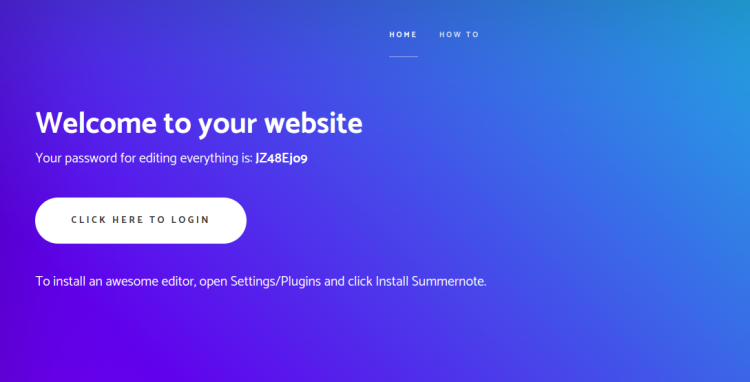
点击 CLICK HERE TO LOGIN。您应该会看到 WonderCMS 登录页面:
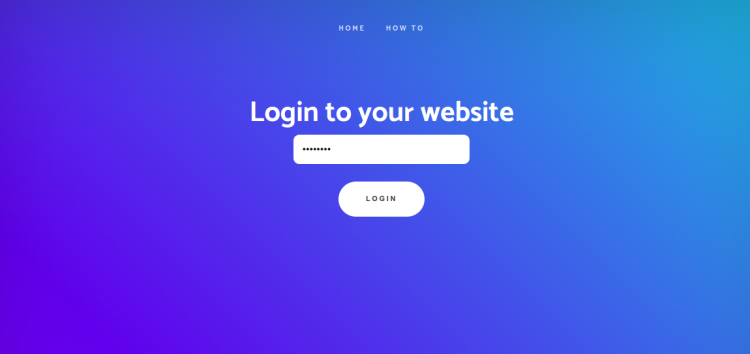
输入登录密码并点击 LOGIN 按钮。您应该会看到以下页面。
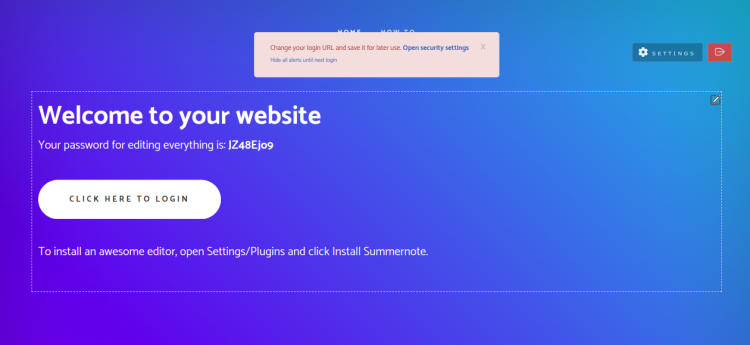
点击 Security Setting 以更改登录 URL,如下所示:
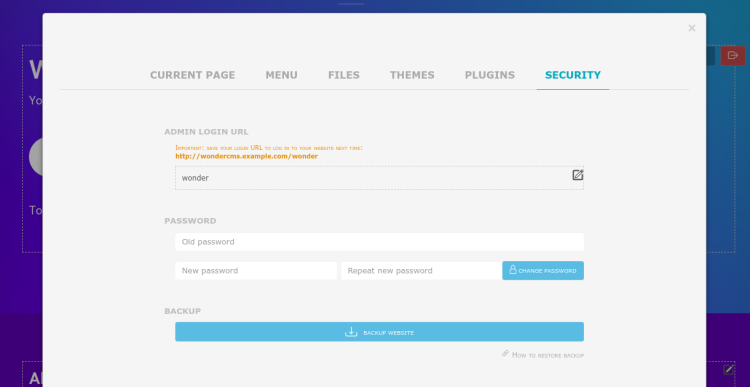
现在,更改登录 URL,并根据您的需求自定义您的网站。
接下来,使用新 URL http://wondercms.example.com/wonder 访问 WonderCMS。您应该会看到以下页面:
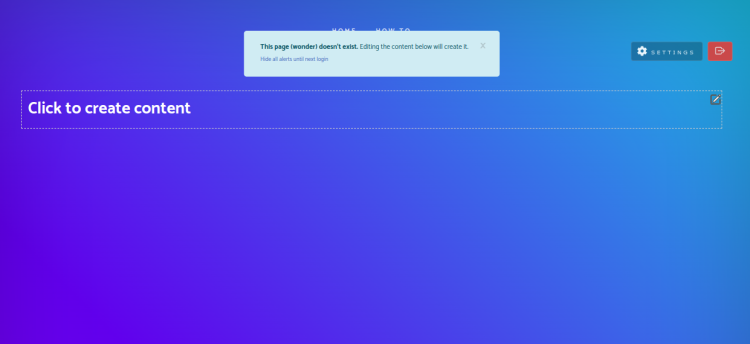
插入您想要撰写的任意内容。您应该会看到以下页面:
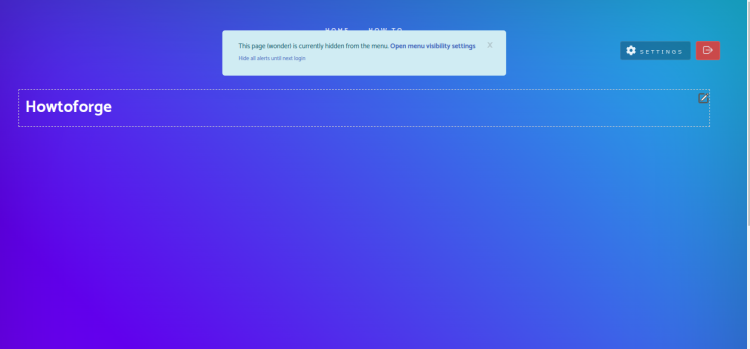
使用 Let's Encrypt SSL 保护 WonderCMS
接下来,您需要安装 Certbot 客户端软件包来安装并管理 Let's Encrypt SSL。首先,使用以下命令安装 Certbot:
apt-get install python3-certbot-nginx -y安装完成后,运行以下命令在您的网站上安装 Let's Encrypt SSL:
certbot --nginx -d wondercms.example.com系统将要求您提供有效的电子邮件地址并接受服务条款,如下所示:
Saving debug log to /var/log/letsencrypt/letsencrypt.log
Plugins selected: Authenticator nginx, Installer nginx
Enter email address (used for urgent renewal and security notices) (Enter 'c' to
cancel):
[email protected]


- - - - - - - - - - - - - - - - - - - - - - - - - - - - - - - - - - - - - - - -
Please read the Terms of Service at
https://letsencrypt.org/documents/LE-SA-v1.2-November-15-2017.pdf. You must
agree in order to register with the ACME server at
https://acme-v02.api.letsencrypt.org/directory
- - - - - - - - - - - - - - - - - - - - - - - - - - - - - - - - - - - - - - - -
(A)gree/(C)ancel: A

- - - - - - - - - - - - - - - - - - - - - - - - - - - - - - - - - - - - - - - -
Would you be willing to share your email address with the Electronic Frontier
Foundation, a founding partner of the Let's Encrypt project and the non-profit
organization that develops Certbot? We'd like to send you email about our work
encrypting the web, EFF news, campaigns, and ways to support digital freedom.
- - - - - - - - - - - - - - - - - - - - - - - - - - - - - - - - - - - - - - - -
(Y)es/(N)o: Y
Obtaining a new certificate
Performing the following challenges:
http-01 challenge for wondercms.example.com
Waiting for verification...
Cleaning up challenges
Deploying Certificate to VirtualHost /etc/nginx/conf.d/wondercms.conf
接下来,选择是否将 HTTP 流量重定向到 HTTPS,如下所示:
- - - - - - - - - - - - - - - - - - - - - - - - - - - - - - - - - - - - - - - -
1: No redirect - Make no further changes to the webserver configuration.
2: Redirect - Make all requests redirect to secure HTTPS access. Choose this for
new sites, or if you're confident your site works on HTTPS. You can undo this
change by editing your web server's configuration.
- - - - - - - - - - - - - - - - - - - - - - - - - - - - - - - - - - - - - - - -
Select the appropriate number [1-2] then [enter] (press 'c' to cancel): 2
输入 2 并按 Enter 键完成安装。您应该会看到以下输出:
Redirecting all traffic on port 80 to ssl in /etc/nginx/conf.d/wondercms.conf

- - - - - - - - - - - - - - - - - - - - - - - - - - - - - - - - - - - - - - - -
Congratulations! You have successfully enabled https://wondercms.example.com

You should test your configuration at:
https://www.ssllabs.com/ssltest/analyze.html?d=wondercms.example.com
- - - - - - - - - - - - - - - - - - - - - - - - - - - - - - - - - - - - - - - -

IMPORTANT NOTES:
 - Congratulations! Your certificate and chain have been saved at:
   /etc/letsencrypt/live/wondercms.example.com/fullchain.pem
   Your key file has been saved at:
   /etc/letsencrypt/live/wondercms.example.com/privkey.pem
   Your cert will expire on 2023-02-12. To obtain a new or tweaked
   version of this certificate in the future, simply run certbot again
   with the "certonly" option. To non-interactively renew *all* of
   your certificates, run "certbot renew"
 - Your account credentials have been saved in your Certbot
   configuration directory at /etc/letsencrypt. You should make a
   secure backup of this folder now. This configuration directory will
   also contain certificates and private keys obtained by Certbot so
   making regular backups of this folder is ideal.
 - If you like Certbot, please consider supporting our work by:

   Donating to ISRG / Let's Encrypt:   https://letsencrypt.org/donate
   Donating to EFF:                    https://eff.org/donate-le

 - We were unable to subscribe you the EFF mailing list because your
   e-mail address appears to be invalid. You can try again later by
   visiting https://act.eff.org.
结论
恭喜!您已成功在 Ubuntu 22.04 上使用 Nginx 和 Let's Encrypt SSL 安装了 WondoerCMS。您现在可以探索 WonderCMS,并通过 Web 浏览器开始创建您自己的网站。如果您有任何问题,欢迎随时向我提问。