
在本页
- 先决条件
- 入门
- 安装 Apache、PHP 和 Sqlite
- 下载 Taskboard
- 为 Taskboard 配置 Apache
- 访问 Taskboard
- 使用 Let's Encrypt SSL 保护 Taskboard
- 结论
TaskBoard 是一款免费的开源看板应用程序,用于跟踪需要完成的事项。它是一款基于 PHP 的自托管应用程序,可帮助你跟踪所有任务。它提供了一个简单且用户友好的 Web 界面来管理所有任务。团队或组织可用它来表示工作及其走向完成的过程。
功能特性
- 免费且开源
- 无限制的看板
- 简单且易于安装
- 易于定制
- RESTful API
- 基本的用户管理
在本教程中,我将向你展示如何在 Debian 11 上安装 Taskboard。
先决条件
- 一台运行 Debian 11 的服务器。
- 一个指向服务器 IP 的有效域名。
- 服务器上已配置 root 密码。
入门
在开始之前,最好将系统软件包更新到最新版本。你可以通过运行以下命令来更新所有软件包:
apt-get update -y所有软件包更新完成后,你可以继续下一步。
安装 Apache、PHP 和 Sqlite
首先,你需要在服务器上安装 Apache Web 服务器、PHP、SQLite 以及其他所需的依赖项。你可以通过运行以下命令来安装所有这些组件:
apt-get install apache2 sqlite3 php libapache2-mod-php php-cli php-common php-json php-readline php-sqlite3 libaio1 libapr1 libhtml-template-perl libaprutil1-dbd-sqlite3 libaprutil1-ldap libaprutil1 libdbi-perl libterm-readkey-perl curl libwrap0 unzip wget -y所有软件包安装完成后,启动 Apache 服务并使其在系统重启时自动启动:
systemctl start apache2
systemctl enable apache2
完成后,你可以继续下一步。
下载 Taskboard
首先,使用以下命令下载最新版本的 Taskboard:
curl -s https://api.github.com/repos/kiswa/TaskBoard/releases/latest |grep browser_download_url | cut -d '"' -f 4 | wget -i -下载完成后,使用以下命令将下载的文件解压到 Apache Web 根目录:
unzip TaskBoard_v*.zip -d /var/www/html/taskboard接下来,为 Taskboard 目录设置适当的所有权和权限:
chown -R www-data:www-data /var/www/html/taskboard
chmod -R 775 /var/www/html/taskboard
完成后,你可以继续下一步。
为 Taskboard 配置 Apache
接下来,你需要为 Taskboard 创建一个 Apache 虚拟主机配置文件。你可以通过运行以下命令来创建它:
nano /etc/apache2/sites-available/taskboard.conf添加以下几行内容:
<VirtualHost *:80>
    ServerAdmin
[email protected]

    DocumentRoot "/var/www/html/taskboard"
    ServerName taskboard.example.com
    <Directory "/var/www/html/taskboard">
        Options Indexes FollowSymLinks
        AllowOverride All
        Require all granted
    </Directory>
    ErrorLog "/var/log/apache2/taskboard-error_log"
    CustomLog "/var/log/apache2/taskboard-access_log" combined
</VirtualHost>
完成后保存并关闭文件,然后使用以下命令启用 Apache 虚拟主机:
a2ensite taskboard.conf接下来,使用以下命令启用 Apache rewrite 模块并重启 Apache Web 服务:
a2enmod rewrite
systemctl restart apache2
现在你可以使用以下命令检查 Apache 服务的状态:
systemctl status apache2你将看到如下输出:
? apache2.service - The Apache HTTP Server
     Loaded: loaded (/lib/systemd/system/apache2.service; enabled; vendor preset: enabled)
     Active: active (running) since Sat 2021-11-06 14:46:54 UTC; 5s ago
       Docs: https://httpd.apache.org/docs/2.4/
    Process: 23704 ExecStart=/usr/sbin/apachectl start (code=exited, status=0/SUCCESS)
   Main PID: 23709 (apache2)
      Tasks: 6 (limit: 4679)
     Memory: 15.3M
        CPU: 110ms
     CGroup: /system.slice/apache2.service
             ??23709 /usr/sbin/apache2 -k start
             ??23710 /usr/sbin/apache2 -k start
             ??23711 /usr/sbin/apache2 -k start
             ??23712 /usr/sbin/apache2 -k start
             ??23713 /usr/sbin/apache2 -k start
             ??23714 /usr/sbin/apache2 -k start

Nov 06 14:46:54 debian11 systemd[1]: Starting The Apache HTTP Server...
完成后,你可以继续下一步。
访问 Taskboard
至此,Taskboard 已安装并配置完成。现在,打开你的 Web 浏览器,使用 URL http://taskboard.example.com 访问 Taskboard。你将被重定向到 Taskboard 登录页面:
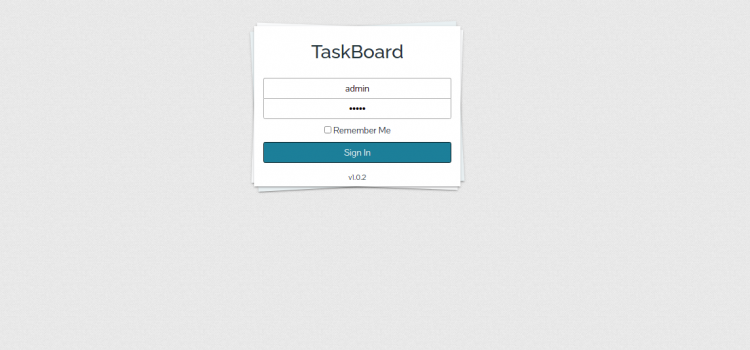
输入默认的管理员用户名和密码 admin/admin,然后点击 Sign In 按钮。你将在下一页看到 Taskboard 仪表盘:
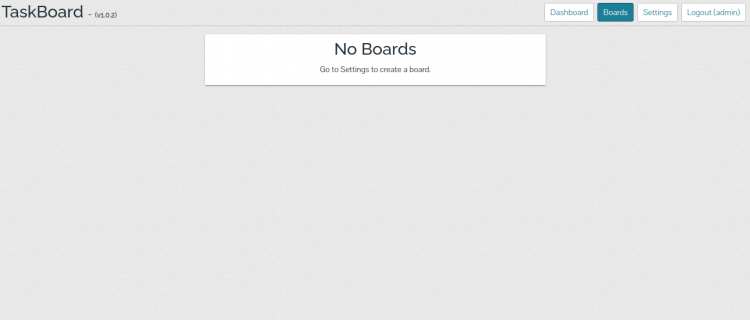
现在,点击 Settings 按钮以更改 Taskboard 默认的管理员密码。你将看到如下页面:
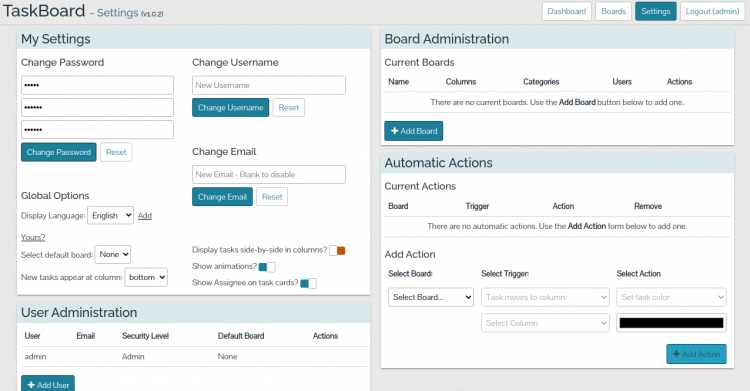
输入你的新管理员密码,然后点击 Change Password 按钮以应用更改。
使用 Let's Encrypt SSL 保护 Taskboard
如果你想使用 Let's Encrypt SSL 来保护 Taskboard,则需要安装 Certbot 客户端软件包,并为你的 Taskboard 管理 Let's Encrypt SSL。
你可以通过运行以下命令来安装它:
apt-get install python3-certbot-apache -yCertbot 软件包安装完成后,运行以下命令为你的 Taskboard 网站下载并安装 Let's Encrypt SSL。
certbot --apache -d taskboard.example.com系统将要求你提供电子邮件地址并接受服务条款,如下所示:
Saving debug log to /var/log/letsencrypt/letsencrypt.log
Plugins selected: Authenticator standalone, Installer None
Enter email address (used for urgent renewal and security notices) (Enter 'c' to
cancel):
[email protected]


- - - - - - - - - - - - - - - - - - - - - - - - - - - - - - - - - - - - - - - -
Please read the Terms of Service at
https://letsencrypt.org/documents/LE-SA-v1.2-November-15-2017.pdf. You must
agree in order to register with the ACME server at
https://acme-v02.api.letsencrypt.org/directory
- - - - - - - - - - - - - - - - - - - - - - - - - - - - - - - - - - - - - - - -
(A)gree/(C)ancel: A

- - - - - - - - - - - - - - - - - - - - - - - - - - - - - - - - - - - - - - - -
Would you be willing to share your email address with the Electronic Frontier
Foundation, a founding partner of the Let's Encrypt project and the non-profit
organization that develops Certbot? We'd like to send you email about our work
encrypting the web, EFF news, campaigns, and ways to support digital freedom.
- - - - - - - - - - - - - - - - - - - - - - - - - - - - - - - - - - - - - - - -
(Y)es/(N)o: Y
Plugins selected: Authenticator apache, Installer apache
Obtaining a new certificate
Performing the following challenges:
http-01 challenge for taskboard.example.com
Enabled Apache rewrite module
Waiting for verification...
Cleaning up challenges
Created an SSL vhost at /etc/apache2/sites-available/taskboard-le-ssl.conf
Enabled Apache socache_shmcb module
Enabled Apache ssl module
Deploying Certificate to VirtualHost /etc/apache2/sites-available/taskboard-le-ssl.conf
Enabling available site: /etc/apache2/sites-available/taskboard-le-ssl.conf
接下来,选择是否将 HTTP 流量重定向到 HTTPS,如下所示:
Please choose whether or not to redirect HTTP traffic to HTTPS, removing HTTP access.
- - - - - - - - - - - - - - - - - - - - - - - - - - - - - - - - - - - - - - - -
1: No redirect - Make no further changes to the webserver configuration.
2: Redirect - Make all requests redirect to secure HTTPS access. Choose this for
new sites, or if you're confident your site works on HTTPS. You can undo this
change by editing your web server's configuration.
- - - - - - - - - - - - - - - - - - - - - - - - - - - - - - - - - - - - - - - -
Select the appropriate number [1-2] then [enter] (press 'c' to cancel): 2
输入 2 并按回车键,为你的网站安装 Let's Encrypt SSL:
Enabled Apache rewrite module
Redirecting vhost in /etc/apache2/sites-enabled/taskboard.conf to ssl vhost in /etc/apache2/sites-available/taskboard-le-ssl.conf

- - - - - - - - - - - - - - - - - - - - - - - - - - - - - - - - - - - - - - - -
Congratulations! You have successfully enabled https://taskboard.example.com

You should test your configuration at:
https://www.ssllabs.com/ssltest/analyze.html?d=taskboard.example.com
- - - - - - - - - - - - - - - - - - - - - - - - - - - - - - - - - - - - - - - -

IMPORTANT NOTES:
 - Congratulations! Your certificate and chain have been saved at:
   /etc/letsencrypt/live/taskboard.example.com/fullchain.pem
   Your key file has been saved at:
   /etc/letsencrypt/live/taskboard.example.com/privkey.pem
   Your cert will expire on 2022-02-7. To obtain a new or tweaked
   version of this certificate in the future, simply run certbot again
   with the "certonly" option. To non-interactively renew *all* of
   your certificates, run "certbot renew"
 - If you like Certbot, please consider supporting our work by:

   Donating to ISRG / Let's Encrypt:   https://letsencrypt.org/donate
   Donating to EFF:                    https://eff.org/donate-le
现在,你可以使用 URL https://taskboard.example.com 安全地访问你的网站。
结论
恭喜!你已成功使用 Apache 和 Let's Encrypt SSL 安装了 Taskboard。现在你可以创建看板、添加用户、分配任务,并从中央仪表盘进行统一管理。如果你有任何问题,欢迎随时向我提问。