
本页内容
- 前提条件
- 步骤 1 - 搭建 CA 服务器 步骤 1.1 - 安装 Easy-RSA 步骤 1.2 - 创建公钥基础设施目录 步骤 1.3 - 创建证书颁发机构
- 步骤 2 - 在 OpenVPN 服务器上安装 OpenVPN 和 Easy-RSA
- 步骤 3 - 为 OpenVPN 服务器创建 PKI
- 步骤 4 - 创建 OpenVPN 服务器证书请求和私钥
- 步骤 5 - 签署 OpenVPN 服务器的 CSR
- 步骤 6 - 配置 OpenVPN 加密材料
- 步骤 7 - 生成客户端证书和密钥对
- 步骤 8 - 配置 OpenVPN 将全部流量通过 VPN 重定向 更改端口和协议 指向非默认凭据 为 SELinux 更改日志文件位置
- 步骤 9 - 调整 OpenVPN 服务器网络配置
- 步骤 10 - 配置防火墙
- 步骤 11 - 启动 OpenVPN
- 步骤 12 - 创建客户端配置
- 步骤 13 - 安装并测试客户端连接
- 步骤 14 - 吊销客户端证书
- 结论
- 步骤 1.1 - 安装 Easy-RSA
- 步骤 1.2 - 创建公钥基础设施目录
- 步骤 1.3 - 创建证书颁发机构
- 将全部流量通过 VPN 重定向
- 更改端口和协议
- 指向非默认凭据
- 为 SELinux 更改日志文件位置
虚拟专用网络(VPN)通过隐藏你的位置来让你访问互联网,使你可以在不受信任的网络上安全地访问互联网,并绕过地理限制和审查。OpenVPN 是一个开源的传输层安全(TLS)VPN 解决方案,用于实现这一目标。
在本教程中,我们将在 Rocky Linux 9 服务器上安装 OpenVPN 并进行配置,使其可以从客户端机器访问,并在两者之间建立 VPN 连接,将客户端的所有流量通过 OpenVPN 服务器进行重定向。
前提条件
- 一台运行 Rocky Linux 9 的服务器,支持 IPv4 和 IPv6 连接。我们将其称为 OpenVPN 服务器。其上已启用并运行 Firewalld 防火墙。
- 一台运行 Rocky Linux 9 的服务器,支持 IPv4 和 IPv6 连接。我们将其配置为私有的证书颁发机构(CA),并称之为 CA 服务器。
- 在 OpenVPN 服务器和 CA 服务器上均拥有 sudo 权限的非 root 用户。
- 用于连接 OpenVPN 服务器的客户端机器。你可以使用自己的本地设备作为客户端机器。OpenVPN 提供了适用于 Windows、Linux、macOS、Android 和 iOS 的客户端。你可以使用其中任意一种进行连接。本教程中我们将使用一台 Rocky Linux 9 客户端电脑。
- OpenVPN 服务器和 CA 服务器上的所有软件均已更新。$ sudo dnf update
一台运行 Rocky Linux 9 的服务器,支持 IPv4 和 IPv6 连接。我们将其称为 OpenVPN 服务器。其上已启用并运行 Firewalld 防火墙。
一台运行 Rocky Linux 9 的服务器,支持 IPv4 和 IPv6 连接。我们将其配置为私有的证书颁发机构(CA),并称之为 CA 服务器。
在 OpenVPN 服务器和 CA 服务器上均拥有 sudo 权限的非 root 用户。
用于连接 OpenVPN 服务器的客户端机器。你可以使用自己的本地设备作为客户端机器。OpenVPN 提供了适用于 Windows、Linux、macOS、Android 和 iOS 的客户端。你可以使用其中任意一种进行连接。本教程中我们将使用一台 Rocky Linux 9 客户端电脑。
OpenVPN 服务器和 CA 服务器上的所有软件均已更新。
$ sudo dnf update
步骤 1 - 搭建 CA 服务器
证书颁发机构(CA)是负责颁发数字证书以验证互联网上身份的实体。在本教程中,我们将使用一台独立的服务器作为私有 CA 服务器,用于验证 OpenVPN 服务器和客户端证书。你的 CA 服务器不应运行除导入、签名和验证证书之外的任何其他服务。
步骤 1.1 - 安装 Easy-RSA
第一步是安装 easy-rsa 脚本集。easy-rsa 是一个证书颁发机构管理工具,用于生成私钥和公共根证书。
但首先,我们需要启用包含 easy-rsa 软件包的 EPEL 仓库。
$ sudo dnf install epel-release
安装 Easy-RSA。
$ sudo dnf install easy-rsa
步骤 1.2 - 创建公钥基础设施目录
下一步是在 CA 服务器上创建一个公钥基础设施(PKI)的骨架。
$ mkdir ~/easy-rsa
创建指向已安装的 easy-rsa 软件包文件的符号链接。
$ ln -s /usr/share/easy-rsa/3/* ~/easy-rsa/
限制对 PKI 目录的访问权限。
$ chmod 700 /home/<username>/easy-rsa
初始化 PKI。
$ cd ~/easy-rsa
$ ./easyrsa init-pki
你将看到类似以下的输出。
init-pki complete; you may now create a CA or requests.
Your newly created PKI dir is: /home/<username>/easy-rsa/pki
步骤 1.3 - 创建证书颁发机构
在创建 CA 的私钥和证书之前,你需要为其配置组织信息。在 easy-rsa 目录中创建 vars 文件以存储该信息,并打开它进行编辑。
$ cd ~/easy-rsa
$ nano vars
将以下代码粘贴到其中。
set_var EASYRSA_REQ_COUNTRY    "US"
set_var EASYRSA_REQ_PROVINCE   "NewYork"
set_var EASYRSA_REQ_CITY       "New York City"
set_var EASYRSA_REQ_ORG        "Howtoforge"
set_var EASYRSA_REQ_EMAIL      "
[email protected]
"
set_var EASYRSA_REQ_OU         "Community"
set_var EASYRSA_ALGO           "ec"
set_var EASYRSA_DIGEST         "sha512"
按下 Ctrl + X,在提示时输入 Y 来保存文件。
运行以下命令为你的证书颁发机构创建根公钥和私钥对。
$ ./easyrsa build-ca
系统会提示你输入密钥对的密码短语。你还会被要求输入 PEM 密码短语。为两者都选择一个强密码短语,并记录下来以备后用。系统还会要求你输入 CA 的通用名称(CN)。你可以输入任意字符串,但为简单起见,按 ENTER 接受默认名称即可。
Using SSL: openssl OpenSSL 3.0.1 14 Dec 2021 (Library: OpenSSL 3.0.1 14 Dec 2021)

Enter New CA Key Passphrase:
Re-Enter New CA Key Passphrase:
Enter PEM pass phrase:
Verifying - Enter PEM pass phrase:
-----
You are about to be asked to enter information that will be incorporated
into your certificate request.
What you are about to enter is what is called a Distinguished Name or a DN.
There are quite a few fields but you can leave some blank
For some fields there will be a default value,
If you enter '.', the field will be left blank.
-----
Common Name (eg: your user, host, or server name) [Easy-RSA CA]:

CA creation complete and you may now import and sign cert requests.
Your new CA certificate file for publishing is at:
/home/<username>/easy-rsa/pki/ca.crt
如果你不希望在每次与 CA 交互时都被要求输入密码,可以改用以下命令。
$ ./easyrsa build-ca nopass
这将创建两个文件:
- ~/easy-rsa/pki/ca.crt 是 CA 的公用证书文件。每个用户以及 OpenVPN 服务器都需要此文件的一份副本。
- ~/easy-rsa/pki/ca.key 是 CA 用于对 OpenVPN 服务器和客户端证书进行签名的私钥。如果攻击者获取了你的 CA,进而获取了你的 ca.key 文件,你将需要销毁你的 CA。因此你的 ca.key 文件只应存放在 CA 机器上,并且理想情况下,在不签署证书请求时,CA 机器应保持离线状态,作为额外的安全措施。
步骤 2 - 在 OpenVPN 服务器上安装 OpenVPN 和 Easy-RSA
登录到你的 OpenVPN 服务器并安装 OpenVPN 和 Easy-RSA 软件包。此外,在此之前需要先安装 EPEL 仓库。
$ sudo dnf install epel-release
$ sudo dnf install openvpn easy-rsa
创建目录 ~/easy-rsa。
$ mkdir ~/easy-rsa
就像在 CA 服务器上一样,从我们安装的 easy-rsa 脚本创建符号链接。
$ ln -s /usr/share/easy-rsa/3/* ~/easy-rsa/
限制对该目录的访问权限。
$ chmod 700 ~/easy-rsa
步骤 3 - 为 OpenVPN 服务器创建 PKI
在 ~/easy-rsa 目录中创建一个 vars 文件,用于存储创建 PKI 所需的信息,并打开它进行编辑。
$ cd ~/easy-rsa
$ nano vars
将以下行粘贴到其中。
set_var EASYRSA_ALGO "ec"
set_var EASYRSA_DIGEST "sha512"
由于我们并未将此服务器用作 CA,因此这些就是我们所需的全部值。这将把你的 OpenVPN 和 CA 服务器配置为使用 ECC(椭圆曲线加密),这意味着当客户端和服务器尝试建立共享对称密钥时,它们使用椭圆曲线算法来进行交换。由于数字更小、计算更快,这比使用经典 RSA 算法的纯 Diffie-Hellman 方法要快得多。
下一步是使用 init-pki 选项创建 PKI 目录。尽管你已经在 CA 服务器上作为前提条件运行过此命令,但在这里仍需运行它,因为你的 OpenVPN 服务器和 CA 服务器拥有各自独立的 PKI 目录。
$ ./easyrsa init-pki
OpenVPN 服务器上的 PKI 用作存储证书请求和公共证书的集中位置。
步骤 4 - 创建 OpenVPN 服务器证书请求和私钥
切换到 OpenVPN 服务器上的 ~/easy-rsa 目录。
$ cd ~/easy-rsa
下一步是在你的 OpenVPN 服务器上生成私钥和证书签名请求(CSR)。运行 easy-rsa 命令,使用 gen-req 选项,后跟服务器的通用名称(CN)。在本教程中,我们将使用 server 作为 OpenVPN 服务器的 CN。我们还会使用 nopass 选项以避免任何权限问题。
$ ./easyrsa gen-req server nopass
你将看到类似以下的输出。
Using SSL: openssl OpenSSL 3.0.1 14 Dec 2021 (Library: OpenSSL 3.0.1 14 Dec 2021)
.....+.................+.+.....+....+........+...+.+...+++++++++++++++++++++++++++++++++++++++++++++++++++++++++++++++++*..+++++++++++++++++++++++++++++++++++++++++++++++++++++++++++++++++*........+.+...+..+......+...+....+.....+...+.........+......+.......+...+.....+.......+.....+.....................+.+...+...+...............+........+..........+......+.....+...+.......+........+.+...........+...+.+.....+......+.+...+.........+...+........+.+...........+...+....+..+...+............+.............+.....+...+.......+...+...+...........+.+..+.......+.....+...................+..+...+......+....+..+.......+......+......+......+..+......+....+............+...............+.....+..........+...+..+....+..+.........+....+...............+..............+.......+...+..+...+......+.+....................................+........+....+...+...+.........+.....+.+..+...+.+++++++++++++++++++++++++++++++++++++++++++++++++++++++++++++++++
................+...+....+............+...+...+.....+...+....+...............+......+.....+....+.....+.+.........+...+.................+......+.........+.......+++++++++++++++++++++++++++++++++++++++++++++++++++++++++++++++++*........+...+..+.......+..+...+.+.....+.........+.+..+....+...+.....+......+.......+.........+........+......+.+.....+.+............+..+..........+........+.+..+...+++++++++++++++++++++++++++++++++++++++++++++++++++++++++++++++++*.+.........+...+..+.+........+....+..+......+....+.........+..+............+...+...+.........+.............+..+...+...+.+......+.....+....+.....+.+...+..............................+......+........+..........+..+++++++++++++++++++++++++++++++++++++++++++++++++++++++++++++++++
-----
You are about to be asked to enter information that will be incorporated
into your certificate request.
What you are about to enter is what is called a Distinguished Name or a DN.
There are quite a few fields but you can leave some blank
For some fields there will be a default value,
If you enter '.', the field will be left blank.
-----
Common Name (eg: your user, host, or server name) [server]:

Keypair and certificate request completed. Your files are:
req: /home/<username>/easy-rsa/pki/reqs/server.req
key: /home/<username>/easy-rsa/pki/private/server.key
这会为服务器创建一个私钥和一个名为 server.req 的证书请求文件。将服务器密钥复制到 /etc/openvpn/server 目录。
$ sudo cp /home/<username>/easy-rsa/pki/private/server.key /etc/openvpn/server/
证书签名请求(CSR)现已准备就绪,可由 CA 进行签名。
步骤 5 - 签署 OpenVPN 服务器的 CSR
下一步是将 CSR 文件复制到 CA 服务器以进行签名。如果你的服务器启用了密码认证,你可以直接使用以下命令复制该文件。
$ scp /home/<username>/easy-rsa/pki/reqs/server.req username@your_ca_server_ip:/tmp
如果你不想使用密码认证,则需要为每台服务器生成 SSH 密钥对,然后将 OpenVPN 服务器的公共 SSH 密钥添加到 CA 机器的 authorized_keys 文件中,反之亦然。
如果你不想经历这一切,可以直接复制文件。在 OpenVPN 服务器上打开该文件,复制其内容,然后在 CA 服务器上创建该文件并粘贴内容。
重新登录到 CA 服务器,切换到 ~/easy-rsa 目录并导入 CSR 文件。
$ cd ~/easy-rsa
$ ./easyrsa import-req /tmp/server.req server
你将看到类似以下的输出。
Using SSL: openssl OpenSSL 3.0.1 14 Dec 2021 (Library: OpenSSL 3.0.1 14 Dec 2021)

The request has been successfully imported with a short name of: server
You may now use this name to perform signing operations on this request.
使用以下命令签署请求。由于我们正在签署 OpenVPN 服务器的 CSR,因此将使用其通用名称(CN)。
$ ./easyrsa sign-req server server
系统会提示你确认请求是否来自可信来源。输入 yes 然后按 ENTER 键确认。
Using SSL: openssl OpenSSL 3.0.1 14 Dec 2021 (Library: OpenSSL 3.0.1 14 Dec 2021)


You are about to sign the following certificate.
Please check over the details shown below for accuracy. Note that this request
has not been cryptographically verified. Please be sure it came from a trusted
source or that you have verified the request checksum with the sender.

Request subject, to be signed as a server certificate for 825 days:

subject=
    commonName                = server


Type the word 'yes' to continue, or any other input to abort.
  Confirm request details: yes
接下来,系统会提示你输入之前设置的 CA 私钥密码短语。
Using configuration from /home/<username>/easy-rsa/pki/easy-rsa-5673.9KntVf/tmp.P5JqSD
Enter pass phrase for /home/<username>/easy-rsa/pki/private/ca.key:
802BB2829D7F0000:error:0700006C:configuration file routines:NCONF_get_string:no value:crypto/conf/conf_lib.c:315:group=<NULL> name=unique_subject
Check that the request matches the signature
Signature ok
The Subject's Distinguished Name is as follows
commonName            :ASN.1 12:'server'
Certificate is to be certified until May 12 01:34:35 2025 GMT (825 days)

Write out database with 1 new entries
Data Base Updated

Certificate created at: /home/<username>/easy-rsa/pki/issued/server.crt
生成的证书包含 OpenVPN 服务器的公共加密密钥以及来自 CA 服务器的签名。将证书复制回 OpenVPN 服务器。
$ scp pki/issued/server.crt username@your_vpn_server_ip:/tmp
$ scp pki/ca.crt username@your_vpn_server_ip:/tmp
在你的 OpenVPN 服务器上,将这些文件复制到 /etc/openvpn/server 目录。
$ sudo cp /tmp/{server.crt,ca.crt} /etc/openvpn/server
步骤 6 - 配置 OpenVPN 加密材料
我们将添加一个额外的共享密钥,服务器和所有客户端都会配合 OpenVPN 的 tls-crypt 指令使用它。这可确保 OpenVPN 服务器能够处理未认证流量、端口扫描和拒绝服务攻击。它还能让 OpenVPN 网络流量更难被识别。
切换到 ~/easy-rsa 目录。
$ cd ~/easy-rsa
生成 tls-crypt 预共享密钥。这将创建一个名为 ta.key 的文件
$ openvpn --genkey secret ta.key
将 ta.key 复制到 /etc/openvpn/server 目录。
$ sudo cp ta.key /etc/openvpn/server
步骤 7 - 生成客户端证书和密钥对
创建一个目录来存储客户端证书和密钥文件。
$ mkdir -p ~/client-configs/keys
限制该目录的权限以保护它。
$ chmod -R 700 ~/client-configs
接下来,切换到 ~/easy-rsa 目录。
$ cd ~/easy-rsa
生成一个客户端密钥,使用 client1 作为客户端的通用名称。你可以为客户端使用任意 CN。
$ ./easyrsa gen-req client1 nopass
按 ENTER 确认通用名称。你将看到类似以下的输出。
Using SSL: openssl OpenSSL 3.0.1 14 Dec 2021 (Library: OpenSSL 3.0.1 14 Dec 2021)
........+.+.........+.........+...+...+..+.........+......+...+.......+..+.+++++++++++++++++++++++++++++++++++++++++++++++++++++++++++++++++*.+..+...+....+........+.......+........+............+...+......+.......+..+.+++++++++++++++++++++++++++++++++++++++++++++++++++++++++++++++++*...+...+...............+..........+......+......+.....+....+...........+.+..+......+.+.....................+.........+.........+..+.........+..+...+.+..+++++++++++++++++++++++++++++++++++++++++++++++++++++++++++++++++
+.....+.+..................+...........+...+.+............+..+++++++++++++++++++++++++++++++++++++++++++++++++++++++++++++++++*.......+.....+.+.........+...+..+.........+....+..+..................+.+......+...+...+.....+...+......+..........+........+...+...+......+...+...+...+++++++++++++++++++++++++++++++++++++++++++++++++++++++++++++++++*...+...+.....+.......+........+.......+........+.+.........+...........+.......+...............+.....+....+.........+.....+.+...+........+...+.+...+..+.+........+............+.........+.+.........+.....+.++.......+.....+.......+.....+....+......+.....+.............+...........+......+++++++++++++++++++++++++++++++++++++++++++++++++++++++++++++++++
-----
You are about to be asked to enter information that will be incorporated
into your certificate request.
What you are about to enter is what is called a Distinguished Name or a DN.
There are quite a few fields but you can leave some blank
For some fields there will be a default value,
If you enter '.', the field will be left blank.
-----
Common Name (eg: your user, host, or server name) [client1]:

Keypair and certificate request completed. Your files are:
req: /home/<username>/easy-rsa/pki/reqs/client1.req
key: /home/<username>/easy-rsa/pki/private/client1.key
接下来,将 client1.key 文件复制到 ~/client-configs/keys 目录。
$ cp pki/private/client1.key ~/client-configs/keys/
将 client1.req 文件传输到 CA 服务器。
$ scp pki/reqs/client1.req username@your_ca_server_ip:/tmp
重新登录到 CA 服务器并导入该服务器请求。
$ cd ~/easy-rsa
$ ./easyrsa import-req /tmp/client1.req client1
你将看到类似以下的输出。
Using SSL: openssl OpenSSL 3.0.1 14 Dec 2021 (Library: OpenSSL 3.0.1 14 Dec 2021)

The request has been successfully imported with a short name of: client1
You may now use this name to perform signing operations on this request.
使用以下命令签署请求。我们使用 client 作为请求类型。
$ ./easyrsa sign-req client client1
当系统提示时,输入 yes 以确认签署该请求,并确认它来自可信来源。
Using SSL: openssl OpenSSL 3.0.1 14 Dec 2021 (Library: OpenSSL 3.0.1 14 Dec 2021)


You are about to sign the following certificate.
Please check over the details shown below for accuracy. Note that this request
has not been cryptographically verified. Please be sure it came from a trusted
source or that you have verified the request checksum with the sender.

Request subject, to be signed as a client certificate for 825 days:

subject=
    commonName                = client1


Type the word 'yes' to continue, or any other input to abort.
  Confirm request details: yes
系统会提示你输入 CA 密码短语。
Using configuration from /home/<username>/easy-rsa/pki/easy-rsa-5908.XM2MNt/tmp.SGLqAt
Enter pass phrase for /home/<username>/easy-rsa/pki/private/ca.key:
Check that the request matches the signature
Signature ok
The Subject's Distinguished Name is as follows
commonName            :ASN.1 12:'client1'
Certificate is to be certified until May 12 01:41:45 2025 GMT (825 days)

Write out database with 1 new entries
Data Base Updated

Certificate created at: /home/<username>/easy-rsa/pki/issued/client1.crt
将生成的证书传输回 OpenVPN 服务器。
$ scp pki/issued/client1.crt username@your_server_ip:/tmp
在 OpenVPN 服务器上,将客户端证书复制到 ~/client-configs/keys 目录。
$ cp /tmp/client1.crt ~/client-configs/keys/
将 ca.crt 和 ta.key 文件复制到 ~/client-configs/keys 目录,并为当前登录的服务器设置适当的权限。
$ cp ~/easy-rsa/ta.key ~/client-configs/keys/
$ sudo cp /etc/openvpn/server/ca.crt ~/client-configs/keys/
$ sudo chown username.username ~/client-configs/keys/*
步骤 8 - 配置 OpenVPN
复制示例 server.conf 文件作为配置 OpenVPN 的起点。
$ sudo cp /usr/share/doc/openvpn/sample/sample-config-files/server.conf /etc/openvpn/server/
打开该文件进行编辑。
$ sudo nano /etc/openvpn/server/server.conf
通过查找 tls-auth 指令找到文件中的 HMAC 部分。在该行开头添加分号(;)将其注释掉。如下所示在其下方添加一行新内容。
;tls-auth ta.key 0 # This file is secret
tls-crypt ta.key
接下来,通过查找 cipher 行来更改加密算法值。默认值设置为 AES-256-CBC。将默认值注释掉,并添加另一行使用 AES-256-GCM 加密,它提供更好的加密级别和性能,如下所示。
;cipher AES-256-CBC
cipher AES-256-GCM
在其正下方,添加 auth 指令以选择 HMAC 消息摘要算法。
auth SHA256
由于我们使用的椭圆曲线加密,需要关闭 Diffie-Hellman 加密。将 dh dh2048.pem 行注释掉,并在其下方添加 dh none。
;dh dh2048.pem
dh none
OpenVPN 启动后应以无权限身份运行。要启用此功能,找到并取消注释 user nobody 和 group nobody 行,并按下所示进行修改。
user nobody
group nobody
将全部流量通过 VPN 重定向
上述设置建立了客户端与服务器之间的 VPN 连接,但不会强制任何连接使用隧道。要这样做,首先找到 push "redirect-gateway def1 bypass-dhcp" 行。该行告诉客户端将其所有流量通过 OpenVPN 服务器重定向。取消注释该行以启用该功能。
push "redirect-gateway def1 bypass-dhcp"
找到该行下方的 dhcp-option 部分。移除这两行开头的分号。这会告诉客户端使用 OpenDNS 解析器。
push "dhcp-option DNS 208.67.222.222"
push "dhcp-option DNS 208.67.220.220"
更改端口和协议
OpenVPN 默认使用端口 1194 和 UDP 协议来接受客户端连接。你可以根据需要更改端口。如果你的 OpenVPN 服务器上没有托管 Web 内容,可以使用端口 443。
找到 ;port 1194 行,通过移除分号取消注释,并更改其值。
port 443
找到 proto udp 行并在其前面添加分号将其注释掉。同时,通过移除分号取消注释 proto tcp 行,如下所示。
proto tcp
;proto udp
由于我们使用的是 TCP 协议,需要将 explicit-exit-notify 指令的值从 1 更改为 0,因为该指令仅由 UDP 使用。
explicit-exit-notify 0
指向非默认凭据
如果你之前在 ./easy-rsa gen-req server 命令中选择了不同的名称,则需要修改 cert 和 key 行,使其指向相应的 .crt 和 .key 文件。由于我们使用的默认服务器名称,默认值是正确的。
cert server.crt
key server.key  # This file should be kept secret
为 SELinux 更改日志文件位置
找到 status openvpn-status.log 行并将其更改为以下内容。
status /var/log/openvpn-status.log
默认情况下,OpenVPN 服务器会在 /run/openvpn/openvpn-status.log 目录中生成并存储日志,如果启用了 SELinux,这会导致问题。简单的解决方法是将位置更改到系统日志目录。
完成后,按下 Ctrl + X,在提示时输入 Y 来保存文件。
步骤 9 - 调整 OpenVPN 服务器网络配置
下一步是配置服务器的网络设置,以使 OpenVPN 能够正确路由流量。我们首先需要配置的是端口转发。
打开 /etc/sysctl.conf 文件进行编辑。
$ sudo nano /etc/sysctl.conf
在文件底部添加以下行。
net.ipv4.ip_forward = 1
按下 Ctrl + X,在提示时输入 Y 来保存文件。
要读取该文件并为当前会话加载新值,请使用以下命令。
$ sudo sysctl -p
net.ipv4.ip_forward = 1
此配置将通过你服务器的 IP 地址路由来自客户端的所有 Web 流量,客户端的公共 IP 地址将被有效地隐藏。
步骤 10 - 配置防火墙
我们已经安装并配置了 OpenVPN,但尚未将其设置为处理传入的客户端流量。为此我们需要配置防火墙。
首先,检查你的 firewalld 防火墙中的活动区域。
$ sudo firewall-cmd --get-active-zones
你将收到类似的输出。
public
  interfaces: eth0 eth1
如果你没有看到 tun0 接口作为受信任区域,请运行以下命令将服务器添加到该区域。
$ sudo firewall-cmd --zone=trusted --add-interface=tun0
$ sudo firewall-cmd --permanent --zone=trusted --add-interface=tun0
接下来,将 OpenVPN 服务添加到活动区域内允许的服务列表中。然后将设置设为永久生效。
$ sudo firewall-cmd --permanent --add-service openvpn
$ sudo firewall-cmd --permanent --zone=trusted --add-service openvpn
重新加载防火墙以应用更改。
$ sudo firewall-cmd --reload
确认 OpenVPN 服务已添加。
$ sudo firewall-cmd --list-services --zone=trusted
openvpn
接下来,我们需要向防火墙添加伪装规则。这允许 OpenVPN 服务器将客户端的地址转换为服务器的公共地址,然后对发回客户端的流量执行反向操作。此过程也称为网络地址转换(NAT)。
使用以下命令添加伪装规则。
$ sudo firewall-cmd --add-masquerade
$ sudo firewall-cmd --add-masquerade --permanent
确认伪装规则已正确添加。
$ sudo firewall-cmd --query-masquerade
yes
最后,为 OpenVPN 子网创建特定的伪装规则。这是通过创建一个 shell 变量(本教程中为 DEVICE)来完成的,该变量代表服务器使用的主要网络接口,然后使用该变量永久添加路由规则。
$ DEVICE=$(ip route | awk '/^default via/ {print $5}')
$ sudo firewall-cmd --permanent --direct --passthrough ipv4 -t nat -A POSTROUTING -s 10.8.0.0/24 -o $DEVICE -j MASQUERADE
最后,打开上面为 OpenVPN 设置的端口。
$ sudo firewall-cmd --permanent --add-port=443/tcp
重新加载防火墙以应用更改。
$ sudo firewall-cmd --reload
步骤 11 - 启动 OpenVPN
启用 OpenVPN 服务以在启动时自动启动。
$ sudo systemctl -f enable
[email protected]
启动 OpenVPN 服务。
$ sudo systemctl start
[email protected]
检查服务的状态。
$ sudo systemctl status
[email protected]
你将收到类似的输出。
?
[email protected]
 - OpenVPN service for server
     Loaded: loaded (/usr/lib/systemd/system/
[email protected]
; enabled; vendor preset: disabled)
     Active: active (running) since Tue 2023-02-07 02:09:36 UTC; 13s ago
       Docs: man:openvpn(8)
             https://community.openvpn.net/openvpn/wiki/Openvpn24ManPage
             https://community.openvpn.net/openvpn/wiki/HOWTO
   Main PID: 4789 (openvpn)
     Status: "Initialization Sequence Completed"
      Tasks: 1 (limit: 4443)
     Memory: 1.7M
        CPU: 21ms
     CGroup: /system.slice/system-openvpn\x2dserver.slice/
[email protected]

             ??4789 /usr/sbin/openvpn --status /run/openvpn-server/status-server.log --status-version 2 --suppress-timestamps --cipher AES-256-GCM --data-ciphers AES-256-GCM:AES-128-GCM:AES-256-CBC:AES-128-CBC:BF-CBC --config server.conf

Feb 07 02:09:36 openvpn-server openvpn[4789]: Listening for incoming TCP connection on [AF_INET][undef]:443
Feb 07 02:09:36 openvpn-server openvpn[4789]: TCPv4_SERVER link local (bound): [AF_INET][undef]:443
Feb 07 02:09:36 openvpn-server openvpn[4789]: TCPv4_SERVER link remote: [AF_UNSPEC]
Feb 07 02:09:36 openvpn-server openvpn[4789]: GID set to nobody
Feb 07 02:09:36 openvpn-server openvpn[4789]: UID set to nobody
Feb 07 02:09:36 openvpn-server openvpn[4789]: MULTI: multi_init called, r=256 v=256
Feb 07 02:09:36 openvpn-server openvpn[4789]: IFCONFIG POOL IPv4: base=10.8.0.4 size=62
Feb 07 02:09:36 openvpn-server openvpn[4789]: IFCONFIG POOL LIST
Feb 07 02:09:36 openvpn-server openvpn[4789]: MULTI: TCP INIT maxclients=1024 maxevents=1028
Feb 07 02:09:36 openvpn-server openvpn[4789]: Initialization Sequence Completed
步骤 12 - 创建客户端配置
在测试客户端之前,我们需要为将要使用的客户端创建配置文件。创建一个用于存储客户端配置文件的目录。
$ mkdir -p ~/client-configs/files
将示例客户端配置文件复制到该目录。
$ cp /usr/share/doc/openvpn/sample/sample-config-files/client.conf ~/client-configs/base.conf
打开配置文件进行编辑。
$ nano ~/client-configs/base.conf
找到 remote 指令并将其设置为指向你的 OpenVPN 服务器的公共 IP 地址。同时,将端口更改为与你之前选择的端口相匹配。
. . .
# The hostname/IP and port of the server.
# You can have multiple remote entries
# to load balance between the servers.
remote your_server_ip 443
. . .
设置你之前选择的协议。
proto tcp
通过移除前面的分号取消注释 user 和 group 指令。
# Downgrade privileges after initialization (non-Windows only)
user nobody
group nobody
找到 ca、cert 和 key 指令,并在其前面添加分号将它们注释掉。这是因为我们将在客户端配置文件中添加证书和密钥。
# SSL/TLS parms.
# See the server config file for more
# description. It's best to use
# a separate .crt/.key file pair
# for each client. A single ca
# file can be used for all clients.
;ca ca.crt
;cert client.crt
;key client.key
将 tls-auth 指令注释掉,因为我们将把 ta.key 直接添加到客户端配置文件中。
# If a tls-auth key is used on the server
# then every client must also have the key.
;tls-auth ta.key 1
将 cipher 和 auth 设置与你在 /etc/openvpn/server/server.conf 文件中设置的值保持一致。
cipher AES-256-GCM
auth SHA256
添加 key-direction 指令并将其设置为 1,以使 VPN 正常工作。
key-direction 1
创建一个脚本,将基础配置与相关证书、密钥和加密文件编译在一起,然后将生成的配置文件复制到 ~/client-configs/files 目录。
在 ~/client-configs 目录中创建并打开 make_config.sh 文件。
$ nano ~/client-configs/make_config.sh
将以下代码粘贴到其中。
#!/bin/bash

# First argument: Client identifier

KEY_DIR=~/client-configs/keys
OUTPUT_DIR=~/client-configs/files
BASE_CONFIG=~/client-configs/base.conf

cat ${BASE_CONFIG} \
    <(echo -e '<ca>') \
    ${KEY_DIR}/ca.crt \
    <(echo -e '</ca>\n<cert>') \
    ${KEY_DIR}/${1}.crt \
    <(echo -e '</cert>\n<key>') \
    ${KEY_DIR}/${1}.key \
    <(echo -e '</key>\n<tls-crypt>') \
    ${KEY_DIR}/ta.key \
    <(echo -e '</tls-crypt>') \
    > ${OUTPUT_DIR}/${1}.ovpn
按下 Ctrl + X,在提示时输入 Y 来保存文件。
使该文件可执行并限制其权限。
$ chmod 700 ~/client-configs/make_config.sh
此脚本会复制 base.conf 文件,收集所有证书和密钥文件,提取它们的内容,将其追加到基础配置文件中,并导出所有这些内容以创建一个新的客户端配置文件。每次添加新客户端时,你都需要为其生成新的密钥和证书,然后运行此脚本来创建客户端配置文件。
我们已经在步骤 7 中创建了客户端证书和密钥文件。接下来我们为其创建配置文件。
切换到 ~/client-configs 目录。
$ cd ~/client-configs
运行脚本以生成客户端配置文件。
$ ./make_config.sh client1
这将创建一个名为 client1.ovpn 的文件。如果你想要不同的文件名,可以更改参数。检查目录内容。
$ ls ~/client-configs/files
client1.ovpn
这是你需要传输到客户端的配置文件,客户端将使用它来连接 OpenVPN 服务器。你可以使用任何 SFTP 协议/程序将该文件传输到客户端。
步骤 13 - 安装并测试客户端连接
在本教程中,我们使用的是 Rocky Linux 9 客户端机器。通过以下命令安装 OpenVPN。
$ sudo dnf install openvpn
运行以下命令将客户端连接到 VPN 服务器。
$ sudo openvpn --config client1.ovpn
你应该会看到类似的输出。
2023-02-07 11:42:05 OpenVPN 2.5.8 x86_64-redhat-linux-gnu [SSL (OpenSSL)] [LZO] [LZ4] [EPOLL] [PKCS11] [MH/PKTINFO] [AEAD] built on Nov  1 2022
2023-02-07 11:42:05 library versions: OpenSSL 3.0.1 14 Dec 2021, LZO 2.10
2023-02-07 11:42:05 Outgoing Control Channel Encryption: Cipher 'AES-256-CTR' initialized with 256 bit key
2023-02-07 11:42:05 Outgoing Control Channel Encryption: Using 256 bit message hash 'SHA256' for HMAC authentication
2023-02-07 11:42:05 Incoming Control Channel Encryption: Cipher 'AES-256-CTR' initialized with 256 bit key
2023-02-07 11:42:05 Incoming Control Channel Encryption: Using 256 bit message hash 'SHA256' for HMAC authentication
2023-02-07 11:42:05 TCP/UDP: Preserving recently used remote address: [AF_INET]142.93.225.189:443
2023-02-07 11:42:05 Socket Buffers: R=[131072->131072] S=[16384->16384]
2023-02-07 11:42:05 Attempting to establish TCP connection with [AF_INET]142.93.225.189:443 [nonblock]
2023-02-07 11:42:05 TCP connection established with [AF_INET]142.93.225.189:443
2023-02-07 11:42:05 TCP_CLIENT link local: (not bound)
2023-02-07 11:42:05 TCP_CLIENT link remote: [AF_INET]142.93.225.189:443
2023-02-07 11:42:05 NOTE: UID/GID downgrade will be delayed because of --client, --pull, or --up-delay
2023-02-07 11:42:05 TLS: Initial packet from [AF_INET]142.93.225.189:443, sid=7c9feddd a75e1d1f
2023-02-07 11:42:06 VERIFY OK: depth=1, CN=Easy-RSA CA
2023-02-07 11:42:06 VERIFY KU OK
2023-02-07 11:42:06 Validating certificate extended key usage
2023-02-07 11:42:06 ++ Certificate has EKU (str) TLS Web Server Authentication, expects TLS Web Server Authentication
2023-02-07 11:42:06 VERIFY EKU OK
2023-02-07 11:42:06 VERIFY OK: depth=0, CN=server
2023-02-07 11:42:06 Control Channel: TLSv1.3, cipher TLSv1.3 TLS_AES_256_GCM_SHA384, peer certificate: 2048 bit RSA, signature: RSA-SHA256
2023-02-07 11:42:06 [server] Peer Connection Initiated with [AF_INET]142.93.225.189:443
2023-02-07 11:42:06 PUSH: Received control message: 'PUSH_REPLY,redirect-gateway def1 bypass-dhcp,dhcp-option DNS 208.67.222.222,dhcp-option DNS 208.67.220.220,route 10.8.0.1,topology net30,ping 10,ping-restart 120,ifconfig 10.8.0.6 10.8.0.5,peer-id 0,cipher AES-256-GCM'
2023-02-07 11:42:06 OPTIONS IMPORT: timers and/or timeouts modified
2023-02-07 11:42:06 OPTIONS IMPORT: --ifconfig/up options modified
2023-02-07 11:42:06 OPTIONS IMPORT: route options modified
2023-02-07 11:42:06 OPTIONS IMPORT: --ip-win32 and/or --dhcp-option options modified
2023-02-07 11:42:06 OPTIONS IMPORT: peer-id set
2023-02-07 11:42:06 OPTIONS IMPORT: adjusting link_mtu to 1626
2023-02-07 11:42:06 OPTIONS IMPORT: data channel crypto options modified
2023-02-07 11:42:06 Outgoing Data Channel: Cipher 'AES-256-GCM' initialized with 256 bit key
2023-02-07 11:42:06 Incoming Data Channel: Cipher 'AES-256-GCM' initialized with 256 bit key
2023-02-07 11:42:06 net_route_v4_best_gw query: dst 0.0.0.0
2023-02-07 11:42:06 net_route_v4_best_gw result: via 10.0.2.2 dev enp0s3
2023-02-07 11:42:06 ROUTE_GATEWAY 10.0.2.2/255.255.255.0 IFACE=enp0s3 HWADDR=08:00:27:fd:d4:94
2023-02-07 11:42:06 TUN/TAP device tun0 opened
2023-02-07 11:42:06 net_iface_mtu_set: mtu 1500 for tun0
2023-02-07 11:42:06 net_iface_up: set tun0 up
2023-02-07 11:42:06 net_addr_ptp_v4_add: 10.8.0.6 peer 10.8.0.5 dev tun0
2023-02-07 11:42:06 net_route_v4_add: 142.93.225.189/32 via 10.0.2.2 dev [NULL] table 0 metric -1
2023-02-07 11:42:06 net_route_v4_add: 0.0.0.0/1 via 10.8.0.5 dev [NULL] table 0 metric -1
2023-02-07 11:42:06 net_route_v4_add: 128.0.0.0/1 via 10.8.0.5 dev [NULL] table 0 metric -1
2023-02-07 11:42:06 net_route_v4_add: 10.8.0.1/32 via 10.8.0.5 dev [NULL] table 0 metric -1
2023-02-07 11:42:06 GID set to nobody
2023-02-07 11:42:06 UID set to nobody
2023-02-07 11:42:06 Initialization Sequence Completed
你可以在浏览器中访问 https://whatismyip.com 来验证连接,你将看到你的 IP 地址以及 OpenVPN 服务器的位置。
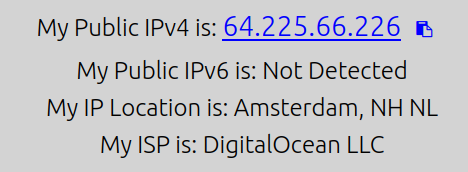
你还可以通过在 https://www.dnsleaktest.com/ 网站上执行标准测试来进一步验证。
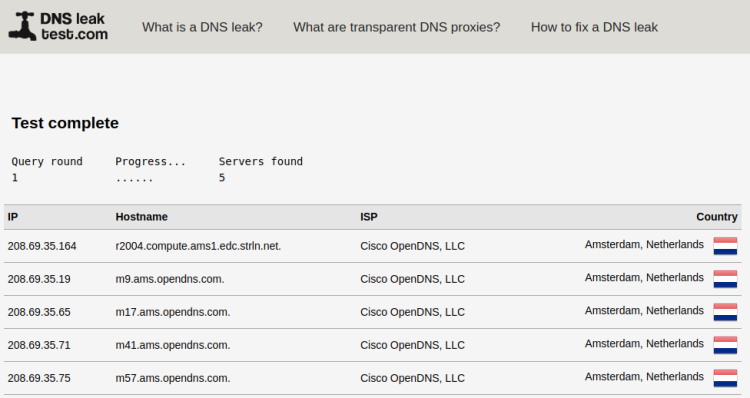
你可以看到我们之前配置的 OpenDNS 主机名,且服务器的位置与 OpenVPN 服务器的位置相符。
上述命令在前台运行 OpenVPN,这意味着终端会被阻塞。要关闭连接,你需要按 Ctrl + C。不过,你也可以在后台运行 OpenVPN。使用以下命令来实现。
sudo openvpn --config client1.ovpn --daemon
要关闭连接,请找到该进程的进程 ID。
$ ps aux | grep openvpn
你将看到类似的输出。
nobody      4357  0.3  0.0  13468  8432 ?        Ss   15:35   0:00 openvpn --config client1.ovpn --daemon
username    4406  0.0  0.0  17732  2432 pts/0    S+   15:35   0:00 grep --color=auto openvpn
如你所见,与 OpenVPN 进程对应的进程 ID 是 4357。使用以下命令终止该进程以关闭 VPN 连接。
$ sudo kill -9 4357
OpenVPN 为 Windows、macOS、Android 和 iOS 平台提供了图形界面客户端,你可以导入客户端配置文件来进行连接。
步骤 14 - 吊销客户端证书
如果你想吊销客户端的证书以阻止其访问,可以通过登录 CA 服务器来实现。
切换到 ~/easy-rsa 目录。
$ cd ~/easy-rsa
运行脚本,使用 revoke 选项,后跟客户端名称。
$ ./easyrsa revoke client1
系统会提示你是否要吊销证书。
Please confirm you wish to revoke the certificate with the following subject:

subject=
    commonName                = client1


Type the word 'yes' to continue, or any other input to abort.
  Continue with revocation: yes
. . .
Revoking Certificate 8348B3F146A765581946040D5C4D590A
. . .
这会在 CA 服务器上吊销证书。但是,OpenVPN 服务器无法检查吊销状态。为此,我们需要生成证书吊销列表(CRL)并将其传输到 OpenVPN 服务器。
生成 CRL。
$ ./easyrsa gen-crl
系统会提示你输入 CA 密码短语。上述命令会生成一个 crl.pem 文件。
将此文件复制到 OpenVPN 服务器。
$ scp ~/easy-rsa/pki/crl.pem username@your_server_ip:/tmp
重新登录到 OpenVPN 服务器,并将 CRL 文件复制到 /etc/openvpn/server 目录。
$ sudo cp /tmp/crl.pem /etc/openvpn/server/
打开 OpenVPN 服务器配置文件进行编辑。
$ sudo nano /etc/openvpn/server/server.conf
在文件底部添加以下行。这会指示 OpenVPN 服务器检查已被限制的客户端的吊销列表。
crl-verify crl.pem
按下 Ctrl + X,在提示时输入 Y 来保存文件。
重启 OpenVPN 服务器以应用更改。
sudo systemctl restart
[email protected]
客户端将无法再连接到 OpenVPN 服务器。
结论
至此,我们在 Rocky Linux 9 服务器上安装并配置 OpenVPN 服务器的教程就结束了。我们还连接了 OpenVPN Linux 客户端到服务器。如果你有任何问题,请在下方评论中发布。