
本页目录
- 准备工作
- 第一部分
- 步骤 1 - 安装 Suricata
- 步骤 2 - 配置 Suricata:启用 Community ID、选择网络接口
- 步骤 3 - 配置 Suricata 规则:添加规则集提供商
- 步骤 4 - 验证 Suricata 配置
- 步骤 5 - 运行 Suricata
- 步骤 6 - 测试 Suricata 规则
- 第二部分
- 步骤 7 - 安装 Elasticsearch 与 Kibana
- 步骤 8 - 配置 Elasticsearch:配置防火墙、启动 Elasticsearch、创建 Elasticsearch 密码
- 步骤 9 - 配置 Kibana:配置 Kibana 端口、配置访问、启动 Kibana
- 步骤 10 - 安装并配置 Filebeat
- 步骤 11 - 访问 Kibana 仪表板:使用 SSH 本地隧道、使用 Nginx 反向代理、配置防火墙、安装 Nginx、安装并配置 SSL、配置 Nginx
- 步骤 12 - 管理 Kibana 仪表板
- 结论
- 启用 Community ID
- 选择网络接口
- 添加规则集提供商
- 配置防火墙
- 启动 Elasticsearch
- 创建 Elasticsearch 密码
- 配置 Kibana 端口
- 配置 Kibana 访问
- 启动 Kibana
- 使用 SSH 本地隧道
- 使用 Nginx 反向代理
- 配置防火墙
- 安装 Nginx
- 安装并配置 SSL
- 配置 Nginx
Suricata 是一款网络监控工具,它会检查并处理流经服务器的每一个互联网流量数据包。它可生成日志事件、触发告警,并在检测到任何可疑活动时丢弃流量。
你可以将 Suricata 安装在单台机器上以监控其流量,也可以部署在网关主机上扫描与之连接的其他服务器的所有进出流量。你可以将 Suricata 与 Elasticsearch、Kibana 和 Filebeat 结合使用,以构建一个安全信息与事件管理(SIEM)工具。
在本教程中,你将在 Ubuntu 22.04 服务器上安装 Suricata IDS 以及 Elastic Stack。该技术栈的各个组件如下:
- Elasticsearch:用于存储、索引、关联和搜索来自服务器的安全事件。
- Kibana:用于展示存储在 Elasticsearch 中的日志。
- Filebeat:用于解析 Suricata 的 eve.json 日志文件,并将每个事件发送到 Elasticsearch 进行处理。
- Suricata:用于扫描网络流量中的可疑事件并丢弃无效数据包。
本教程分为两部分,第一部分讲解 Suricata 的安装与配置,第二部分讲解 Elastic Stack 的安装与配置。
在我们的教程中,Suricata 与 Elastic Stack 将安装在不同的服务器上。
准备工作
- 承载 Elastic Stack 和 Suricata 的服务器应至少具备 4GB 内存和 2 个 CPU 核心。
- 服务器之间应能通过私有 IP 地址相互通信。
- 服务器应运行 Ubuntu 22.04,并配置有非 root 的 sudo 用户。
- 如果你希望从任何地方访问 Kibana 仪表板,请设置一个指向 Elasticsearch 安装所在服务器的域名(kibana.example.com)。
- 在两台服务器上安装必要的软件包。其中部分可能已安装。 $ sudo apt install wget curl nano software-properties-common dirmngr apt-transport-https gnupg gnupg2 ca-certificates lsb-release ubuntu-keyring unzip -y
- 确保两台服务器上的软件包都已更新。 $ sudo apt update
承载 Elastic Stack 和 Suricata 的服务器应至少具备 4GB 内存和 2 个 CPU 核心。
服务器之间应能通过私有 IP 地址相互通信。
服务器应运行 Ubuntu 22.04,并配置有非 root 的 sudo 用户。
如果你希望从任何地方访问 Kibana 仪表板,请设置一个指向 Elasticsearch 安装所在服务器的域名(kibana.example.com)。
在两台服务器上安装必要的软件包。其中部分可能已安装。
$ sudo apt install wget curl nano software-properties-common dirmngr apt-transport-https gnupg gnupg2 ca-certificates lsb-release ubuntu-keyring unzip -y
确保两台服务器上的软件包都已更新。
$ sudo apt update
第一部分
步骤 1 - 安装 Suricata
要安装 Suricata,你需要将 Open Information Security Foundation(OISF)的软件包仓库添加到你的服务器。
$ sudo add-apt-repository ppa:oisf/suricata-stable
安装 Suricata。
$ sudo apt install suricata
启用 Suricata 服务。
$ sudo systemctl enable suricata
在继续之前,请先停止 Suricata 服务,因为我们需要先对其进行配置。
$ sudo systemctl stop suricata
步骤 2 - 配置 Suricata
Suricata 将其配置保存在 /etc/suricata/suricata.yaml 文件中。Suricata 的默认模式是 IDS(入侵检测系统)模式,在此模式下只记录流量而不会阻断流量。如果你是 Suricata 的新手,应保持该模式不变。在配置完成并了解更多之后,你可以开启 IPS(入侵防御系统)模式。
启用 Community ID
Community ID 字段可以更方便地在由不同监控工具生成的记录之间关联数据。由于我们将把 Suricata 与 Elasticsearch 配合使用,启用 Community ID 会很有用。
打开 /etc/suricata/suricata.yaml 文件进行编辑。
$ sudo nano /etc/suricata/suricata.yaml
找到 # Community Flow ID 这一行,并将变量 community-id 的值设为 true。
. . .
      # Community Flow ID
      # Adds a 'community_id' field to EVE records. These are meant to give
      # records a predictable flow ID that can be used to match records to
      # output of other tools such as Zeek (Bro).
      #
      # Takes a 'seed' that needs to be same across sensors and tools
      # to make the id less predictable.

      # enable/disable the community id feature.
      community-id: true
. . .
现在,你的事件将带有一个形如 1:S+3BA2UmrHK0Pk+u3XH78GAFTtQ= 的 ID,你可以用它在不同的监控工具之间匹配数据集。
选择网络接口
默认的 Suricata 配置文件会检查 eth0 设备/网络接口上的流量。如果你的服务器使用了不同的网络接口,你需要在配置中更新它。
使用以下命令检查你的网络接口的设备名称。
$ ip -p -j route show default
你将收到类似以下的输出。
[ {
        "dst": "default",
        "gateway": "95.179.184.1",
        "dev": "enp1s0",
        "protocol": "dhcp",
        "prefsrc": "95.179.185.42",
        "metric": 100,
        "flags": [ ]
    } ]
dev 变量指代网络接口设备。在我们的输出中,它显示为 enp1s0。你的输出可能因系统而异。
既然已经知道设备名称,请打开配置文件。
$ sudo nano /etc/suricata/suricata.yaml
找到 af-packet: 这一行(大约在第 580 行)。在其下方,将变量 interface 的值设为你的系统的设备名称。
# Linux high speed capture support
af-packet:
  - interface: enp1s0
    # Number of receive threads. "auto" uses the number of cores
    #threads: auto
    # Default clusterid. AF_PACKET will load balance packets based on flow.
    cluster-id: 99
. . .
如果要添加额外的接口,可以在 af-packet 部分末尾(大约第 650 行)添加。
要添加新接口,请将其插入到 - interface: default 部分的正上方,如下所示。
    #  For eBPF and XDP setup including bypass, filter and load balancing, please
    #  see doc/userguide/capture-hardware/ebpf-xdp.rst for more info.

  - interface: enp0s1
    cluster-id: 98
...
  - interface: default
    #threads: auto
    #use-mmap: no
    #tpacket-v3: yes
在我们的示例中,我们添加了一个新的接口 enp0s1 以及 cluster-id 变量的一个唯一值。你为每添加一个接口都需要包含一个唯一的 cluster id。
找到 pcap: 这一行,并在其下方将变量 interface 的值设为你的系统的设备名称。
# Cross platform libpcap capture support
pcap:
  - interface: enp1s0
    # On Linux, pcap will try to use mmap'ed capture and will use "buffer-size"
    # as total memory used by the ring. So set this to something bigger
    # than 1% of your bandwidth.
要像之前一样添加新接口,请将其插入到 - interface: default 部分的正上方,如下所示。
- interface: enp0s1
# Put default values here
  - interface: default
    #checksum-checks: auto
完成后,按 Ctrl + X 并在提示时输入 Y 保存文件。
步骤 3 - 配置 Suricata 规则
默认情况下,Suricata 仅使用有限的规则集来检测网络流量。你可以使用名为 suricata-update 的工具从外部提供商添加更多规则集。运行以下命令以加入额外的规则。
$ sudo suricata-update
25/2/2023 -- 06:48:14 - <Info> -- Using data-directory /var/lib/suricata.
25/2/2023 -- 06:48:14 - <Info> -- Using Suricata configuration /etc/suricata/suricata.yaml
25/2/2023 -- 06:48:14 - <Info> -- Using /etc/suricata/rules for Suricata provided rules.
.....
25/2/2023 -- 06:48:14 - <Info> -- No sources configured, will use Emerging Threats Open
25/2/2023 -- 06:48:14 - <Info> -- Fetching https://rules.emergingthreats.net/open/suricata-6.0.10/emerging.rules.tar.gz.
 100% - 3744681/3744681
.....
25/2/2023 -- 06:48:19 - <Info> -- Writing rules to /var/lib/suricata/rules/suricata.rules: total: 41022; enabled: 33278; added: 41022; removed 0; modified: 0
25/2/2023 -- 06:48:19 - <Info> -- Writing /var/lib/suricata/rules/classification.config
25/2/2023 -- 06:48:19 - <Info> -- Testing with suricata -T.
25/2/2023 -- 06:48:41 - <Info> -- Done.
添加规则集提供商
你可以通过添加更多提供商来扩展 Suricata 的规则。它可以从各种免费和商业提供商处获取规则。
你可以使用以下命令列出默认的提供商列表。
$ sudo suricata-update list-sources
例如,如果你想包含 tgreen/hunting 规则集,可以使用以下命令启用它。
$ sudo suricata-update enable-source tgreen/hunting
再次运行 suricata-update 命令以下载并更新新规则。默认情况下,Suricata 可以在不重启的情况下处理任何规则变更。
步骤 4 - 验证 Suricata 配置
Suricata 自带一个验证工具,用于检查配置文件和规则中的错误。运行以下命令来运行该验证工具。
$ sudo suricata -T -c /etc/suricata/suricata.yaml -v
25/2/2023 -- 06:51:11 - <Info> - Running suricata under test mode
25/2/2023 -- 06:51:11 - <Notice> - This is Suricata version 6.0.10 RELEASE running in SYSTEM mode
25/2/2023 -- 06:51:11 - <Info> - CPUs/cores online: 2
25/2/2023 -- 06:51:11 - <Info> - fast output device (regular) initialized: fast.log
25/2/2023 -- 06:51:11 - <Info> - eve-log output device (regular) initialized: eve.json
25/2/2023 -- 06:51:11 - <Info> - stats output device (regular) initialized: stats.log
25/2/2023 -- 06:51:22 - <Info> - 1 rule files processed. 33519 rules successfully loaded, 0 rules failed
25/2/2023 -- 06:51:22 - <Info> - Threshold config parsed: 0 rule(s) found
25/2/2023 -- 06:51:22 - <Info> - 33522 signatures processed. 1189 are IP-only rules, 5315 are inspecting packet payload, 26814 inspect application layer, 108 are decoder event only
25/2/2023 -- 06:51:34 - <Notice> - Configuration provided was successfully loaded. Exiting.
25/2/2023 -- 06:51:34 - <Info> - cleaning up signature grouping structure... complete
-T 标志指示 Suricata 以测试模式运行,-c 标志配置配置文件的位置,-v 标志打印命令的详细输出。根据你的系统配置以及添加的规则数量,该命令可能需要几分钟才能完成。
步骤 5 - 运行 Suricata
现在 Suricata 已配置并准备就绪,是时候运行该应用程序了。
$ sudo systemctl start suricata
检查进程状态。
$ sudo systemctl status suricata
如果一切正常,你应该看到以下输出。
? suricata.service - LSB: Next Generation IDS/IPS
     Loaded: loaded (/etc/init.d/suricata; generated)
     Active: active (running) since Sat 2023-02-25 07:04:23 UTC; 5s ago
       Docs: man:systemd-sysv-generator(8)
    Process: 2701 ExecStart=/etc/init.d/suricata start (code=exited, status=0/SUCCESS)
      Tasks: 1 (limit: 4575)
     Memory: 190.6M
        CPU: 5.528s
     CGroup: /system.slice/suricata.service
             ??2710 /usr/bin/suricata -c /etc/suricata/suricata.yaml --pidfile /var/run/suricata.pid --af-packet -D -vvv

Feb 25 07:04:23 kibana systemd[1]: Starting LSB: Next Generation IDS/IPS...
Feb 25 07:04:23 kibana suricata[2701]: Starting suricata in IDS (af-packet) mode... done.
Feb 25 07:04:23 kibana systemd[1]: Started LSB: Next Generation IDS/IPS.
该进程可能需要几分钟来完成所有规则的解析。因此,上述状态检查并不能完全说明 Suricata 是否已启动并准备就绪。你可以使用以下命令监控日志文件来确认。
$ sudo tail -f /var/log/suricata/suricata.log
如果你在日志文件中看到以下行,说明 Suricata 正在运行,并已准备好监控网络流量。
25/2/2023 -- 07:04:44 - <Info> - All AFP capture threads are running.
步骤 6 - 测试 Suricata 规则
我们将检查 Suricata 是否检测到了任何可疑流量。Suricata 指南建议使用以下命令测试 ET Open 规则编号 2100498。
$ curl http://testmynids.org/uid/index.html
你将得到以下响应。
uid=0(root) gid=0(root) groups=0(root)
上述命令伪装成返回在已入侵系统上可运行的 id 命令的输出。要测试 Suricata 是否检测到了该流量,你需要使用指定的规则编号检查日志文件。
$ grep 2100498 /var/log/suricata/fast.log
如果你的请求使用的是 IPv6,你应该看到以下输出。
02/25/2023-07:06:09.513208 [**] [1:2100498:7] GPL ATTACK_RESPONSE id check returned root [**] [Classification: Potentially Bad Traffic] [Priority: 2] {TCP} 2600:9000:2250:3200:0018:30b3:e400:93a1:80 -> 2001:19f0:5001:225f:5400:04ff:fe52:2ca2:36770
如果你的请求使用的是 IPv4,你将看到以下输出。
02/19/2023-10:13:17.872335 [**] [1:2100498:7] GPL ATTACK_RESPONSE id check returned root [**] [Classification: Potentially Bad Traffic] [Priority: 2] {TCP} 108.158.221.5:80 -> 95.179.185.42:36364
Suricata 还会以 JSON 格式将事件记录到 /var/log/suricata/eve.log 文件中。要读取和解析这些规则,你需要安装 jq,这超出了本教程的范围。
第二部分
我们已完成教程的第一部分,在那里我们安装并测试了 Suricata。下一部分涉及安装 ELK 技术栈并将其配置为可视化 Suricata 及其日志。除非另有说明,教程的第二部分应在第二台服务器上完成。
步骤 7 - 安装 Elasticsearch 和 Kibana
安装 Elasticsearch 的第一步是将 Elastic GPG 密钥添加到你的服务器。
$ wget -qO - https://artifacts.elastic.co/GPG-KEY-elasticsearch | sudo gpg --dearmor -o /usr/share/keyrings/elasticsearch-keyring.gpg
通过创建 /etc/apt/sources.list.d/elastic-7.x.list 文件来为 Elasticsearch 软件包创建仓库。
$ echo "deb [signed-by=/usr/share/keyrings/elasticsearch-keyring.gpg] https://artifacts.elastic.co/packages/7.x/apt stable main" | sudo tee /etc/apt/sources.list.d/elastic-7.x.list
更新你系统的仓库列表。
$ sudo apt update
安装 Elasticsearch 和 Kibana。
$ sudo apt install elasticsearch kibana
使用以下命令定位你服务器的私有 IP 地址。
$ ip -brief address show
lo               UNKNOWN        127.0.0.1/8 ::1/128
enp1s0           UP             78.141.220.30/23 metric 100 2001:19f0:5001:b35:5400:4ff:fe52:2ca3/64 fe80::5400:4ff:fe52:2ca3/64
enp6s0           UP             10.7.96.4/20 fe80::5800:4ff:fe52:2ca3/64
记下你服务器的私有 IP(本例中为 10.7.96.4)。我们将其称为 your_private_IP。服务器的公网 IP 地址(78.141.220.30)在后续教程中将被称为 your_public_IP。同时记下你服务器的网络名称 enp6s0。
步骤 8 - 配置 Elasticsearch
Elasticsearch 将其配置保存在 /etc/elasticsearch/elasticsearch.yml 文件中。打开该文件进行编辑。
$ sudo nano /etc/elasticsearch/elasticsearch.yml
默认情况下,Elasticsearch 只接受本地连接。我们需要更改它,以便 Kibana 可以通过私有 IP 地址访问它。
找到 #network.host: 192.168.0.1 这一行,并在其正下方添加如下所示的该行。
# By default Elasticsearch is only accessible on localhost. Set a different
# address here to expose this node on the network:
#
#network.host: 192.168.0.1
network.bind_host: ["127.0.0.1", "your_private_IP"]
#
# By default Elasticsearch listens for HTTP traffic on the first free port it
# finds starting at 9200. Set a specific HTTP port here:
这将确保 Elastic 在仍然接受本地连接的同时,也能通过私有 IP 地址被 Kibana 访问。
下一步是开启一些安全特性,并确保 Elastic 被配置为在单节点上运行。为此,请在文件末尾添加以下行。
. . .
discovery.type: single-node
xpack.security.enabled: true
如果你打算使用多个 Elasticsearch 节点,可以省略第一行。
完成后,按 Ctrl + X 并在提示时输入 Y 保存文件。
配置防火墙
为 Elasticsearch 添加适当的防火墙规则,使其可以通过私有网络访问。
$ sudo ufw allow in on enp6s0
$ sudo ufw allow out on enp6s0
请确保在第一条命令中选择的接口名称与你在步骤 7 中获得的相同。
启动 Elasticsearch
重新加载服务守护进程。
$ sudo systemctl daemon-reload
启用 Elasticsearch 服务。
$ sudo systemctl enable elasticsearch
既然已配置好 Elasticsearch,现在是时候启动该服务了。
$ sudo systemctl start elasticsearch
创建 Elasticsearch 密码
在启用 Elasticsearch 的安全设置之后,下一步是为默认用户生成一些密码。Elasticsearch 自带一个位于 /usr/share/elasticsearch/bin/elasticsearch-setup-passwords 的密码生成工具,可生成随机密码。
创建密码。
$ cd /usr/share/elasticsearch/bin
$ sudo ./elasticsearch-setup-passwords auto
你将得到类似以下的输出。在提示时按 y 继续。
Initiating the setup of passwords for reserved users elastic,apm_system,kibana,kibana_system,logstash_system,beats_system,remote_monitoring_user.
The passwords will be randomly generated and printed to the console.
Please confirm that you would like to continue [y/N]y


Changed password for user apm_system
PASSWORD apm_system = y5uilzBu8akwRChvXFEq

Changed password for user kibana_system
PASSWORD kibana_system = nEeGIo9YJysUITU0ywLO

Changed password for user kibana
PASSWORD kibana = nEeGIo9YJysUITU0ywLO

Changed password for user logstash_system
PASSWORD logstash_system = VmumYBdNAwjsjwql6F5j

Changed password for user beats_system
PASSWORD beats_system = NZJxIPySwsNwPwCD2rsy

Changed password for user remote_monitoring_user
PASSWORD remote_monitoring_user = c2GafzJIueAxZEAAC6tZ

Changed password for user elastic
PASSWORD elastic = l4r7CyCHPw5p4c43RfA1
该工具只能运行一次,因此请将所有密码保存在安全的位置。
步骤 9 - 配置 Kibana
配置 Kibana 的第一步是通过生成密钥来启用 xpack 安全功能。Kibana 使用这些密钥将数据存储到 Elasticsearch 中。生成密钥的工具可从 /usr/share/kibana/bin 目录访问。
$ cd /usr/share/kibana/bin/
$ sudo ./kibana-encryption-keys generate -q --force
-q 标志会抑制命令说明,--force 标志确保生成全新的密钥。你将收到类似以下的输出。
xpack.encryptedSavedObjects.encryptionKey: 20cabb5381ad09aeb6cccd1136c8138f
xpack.reporting.encryptionKey: d5293c386d14479f72bb2f6f6f984ad9
xpack.security.encryptionKey: 9cda918cc718fb58f022423b97e3171a
复制输出内容。打开 Kibana 的配置文件 /etc/kibana/kibana.yml 进行编辑。
$ sudo nano /etc/kibana/kibana.yml
将上一条命令的代码粘贴到文件末尾。
. . .

# Specifies locale to be used for all localizable strings, dates and number formats.
# Supported languages are the following: English - en , by default , Chinese - zh-CN .
#i18n.locale: "en"

xpack.encryptedSavedObjects.encryptionKey: 0f4e5e1cf8fad1874ffed0faac6be0da
xpack.reporting.encryptionKey: d435c78a4e37521e539c0e905420c9f5
xpack.security.encryptionKey: 7ba0e2a02747bb90fb0f9a3c267b99ed
配置 Kibana 端口
需要对 Kibana 进行配置,使其可以通过服务器的私有 IP 地址访问。找到文件中的 #server.host: "localhost" 这一行,并在其正下方添加如下所示的该行。
# Kibana is served by a back end server. This setting specifies the port to use.
#server.port: 5601

# Specifies the address to which the Kibana server will bind. IP addresses and host names are both valid values.
# The default is 'localhost', which usually means remote machines will not be able to connect.
# To allow connections from remote users, set this parameter to a non-loopback address.
#server.host: "localhost"
server.host: "your_private_IP"
完成后,按 Ctrl + X 并在提示时输入 Y 保存文件。
配置 Kibana 访问
下一步是创建一个 Kibana 可用于身份验证的用户名和密码。你可以直接编辑 Kibana 的配置文件来实现,但这可能引发安全问题。更安全的方法涉及使用 kibana-keystore 应用程序。
运行以下命令来设置用户名。输入 kibana_system 作为用户名。
$ cd /usr/share/kibana/bin
$ sudo ./kibana-keystore add elasticsearch.username
Enter value for elasticsearch.username: *************
再次运行该命令以设置密码。请确保使用你在步骤 8 中为 Kibana 创建的密码。在本教程中,密码为 dTanR7Q2HtgDtATRvuJv。
$ sudo ./kibana-keystore add elasticsearch.password
Enter value for elasticsearch.password: ********************
启动 Kibana
既然已为 Kibana 配置好安全访问和网络,现在启动并启用该进程。
$ sudo systemctl enable kibana --now
检查状态以确认它正在运行。
$ sudo systemctl status kibana
? kibana.service - Kibana
     Loaded: loaded (/etc/systemd/system/kibana.service; enabled; vendor preset: enabled)
     Active: active (running) since Sat 2023-02-25 07:24:37 UTC; 6s ago
       Docs: https://www.elastic.co
   Main PID: 3884 (node)
      Tasks: 11 (limit: 4575)
     Memory: 181.8M
        CPU: 6.700s
     CGroup: /system.slice/kibana.service
             ??3884 /usr/share/kibana/bin/../node/bin/node /usr/share/kibana/bin/../src/cli/dist --logging.dest=/var/log/kibana/kibana.log --pid.file=/run/kibana/kibana.pid "--deprecation.skip_de>
Feb 25 07:24:37 elasticsearch systemd[1]: Started Kibana.
步骤 10 - 安装并配置 Filebeat
请注意,我们将在 Suricata 服务器上安装 Filebeat。因此请切换回该服务器并添加 Elastic GPG 密钥以开始。
$ wget -qO - https://artifacts.elastic.co/GPG-KEY-elasticsearch | sudo gpg --dearmor -o /usr/share/keyrings/elasticsearch-keyring.gpg
创建 elastic 仓库。
$ echo "deb [signed-by=/usr/share/keyrings/elasticsearch-keyring.gpg] https://artifacts.elastic.co/packages/7.x/apt stable main" | sudo tee /etc/apt/sources.list.d/elastic-7.x.list
更新系统仓库列表。
$ sudo apt update
按 Ctrl + X 并在提示时输入 Y 保存文件。
安装 Filebeat。
$ sudo apt install filebeat
Filebeat 将其配置保存在 /etc/filebeat/filebeat.yml 文件中。打开它进行编辑。
$ sudo nano /etc/filebeat/filebeat.yml
你需要做的第一件事是将其连接到 Kibana 的仪表板。找到 Kibana 部分中的 #host: "localhost:5601" 这一行,并在其正下方添加如下所示的该行。
. . .
# Starting with Beats version 6.0.0, the dashboards are loaded via the Kibana API.
# This requires a Kibana endpoint configuration.
setup.kibana:

  # Kibana Host
  # Scheme and port can be left out and will be set to the default (http and 5601)
  # In case you specify and additional path, the scheme is required: http://localhost:5601/path
  # IPv6 addresses should always be defined as: https://[2001:db8::1]:5601
  #host: "localhost:5601"
  host: "your_private_IP:5601"

. . .
接下来,找到文件中的 Elasticsearch Output 部分,并按如下所示编辑 hosts、username 和 password 的值。对于用户名,请选择 elastic 作为值;对于密码,请使用本教程步骤 8 中生成的值。
output.elasticsearch:
  # Array of hosts to connect to.
  hosts: ["your_private_IP:9200"]

  # Protocol - either `http` (default) or `https`.
  #protocol: "https"

  # Authentication credentials - either API key or username/password.
  #api_key: "id:api_key"
  username: "elastic"
  password: "bd1YJfhSa8RC8SMvTIwg"

. . .
完成后,按 Ctrl + X 并在提示时输入 Y 保存文件。
接下来,启用 Filebeat 内置的 Suricata 模块。
$ sudo filebeat modules enable suricata
配置 Filebeat 的最后一步是使用 filebeat setup 命令将 SIEM 仪表板和管道加载到 Elasticsearch 中。
$ sudo filebeat setup
该命令可能需要几分钟才能完成。完成后,你应该收到以下输出。
Overwriting ILM policy is disabled. Set `setup.ilm.overwrite: true` for enabling.

Index setup finished.
Loading dashboards (Kibana must be running and reachable)
Loaded dashboards
Setting up ML using setup --machine-learning is going to be removed in 8.0.0. Please use the ML app instead.
See more: https://www.elastic.co/guide/en/machine-learning/current/index.html
It is not possble to load ML jobs into an Elasticsearch 8.0.0 or newer using the Beat.
Loaded machine learning job configurations
Loaded Ingest pipelines
启动 Filebeat 服务。
$ sudo systemctl start filebeat
检查服务的状态。
$ sudo systemctl status filebeat
步骤 11 - 访问 Kibana 仪表板
由于 Kibana 被配置为仅通过私有 IP 地址访问 Elasticsearch,你有两种方式访问它。第一种方法是从你的电脑通过 SSH 隧道连接到 Elasticsearch 服务器。这会将你电脑上的 5601 端口转发到服务器的私有 IP 地址,你将能够在你的电脑上通过 http://localhost:5601 访问 Kibana。但这种方式意味着你将无法从其他地方访问它。
另一种选择是在你的 Suricata 服务器上安装 Nginx,并将其用作反向代理,通过私有 IP 地址访问 Elasticsearch 服务器。我们将讨论这两种方式。你可以根据自己的需求选择其中任意一种。
使用 SSH 本地隧道
如果你使用的是 Windows 10 或 Windows 11,可以从你的 Windows Powershell 运行 SSH 本地隧道。在 Linux 或 macOS 上,你可以使用终端。如果你尚未配置 SSH 访问,可能需要先进行配置。
在你的电脑终端中运行以下命令以创建 SSH 隧道。
$ ssh -L 5601:your_private_IP:5601 navjot@your_public_IP -N
- -L 标志表示本地 SSH 隧道,它将流量从你的电脑端口转发到服务器。
- private_IP:5601 是流量在服务器上被转发到的 IP 地址。在此情况下,请将其替换为你的 Elasticsearch 服务器的私有 IP 地址。
- your_public_IP 是 Elasticsearch 服务器的公网 IP 地址,用于建立 SSH 连接。
- -N 标志告知 OpenSSH 不执行任何命令,而是在隧道运行期间保持连接存活。
隧道打开后,你可以在电脑浏览器中打开 URL http://localhost:5601 来访问 Kibana。你将看到以下界面。

只要你需要访问 Kibana,就需要保持该命令运行。在终端中按 Ctrl + C 以关闭隧道。
使用 Nginx 反向代理
如果你希望从世界任何地方访问仪表板,这种方式最为合适。
配置防火墙
在继续之前,你需要在防火墙中开放 HTTP 和 HTTPS 端口。
$ sudo ufw allow http
$ sudo ufw allow https
安装 Nginx
Ubuntu 22.04 自带较旧版本的 Nginx。要安装最新版本,你需要下载官方 Nginx 仓库。
导入 Nginx 的签名密钥。
$ curl https://nginx.org/keys/nginx_signing.key | gpg --dearmor \
| sudo tee /usr/share/keyrings/nginx-archive-keyring.gpg >/dev/null
为 Nginx 的稳定版本添加仓库。
$ echo "deb [signed-by=/usr/share/keyrings/nginx-archive-keyring.gpg arch=amd64] \
http://nginx.org/packages/ubuntu `lsb_release -cs` nginx" \
| sudo tee /etc/apt/sources.list.d/nginx.list
更新系统仓库。
$ sudo apt update
安装 Nginx。
$ sudo apt install nginx
验证安装。
$ nginx -v
nginx version: nginx/1.22.1
启动 Nginx 服务器。
$ sudo systemctl start nginx
安装并配置 SSL
第一步是安装 Let's Encrypt SSL 证书。我们需要安装 Certbot 来生成 SSL 证书。你既可以使用 Ubuntu 的仓库安装 Certbot,也可以通过 Snapd 工具获取最新版本。我们将使用 Snapd 版本。
Ubuntu 22.04 默认已安装 Snapd。运行以下命令以确保你的 Snapd 版本是最新的。
$ sudo snap install core && sudo snap refresh core
安装 Certbot。
$ sudo snap install --classic certbot
使用以下命令,通过创建指向 /usr/bin 目录的符号链接,确保 Certbot 命令可以运行。
$ sudo ln -s /snap/bin/certbot /usr/bin/certbot
为域名 kibana.example.com 生成 SSL 证书。
$ sudo certbot certonly --nginx --agree-tos --no-eff-email --staple-ocsp --preferred-challenges http -m
[email protected]
 -d kibana.example.com
上述命令会将证书下载到服务器上的 /etc/letsencrypt/live/kibana.example.com 目录。
生成 Diffie-Hellman 组证书。
$ sudo openssl dhparam -dsaparam -out /etc/ssl/certs/dhparam.pem 4096
要检查 SSL 续期是否正常工作,请对该流程进行一次演练(dry run)。
$ sudo certbot renew --dry-run
如果你没有看到任何错误,就说明一切就绪。你的证书将自动续期。
配置 Nginx
为 Kibana 创建并打开 Nginx 配置文件。
$ sudo nano /etc/nginx/conf.d/kibana.conf
在其中粘贴以下代码。将 IP 地址替换为你的 Elasticsearch 服务器的私有 IP 地址。
server {
        listen 80; listen [::]:80;
        server_name kibana.example.com;
        return 301 https://$host$request_uri;
}

server {
        server_name kibana.example.com;
        charset utf-8;

        listen 443 ssl http2;
        listen [::]:443 ssl http2;

        access_log /var/log/nginx/kibana.access.log;
        error_log /var/log/nginx/kibana.error.log;

        ssl_certificate /etc/letsencrypt/live/kibana.example.com/fullchain.pem;
        ssl_certificate_key /etc/letsencrypt/live/kibana.example.com/privkey.pem;
        ssl_trusted_certificate /etc/letsencrypt/live/kibana.example.com/chain.pem;
        ssl_session_timeout 1d;
        ssl_session_cache shared:MozSSL:10m;
        ssl_session_tickets off;

        ssl_protocols TLSv1.2 TLSv1.3;
        ssl_ciphers ECDHE-ECDSA-AES128-GCM-SHA256:ECDHE-RSA-AES128-GCM-SHA256:ECDHE-ECDSA-AES256-GCM-SHA384:ECDHE-RSA-AES256-GCM-SHA384:ECDHE-ECDSA-CHACHA20-POLY1305:ECDHE-RSA-CHACHA20-POLY1305:DHE-RSA-AES128-GCM-SHA256:DHE-RSA-AES256-GCM-SHA384;

		resolver 8.8.8.8;

        ssl_stapling on;
        ssl_stapling_verify on;
        ssl_dhparam /etc/ssl/certs/dhparam.pem;

        location / {
                proxy_pass http://your_private_IP:5601;
                proxy_set_header Host $host;
                proxy_set_header X-Real-IP $remote_addr;
                proxy_set_header X-Forwarded-For $proxy_add_x_forwarded_for;
                proxy_set_header X-Forwarded-Proto $scheme;
        }
}
按 Ctrl + X 并在提示时输入 Y 保存文件。
打开 /etc/nginx/nginx.conf 文件进行编辑。
$ sudo nano /etc/nginx/nginx.conf
在 include /etc/nginx/conf.d/*.conf; 这一行之前添加以下行。
server_names_hash_bucket_size 64;
按 Ctrl + X 并在提示时输入 Y 保存文件。
验证配置。
$ sudo nginx -t
nginx: the configuration file /etc/nginx/nginx.conf syntax is ok
nginx: configuration file /etc/nginx/nginx.conf test is successful
重启 Nginx 服务。
$ sudo systemctl restart nginx
你的 Kibana 仪表板应该可以通过 URL https://kibana.example.com 从任何你希望的地方访问。
步骤 12 - 管理 Kibana 仪表板
在继续管理仪表板之前,你需要在 Kibana 的配置中添加 base URL 字段。
打开 Kibana 的配置文件。
$ sudo nano /etc/kibana/kibana.yml
找到被注释掉的 #server.publicBaseUrl: "" 这一行,并通过去掉前面的井号按如下方式修改它。
server.publicBaseUrl: "https://kibana.example.com"
按 Ctrl + X 并在提示时输入 Y 保存文件。
重启 Kibana 服务。
$ sudo systemctl restart kibana
等待几分钟后,在你的浏览器中加载 URL https://kibana.example.com。使用用户名 elastic 以及你之前生成的密码(bd1YJfhSa8RC8SMvTIwg)登录,你将看到以下界面。

在顶部的搜索框中输入 type:data suricata 以定位 Suricata 的相关信息。
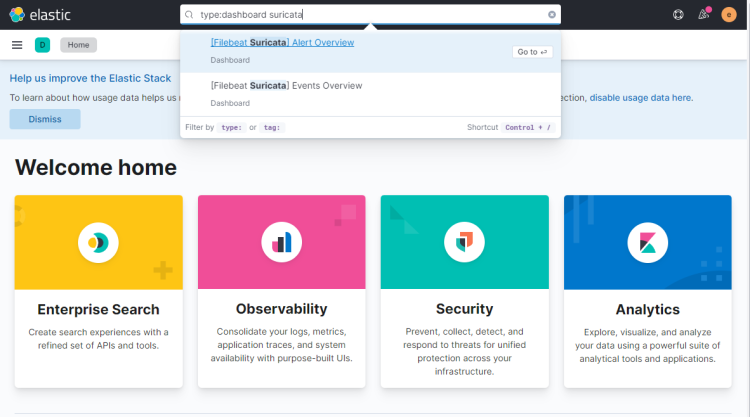
点击第一个结果([Filebeat Suricata] Alert Overview),你将看到类似以下的界面。默认情况下,它只显示最近 15 分钟的条目,但为了教程展示更多数据,我们将其显示时间跨度拉大了。
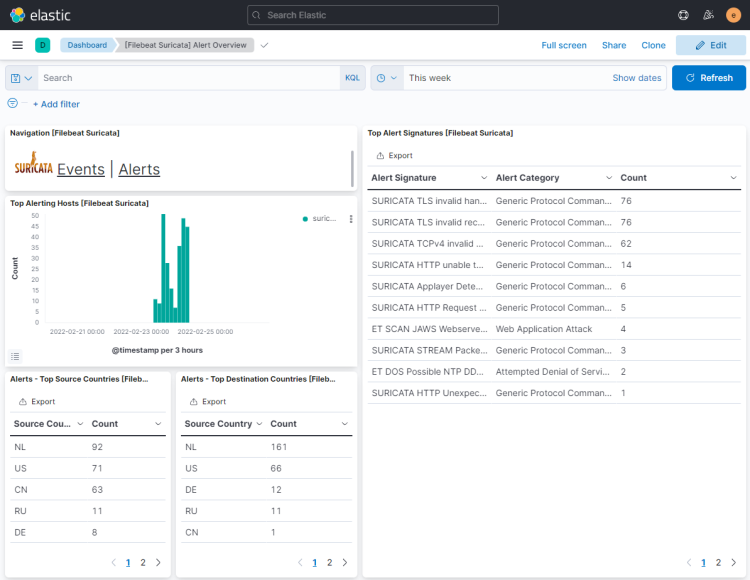
点击 Events 按钮以查看所有已记录的事件。
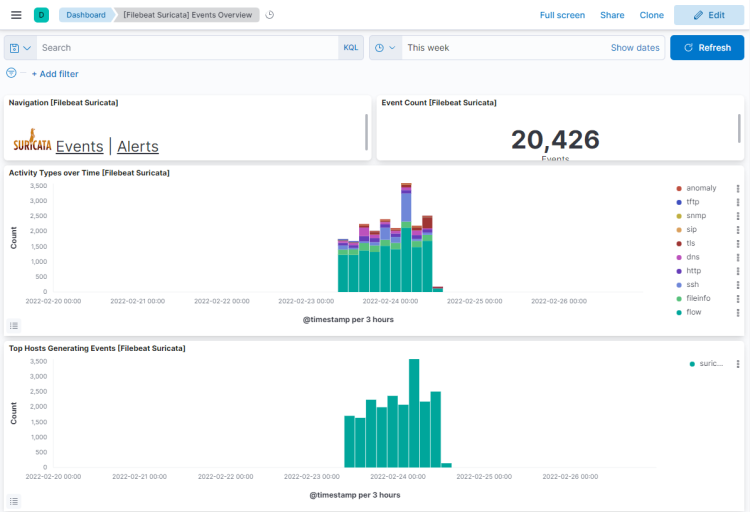
在事件和告警页面上向下滚动,你可以通过协议类型、源端口和目标端口以及源的 IP 地址来识别每个事件和告警。你还可以查看流量来源的国家/地区。
你可以使用 Kibana 和 Filebeat 来访问并生成其他类型的仪表板。你可以立即使用的一个有用的内置仪表板是 Security 仪表板。点击左侧汉堡菜单中的 Network 仪表板,你将看到以下界面。
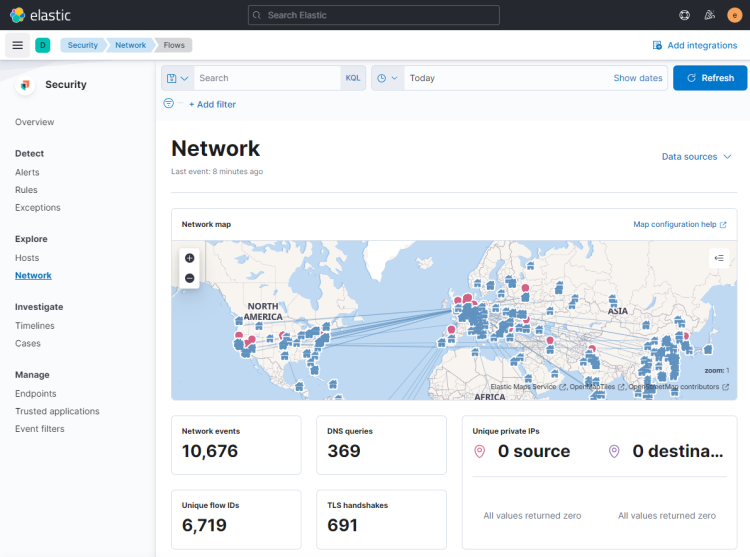
你可以通过启用并配置内置的 Filebeat 模块来添加更多像 Nginx 这样的仪表板。
结论
本教程到此结束,你已在 Ubuntu 22.04 服务器上安装并配置了 Suricata IDS 与 Elastic Stack。你还配置了 Nginx 作为反向代理,以从外部访问 Kibana 仪表板。如果你有任何问题,请在下方评论区留言。