
本教程适用于这些操作系统版本
- Rocky Linux 8.4
- Rocky Linux 8.4
本页内容
- 先决条件
- 安装 Podman
- 搜索并下载容器镜像
- 运行容器
- 列出并停止容器
- 启动已停止的容器
- 删除容器
- 终止容器
- 删除镜像
- 查看容器日志
- 检查容器
- 访问容器 Shell
- Pod
- 结论
Podman 是一个免费的开源容器平台,用于在 Linux 环境中开发、管理和部署容器与 Pod。Redhat 于 2018 年开发了 Podman。它是一个与 Docker 工作方式不同的容器化引擎。与使用 Docker CLI 和 Docker 守护进程的 Docker 不同,Podman 不依赖守护进程即可工作。依赖守护进程会导致单点故障。
Podman 按照 OCI(Open Container Initiative,开放容器倡议)标准设计,这使 Podman 能够直接与内核、容器和镜像交互。它也比 Docker 更安全,因为它不需要 root 权限。由于两者都符合 OCI 标准,Podman 可以作为 Docker 的直接替代品。
本文将向你展示如何安装 Podman,并使用它来创建和管理镜像与容器。
先决条件
- 一台基于 Rocky Linux 的服务器
- 一个具有 root 权限的非 sudo 用户。
- 确保服务器已更新。$ sudo dnf update
一台基于 Rocky Linux 的服务器
一个具有 root 权限的非 sudo 用户。
确保服务器已更新。
$ sudo dnf update
安装 Podman
Podman 与 Buildah 和 Skopeo 一起包含在 container-tools 模块中。在 Rocky Linux 8 的 AppStream 仓库中也提供了它。我们将使用模块方式。
使用 dnf module 命令安装 Podman。
$ sudo dnf module install container-tools
检查 Podman 的版本,以确认它是否已正确安装。
$ podman --version
podman version 3.2.3
搜索并下载容器镜像
要搜索 Nginx 的镜像,请使用以下命令。
$ podman search nginx
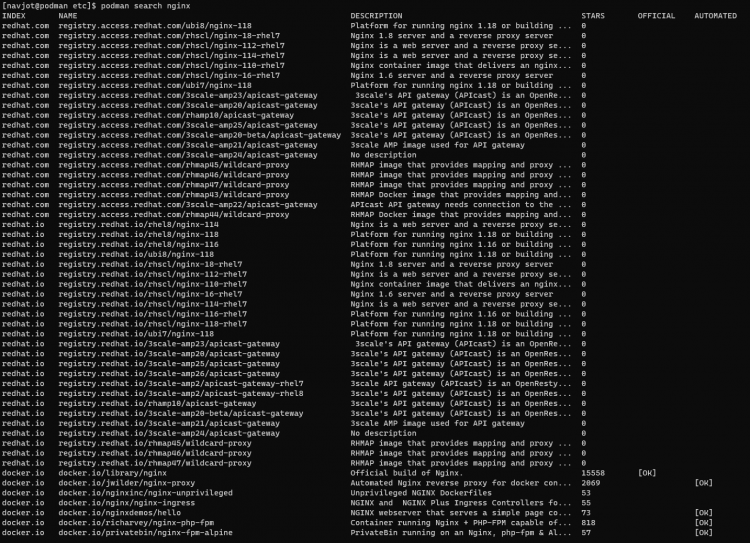
在输出中,你将看到镜像来自的仓库名称以及镜像的描述。
要下载镜像,请使用以下命令之一。
$ podman pull docker.io/library/nginx

OR

$ podman pull nginx
你可以通过以下命令查看已下载的镜像。
$ podman images
REPOSITORY               TAG         IMAGE ID      CREATED     SIZE
docker.io/library/nginx  latest      f8f4ffc8092c  3 days ago  138 MB
运行容器
使用以下命令通过 Nginx 镜像运行一个容器。我们已将该容器命名为 webserver 。
$ podman run -d --name webserver nginx
我们可以使用同一个镜像以不同的名称启动另一个容器。
$ podman run -d --name webserver2 nginx
我们可以使用同一个镜像启动任意数量的容器。
列出并停止容器
要列出所有正在运行的容器,请使用以下命令。
$ podman ps
CONTAINER ID  IMAGE                           COMMAND               CREATED         STATUS             PORTS       NAMES
19b6668bc627  docker.io/library/nginx:latest  nginx -g daemon o...  31 seconds ago  Up 31 seconds ago              webserver
35a286ba5a55  docker.io/library/nginx:latest  nginx -g daemon o...  2 seconds ago   Up 3 seconds ago               webserver2
停止正在运行的容器。
$ podman stop webserver
webserver
验证它是否已停止。
$ podman ps
CONTAINER ID  IMAGE                           COMMAND               CREATED             STATUS                 PORTS       NAMES
35a286ba5a55  docker.io/library/nginx:latest  nginx -g daemon o...  About a minute ago  Up About a minute ago              webserver2
要列出所有容器(包括已停止的容器),你需要使用 -a 标志。
$ podman ps -a
CONTAINER ID  IMAGE                           COMMAND               CREATED             STATUS                     PORTS       NAMES
19b6668bc627  docker.io/library/nginx:latest  nginx -g daemon o...  2 minutes ago       Exited (0) 35 seconds ago              webserver
35a286ba5a55  docker.io/library/nginx:latest  nginx -g daemon o...  About a minute ago  Up About a minute ago                  webserver2
启动已停止的容器
使用以下命令启动一个已停止的容器。
$ podman start webserver
webserver
验证它是否已启动。
$ podman ps
CONTAINER ID  IMAGE                           COMMAND               CREATED        STATUS             PORTS       NAMES
19b6668bc627  docker.io/library/nginx:latest  nginx -g daemon o...  3 minutes ago  Up 16 seconds ago              webserver
35a286ba5a55  docker.io/library/nginx:latest  nginx -g daemon o...  2 minutes ago  Up 2 minutes ago               webserver2
删除容器
在删除容器之前,你需要先停止它。
$ podman stop webserver2
删除该容器。
$ podman rm webserver2
你可以通过使用 --force 标志来删除正在运行的容器。
$ podman rm webserver2 --force
35a286ba5a553d5f88e3d9795780f893cfb58bf4a126c4912d1ec56b9d0e5a27
终止容器
停止和终止容器是两件不同的事情,但最终达到相同的效果。区别在于,停止容器是优雅地关闭它,而终止容器是强制结束它,可能导致数据丢失。
使用以下命令终止容器。
$ podman kill -s 9 webserver2
上面的命令使用 SIGNAL 9 (SIGKILL) 选项来终止容器。
要终止所有容器,请使用 --all 或 -a 标志;要仅终止最新的容器,请使用 --latest 或 -l 标志。
删除镜像
你可以使用 rmi 命令删除镜像。
$ podman rmi registry.redhat.io/rhel8/rsyslog
你可以通过用逗号分隔来删除多个镜像。
$ podman rmi registry.redhat.io/rhel8/rsyslog registry.redhat.io/ubi8/ubi
要删除系统上的所有镜像,请使用 -a 标志。
$ podman rmi -a
查看容器日志
要查看容器日志,请使用以下命令。
$ podman logs webserver
/docker-entrypoint.sh: /docker-entrypoint.d/ is not empty, will attempt to perform configuration
/docker-entrypoint.sh: Looking for shell scripts in /docker-entrypoint.d/
/docker-entrypoint.sh: Launching /docker-entrypoint.d/10-listen-on-ipv6-by-default.sh
10-listen-on-ipv6-by-default.sh: info: Getting the checksum of /etc/nginx/conf.d/default.conf
10-listen-on-ipv6-by-default.sh: info: Enabled listen on IPv6 in /etc/nginx/conf.d/default.conf
/docker-entrypoint.sh: Launching /docker-entrypoint.d/20-envsubst-on-templates.sh
/docker-entrypoint.sh: Launching /docker-entrypoint.d/30-tune-worker-processes.sh
/docker-entrypoint.sh: Configuration complete; ready for start up
......
你可以通过使用 --tail 选项将日志限制为最后 5 行。
$ podman logs --tail=5 webserver
2021/10/05 10:13:52 [notice] 1#1: built by gcc 8.3.0 (Debian 8.3.0-6)
2021/10/05 10:13:52 [notice] 1#1: OS: Linux 4.18.0-305.19.1.el8_4.x86_64
2021/10/05 10:13:52 [notice] 1#1: getrlimit(RLIMIT_NOFILE): 262144:262144
2021/10/05 10:13:52 [notice] 1#1: start worker processes
2021/10/05 10:13:52 [notice] 1#1: start worker process 23
默认情况下,日志中不会显示任何时间戳。使用 -t 标志为日志添加时间戳。
$ podman logs -t webserver
2021-10-05T09:25:02.026967459Z /docker-entrypoint.sh: /docker-entrypoint.d/ is not empty, will attempt to perform configuration
2021-10-05T09:25:02.026967459Z /docker-entrypoint.sh: Looking for shell scripts in /docker-entrypoint.d/
2021-10-05T09:25:02.033956297Z /docker-entrypoint.sh: Launching /docker-entrypoint.d/10-listen-on-ipv6-by-default.sh
2021-10-05T09:25:02.043751152Z 10-listen-on-ipv6-by-default.sh: info: Getting the checksum of /etc/nginx/conf.d/default.conf
2021-10-05T09:25:02.064561317Z 10-listen-on-ipv6-by-default.sh: info: Enabled listen on IPv6 in /etc/nginx/conf.d/default.conf
.....
检查容器
检查容器将打印有关该容器的信息。
$ podman inspect webserver
[
    {
        "Id": "19b6668bc6278a66b3ffc98ae1515af25f5bebcd20bf26de803cae41c4485f59",
        "Created": "2021-10-05T09:25:01.784949744Z",
        "Path": "/docker-entrypoint.sh",
        "Args": [
            "nginx",
            "-g",
            "daemon off;"
        ],
        "State": {
            "OciVersion": "1.0.2-dev",
            "Status": "running",
            "Running": true,
            "Paused": false,
            "Restarting": false,
            "OOMKilled": false,
            "Dead": false,
            "Pid": 4423,
....
默认命令将以 JSON 格式输出很长的内容。要筛选输出,你需要使用 --format 选项。要查看容器的启动时间,请运行以下命令。
$ podman inspect webserver --format '{{.State.StartedAt}}'
2021-10-05 10:13:52.794806322 +0000 UTC
访问容器 Shell
你可以使用 exec 选项访问任何容器的 Shell 提示符。
$ podman exec -it webserver2 /bin/bash
Pod
Podman 拥有 Docker 所没有的独特功能。Podman 可以从协同工作的容器创建 Pod。这使你可以集中管理多个容器。
要创建 Pod,请使用以下命令。
$ podman pod create --name mypod
将容器添加到新创建的 pod 中。
$ podman run --pod mypod --name myimage1 image:latest
$ podman run --pod mypod --name myimage2 diff-image:latest
现在你可以使用简单的单行命令来管理容器。
$ podman kill mypod      # Kill all containers
$ podman restart mypod   # Restart all containers
$ podman stop mypod      # Stop all containers
$ podman pod ps			# List all pods
$ podman pod top mypod   # Display running processes in a pod
$ podman pod inspect mypod # Inspect a Pod
$ podman pod rm mypod    # Remove the pod
结论
至此,我们关于安装和使用 Podman 运行容器的教程就结束了。关于 Podman 还有很多我们可以做的事情,本文并未涵盖。如果你有任何问题,请在下面的评论中发表。