
本页内容
- 准备工作
- 安装 Apache Web 服务器
- 安装 Munin 监控工具
- 为 Munin 配置 Apache
- 访问 Munin Web 界面
- 总结
Munin 是一款免费的开源系统与网络监控工具,可通过 Web 浏览器以图表形式展示系统指标。该软件采用客户端-服务器模型,既能监控自身资源,也能通过 Web 浏览器监控数百台远程机器。它可帮助您收集系统信息,例如处理器负载、硬盘使用率、网络流量、一台或多台计算机上服务器服务的访问情况等。
本教程将向您展示如何在 Debian 12 上安装 Munin 监控工具。
准备工作
- 一台运行 Debian 12 的服务器。
- 服务器上已配置 root 密码。
安装 Apache Web 服务器
Munin 可运行于多种 Web 服务器之上,包括 Apache、Nginx 和 Lighttpd。在本文中,我们将为 Munin 安装 Apache。
您可以使用以下命令安装 Apache 及其他所需软件包:
apt install apache2 apache2-utils libcgi-fast-perl libapache2-mod-fcgid -y所有软件包安装完成后,您必须启用 fcgid 模块。可使用以下命令启用:
a2enmod fcgid完成后,重启 Apache 服务以使更改生效:
systemctl restart apache2安装 Munin 监控工具
Munin 软件包默认已包含在 Debian 12 的默认软件源中。您可以使用以下命令进行安装:
apt install munin munin-node munin-plugins-extra -y安装完所有软件包后,您必须创建一个管理员账户和密码才能访问 Munin。
您可以使用以下命令创建:
htpasswd -c /etc/munin/munin-htpasswd admin按如下方式设置您的管理员密码:
New password:
Re-type new password:
Adding password for user admin
完成后,您即可进入下一步。
为 Munin 配置 Apache
在 Munin 安装过程中,会在 /etc/munin/apache24.conf 处生成一个 Apache 配置文件。您需要将其复制到 Apache 的配置目录中。
cp -p /etc/munin/apache24.conf /etc/apache2/sites-available/munin.conf接下来,使用以下命令编辑 Munin 配置文件:
nano /etc/apache2/sites-available/munin.conf进行如下修改:
ScriptAlias /munin-cgi/munin-cgi-graph /usr/lib/munin/cgi/munin-cgi-graph
Alias /munin/static/ /var/cache/munin/www/static/

<Directory /var/cache/munin/www>
AuthUserFile /etc/munin/munin-htpasswd
Authtype Basic
AuthName "Munin"
Require valid-user
Options FollowSymLinks SymLinksIfOwnerMatch
Options None
</Directory>

<Directory /usr/lib/munin/cgi>
AuthUserFile /etc/munin/munin-htpasswd
Authtype Basic
AuthName "Munin"
Require valid-user
Options FollowSymLinks SymLinksIfOwnerMatch

<IfModule mod_fcgid.c>
SetHandler fcgid-script
</IfModule>
<IfModule !mod_fcgid.c>
SetHandler cgi-script
</IfModule>
</Directory>
保存并关闭文件,然后使用以下命令启用 Munin 虚拟主机:
a2ensite munin接下来,重启 Apache 和 Munin 服务以使更改生效:
systemctl restart apache2
systemctl restart munin-node
您可以使用以下命令查看 Munin 的状态:
systemctl status munin-node您将看到类似如下的输出:
? munin-node.service - Munin Node
     Loaded: loaded (/lib/systemd/system/munin-node.service; enabled; vendor preset: enabled)
     Active: active (running) since Sat 2023-11-06 15:36:58 UTC; 7s ago
       Docs: man:munin-node(1)
             http://guide.munin-monitoring.org/en/stable-2.0/reference/munin-node.html
    Process: 30715 ExecStartPre=install -o munin -g munin -d /run/munin (code=exited, status=0/SUCCESS)
   Main PID: 30716 (munin-node)
      Tasks: 1 (limit: 4679)
     Memory: 9.2M
        CPU: 798ms
     CGroup: /system.slice/munin-node.service
             ??30716 /usr/bin/perl -wT /usr/sbin/munin-node --foreground

Nov 06 15:36:57 debian11 systemd[1]: Starting Munin Node...
Nov 06 15:36:58 debian11 systemd[1]: Started Munin Node.
您也可以使用以下命令查看 Apache 的状态:
systemctl status apache2您将看到类似如下的输出:
? apache2.service - The Apache HTTP Server
     Loaded: loaded (/lib/systemd/system/apache2.service; enabled; vendor preset: enabled)
     Active: active (running) since Sat 2023-11-06 15:36:51 UTC; 31s ago
       Docs: https://httpd.apache.org/docs/2.4/
    Process: 30700 ExecStart=/usr/sbin/apachectl start (code=exited, status=0/SUCCESS)
   Main PID: 30704 (apache2)
      Tasks: 7 (limit: 4679)
     Memory: 17.3M
        CPU: 115ms
     CGroup: /system.slice/apache2.service
             ??30704 /usr/sbin/apache2 -k start
             ??30705 /usr/sbin/apache2 -k start
             ??30706 /usr/sbin/apache2 -k start
             ??30707 /usr/sbin/apache2 -k start
             ??30708 /usr/sbin/apache2 -k start
             ??30709 /usr/sbin/apache2 -k start
             ??30710 /usr/sbin/apache2 -k start

Nov 06 15:36:51 debian11 systemd[1]: Starting The Apache HTTP Server...
访问 Munin Web 界面
现在,打开您的 Web 浏览器,使用 URL http://your-server-ip/munin 访问 Munin Web 界面。您将被重定向到 Munin 登录页面:
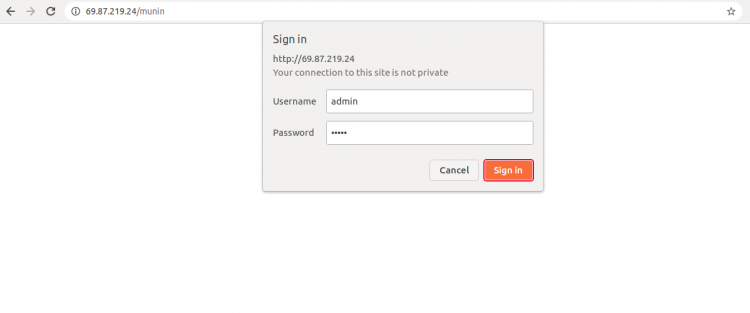
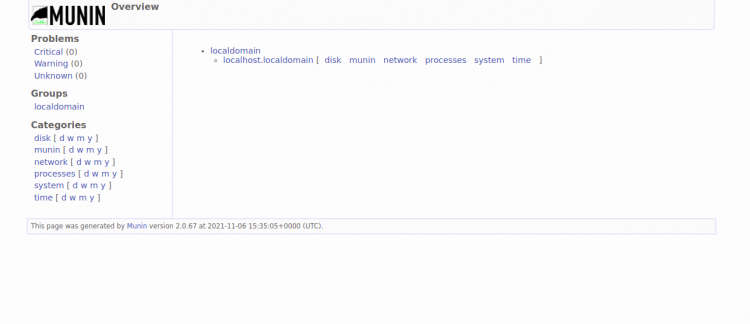
输入您的管理员用户名和密码,然后点击“登录”(Sign in)按钮。您将在以下页面看到 Munin 仪表盘:
总结
恭喜!您已成功在 Debian 12 上安装了 Munin 监控服务器。现在,您可以向 Munin 服务器添加远程机器,并通过基于 Web 的界面对其进行监控。