
在本页中
- Ubuntu 22.04、Ubuntu 20.04 和 Ubuntu 18.04 上的网络配置 在 Ubuntu 上使用 Netplan 配置静态 IP 地址 使用 Netplan 配置 DHCP 地址 更多 Netplan 配置选项
- Ubuntu 12.04 - 17.04(含 Ubuntu 16.04 LTS) 步骤 1:配置网络接口 步骤 2:配置 DNS 服务器 步骤 3:重启网络
- 配置主机名
- 在 Ubuntu 上使用 Netplan 配置静态 IP 地址
- 使用 Netplan 配置 DHCP 地址
- 更多 Netplan 配置选项
- 步骤 1:配置网络接口
- 步骤 2:配置 DNS 服务器
- 步骤 3:重启网络
本教程介绍如何从命令行在 Ubuntu 系统上设置静态 IP 地址。它涵盖了所有当前 Ubuntu 版本的网络配置,并包含配置静态 IP 地址、设置主机名以及配置名称解析的说明。
Ubuntu 22.04、Ubuntu 20.04 和 Ubuntu 18.04 上的网络配置
Ubuntu 中的网络配置是通过一个名为 netplan 的工具完成的。它取代了传统的 /etc/network/interfaces 文件。
在 Ubuntu 上使用 Netplan 配置静态 IP 地址
以下是在 Ubuntu 上使用 Netplan 配置静态 IP 地址的步骤。Netplan 配置文件位于 /etc/netplan/ 目录中。默认配置文件为 /etc/netplan/01-netcfg.yaml 。
使用编辑器打开网络配置文件。netplan 配置文件的文件名因 Ubuntu 版本而异。
Ubuntu 22.04 和 Ubuntu 20.04 :
sudo nano /etc/netplan/00-installer-config.yamlUbuntu 18.04 :
sudo nano /etc/netplan/01-netcfg.yaml配置语法采用 Python 编程语言(.yaml 格式),因此各行缩进非常重要!
在 Ubuntu 22.04 至 18.04 上,该文件的内容相同。
以下是一个示例:第一个网络接口 ens33 上的静态 IPv4 地址为 192.168.1.100,网关 IP 为 192.168.1.1。服务器将使用免费的 Google DNS 服务器 8.8.8.8 和 8.8.4.4 进行名称解析。
# This file describes the network interfaces available on your system
# For more information, see netplan(5).
network:
  version: 2
  renderer: networkd
  ethernets:
    ens33:
      dhcp4: no
      dhcp6: no
      addresses: [192.168.1.100/24]
      gateway4: 192.168.1.1
      nameservers:
        addresses: [8.8.8.8,8.8.4.4]
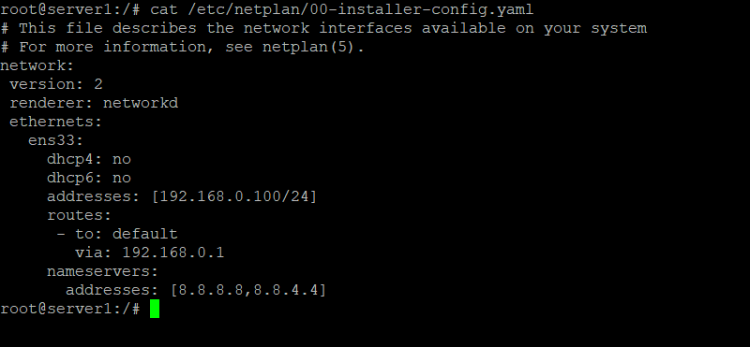
或者,以下为来自 Ubuntu 服务器的截图:
可以在 addresses 行中添加 IPv6 地址,以逗号分隔。示例:
# This file describes the network interfaces available on your system
# For more information, see netplan(5).
network:
  version: 2
  renderer: networkd
  ethernets:
    ens33:
      dhcp4: no
      dhcp6: no
      addresses: [192.168.1.100/24, '2001:1::1/64']
      gateway4: 192.168.1.1
      nameservers:
        addresses: [8.8.8.8,8.8.4.4]
必须将 IPv6 地址用单引号括起来。否则会出现语法错误。
要应用更改,请运行以下命令:
sudo netplan apply或者在解析 netplan 配置文件成功后,使用 --debug 开关来获取一些有用的输出。
sudo netplan --debug apply使用 Netplan 配置 DHCP 地址
以下是从 DHCP 服务器获取 IPv4 和 IPv6 网络配置的配置。
# This file describes the network interfaces available on your system
# For more information, see netplan(5).
network:
 version: 2
 renderer: networkd
 ethernets:
   ens33:
     dhcp4: yes
     dhcp6: yes
要应用更改,请运行:
sudo netplan apply更多 Netplan 配置选项
Netplan 是一个复杂的新配置系统,用于在 Ubuntu 18.04 中配置网卡、虚拟设备、VLAN 和网桥。请参阅 man 手册页以获取更多示例以及对语法的深入说明。
Ubuntu 12.04 - 17.04(含 Ubuntu 16.04 LTS)上的网络配置
步骤 1:配置网络接口
在此步骤中,你将使用自己喜欢的文本编辑器(nano、gedit、vi)编辑以下文件,手动配置网络接口。在本示例中,我使用的是 "nano" 编辑器。你可以在终端中输入以下命令来编辑相应的文件:
你可以直接从这一行复制并粘贴。
sudo nano /etc/network/interfaces输入你的 root 密码,一旦你喜欢的编辑器打开该文件,在较旧的 Ubuntu 版本上你会看到如下内容:
auto lo eth0
iface lo inet loopback
iface eth0 inet dynamic
在使用 systemd 的 Ubuntu 系统(如 Ubuntu 16.04 及更新版本)上,网络接口现在命名为 ens33,而不是 eth0,并且单词 'dynamic' 已被替换为 'dhcp'。
由 DHCP 自动分配 IP 地址的配置如下所示:
# This file describes the network interfaces available on your system
# and how to activate them. For more information, see interfaces(5).
source /etc/network/interfaces.d/*
# The loopback network interface
auto lo
iface lo inet loopback
# The primary network interface
auto ens33
iface ens33 inet dhcp
在较旧的 Ubuntu 版本上,静态配置的网络卡会有一个类似如下的区段:
auto lo eth0
iface lo inet loopback
iface eth0 inet static
        address xxx.xxx.xxx.xxx(enter your ip here)
        netmask xxx.xxx.xxx.xxx
        gateway xxx.xxx.xxx.xxx(enter gateway ip here,usually the address of the router)
以下是较旧 Ubuntu 版本的示例:
auto lo eth0
iface lo inet loopback
iface eth0 inet static
	address 192.168.1.100
	netmask 255.255.255.0
	gateway 192.168.1.1
以下是 Ubuntu 16.04 及更新版本的示例:
# This file describes the network interfaces available on your system
# and how to activate them. For more information, see interfaces(5).
source /etc/network/interfaces.d/*
# The loopback network interface
auto lo
iface lo inet loopback
# test
# The primary network interface
auto ens33
iface ens33 inet static
 address 192.168.1.100
 netmask 255.255.255.0
 network 192.168.1.0
 broadcast 192.168.1.255
 gateway 192.168.1.1
 dns-nameservers 8.8.8.8 8.8.4.4
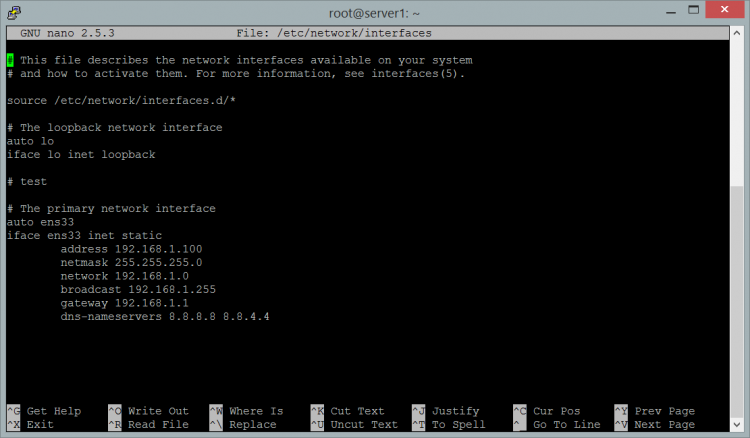
以下是来自 Ubuntu 16.04 系统的完整网络配置文件。
如果你使用 "nano" 编辑器编辑配置文件,请按 Ctrl+x 保存更改。
Save modified buffer(回答 "No" 将销毁更改)?
<---输入 "y"
File Name to Write: interfaces
<---回车
步骤 2:配置 DNS 服务器
只有在 Ubuntu < 14.04 的系统上才需要更改 /etc/resolv.conf;对于较新的 Ubuntu 版本,名称服务器在 /etc/network/interfaces 文件或 netplan 配置文件中配置。
a) Ubuntu 20.04
使用编辑器打开 netplan 配置文件。在本示例中我将使用 nano 编辑器:
sudo nano /etc/netplan/00-installer-config.yaml我已用粗体标出 DNS 服务器 IP 地址:
# This file describes the network interfaces available on your system
# For more information, see netplan(5).
network:
  version: 2
  renderer: networkd
  ethernets:
    ens33:
      dhcp4: no
      dhcp6: no
      addresses: [192.168.1.100/24]
      gateway4: 192.168.1.1
      nameservers:
        addresses: [
8.8.8.8,8.8.4.4
]
b) Ubuntu 18.04
使用 nano 编辑器打开 netplan 配置文件:
sudo nano /etc/netplan/01-netcfg.yaml我已用粗体标出 DNS 服务器 IP 地址:
# This file describes the network interfaces available on your system
# For more information, see netplan(5).
network:
  version: 2
  renderer: networkd
  ethernets:
    ens33:
      dhcp4: no
      dhcp6: no
      addresses: [192.168.1.100/24]
      gateway4: 192.168.1.1
      nameservers:
        addresses: [
8.8.8.8,8.8.4.4
]
c) Ubuntu 14.04 和 16.04 版本
再次打开 /etc/network/interfaces 文件,并在 gateway 行之后添加一行 dns-nameservers 8.8.8.8。
sudo nano /etc/network/interfacesauto lo
iface lo inet loopback
iface ens33 inet static
address xxx.xxx.xxx.xxx(enter your ip here)
netmask xxx.xxx.xxx.xxx
gateway xxx.xxx.xxx.xxx(enter gateway ip here,usually the address of the router)
dns-nameservers 8.8.8.8
名称服务器 8.8.8.8 和 8.8.4.4 由 Google 提供供公众使用,因此你可以在网络配置中使用它们。
如果你使用 "nano" 编辑器,请按 Ctrl+x 保存更改。
Save modified buffer(回答 "No" 将销毁更改)?
<---输入 "y"
File Name to Write: interfaces
<---回车
d) Ubuntu < 14.04 版本
在此步骤中,你将手动配置你的 DNS 配置文件。
sudo nano /etc/resolv.conf一旦你的编辑器打开该文件,你需要输入以下信息……
nameserver xxx.xxx.xxx.xxx(enter your dns server ip)
nameserver xxx.xxx.xxx.xxx(enter your alt dns server ip)
如果你使用 "nano" 编辑器,请按 Ctrl+x 保存更改。
Save modified buffer(回答 "No" 将销毁更改)?
<---输入 "y"
File Name to Write: resolv.conf
<---回车
以下是一个示例:
nameserver 8.8.8.8
nameserver 8.8.4.4
步骤 3:重启网络
使用新设置手动重启你的网络接口。
对于 Ubuntu 20.04 和 18.04,使用 netplan 命令来应用更改并重启网络。命令如下:
sudo netplan apply对于 Ubuntu 14.04 和 16.04 版本,我们改用 systemctl:
systemctl restart ifup@eth0此时你可以检查设置是否正确:
ifconfig如果一切正确,你将得到如下结果。
eth0      Link encap:Ethernet  direcciónHW 00:33:27:46:2v:34
          Direc. inet:192.168.1.101  Difus.:0.0.0.0  Másc:255.255.255.0
 ...
对于 Ubuntu < 14.04,使用 networking 初始化脚本:
sudo /etc/init.d/networking restart这应返回如下类似的结果:
*Reconfiguring network interfaces… [OK]配置主机名
Ubuntu Server 或 Desktop 的主机名是在 /etc/hostname 和 /etc/hosts 文件中配置的。/etc/hostname 文件设置实际的系统主机名,而 /etc/hosts 用于本地名称解析。
在本示例中,我将把系统的主机名更改为 obelix.example.com。
首先,编辑 /etc/hostname 文件
sudo nano /etc/hostnamehostname 文件仅包含主机名的本地部分。此处的本地部分为 "obelix"。将 /etc/hostname 文件的内容更改为:
obelix
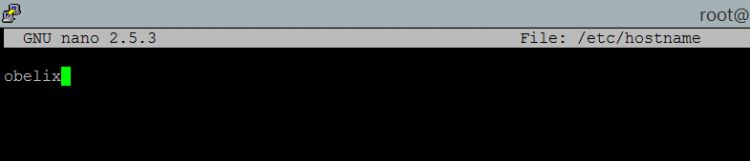
并保存文件。编辑后在 nano 中显示的 hostname 文件如下:
然后使用编辑器打开 /etc/hosts 文件:
sudo nano /etc/hosts并更改以系统 IP 地址开头的行,如下所示:
192.168.1.100 obelix.example.com obelix
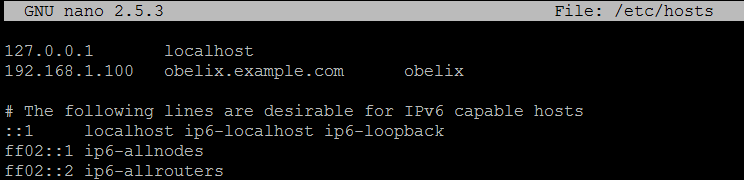
以下是 /etc/hosts 文件的截图。
格式如下:
[IP 地址] [包含域名的完整主机名] [主机名的本地部分]
最后,重启系统以应用主机名更改。