
本教程适用于以下操作系统版本
- Ubuntu 22.04(Jammy Jellyfish)
- Ubuntu 20.04(Focal Fossa)
- Ubuntu 18.04(Bionic Beaver)
本页内容
- 先决条件
- 添加 Grafana 仓库
- 安装并配置 Grafana
- 安装并配置 Nginx
- 安装 Prometheus —— 配置 Prometheus 用户、下载并安装 Prometheus、配置 Prometheus、将 Prometheus 作为 Systemd 服务运行
- 安装 node_exporter
- 将 node_exporter 添加到 Prometheus
- 将 Prometheus 作为数据源添加到 Grafana
- 设置仪表盘监控
- 结论
- 配置 Prometheus 用户
- 下载并安装 Prometheus
- 配置 Prometheus
- 将 Prometheus 作为 Systemd 服务运行
Grafana 是由 Grafana Labs 开发的开源、多平台数据可视化平台。Grafana 提供交互式的数据可视化 Web 应用,包含图表、图形和告警功能。借助 Grafana,你可以查询、可视化、设置告警并探索 TSDB 的指标、日志和链路。它是一款强大的工具,可将时序数据库(TSDB)数据转化为直观的图表和可视化。
在 Grafana 中,你可以通过 'Data Source'(数据源)添加你的时序数据库数据。Grafana 支持多种数据源,例如 Prometheus、InfluxDB、PostgreSQL、Loki、Jaeger、Graphite、Google Cloud Monitoring、AWS CloudWatch、Azure Monitor 等等。
本教程涵盖在 Ubuntu 22.04 服务器上安装 Grafana、Prometheus 和 node exporter。你将构建一个强大的监控技术栈:以 Grafana 作为仪表盘和数据可视化工具,以 Prometheus 作为存储所有监控数据的数据源,而 node_exporter 是一个采集系统信息和指标、并将这些指标发送到 Prometheus 的应用程序。
先决条件
在开始之前,你必须准备好以下几项先决条件:
- 一台 Ubuntu 22.04 服务器 —— 适用于单服务器的部署。但如果是多台服务器,你将需要具有以下配置的服务器:server1 —— 用作 Grafana 服务器。server2 —— 用作 Prometheus 服务器。erver3(server3)—— 用作将安装 node_exporter 的目标监控服务器。
- 你还需要一个具有 sudo/root 管理员权限的非 root 用户。
- server1 —— 用作 Grafana 服务器。
- server2 —— 用作 Prometheus 服务器。
- erver3(server3)—— 用作将安装 node_exporter 的目标监控服务器。
添加 Grafana 仓库
第一步,你将在 Ubuntu 系统上配置 Grafana 仓库。你将安装基础依赖,并将 GPG 密钥和 Grafana 仓库添加到系统中。
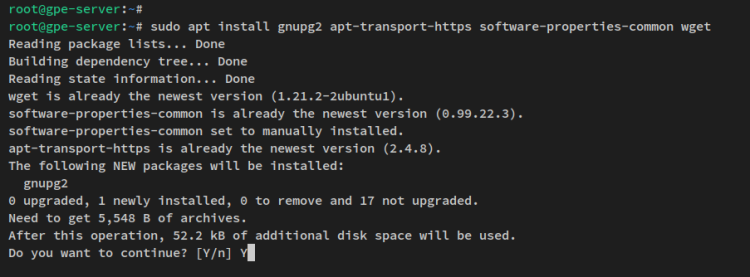
运行以下 apt 命令以安装一些软件包依赖。
sudo apt install gnupg2 apt-transport-https software-properties-common wget当提示确认时输入 y,然后按 ENTER 继续。
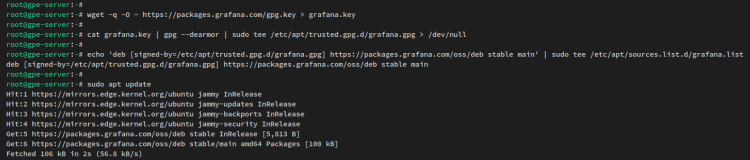
接下来,运行以下命令添加 Grafana 仓库的 GPG 密钥。第一条命令将下载 Grafana 仓库的 GPG 密钥,第二条命令会将 .key 文件转换为 .gpg 文件。
wget -q -O - https://packages.grafana.com/gpg.key > grafana.key
cat grafana.key | gpg --dearmor | sudo tee /etc/apt/trusted.gpg.d/grafana.gpg > /dev/null
现在运行以下命令添加 Grafana 仓库。在本示例中,你将添加稳定分支的 Grafana OSS(开源版)。
echo 'deb [signed-by=/etc/apt/trusted.gpg.d/grafana.gpg] https://packages.grafana.com/oss/deb stable main' | sudo tee /etc/apt/sources.list.d/grafana.list最后,通过以下 apt 命令更新并刷新软件包索引。
sudo apt update随后你将看到 Grafana 仓库已添加到系统的提示信息。
安装并配置 Grafana
Grafana 仓库添加完成后,你现在可以在系统上安装 Grafana。本步骤中,你将安装 Grafana、启动并启用 Grafana 服务,然后配置 Grafana 服务器。
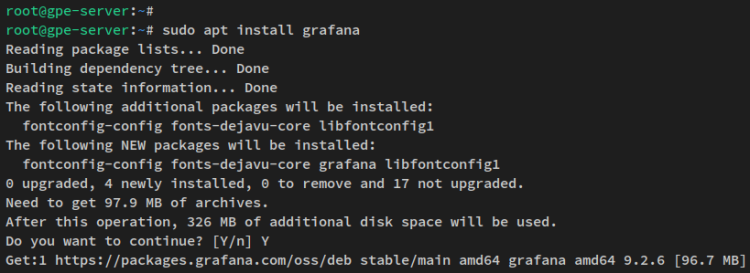
首先,运行以下 apt 命令将 Grafana 软件包安装到系统中。
sudo apt install grafana当提示时输入 y,然后按 ENTER 继续。
Grafana 服务器安装完成后,运行以下命令重新加载 systemd 管理器并应用新的 systemd 服务。
sudo systemctl daemon-reload接下来,运行以下 systemctl 命令启动 'grafana-server' 并设为开机启用。
sudo systemctl start grafana-server
sudo systemctl enable grafana-server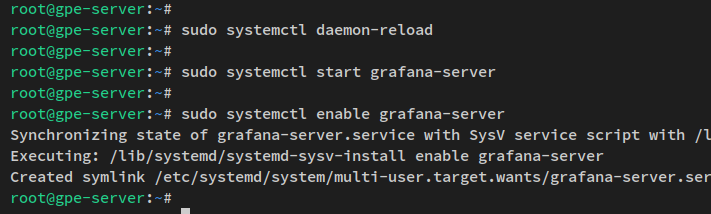
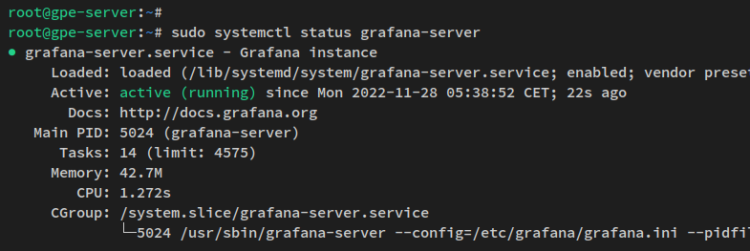
grafana-server 现在应该已处于运行状态并已启用。通过以下 systemctl 命令验证 grafana-server。
sudo systemctl status grafana-server你应该看到 grafana-server 正在运行且已启用的输出,这意味着该服务将在系统启动时自动运行。
Grafana 服务器运行后,你接下来将通过配置文件 ' /etc/grafana/grafana.ini ' 进行 Grafana 的配置。
使用以下 nano 编辑器命令打开 Grafana 配置文件 '/etc/grafana/grafana.ini'。
sudo nano /etc/grafana/grafana.ini在 'server' 部分,用以下行替换默认配置。同时,请务必将这里的 'domain' 选项改为你的域名。你可以使用通过 ' /etc/hosts' 配置文件配置的本地域名。
在本示例中,你将使用本地域名 ' gpe.howtoforge.local ' 运行 Grafana 服务器。
[server]
# The IP address to bind to, empty will bind to all interfaces
http_addr = localhost
# The http port  to use
http_port = 3000
# The public facing domain name used to access grafana from a browser
domain = gpe.howtoforge.local
完成后保存文件并退出编辑器。
最后,运行以下 systemctl 命令重启 ' grafana-server ' 服务以应用新的更改。
sudo systemctl restart grafana-server至此,你已完成 Grafana 服务器的安装和基础配置。Grafana 服务器当前正以默认 TCP 端口 3000 在 localhost 上运行。
接下来的步骤中,你将把 Nginx 配置为 Grafana 服务器的反向代理。
安装并配置 Nginx
Grafana 服务器已完成安装和配置,你现在将安装并配置 Nginx 作为 Grafana 服务器的反向代理。你将使用一个由 SSL 证书保护的本地域名来运行 Grafana 服务器。
因此,在开始之前,请确保你拥有一个解析到 Grafana 服务器 IP 地址的本地域名,并确保已为你的域名生成了 SSL 证书。你可以生成并使用自签名证书作为部署示例。
首先,运行以下 apt 命令安装 Nginx 软件包。
sudo apt install nginx当提示确认时输入 y,然后按 ENTER 继续。
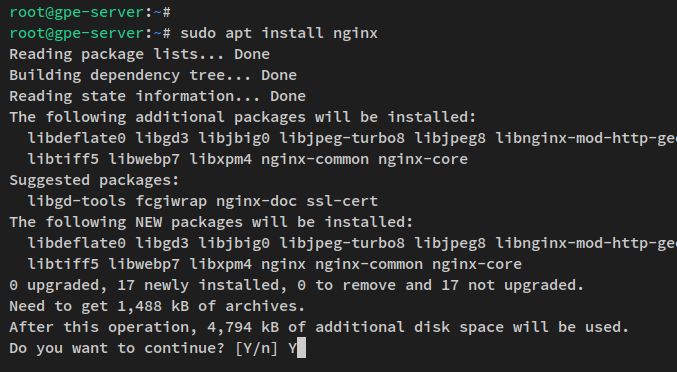
Nginx 安装完成后,使用以下 nano 编辑器命令创建一个新的 server blocks 配置文件 '/etc/nginx/sites-available/grafana.conf'。
sudo nano /etc/nginx/sites-available/grafana.conf将以下行添加到文件中,并务必将域名 'gpe.howtoforge.local' 改为你的 Grafana 服务器域名。同时,务必将 SSL 证书路径改为你的证书文件。
该配置将把 Nginx 用作运行在 localhost、端口 3000 的 Grafana 服务器的反向代理。同时,你将通过 HTTPS 连接保护 Grafana 服务器。
# this is required to proxy Grafana Live WebSocket connections.
map $http_upgrade $connection_upgrade {
  default upgrade;
  '' close;
}
server {
    listen      80;
    server_name gpe.howtoforge.local;
    rewrite     ^   https://$server_name$request_uri? permanent;
}
server {
  listen      443 ssl http2;
  server_name gpe.howtoforge.local;
  root /usr/share/nginx/html;
  index index.html index.htm;
  ssl_certificate /etc/letsencrypt/live/gpe.howtoforge.local/fullchain.pem;
  ssl_certificate_key /etc/letsencrypt/live/gpe.howtoforge.local/privkey.pem;
  access_log /var/log/nginx/grafana-access.log;
  error_log /var/log/nginx/grafana-error.log;
  location / {
    proxy_set_header Host $http_host;
    proxy_pass http://localhost:3000/;
  }
  # Proxy Grafana Live WebSocket connections.
  location /api/live {
    rewrite  ^/(.*)  /$1 break;
    proxy_http_version 1.1;
    proxy_set_header Upgrade $http_upgrade;
    proxy_set_header Connection $connection_upgrade;
    proxy_set_header Host $http_host;
    proxy_pass http://localhost:3000/;
  }
}
完成后保存文件并退出编辑器。
接下来,运行以下命令激活 Nginx server block 配置文件 ''。然后验证 Nginx 配置,确保配置正确无误。
sudo ln -s /etc/nginx/sites-available/grafana.conf /etc/nginx/sites-enabled/
sudo nginx -t
配置正确时,你将看到类似 'test successful - syntax ok' 的输出。
图片
现在运行以下命令重启 Nginx 服务并对 Nginx 服务应用更改。
sudo systemctl restart nginx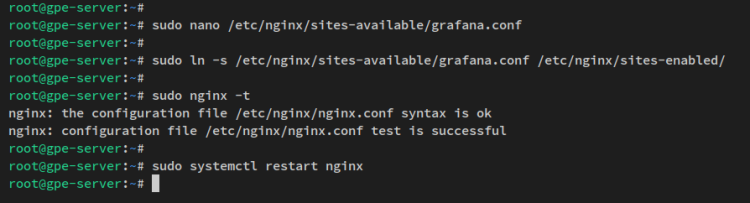
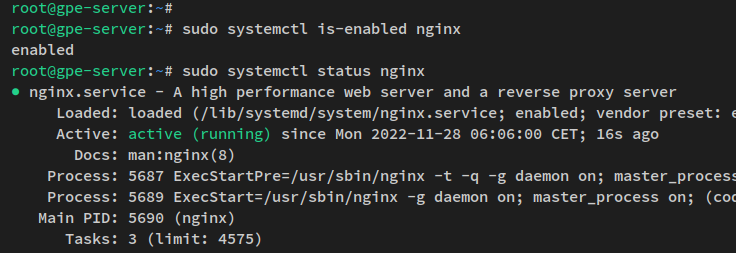
最后,运行以下 systemctl 命令验证 Nginx 服务,确保该服务正在运行且已启用。
sudo systemctl is-enabled nginx
sudo systemctl status nginx
你将看到类似如下的输出 —— Nginx 服务已启用,并将在系统启动时自动运行。Nginx 服务的状态为运行中。
Nginx 已运行并配置为 Grafana 的反向代理,你现在可以通过本地域名访问你的 Grafana 服务器。
打开 Web 浏览器并访问你的 Grafana 服务器安装域名(例如:https://gpe.howtoforge.local/)。随后你将看到 Grafana 服务器的登录页面。
输入默认的用户名和密码 'admin',然后点击 ' Log In '(登录)。

之后,系统将要求你修改 Grafana 管理员用户的默认密码。输入新密码并重复确认,然后点击 ' Submit '(提交)以应用。

现在你将进入 Grafana 管理仪表盘。
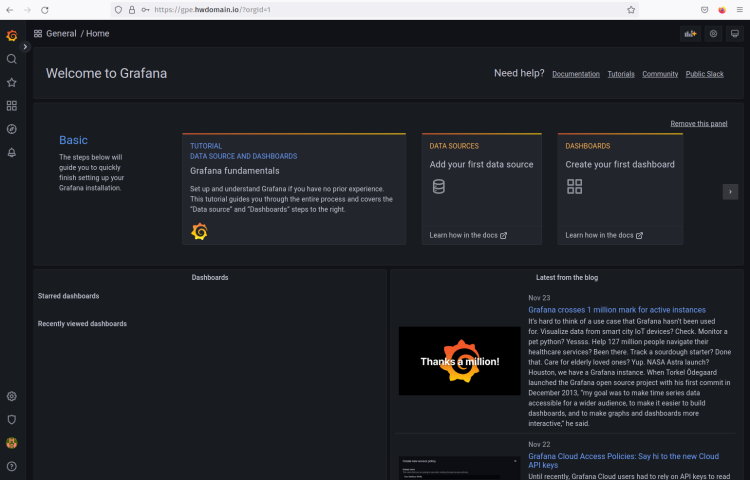
现在你已安装并配置 Nginx 作为 Grafana 服务器的反向代理。同时,你已修改 Grafana 服务器的默认管理员用户和密码,并访问了 Grafana 管理仪表盘。
接下来的步骤中,你将开始 Prometheus 和 node_exporter 的安装。
安装 Prometheus
本步骤中,你将通过从 GitHub 下载的二进制包手动安装 Prometheus。
以下是安装 Prometheus 你将执行的几个步骤
- 配置 Prometheus 用户
- 下载 Prometheus 二进制包
- 配置 Prometheus
- 将 Prometheus 作为 systemd 服务运行
现在让我们开始 Prometheus 的安装。
配置 Prometheus 用户
运行以下命令创建新的用户和组 ' prometheus '。
sudo groupadd --system prometheus
sudo useradd -s /sbin/nologin --system -g prometheus prometheus
下载并安装 Prometheus
Now create new data directories that will be used to store Prometheus data via the below command.sudo mkdir /var/lib/prometheus
for i in rules rules.d files_sd; do sudo mkdir -p /etc/prometheus/${i}; done接下来,通过以下 curl 命令下载 Prometheus 的二进制包。
curl -s https://api.github.com/repos/prometheus/prometheus/releases/latest|grep browser_download_url|grep linux-amd64|cut -d '"' -f 4|wget -qi -Prometheus 二进制包下载完成后,运行以下命令解压 Prometheus,并将当前工作目录切换到新的 Prometheus 目录。
tar xvf prometheus*.tar.gz
cd prometheus*/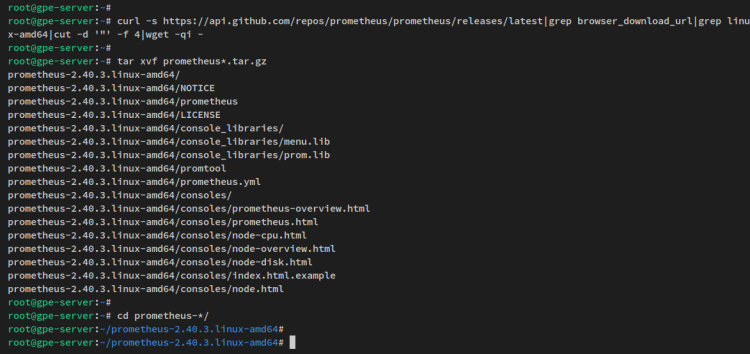
现在运行以下命令将二进制文件 'promtheus'(prometheus)和 'promtool' 移动到 '/usr/local/bin' 目录。
sudo mv prometheus promtool /usr/local/bin/将部分目录和 Prometheus 配置文件移动到 ' /etc/prometheus ' 目录。
sudo mv consoles console_libraries prometheus.yml /etc/prometheus/接下来,将 Prometheus 配置文件和目录的所有权更改为用户和组 ' prometheus '。运行以下 chmod 和 chown 命令。
for i in rules rules.d files_sd; do sudo chown -R prometheus:prometheus /etc/prometheus/${i}; done
for i in rules rules.d files_sd; do sudo chmod -R 775 /etc/prometheus/${i}; done
sudo chown -R prometheus:prometheus /var/lib/prometheus/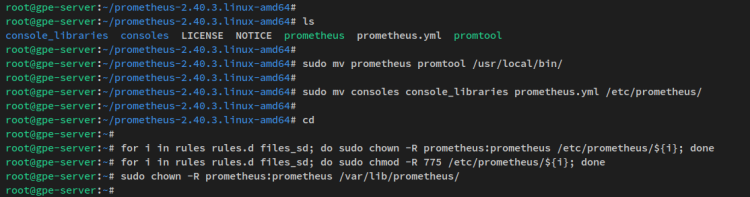
配置 Prometheus
运行以下 apt 命令安装 'apache2-utils' 软件包。它将用于生成 bcrypt 密码,以便通过认证来保护 Prometheus 安装。
sudo apt install apache2-utils -y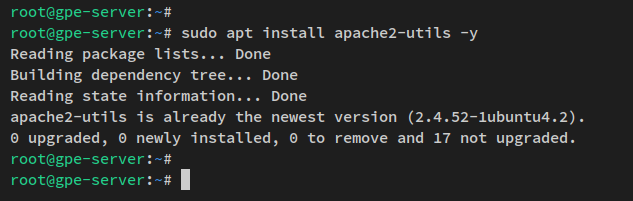
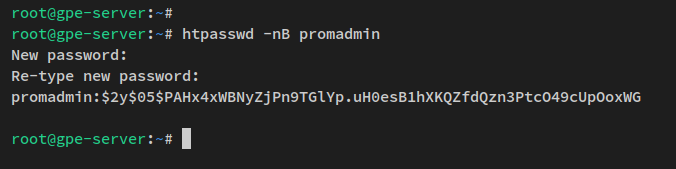
现在运行以下 ' htpasswd ' 命令创建一个新的 bcrypt 密码。
htpasswd -nB promadmin输入新密码并重复确认。你将看到类似如下的输出 —— 将输出内容复制到你的临时记事本中。
promadmin:$2y$05$PAHx4xWBNyZjPn9TGlYp.uH0esB1hXKQZfdQzn3PtcO49cUpOoxWG
接下来,使用以下 nano 编辑器命令创建一个新的 YML 配置文件 '/etc/prometheus/web.yml'。
sudo nano /etc/prometheus/web.yml将以下行添加到文件中,并确保修改 TLS/SSL 证书路径,以及用户名和哈希密码。通过该配置,你将在 Prometheus 上启用安全的 HTTPS 连接,并通过用户名和密码启用基本认证。
# tls certificates
tls_server_config:
  cert_file: /etc/letsencrypt/live/gpe.howtoforge.local/fullchain.pem
  key_file: /etc/letsencrypt/live/gpe.howtoforge.local/privkey.pem
# basic_auth
basic_auth_users:
  promadmin: $2y$05$PAHx4xWBNyZjPn9TGlYp.uH0esB1hXKQZfdQzn3PtcO49cUpOoxWG
完成后保存文件并退出编辑器。
现在运行以下命令将新文件 ' /etc/prometheus/web.yml ' 的所有权更改为用户和组 ' prometheus '。
sudo chown prometheus: /etc/prometheus/web.yml接下来,使用以下 nano 编辑器命令打开 Prometheus 的主配置文件 ' /etc/prometheus/prometheus.yml'。
sudo nano /etc/prometheus/prometheus.yml在 'scrape_configs' 部分,用以下行替换默认的 'job_name: "prometheus"'。同时,务必修改 TLS 配置和 SSL/TLS 证书路径,以及你的 Prometheus 服务器的管理员用户和密码。
目标系统或服务器为 ' localhost:9090 ',即 Prometheus 服务器本身。
scrape_configs:
  # The job name is added as a label `job=<job_name>` to any timeseries scraped from this config.
  - job_name: "prometheus"
    # metrics_path defaults to '/metrics'
    # scheme defaults to 'http'.
    # add settings for certificate and authentication
    scheme: https
    tls_config:
      cert_file: /etc/letsencrypt/live/gpe.howtoforge.local/fullchain.pem
      key_file: /etc/letsencrypt/live/gpe.howtoforge.local/privkey.pem
      # if using self-signed certificate, set [true]
      insecure_skip_verify: true
    basic_auth:
      username: 'admin'
      password: 'uniquepass'
    static_configs:
      # if using a valid certificate, set the same hostname in the certificate
      - targets: ["localhost:9090"]
完成后保存文件并退出编辑器。
将 Prometheus 作为 Systemd 服务运行
接下来,运行以下命令创建一个新的 systemd 服务文件 ' /etc/systemd/system/prometheus.service '。
这样,你将把 Prometheus 作为 systemd 服务运行,从而可以通过 systemctl 命令工具管理 Prometheus。同时,你将启用 Prometheus web 文件 ' /etc/prometheus/web.yml ' 的特定配置,这将启用 HTTPS 安全连接和基本认证。
最后,Prometheus 服务将以用户和组 'prometheus' 的身份运行,监听主机 '0.0.0.0 ' 和端口 ' 9090 '。
sudo tee /etc/systemd/system/prometheus.service<<EOF
[Unit]
Description=Prometheus
Documentation=https://prometheus.io/docs/introduction/overview/
Wants=network-online.target
After=network-online.target
[Service]
Type=simple
User=prometheus
Group=prometheus
ExecReload=/bin/kill -HUP $MAINPID
ExecStart=/usr/local/bin/prometheus \
  --config.file=/etc/prometheus/prometheus.yml \
  --storage.tsdb.path=/var/lib/prometheus \
  --web.console.templates=/etc/prometheus/consoles \
  --web.console.libraries=/etc/prometheus/console_libraries \
  --web.listen-address=0.0.0.0:9090 \
  --web.config.file=/etc/prometheus/web.yml \
SyslogIdentifier=prometheus
Restart=always
[Install]
WantedBy=multi-user.target
EOF
完成后保存文件并退出编辑器。
现在运行以下 systemctl 命令重新加载 systemd 管理器并应用新的服务文件。
sudo systemctl daemon-reload然后使用以下命令启动并启用 prometheus 服务。Prometheus 现在应作为 systemd 服务运行,并将在系统启动时自动运行。
sudo systemctl start prometheus
sudo systemctl enable prometheus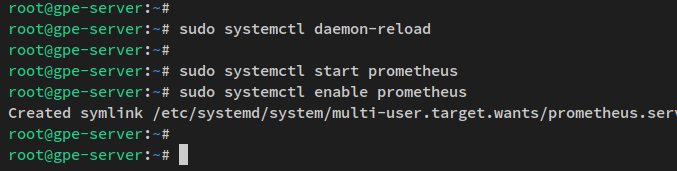
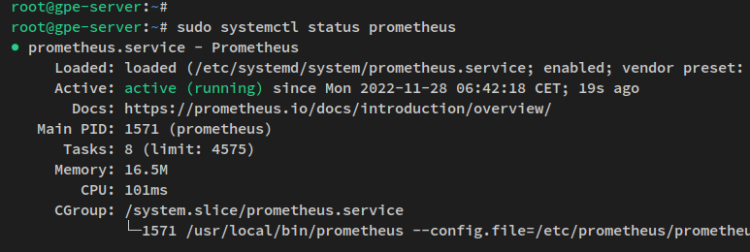
使用以下命令验证 Promtheheus(Prometheus)服务。
sudo systemctl status prometheus你将看到类似如下截图的输出 —— Prometheus 当前正在运行且已启用。
至此,你已完成在 Ubuntu 服务器上 Prometheus 的安装。Prometheus 现在正以默认端口 '9090' 在 '0.0.0.0' 上运行。同时,它运行在 HTTPS 安全连接之上,并已启用基本认证。
最后,你已配置 ' scrape_configs ' 用于采集 Prometheus 服务器自身的指标。
接下来的步骤中,你将安装并配置 node_exporter,用于采集系统指标,并将采集到的数据和指标发送到 Prometheus 服务器。
安装 node_exporter
以下步骤中,你将在 Ubuntu 系统上安装 node_exporter。node_exporter 将采集系统指标,并暴露一个运行在默认 TCP 端口 ' 9100 ' 上的 HTTP API。
运行以下命令下载最新版本的 node_exporter 二进制包。
curl -s https://api.github.com/repos/prometheus/node_exporter/releases/latest| grep browser_download_url|grep linux-amd64|cut -d '"' -f 4|wget -qi -node_exporter 下载完成后,解压该文件并将工作目录切换到其中。
tar -xvf node_exporter*.tar.gz
cd  node_exporter*/
现在将 'node_exporter' 的二进制文件复制到 '/usr/local/bin' 目录。
sudo cp node_exporter /usr/local/bin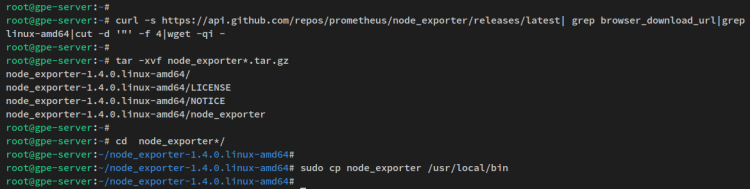
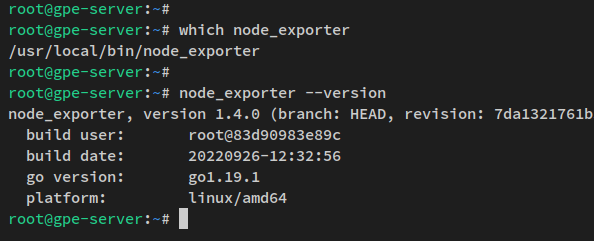
然后通过以下命令验证 node_exporter。你应该能看到 node_exporter 二进制文件的完整路径以及当前 node_exporter 的版本。
which node_exporter
node_exporter --version
在以下输出中 —— 你将看到已安装 node_exporter v1.4.0。
接下来,运行以下命令为 node_exporter 创建一个新的 systemd 服务 '/etc/systemd/system/node_exporter.service'。这样你便可以通过 systemctl 命令工具轻松管理 node_exporter。
sudo tee /etc/systemd/system/node_exporter.service <<EOF
[Unit]
Description=Node Exporter
Wants=network-online.target
After=network-online.target
[Service]
User=prometheus
ExecStart=/usr/local/bin/node_exporter
[Install]
WantedBy=default.target
EOF
现在重新加载 systemd 管理器以应用更改和新的服务文件。
sudo systemctl daemon-reload
然后,通过以下 systemctl 命令启动并启用 ' node_exporter ' 服务。node_exporter 服务现在应该已启动并运行,且已启用,将在系统启动时自动运行。
sudo systemctl start node_exporter
sudo systemctl enable node_exporter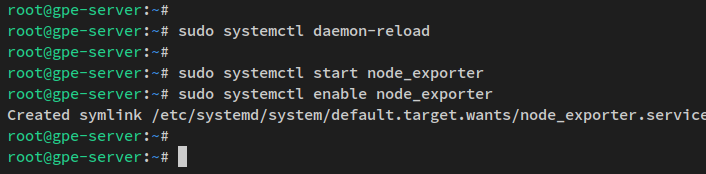
通过以下 systemctl 命令验证 node_exporter。
sudo systemctl status node_exporter你将看到类似如下的输出 —— node_exporter 服务当前正在运行且已启用。
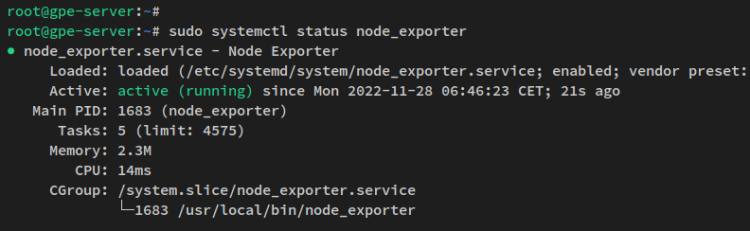
至此,你已安装 node_exporter 并将其配置为以 systemd 服务运行。node_exporter 正以默认 IP 地址 0.0.0.0、端口 ' 9100 ' 运行。接下来的步骤中,你将把 node_exporter 添加到 Prometheus 服务器。
将 node_exporter 添加到 Prometheus
使用以下 nano 编辑器命令打开 Prometheus 配置文件 ''。
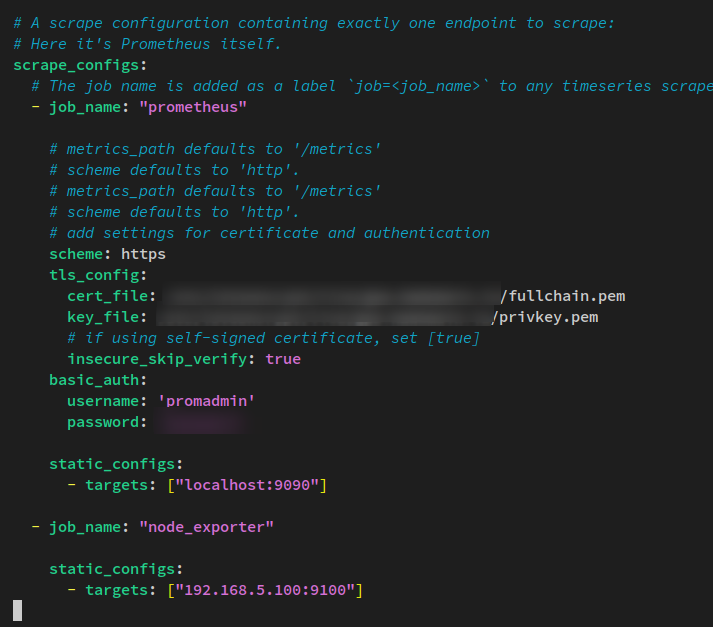
sudo nano /etc/prometheus/prometheus.yml将新的采集器添加到 'scrape_configs' 部分。将以下行添加到 'scrape_configs' 部分。务必将 'job_name' 和目标服务器改为你自己的信息。
scrape_configs:
....
....
  - job_name: "node_exporter"
    static_configs:
      - targets: ["192.168.5.100:9100"]
完成后保存文件并退出编辑器。
现在运行以下 systemcxtl(systemctl)命令工具重启 Prometheus 服务并应用更改。
sudo systemctl restart prometheus新的采集器 node_exporter 已添加到 Prometheus 服务器。
接下来,打开 Web 浏览器,通过 IP 地址 ' 192.168.5.100 ' 和 TCP 端口 ' 9090 ' 访问 Prometheus 服务器 —— https://192.168.5.100:9090/。系统现在将提示你进行 Prometheus 基本认证。
输入你的用户名和密码,然后点击 ' Sign in '(登录)确认。
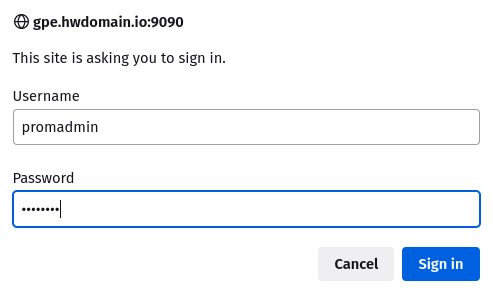
如果用户名和密码正确,你将看到 Prometheus 管理仪表盘。
要验证 node_exporter 是否处于活动状态,输入诸如 ' node_memory_Active_bytes ' 这样的 Prometheus 查询并点击 ' Execute '(执行)。随后你将看到 Prometheus 生成的简单图表。
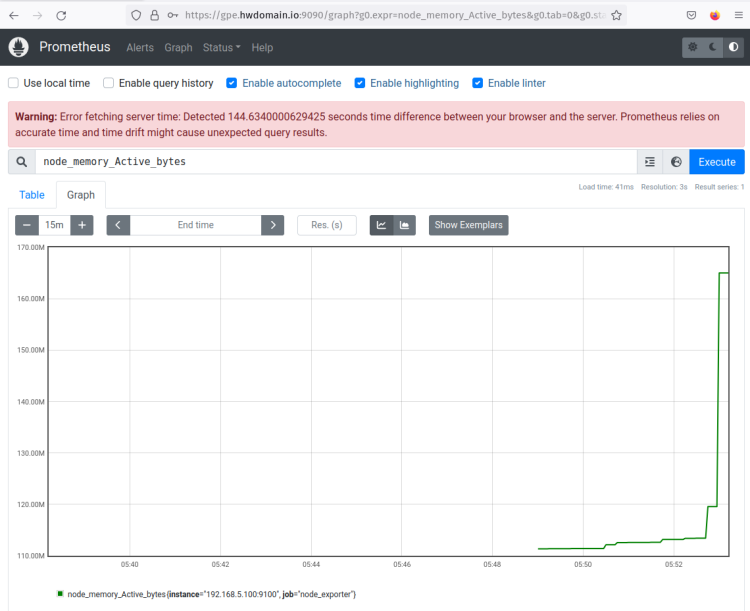
现在点击顶部的 ' Status ' 菜单并选择 ' Targets '(目标)。你应该能看到两个不同且处于活动运行状态的采集目标。其中 ' prometheus ' 用于采集 Prometheus 服务器指标,' node_exporter ' 用于采集系统指标。
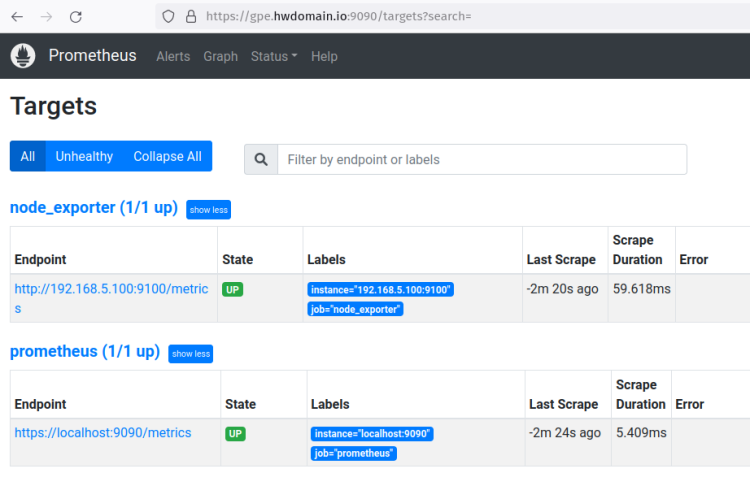
至此,用于构建监控技术栈的组件已配置完成。Grafana 数据可视化正以 Nginx 作为反向代理运行,Prometheus 服务器正运行且已启用 HTTPS 和基本认证,目标主机也已配置 node_exporter。
接下来的步骤中,你将把 Prometheus 作为数据源添加到 Grafana 数据可视化中,然后创建仪表盘监控。
将 Prometheus 作为数据源添加到 Grafana
Grafana 支持多种数据源,例如 MySQL、PostgreSQL、Influxdb、Graphite、Prometheus 等等。本步骤中,你将把 Prometheus 作为数据源添加到 Grafana 服务器。
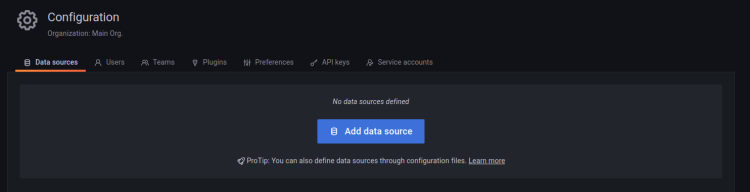
返回 Grafana 仪表盘,点击 ' Configuration '(配置)菜单并选择 ' Data Sources '(数据源)。
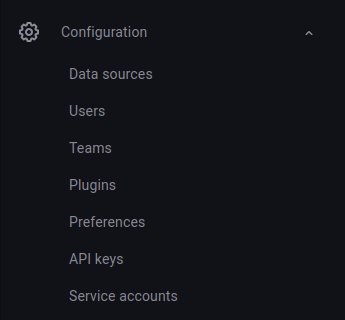
点击 ' Add data source '(添加数据源)在 Grafana 中设置新的数据源。
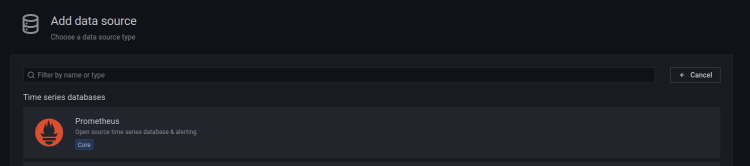
现在选择你要添加的数据源类型。在本示例中,数据源为 Prometheus。
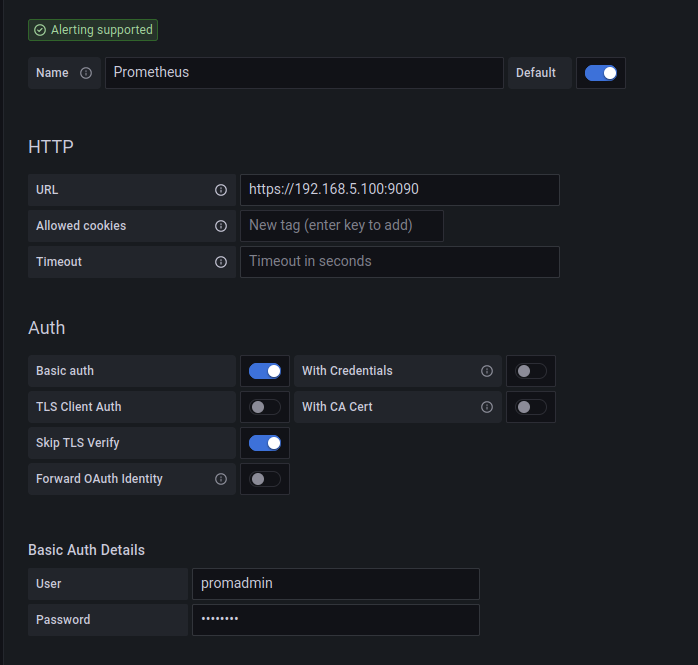
填写 Prometheus 服务器的详细信息,包括用于登录 Prometheus 服务器的用户名和密码,以及运行在默认端口 9090 的 Prometheus 主机地址。此外,如果你使用的是自签名证书,请务必启用 ' Basic auth '(基本认证)和 'Skip TLS verify '(跳过 TLS 验证)。
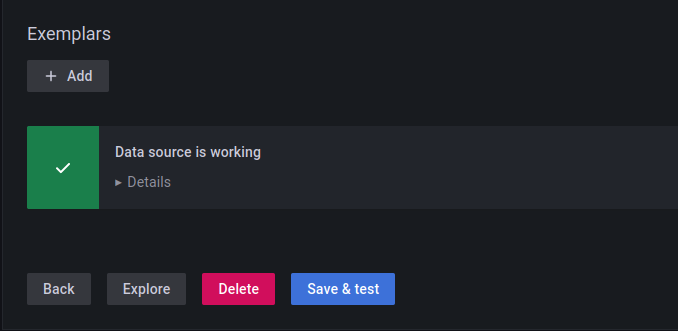
现在点击 ' Save & test '(保存并测试)提交数据源并验证连接。你应该会看到类似 'Data source is working '(数据源正常工作)的提示。
Prometheus 服务器已作为数据源添加到 Grafana 服务器,接下来你将在 Grafana 上设置仪表盘监控。
设置仪表盘监控
Prometheus 已作为数据源添加到 Grafana,现在你将在 Grafana 数据可视化工具上创建一个新的监控仪表盘。你可以手动为每个单元格创建仪表盘并定义特定的 Prometheus 查询来监控系统,也可以从 Grafana 仓库导入一个示例 Grafana 仪表盘。
本步骤中,你将通过从在线资源导入可用的仪表盘到 Grafana 来设置 Grafana 仪表盘。
点击 ' Dashboard '(仪表盘)菜单并选择 ' Import '(导入)。
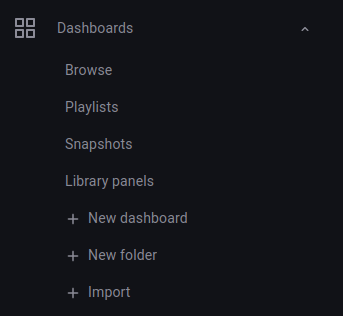
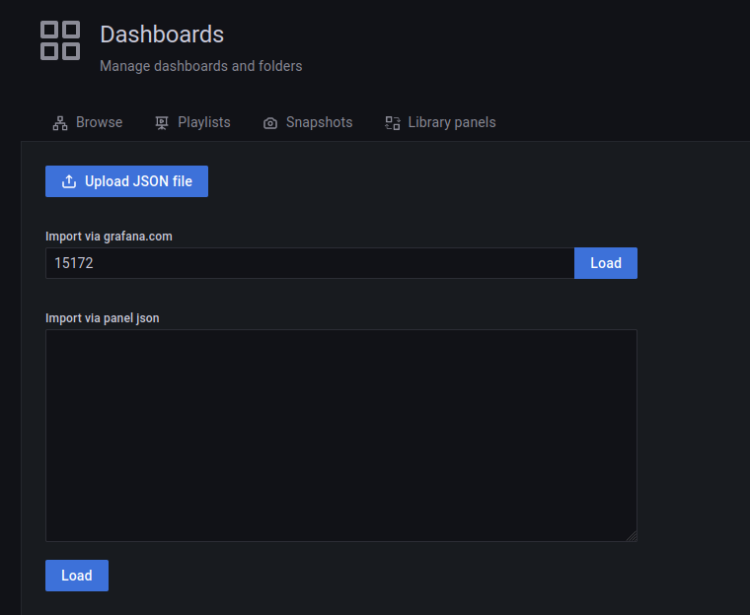
现在你可以从 Grafana Dashboard 仓库找到仪表盘示例。本示例使用 id 为 '15172' 的 Grafana 仪表盘。
输入你要导入的仪表盘 id ' 15172 ',然后点击 ' Load '(加载)。
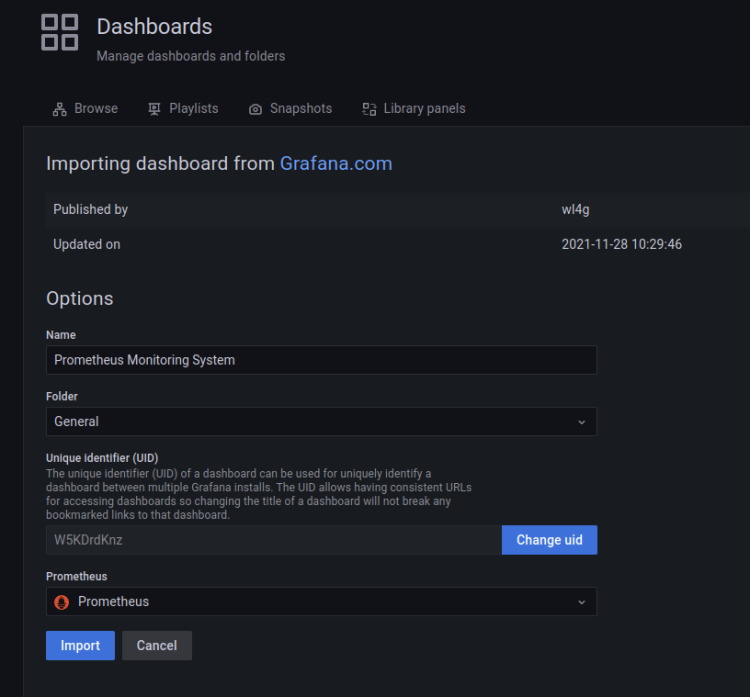
现在输入新仪表盘的名称并选择 ' Prometheus ' 作为数据源。点击 ' Import '(导入)确认。
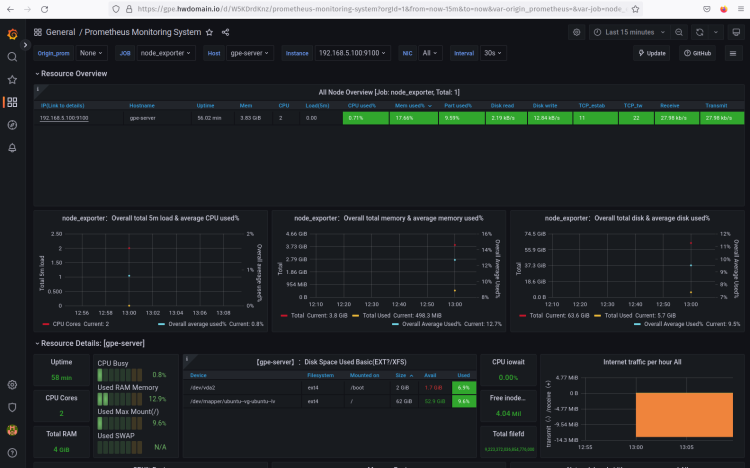
在以下截图中,确认已创建带有 prometheus 数据源、用于监控系统的新 Grafana 仪表盘。
结论
在本教程中,你在 Ubuntu 22.04 服务器上安装了以 Nginx 作为反向代理的 Grafana 用于数据可视化。你还随 Grafana 一起安装了 Prometheus 和 node_exporter。
Prometheus 运行并启用了 SSL/TLS 连接,启用了用于用户认证的基本认证模块,并配置了两次抓取:分别通过 Prometheus 自身和 node_exporter 采集系统指标。
最后,你将 Prometheus 作为数据源添加到 Grafana,并导入了一个仪表盘,用于通过 Prometheus 和 node_exporter 采集的数据进行数据可视化。在此基础上,你可以为你的应用向 Prometheus 添加另一个 exporter,并通过 Grafana 数据可视化仪表盘查看所有指标。