
本页内容
- 准备工作
- 步骤 1 - 配置防火墙
- 步骤 2 - 安装 Git
- 步骤 3 - 安装 Nodejs
- 步骤 4 - 安装 Bower
- 步骤 5 - 安装 Cryptpad
- 步骤 6 - 配置 Cryptpad
- 步骤 7 - 安装 Nginx
- 步骤 8 - 安装 SSL
- 步骤 9 - 配置 Nginx
- 步骤 10 - 创建 Cryptpad Systemd 服务
- 步骤 11 - 访问并配置 Cryptpad
- 步骤 12 - 更新 Cryptpad
- 结语
Cryptpad 是一个开源的协作办公套件,可作为 Office 365 的替代品。它允许你通过网页浏览器访问办公应用程序。Cryptpad 与 Office 365 的区别在于 Cryptpad 采用端到端加密,这意味着你可以与他人创建并共享文档,而不会有泄露个人信息的风险。Cryptpad 提供的应用包括富文本、电子表格、代码/Markdown、看板、幻灯片、白板和表单。
在本教程中,你将学习如何在 Ubuntu 22.04 服务器上安装 Cryptpad 套件。
准备工作
- 一台运行 Ubuntu 22.04 的服务器,至少配备 2GB 内存和 2 个 CPU 核心。
- 一个具有 sudo 权限的非 root 用户。
- 两个完整的域名(FQDN),例如 example.com 和 docs.example.com。
- 确保系统全部为最新状态。$ sudo apt update $ sudo apt upgrade
- 系统所需的一些软件包。$ sudo apt install wget curl nano software-properties-common dirmngr apt-transport-https gnupg2 ca-certificates lsb-release ubuntu-keyring unzip -y 其中部分软件包可能已在你的系统上安装。
一台运行 Ubuntu 22.04 的服务器,至少配备 2GB 内存和 2 个 CPU 核心。
一个具有 sudo 权限的非 root 用户。
两个完整的域名(FQDN),例如 example.com 和 docs.example.com。
确保系统全部为最新状态。
$ sudo apt update
$ sudo apt upgrade
系统所需的一些软件包。
$ sudo apt install wget curl nano software-properties-common dirmngr apt-transport-https gnupg2 ca-certificates lsb-release ubuntu-keyring unzip -y
其中部分软件包可能已在你的系统上安装。
步骤 1 - 配置防火墙
第一步是配置防火墙。Ubuntu 默认自带 ufw(Uncomplicated Firewall,简易防火墙)。
检查防火墙是否正在运行。
$ sudo ufw status
你应该会看到如下输出。
Status: inactive
允许 SSH 端口,以免启用防火墙时断开当前连接。
$ sudo ufw allow OpenSSH
同时允许 HTTP 和 HTTPS 端口。
$ sudo ufw allow http
$ sudo ufw allow https
启用防火墙
$ sudo ufw enable
Command may disrupt existing ssh connections. Proceed with operation (y|n)? y
Firewall is active and enabled on system startup
再次检查防火墙状态。
$ sudo ufw status
你应该会看到类似的输出。
Status: active

To                         Action      From
--                         ------      ----
OpenSSH                    ALLOW       Anywhere
80/tcp                     ALLOW       Anywhere
443                        ALLOW       Anywhere
OpenSSH (v6)               ALLOW       Anywhere (v6)
80/tcp (v6)                ALLOW       Anywhere (v6)
443 (v6)                   ALLOW       Anywhere (v6)
步骤 2 - 安装 Git
Git 通常已预装在 Ubuntu 22.04 中,但如果尚未安装,请运行以下命令进行安装。
$ sudo apt install git -y
检查 Git 的版本。
$ git --version
git version 2.34.1
运行以下命令配置 Git,添加你的姓名和电子邮件地址。
git config --global user.name "Your Name"
git config --global user.email "
[email protected]
"
步骤 3 - 安装 Nodejs
我们将使用 Node Version Manager(NVM)来安装 Nodejs。使用以下命令安装 NVM 脚本。
$ curl -o- https://raw.githubusercontent.com/nvm-sh/nvm/v0.39.3/install.sh | bash
你可以从其 GitHub 仓库获取最新版本的 NVM。
要使用它,你需要重新加载你的 .bashrc 文件。
$ source ~/.bashrc
查看可用的 Node 版本列表。
$ nvm list-remote
你会看到类似的输出。
.....
        v18.9.0
        v18.9.1
       v18.10.0
       v18.11.0
       v18.12.0   (LTS: Hydrogen)
       v18.12.1   (LTS: Hydrogen)
       v18.13.0   (LTS: Hydrogen)
       v18.14.0   (LTS: Hydrogen)
->     v18.14.1   (Latest LTS: Hydrogen)
        v19.0.0
        v19.0.1
        v19.1.0
        v19.2.0
        v19.3.0
        v19.4.0
        v19.5.0
        v19.6.0
        v19.6.1
安装撰写本教程时最新的 LTS 版本(v18.x 或)的 Node。
$ nvm install lts/hydrogen
验证安装。
$ node -v
v18.14.1
步骤 4 - 安装 Bower
Bower 是 Cryptpad 使用的前端组件包管理器。使用以下命令安装它。
$ npm install -g bower
步骤 5 - 安装 Cryptpad
克隆 Cryptpad 的 GitHub 仓库。
$ git clone https://github.com/xwiki-labs/cryptpad.git cryptpad
切换到该目录。
$ cd cryptpad
将仓库切换到最新版本。
$ git checkout $(git tag -l | grep -v 'v1.*$' | sort -V | tail -n 1)
使用以下命令安装 Cryptpad。
$ npm install
$ bower install
使用以下命令构建 Cryptpad 静态页面并启用社交媒体链接预览。
$ npm run build
步骤 6 - 配置 Cryptpad
使用示例文件创建配置文件。
$ cp /home/$USER/cryptpad/config/config.example.js /home/$USER/cryptpad/config/config.js
打开配置文件进行编辑。
$ nano ~/cryptpad/config/config.js
找到 httpUnsafeOrigin: 'http://localhost:3000', 这一行,并将其值改为你的主域名。
httpUnsafeOrigin: 'https://example.com',
找到 // httpSafeOrigin: "https://some-other-domain.xyz", 这一行,删除行首的斜杠取消注释,并将其值改为你的子域名。
httpSafeOrigin: "https://docs.example.com",
在 httpSafeOrigin 变量下方添加以下行。
httpSafeOrigin: "https://docs.example.com",
    adminEmail: "
[email protected]
",
完成后,按 Ctrl + X 保存文件,并在提示时输入 Y。
如需进一步配置,请在 ~/cryptpad/customize 目录下创建 ~/cryptpad/customize.dist/application_config.js 的副本。
$ cp ~/cryptpad/customize.dist/application_config.js ~/cryptpad/customize
打开 ~/cryptpad/customize/application_config.js 文件进行编辑。
$ nano ~/cryptpad/customize/application_config.js
请确保所有配置都添加在 return AppConfig; 这一行之前。
要禁用 Cryptpad 的未注册使用,请添加以下行。
AppConfig.registeredOnlyTypes = AppConfig.availablePadTypes;
添加指向隐私政策、服务条款和版权信息页面的链接。
// Privacy Policy
AppConfig.privacy = 'https://example.com/privacy-policy/';
// Terms of Service
AppConfig.terms = 'https://example.com/terms-of-service/';
// Imprint / Legal Notice
AppConfig.imprint = 'https://example.com/imprint/';
添加密码盐(salt)以增强 Cryptpad 的安全性。
AppConfig.loginSalt = 'ggkljerthhkletho0the90hoserhtgse90rh4ohzisdofh90-43kbdf9009io';
要增加密码的最小长度,请添加以下行。
AppConfig.minimumPasswordLength = 10;
完成后,按 Ctrl + X 保存文件,并在提示时输入 Y。在启动 Cryptpad 之前,我们需要先安装 Nginx、创建 SSL 证书,并配置 Nginx 服务器,为访问 Cryptpad 域名做好准备。
步骤 7 - 安装 Nginx
Ubuntu 22.04 自带较旧版本的 Nginx。要安装最新版本,你需要下载官方的 Nginx 仓库。
导入 Nginx 的签名密钥。
$ curl https://nginx.org/keys/nginx_signing.key | gpg --dearmor \
	| sudo tee /usr/share/keyrings/nginx-archive-keyring.gpg >/dev/null
添加 Nginx 稳定版的仓库。
$ echo "deb [signed-by=/usr/share/keyrings/nginx-archive-keyring.gpg arch=amd64] \
http://nginx.org/packages/ubuntu `lsb_release -cs` nginx" \
    | sudo tee /etc/apt/sources.list.d/nginx.list
更新系统仓库。
$ sudo apt update
安装 Nginx。
$ sudo apt install nginx
验证安装。
$ nginx -v
nginx version: nginx/1.22.1
启动 Nginx 服务器。
$ sudo systemctl start nginx
步骤 8 - 安装 SSL
我们需要安装 Certbot 来生成 SSL 证书。你可以使用 Ubuntu 的仓库安装 Certbot,或者通过 Snapd 工具获取最新版本。我们将使用 Snapd 版本。
Ubuntu 22.04 默认已安装 Snapd。运行以下命令以确保你的 Snapd 版本是最新的。请确保你的 Snapd 版本是最新的。
$ sudo snap install core
$ sudo snap refresh core
安装 Certbot。
$ sudo snap install --classic certbot
使用以下命令创建指向 /usr/bin 目录的符号链接,以确保 Certbot 命令可以运行。
$ sudo ln -s /snap/bin/certbot /usr/bin/certbot
运行以下命令生成 SSL 证书。
$ sudo certbot certonly --nginx --agree-tos --no-eff-email --staple-ocsp --preferred-challenges http -m
[email protected]
 -d example.com -d docs.example.com
上述命令会将证书下载到服务器上的 /etc/letsencrypt/live/example.com 目录,对应域名为 example.com 和 docs.example.com。
生成 Diffie-Hellman 组证书。
$ sudo openssl dhparam -dsaparam -out /etc/ssl/certs/dhparam.pem 4096
要检查 SSL 续期是否正常工作,请做一次该过程的试运行(dry run)。
$ sudo certbot renew --dry-run
如果没有看到错误,说明一切就绪。你的证书将自动续期。
步骤 9 - 配置 Nginx
打开 /etc/nginx/nginx.conf 文件进行编辑。
$ sudo nano /etc/nginx/nginx.conf
在 include /etc/nginx/conf.d/*.conf; 这一行之前添加以下行。
server_names_hash_bucket_size 64;
完成后,按 Ctrl + X 保存文件,并在提示时输入 Y。
创建并打开 /etc/nginx/conf.d/cryptpad.conf 文件进行编辑。
$ sudo nano /etc/nginx/conf.d/cryptpad.conf
在其中粘贴以下代码。
server {
    # Redirect any http requests to https
    listen 80;
    listen [::]:80;
    server_name example.com docs.example.com;
    return 301 https://$host$request_uri;
}

server {
    listen 443 ssl http2;
    listen [::]:443 ssl http2;

    # CryptPad serves static assets over these two domains.
    # `main_domain` is what users will enter in their address bar.
    # Privileged computation such as key management is handled in this scope
    # UI content is loaded via the `sandbox_domain`.
    # "Content Security Policy" headers prevent content loaded via the sandbox
    # from accessing privileged information.
    # These variables must be different to take advantage of CryptPad's sandboxing techniques.
    # In the event of an XSS vulnerability in CryptPad's front-end code
    # this will limit the amount of information accessible to attackers.
    set $main_domain "example.com";
    set $sandbox_domain "docs.example.com";

    # By default CryptPad allows remote domains to embed CryptPad documents in iframes.
    # This behaviour can be blocked by changing $allowed_origins from "*" to the
    # sandbox domain, which must be permitted to load content from the main domain
    # in order for CryptPad to work as expected.
    #
    # An example is given below which can be uncommented if you want to block
    # remote sites from including content from your server
    set $allowed_origins "*";
    # set $allowed_origins "https://${sandbox_domain}";

    # CryptPad's dynamic content (websocket traffic and encrypted blobs)
    # can be served over separate domains. Using dedicated domains (or subdomains)
    # for these purposes allows you to move them to a separate machine at a later date
    # if you find that a single machine cannot handle all of your users.
    # If you don't use dedicated domains, this can be the same as $main_domain
    # If you do, they can be added as exceptions to any rules which block connections to remote domains.
    # You can find these variables referenced below in the relevant places
    set $api_domain "example.com";
    set $files_domain "example.com";

    # nginx doesn't let you set server_name via variables, so you need to hardcode your domains here
    server_name example.com docs.example.com;

    # You'll need to Set the path to your certificates and keys here
    # IMPORTANT: this config is intended to serve assets for at least two domains
    # (your main domain and your sandbox domain). As such, you'll need to generate a single SSL certificate
    # that includes both domains in order for things to work as expected.
    ssl_certificate /etc/letsencrypt/live/example.com/fullchain.pem;
    ssl_certificate_key /etc/letsencrypt/live/example.com/privkey.pem;
    ssl_trusted_certificate /etc/letsencrypt/live/example.com/chain.pem;

    # diffie-hellman parameters are used to negotiate keys for your session
    # generate strong parameters using the following command
    ssl_dhparam /etc/ssl/certs/dhparam.pem;

    # Speeds things up a little bit when resuming a session
    ssl_session_timeout 1d;
    ssl_session_cache shared:MozSSL:10m;
    ssl_session_tickets off;

    ssl_protocols TLSv1.2 TLSv1.3;
    ssl_ciphers ECDHE-ECDSA-AES128-GCM-SHA256:ECDHE-RSA-AES128-GCM-SHA256:ECDHE-ECDSA-AES256-GCM-SHA384:ECDHE-RSA-AES256-GCM-SHA384:ECDHE-ECDSA-CHACHA20-POLY1305:ECDHE-RSA-CHACHA20-POLY1305:DHE-RSA-AES128-GCM-SHA256:DHE-RSA-AES256-GCM-SHA384;
    ssl_prefer_server_ciphers off;

    # HSTS (ngx_http_headers_module is required) (63072000 seconds)
    add_header Strict-Transport-Security "max-age=63072000; includeSubDomains" always;

    # OCSP stapling
    ssl_stapling on;
    ssl_stapling_verify on;
    resolver 8.8.8.8 8.8.4.4 valid=300s;
    resolver_timeout 5s;

    # verify chain of trust of OCSP response using Root CA and Intermediate certs
    ssl_trusted_certificate /etc/ssl/certs/ca-certificates.crt;

    # replace with the IP address of your resolver
    resolver 8.8.8.8 8.8.4.4 1.1.1.1 1.0.0.1 9.9.9.9 149.112.112.112 208.67.222.222 208.67.220.220;

    add_header X-XSS-Protection "1; mode=block";
    add_header X-Content-Type-Options nosniff;
    add_header Access-Control-Allow-Origin "${allowed_origins}";
    # add_header X-Frame-Options "SAMEORIGIN";

    # Opt out of Google's FLoC Network
    add_header Permissions-Policy interest-cohort=();

    # Enable SharedArrayBuffer in Firefox (for .xlsx export)
    add_header Cross-Origin-Resource-Policy cross-origin;
    add_header Cross-Origin-Embedder-Policy require-corp;

    # Insert the path to your CryptPad repository root here
    root /home/username/cryptpad;
    index index.html;
    error_page 404 /customize.dist/404.html;

    # any static assets loaded with "ver=" in their URL will be cached for a year
    if ($args ~ ver=) {
        set $cacheControl max-age=31536000;
    }
    # This rule overrides the above caching directive and makes things somewhat less efficient.
    # We had inverted them as an optimization, but Safari 16 introduced a bug that interpreted
    # some important headers incorrectly when loading these files from cache.
    # This is why we can't have nice things :(
    if ($uri ~ ^(\/|.*\/|.*\.html)$) {
        set $cacheControl no-cache;
    }

    # Will not set any header if it is emptystring
    add_header Cache-Control $cacheControl;

    # CSS can be dynamically set inline, loaded from the same domain, or from $main_domain
    set $styleSrc   "'unsafe-inline' 'self' https://${main_domain}";

    # connect-src restricts URLs which can be loaded using script interfaces
    # if you have configured your instance to use a dedicated $files_domain or $api_domain
    # you will need to add them below as: https://${files_domain} and https://${api_domain}
    set $connectSrc "'self' https://${main_domain} blob: wss://${api_domain} https://${sandbox_domain}";

    # fonts can be loaded from data-URLs or the main domain
    set $fontSrc    "'self' data: https://${main_domain}";

    # images can be loaded from anywhere, though we'd like to deprecate this as it allows the use of images for tracking
    set $imgSrc     "'self' data: blob: https://${main_domain}";

    # frame-src specifies valid sources for nested browsing contexts.
    # this prevents loading any iframes from anywhere other than the sandbox domain
    set $frameSrc   "'self' https://${sandbox_domain} blob:";

    # specifies valid sources for loading media using video or audio
    set $mediaSrc   "blob:";

    # defines valid sources for webworkers and nested browser contexts
    # deprecated in favour of worker-src and frame-src
    set $childSrc   "https://${main_domain}";

    # specifies valid sources for Worker, SharedWorker, or ServiceWorker scripts.
    # supercedes child-src but is unfortunately not yet universally supported.
    set $workerSrc  "'self'";

    # script-src specifies valid sources for javascript, including inline handlers
    set $scriptSrc  "'self' resource: https://${main_domain}";

    # frame-ancestors specifies which origins can embed your CryptPad instance
    # this must include 'self' and your main domain (over HTTPS) in order for CryptPad to work
    # if you have enabled remote embedding via the admin panel then this must be more permissive.
    # note: cryptpad.fr permits web pages served via https: and vector: (element desktop app)
    set $frameAncestors "'self' https://${main_domain}";
    # set $frameAncestors "'self' https: vector:";

    set $unsafe 0;
    # the following assets are loaded via the sandbox domain
    # they unfortunately still require exceptions to the sandboxing to work correctly.
    if ($uri ~ ^\/(sheet|doc|presentation)\/inner.html.*$) { set $unsafe 1; }
    if ($uri ~ ^\/common\/onlyoffice\/.*\/.*\.html.*$) { set $unsafe 1; }

    # everything except the sandbox domain is a privileged scope, as they might be used to handle keys
    if ($host != $sandbox_domain) { set $unsafe 0; }
    # this iframe is an exception. Office file formats are converted outside of the sandboxed scope
    # because of bugs in Chromium-based browsers that incorrectly ignore headers that are supposed to enable
    # the use of some modern APIs that we require when javascript is run in a cross-origin context.
    # We've applied other sandboxing techniques to mitigate the risk of running WebAssembly in this privileged scope
    if ($uri ~ ^\/unsafeiframe\/inner\.html.*$) { set $unsafe 1; }

    # privileged contexts allow a few more rights than unprivileged contexts, though limits are still applied
    if ($unsafe) {
        set $scriptSrc "'self' 'unsafe-eval' 'unsafe-inline' resource: https://${main_domain}";
    }

    # Finally, set all the rules you composed above.
    add_header Content-Security-Policy "default-src 'none'; child-src $childSrc; worker-src $workerSrc; media-src $mediaSrc; style-src $styleSrc; script-src $scriptSrc; connect-src $connectSrc; font-src $fontSrc; img-src $imgSrc; frame-src $frameSrc; frame-ancestors $frameAncestors";

    # The nodejs process can handle all traffic whether accessed over websocket or as static assets
    # We prefer to serve static content from nginx directly and to leave the API server to handle
    # the dynamic content that only it can manage. This is primarily an optimization
    location ^~ /cryptpad_websocket {
        proxy_pass http://localhost:3000;
        proxy_set_header X-Real-IP $remote_addr;
        proxy_set_header Host $host;
        proxy_set_header X-Forwarded-For $proxy_add_x_forwarded_for;

        # WebSocket support (nginx 1.4)
        proxy_http_version 1.1;
        proxy_set_header Upgrade $http_upgrade;
        proxy_set_header Connection upgrade;
    }

    location ^~ /customize.dist/ {
        # This is needed in order to prevent infinite recursion between /customize/ and the root
    }
    # try to load customizeable content via /customize/ and fall back to the default content
    # located at /customize.dist/
    # This is what allows you to override behaviour.
    location ^~ /customize/ {
        rewrite ^/customize/(.*)$ $1 break;
        try_files /customize/$uri /customize.dist/$uri;
    }

    # /api/config is loaded once per page load and is used to retrieve
    # the caching variable which is applied to every other resource
    # which is loaded during that session.
    location ~ ^/api/.*$ {
        proxy_pass http://localhost:3000;
        proxy_set_header X-Real-IP $remote_addr;
        proxy_set_header Host $host;
        proxy_set_header X-Forwarded-For $proxy_add_x_forwarded_for;

        # These settings prevent both NGINX and the API server
        # from setting the same headers and creating duplicates
        proxy_hide_header Cross-Origin-Resource-Policy;
        add_header Cross-Origin-Resource-Policy cross-origin;
        proxy_hide_header Cross-Origin-Embedder-Policy;
        add_header Cross-Origin-Embedder-Policy require-corp;
    }

    # encrypted blobs are immutable and are thus cached for a year
    location ^~ /blob/ {
        if ($request_method = 'OPTIONS') {
            add_header 'Access-Control-Allow-Origin' "${allowed_origins}";
            add_header 'Access-Control-Allow-Methods' 'GET, POST, OPTIONS';
            add_header 'Access-Control-Allow-Headers' 'DNT,X-CustomHeader,Keep-Alive,User-Agent,X-Requested-With,If-Modified-Since,Cache-Control,Content-Type,Content-Range,Range';
            add_header 'Access-Control-Max-Age' 1728000;
            add_header 'Content-Type' 'application/octet-stream; charset=utf-8';
            add_header 'Content-Length' 0;
            return 204;
        }
        add_header X-Content-Type-Options nosniff;
        add_header Cache-Control max-age=31536000;
        add_header 'Access-Control-Allow-Origin' "${allowed_origins}";
        add_header 'Access-Control-Allow-Methods' 'GET, POST, OPTIONS';
        add_header 'Access-Control-Allow-Headers' 'DNT,X-CustomHeader,Keep-Alive,User-Agent,X-Requested-With,If-Modified-Since,Cache-Control,Content-Type,Content-Range,Range,Content-Length';
        add_header 'Access-Control-Expose-Headers' 'DNT,X-CustomHeader,Keep-Alive,User-Agent,X-Requested-With,If-Modified-Since,Cache-Control,Content-Type,Content-Range,Range,Content-Length';
        try_files $uri =404;
    }

    # the "block-store" serves encrypted payloads containing users' drive keys
    # these payloads are unlocked via login credentials. They are mutable
    # and are thus never cached. They're small enough that it doesn't matter, in any case.
    location ^~ /block/ {
        add_header X-Content-Type-Options nosniff;
        add_header Cache-Control max-age=0;
        try_files $uri =404;
    }

    # This block provides an alternative means of loading content
    # otherwise only served via websocket. This is solely for debugging purposes,
    # and is thus not allowed by default.
    #location ^~ /datastore/ {
        #add_header Cache-Control max-age=0;
        #try_files $uri =404;
    #}

    # The nodejs server has some built-in forwarding rules to prevent
    # URLs like /pad from resulting in a 404. This simply adds a trailing slash
    # to a variety of applications.
    location ~ ^/(register|login|settings|user|pad|drive|poll|slide|code|whiteboard|file|media|profile|contacts|todo|filepicker|debug|kanban|sheet|support|admin|notifications|teams|calendar|presentation|doc|form|report|convert|checkup)$ {
        rewrite ^(.*)$ $1/ redirect;
    }

    # Finally, serve anything the above exceptions don't govern.
    try_files /customize/www/$uri /customize/www/$uri/index.html /www/$uri /www/$uri/index.html /customize/$uri;
}
完成后,按 Ctrl + X 保存文件,并在提示时输入 Y。
验证 Nginx 配置文件的语法。
$ sudo nginx -t
nginx: the configuration file /etc/nginx/nginx.conf syntax is ok
nginx: configuration file /etc/nginx/nginx.conf test is successful
重启 Nginx 服务。
$ sudo systemctl restart nginx
步骤 10 - 创建 Cryptpad Systemd 服务
打开 ~/cryptpad/docs/cryptpad.service 文件进行编辑。
$ nano ~/cryptpad/docs/cryptpad.service
修改其中的代码,使其类似以下内容。确保 Node 二进制文件的路径正确,并将 username 替换为你当前登录的 Linux 用户名。
[Unit]
Description=CryptPad API server

[Service]
ExecStart=/home/username/.nvm/versions/node/v18.14.1/bin/node /home/username/cryptpad/server.js
# modify to match the location of your cryptpad repository
WorkingDirectory=/home/username/cryptpad

Restart=always
# Restart service after 10 seconds if node service crashes
RestartSec=2

# Output to syslog
StandardOutput=syslog
StandardError=syslog
SyslogIdentifier=cryptpad
User=username
Group=username
# modify to match your working directory
Environment='PWD="/home/username/cryptpad"'

# systemd sets the open file limit to 4000 unless you override it
# cryptpad stores its data with the filesystem, so you should increase this to match the value of `ulimit -n`
# or risk EMFILE errors.
LimitNOFILE=1000000

[Install]
WantedBy=multi-user.target
完成后,按 Ctrl + X 保存文件,并在提示时输入 Y。
将该文件复制到 Systemd 文件夹。
sudo cp ~/cryptpad/docs/cryptpad.service /etc/systemd/system/cryptpad.service
重新加载服务守护进程。
$ sudo systemctl daemon-reload
启用并启动 Cryptpad 服务。
$ sudo systemctl enable cryptpad --now
检查服务状态。
$ suddo systemctl status cryptpad
你会看到如下输出。
? cryptpad.service - CryptPad API server
     Loaded: loaded (/etc/systemd/system/cryptpad.service; enabled; vendor preset: enabled)
     Active: active (running) since Tue 2023-02-21 08:43:50 UTC; 1h 52min ago
   Main PID: 8145 (node)
      Tasks: 33 (limit: 2237)
     Memory: 53.4M
        CPU: 2.323s
     CGroup: /system.slice/cryptpad.service
             ??8145 /home/navjot/.nvm/versions/node/v18.14.1/bin/node /home/navjot/cryptpad/server.js
             ??8158 /home/navjot/.nvm/versions/node/v18.14.1/bin/node lib/workers/db-worker
             ??8159 /home/navjot/.nvm/versions/node/v18.14.1/bin/node lib/workers/db-worker

Feb 21 08:43:50 nspeaks systemd[1]: Started CryptPad API server.
Feb 21 08:43:50 nspeaks cryptpad[8145]: Serving content for https://example.com/ via http://127.0.0.1:3000.
步骤 11 - 访问并配置 Cryptpad
在浏览器中打开 URL https://example.com,你将看到如下界面。
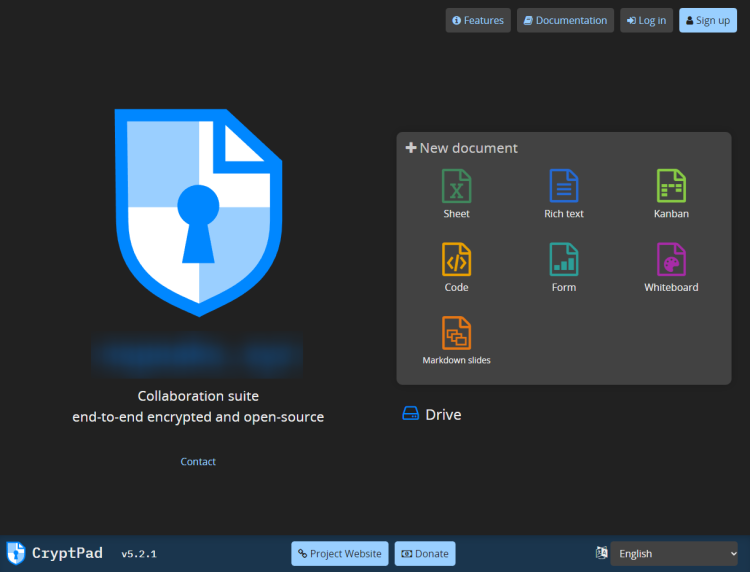
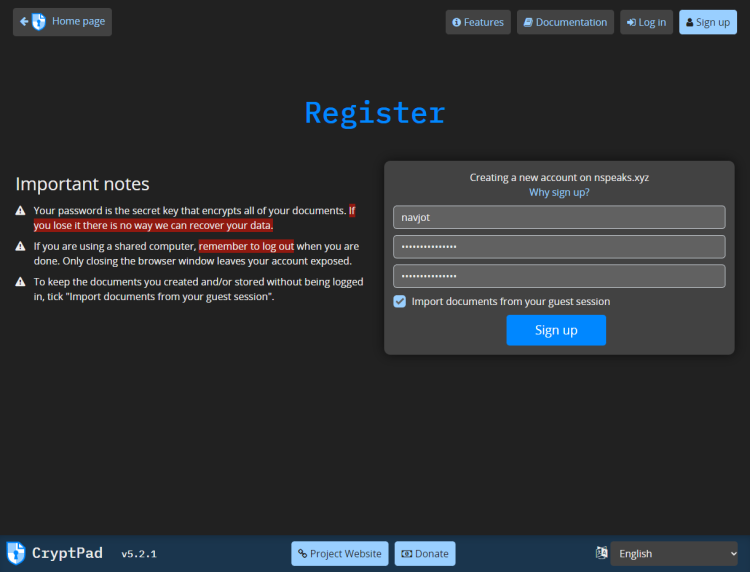
点击 Sign up(注册)按钮创建账户。输入你的凭据并点击 Sign up 按钮以创建账户。
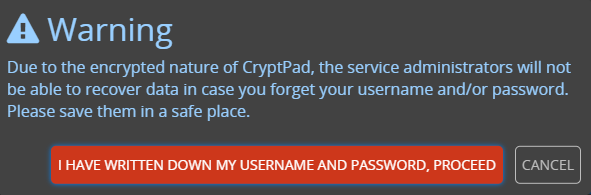
你会看到如下确认弹窗。点击红色按钮完成账户创建。
你将登录并被带到 CryptDrive 仪表盘。
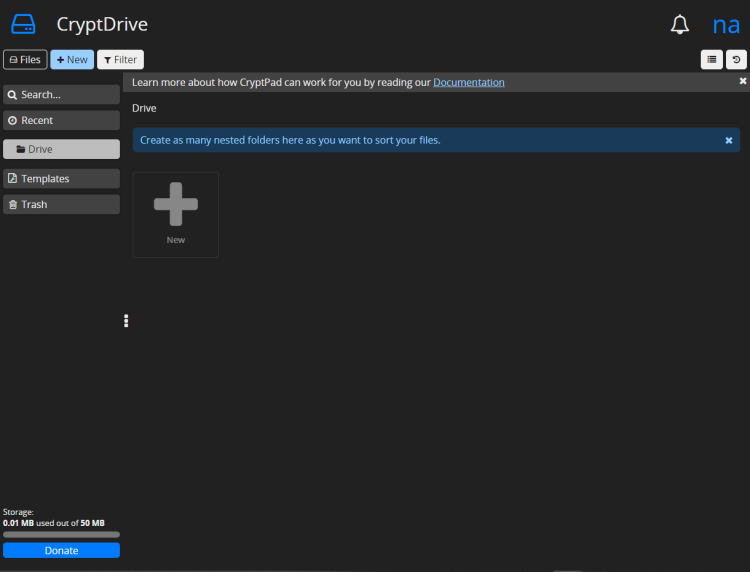
点击右上角的用户菜单,然后点击 Settings(设置)选项。
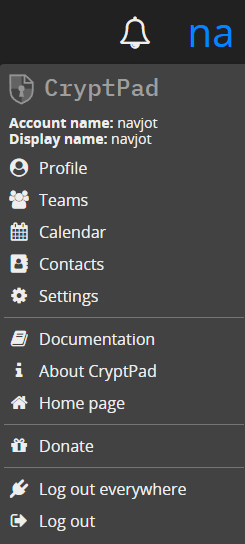
你会看到如下设置页面。
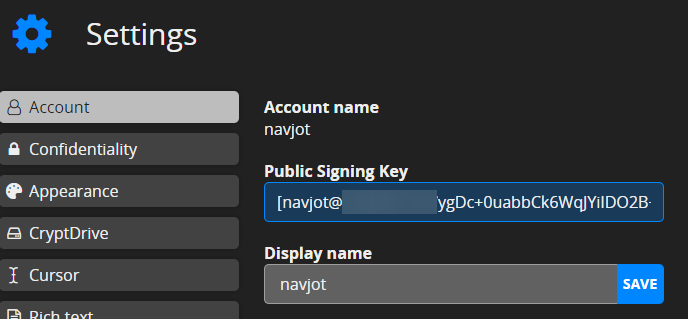
复制 Public Signing Key(公开签名密钥)的值,返回终端并打开配置文件。
$ nano ~/cryptpad/config/config.js
找到 adminKeys 变量,并将密钥粘贴到方括号之间,如下所示。
adminKeys: ["[
[email protected]
/ygDc+0uabbCk6WqJYiIDO2B+gP6mYZ9FlQ94zL3UAoU=]"],
完成后,按 Ctrl + X 保存文件,并在提示时输入 Y。
重启 Cryptpad 服务。
$ sudo systemctl restart cryptpad
你的 Cryptpad 办公套件已准备就绪,可以使用了。
步骤 12 - 更新 Cryptpad
更新 Cryptpad 相当简单,只需从 GitHub 仓库获取最新更新,然后运行 Node 更新命令即可。
第一步是停止 Cryptpad 服务。
$ sudo systemctl stop cryptpad
运行以下命令以更新 Cryptpad。
$ cd ~/cryptpad
$ git pull
$ git checkout $(git tag -l | grep -v 'v1.*$' | sort -V | tail -n 1)
$ npm update
$ bower update
启动 Cryptpad 服务。
$ sudo systemctl start cryptpad
结语
至此,我们关于在 Ubuntu 22.04 服务器上安装 Cryptpad 协作办公套件的教程就结束了。如果你有任何疑问,请在下方评论中留言。