
本页内容
- 前提条件
- 安装 CyberPanel
- 访问 CyberPanel
- 结论
CyberPanel 是一个免费开源的 Web 主机控制面板,可让你创建、配置和管理自己的托管服务器。它是运行在 OpenLiteSpeed 服务器之上的 cPanel 替代方案。借助 CyberPanel,你可以管理 SSL 证书、使用用户友好的文件管理器、配置 Web 应用防火墙、管理 DNS、管理电子邮件以及更多功能。CyberPanel 是唯一一款开箱即原生支持 OpenLiteSpeed 和 LiteSpeed Enterprise 的主机控制面板。
在本文中,我们将向你展示如何在 Alma Linux 8 上安装带 OpenLiteSpeed 的 CyberPanel。
前提条件
- 一台运行 Alma Linux 8 的服务器。
- 服务器上已配置 root 密码。
安装 CyberPanel
CyberPanel 提供了一个自动安装脚本,可让你在一分钟内在系统上安装 CyberPanel。只需运行以下命令即可下载并运行 CyberPanel 安装脚本:
sh <(curl https://cyberpanel.net/install.sh || wget -O - https://cyberpanel.net/install.sh)系统将提示你安装 CyberPanel,如下所示:
Initializing...

Fetching latest data from CyberPanel server...

This may take few seconds...

Branch name fetched...v2.1.2

Checking root privileges...

You are runing as root...

Valid IP detected...

Checking server location...

Desktop OS not detected. Proceeding

System: AlmaLinux 8 detected...

Checking virtualization type...

Initialized...

		CyberPanel Installer v2.1.2

1. Install CyberPanel.

2. Exit.


  Please enter the number[1-2]: 1
输入 1 并按 Enter 键开始安装。系统将提示你选择以下选项:
		CyberPanel Installer v2.1.2

RAM check : 111/3736MB (2.97%)

Disk check : 3/80GB (4%) (Minimal 10GB free space)

1. Install CyberPanel with OpenLiteSpeed.

2. Install Cyberpanel with LiteSpeed Enterprise.

3. Exit.

  Please enter the number[1-3]: 1
输入 1 并按 Enter 键安装带 OpenLiteSpeed 的 CyberPanel。你将看到以下输出:
Install Full service for CyberPanel? This will include PowerDNS, Postfix and Pure-FTPd.

Full installation [Y/n]: Y
输入 Y 并按 Enter 键进行完整安装。你将看到以下输出:
Full installation selected...

Do you want to setup Remote MySQL? (This will skip installation of local MySQL)

(Default = No) Remote MySQL [y/N]: N


Local MySQL selected...

Press Enter key to continue with latest version or Enter specific version such as: 1.9.4 , 2.0.1 , 2.0.2 ...etc


Branch name set to v2.1.2

Please choose to use default admin password 1234567, randomly generate one (recommended) or specify the admin password?
Choose [d]fault, [r]andom or [s]et password: [d/r/s] s


Please enter your password:
Password: Confirm Password:
Do you wish to install Memcached process and its PHP extension?
Please select [Y/n]: Y
设置你的 CyberPanel 密码并按 Enter 键。CyberPanel 安装完成后,你将得到以下输出:
Install Memcached process and its PHP extension set to Yes...


Do you wish to install Redis process and its PHP extension?
Please select [Y/n]: n

Would you like to set up a WatchDog (beta) for Web service and Database service ?
The watchdog script will be automatically started up after installation and server reboot
If you want to kill the watchdog , run watchdog kill
Please type Yes or no (with capital Y, default Yes):

                Visit: https://209.23.10.98:8090
                Panel username: admin
                Panel password: *****
                Visit: https://209.23.10.98:7080
                WebAdmin console username: admin
                WebAdmin console password: JoQJdtQsRxGU7Xnk

                Visit: https://209.23.10.98:8090/rainloop/?admin
                Rainloop Admin username: admin
                Rainloop Admin password: BQ6n0UbBWdFROe

             Run cyberpanel help to get FAQ info
             Run cyberpanel upgrade to upgrade it to latest version.
             Run cyberpanel utility to access some handy tools .

              Website : https://www.cyberpanel.net
              Forums  : https://forums.cyberpanel.net
              Wikipage: https://docs.cyberpanel.net
              Docs    : https://cyberpanel.net/docs/

            Enjoy your accelerated Internet by
                CyberPanel & OpenLiteSpeed
###################################################################
If your provider has a network-level firewall
Please make sure you have opened following port for both in/out:
TCP: 8090 for CyberPanel
TCP: 80, TCP: 443 and UDP: 443 for webserver
TCP: 21 and TCP: 40110-40210 for FTP
TCP: 25, TCP: 587, TCP: 465, TCP: 110, TCP: 143 and TCP: 993 for mail service
TCP: 53 and UDP: 53 for DNS service
Would you like to restart your server now? [y/N]: y
访问 CyberPanel
你现在可以通过 URL https://your-server-ip:8090 访问 CyberPanel Web 界面。你将看到 CyberPanel 登录页面:
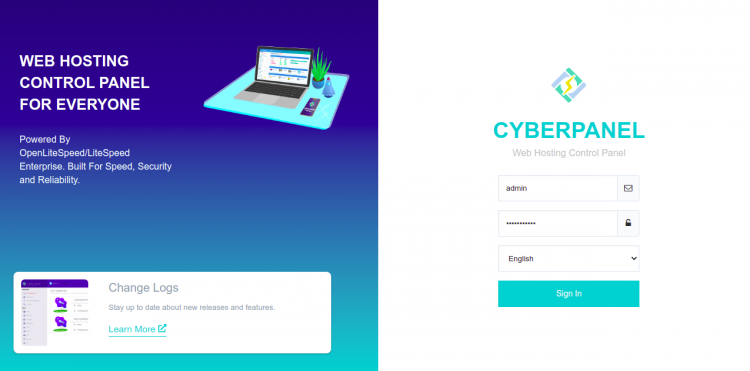
输入你的管理员用户名、密码,然后点击 Sign in 按钮。你将在接下来的屏幕看到 CyberPanel 仪表板:
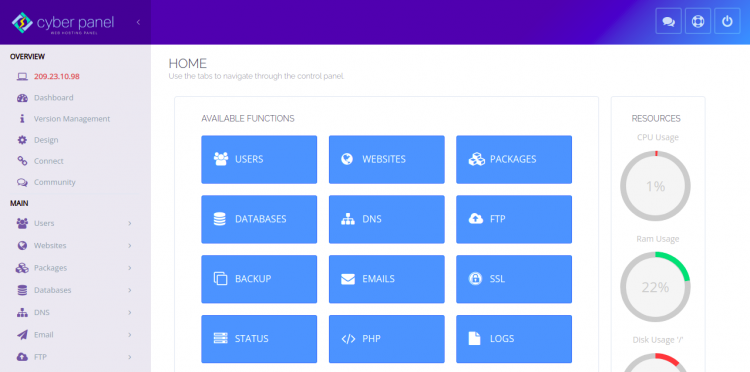
你也可以通过 URL https://your-server-ip:7080 访问 OpenLiteSpeed Web 界面。你将看到 OpenLiteSpeed 登录页面:
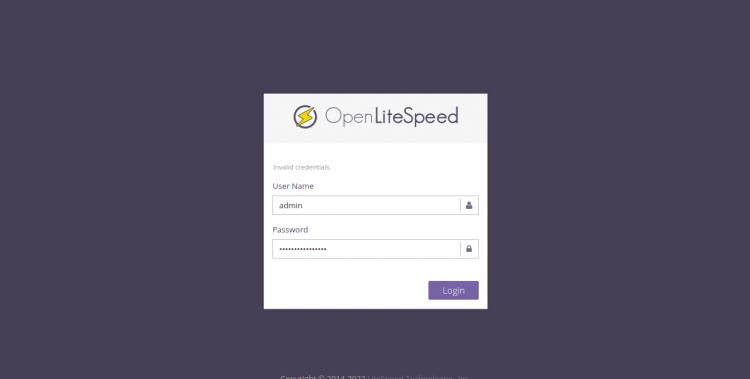
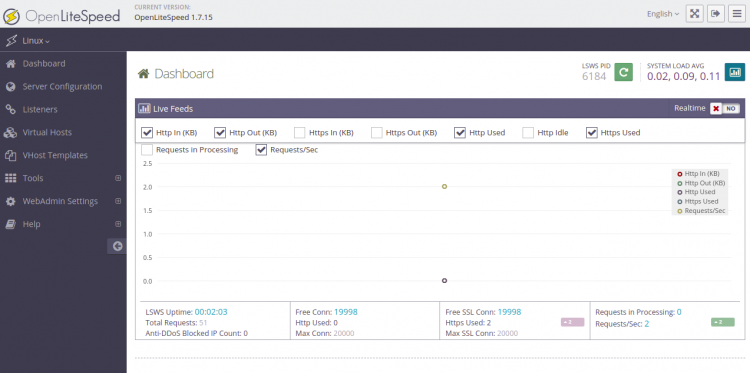
输入你的管理员用户名、密码,然后点击 Sign in 按钮。你将在接下来的屏幕看到 OpenLiteSpeed 仪表板:
结论
恭喜!你已在 Alma Linux 8 上成功安装 CyberPanel。现在你可以从 CyberPanel 仪表板开始创建你的第一个网站。如有任何问题,欢迎随时向我提问。