
本教程适用于以下操作系统版本
- Ubuntu 22.04 (Jammy Jellyfish)
- Ubuntu 20.04 (Focal Fossa)
本页内容
- 先决条件
- 开始之前
- 安装 Docker CE
- 安装 KeeWeb 密码管理器
- 访问 KeeWeb 仪表盘
- 结语
KeeWeb 是一款开源、跨平台的密码管理器,兼容 KeePass。它提供网页版和桌面应用,可用于存储在线和离线密码。你可以将 KeeWeb 同步到其他文件存储服务,例如 OneDrive、Google Drive、Dropbox 等。借助 KeeWeb,你可以从集中位置安全管理所有密码。它具备众多功能,包括云同步、键盘快捷键、插件支持、历史记录、主题、内嵌图片查看器等。
本文介绍如何在 Ubuntu 22.04 上安装 KeeWeb 密码管理器。
先决条件
- 一台运行 Ubuntu 22.04 系统的服务器。
- 服务器上已配置 root 密码。
开始之前
在开始之前,建议先将系统软件包更新到最新版本。你可以使用以下命令进行更新:
apt update -y
apt upgrade -y
更新完所有软件包后,使用以下命令安装其他所需依赖:
apt install apt-transport-https git ca-certificates curl software-properties-common gnupg2 unzip -y所有依赖安装完成后,即可进入下一步。
安装 Docker CE
你还需要在系统上安装 Docker 软件包。首先,使用以下命令添加 Docker GPG 密钥:
curl -fsSL https://download.docker.com/linux/ubuntu/gpg | gpg --dearmor -o /usr/share/keyrings/docker-archive-keyring.gpg接下来,使用以下命令将 Docker 仓库添加到 APT:
echo "deb [arch=$(dpkg --print-architecture) signed-by=/usr/share/keyrings/docker-archive-keyring.gpg] https://download.docker.com/linux/ubuntu $(lsb_release -cs) stable" | tee /etc/apt/sources.list.d/docker.list > /dev/null接下来,使用以下命令更新仓库并安装 Docker CE:
apt update -y
apt install docker-ce -y
Docker 安装完成后,使用以下命令验证 Docker 版本:
docker -v你将看到类似以下输出:
Docker version 20.10.22, build 3a2c30b
安装 KeeWeb 密码管理器
至此,Docker CE 已安装并在系统中运行。现在你可以运行以下命令,下载 KeeWeb 的 docker 镜像并创建容器。
docker run --name keeweb -d -p 443:443 -p 80:80 antelle/keeweb你将看到类似以下输出。
Unable to find image 'antelle/keeweb:latest' locally
latest: Pulling from antelle/keeweb
b4d181a07f80: Pull complete
e929f62bc938: Pull complete
ca8370516c99: Pull complete
6af693de7b22: Pull complete
c8fe6ce83489: Pull complete
7aa1fe8b4a84: Pull complete
13796f1f5b9a: Pull complete
e2e69cdff226: Pull complete
e873f189aca3: Pull complete
71e0fe3f4938: Pull complete
8bb80103932b: Pull complete
cab1eb7066d4: Pull complete
97fcacfa7f27: Pull complete
c8bec6cfb9e6: Pull complete
4077188db971: Pull complete
Digest: sha256:8ff5e10baa2ca50967964bf26af41461da79ef62a481094a00f75726623bcb36
Status: Downloaded newer image for antelle/keeweb:latest
ee0debd6785ad0e7807e56a2d482cb4abad03a8ad7b7271ea748810f36780e7e
你可以使用以下命令验证已下载的镜像:
docker images你将看到类似以下输出:
REPOSITORY       TAG       IMAGE ID       CREATED          SIZE
antelle/keeweb   latest    4295e8097c4b   18 months ago    144MB
你也可以使用以下命令验证正在运行的容器:
docker ps你将看到类似以下输出:
CONTAINER ID   IMAGE            COMMAND                  CREATED         STATUS         PORTS                                                                      NAMES
71c52b311168   antelle/keeweb   "/opt/entrypoint.sh …"   3 minutes ago   Up 3 minutes   0.0.0.0:80->80/tcp, :::80->80/tcp, 0.0.0.0:443->443/tcp, :::443->443/tcp   keeweb
访问 KeeWeb 仪表盘
至此,KeeWeb 的 docker 容器已启动并监听 443 端口。现在,打开网页浏览器,使用地址 https://your-server-ip 访问 KeeWeb 仪表盘。你将看到如下界面:
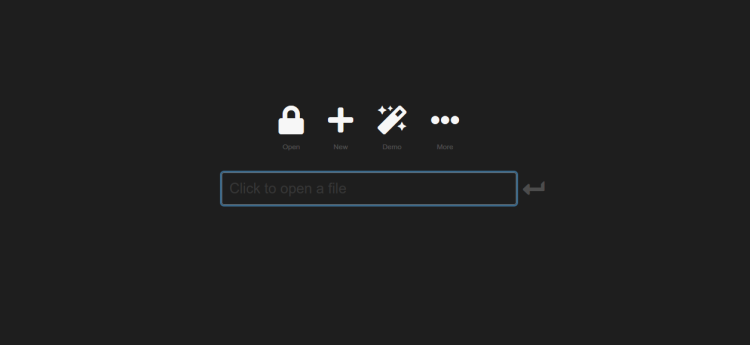
现在,点击 + 图标以添加新的密码文件。你将看到如下界面:
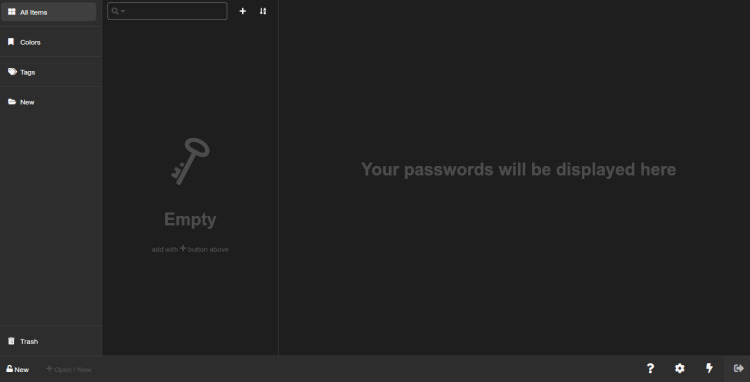
点击底部的 new 按钮。你将看到如下界面:
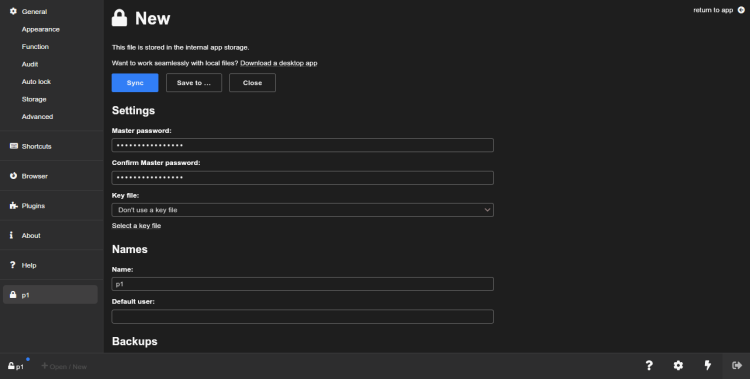
输入你的主密码、名称和备份密钥,然后点击 Save 按钮,将密码文件下载到本地系统并完成设置。
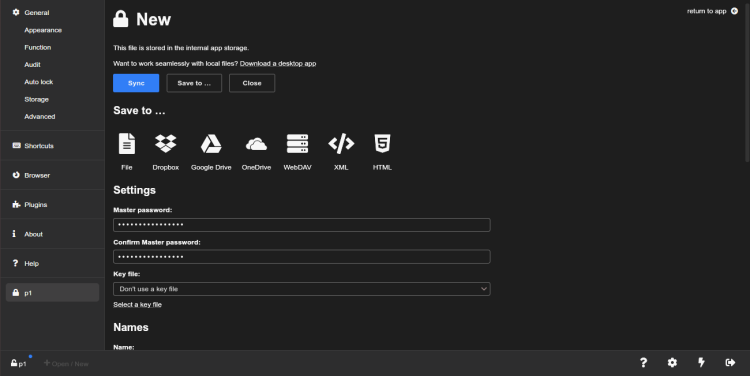
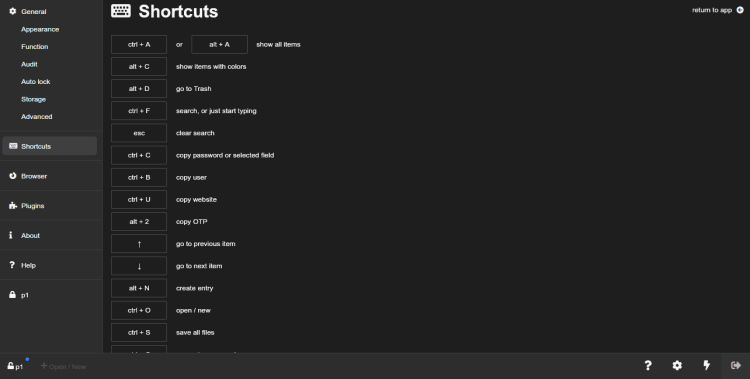
点击左侧面板中的 Shortcuts,查看 KeeWeb 使用的所有快捷键列表:
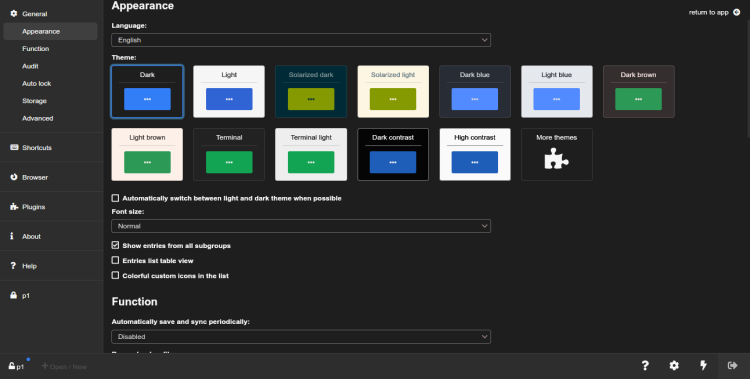
点击左侧面板中的 Appearance,自定义 KeeWeb 默认的语言、主题和字体。
结语
恭喜!你已成功在 Ubuntu 22.04 上安装了 KeeWeb 密码管理器。现在你可以在服务器上使用 KeeWeb 存储所有密码,并将其与其他存储服务同步。如有任何疑问,欢迎提问。