
本页内容
- 前提条件
- 设置 FQDN
- 安装 FreeIPA 服务器软件包
- 配置 FreeIPA 服务器
- 设置 Firewalld
- 验证 Kerberos 管理员身份认证
- 登录 FreeIPA 仪表板
- 结论
FreeIPA 是面向 Linux/Unix 操作系统的免费开源身份管理解决方案。它是 RedHat 身份管理系统的上游项目,为 Linux/Unix 系统提供身份认证和授权解决方案。
FreeIPA 构建在多个组件之上,包括 Directory Server、DNS、Kerberos、PKI、Certmonger、NTP Server、Web 管理界面等。它提供用户凭据和访问控制的集中来源。使用 FreeIPA 可让管理员在集中式环境中轻松管理身份,同时提供用户监控、身份认证和访问控制。
在本指南中,我们将向你展示如何在 Rocky Linux 服务器上安装 FreeIPA 身份管理器。
前提条件
- 一台运行 Rock Linux 8.5 的 Linux 服务器。
- 一个具有 sudo 管理员权限的非 root 用户。
设置 FQDN
首先,你将设置 Rocky Linux 服务器的 FQDN(完全限定域名)和 /etc/hosts 文件。
要设置服务器的 FQDN,请运行下面的命令。在本例中,我们使用 FQDN ipa.example.local。
sudo hostnamectl set-hostname ipa.example.local现在使用 nano 编辑器编辑 /etc/hosts 文件。
sudo nano /etc/hosts如下所示输入服务器的详细 IP 地址和服务器的 FQDN。
192.168.10.25 ipa.example.local ipa
按 Ctrl+x 保存文件,并输入 Y 确认并保存文件。
接下来,运行以下命令来验证 Rocky Linux 服务器的 FQDN。
hostname -f你应该会看到服务器 FQDN 的输出,例如 ipa.example.local。
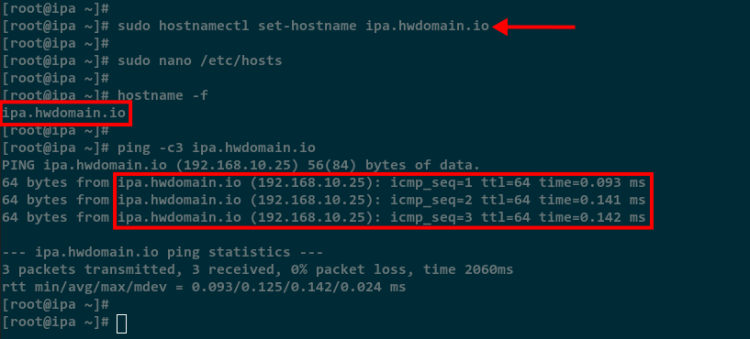
最后,运行下面的 ping 命令来验证 FQDN 是否解析到正确的服务器 IP 地址。
ping -c3 ipa.example.local在下面的截图中,FQDN ipa.example.local 已解析,并可在 IP 地址 192.168.10.25 上访问。
进入下一步,开始 FreeIPA 的安装。
安装 FreeIPA 服务器软件包
如果你已完成 FQDN 和 /etc/hosts 文件的配置,现在将开始把 FreeIPA 软件包安装到 Rocky Linux 系统。
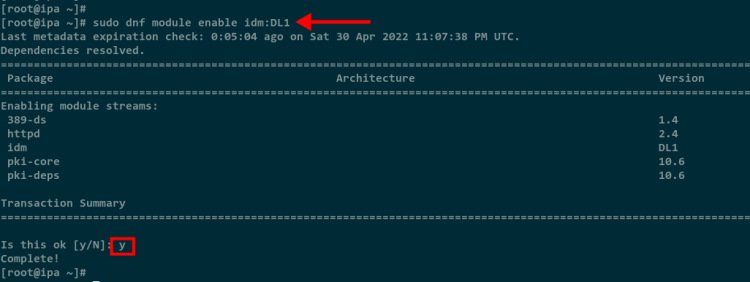
在 Rocky Linux 系统上,所有与 FreeIPA 相关的软件包都在 idm:DL1 模块中提供。你必须启用 idm:DL1 模块才能安装 FreeIPA 软件包。
运行以下命令在你的 Rocky Linux 系统上启用 idm:DL1 模块。
sudo dnf module enable idm:DL1输入 Y 确认并启用该模块。
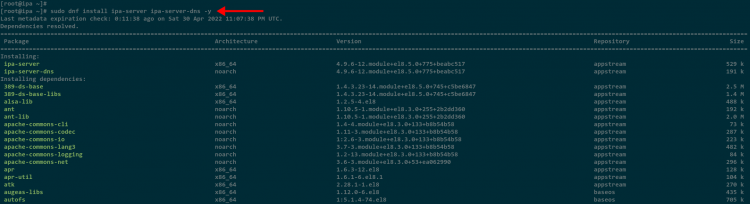
接下来,使用下面的 dnf 命令安装 FreeIPA 软件包。ipa-server 是 FreeIPA 的主软件包,ipa-server-dns 是 FreeIPA 的附加软件包,提供 DNS 服务器功能。
sudo dnf install ipa-server ipa-server-dns -y等待所有软件包安装完成,所需时间取决于你服务器的网络连接。
所有安装完成后,进入下一步开始配置 FreeIPA 服务器。
配置 FreeIPA 服务器
现在你将在 Rocky Linux 系统上设置 FreeIPA 服务器。
在配置 FreeIPA 服务器之前,请确保服务器上的 IPv6 已启用并激活。当内核空间启用了 IPv6 但网络协议栈中不可用时,FreeIPA 服务器将自动检测到错误。
检查你的服务器 IP 地址,以验证 IPv6 在网络接口上可用。
sudo ip a在下面的截图中,你会在输出中看到 inet6,这表示 IPv6 在本地网络接口上可用,你已准备好设置 FreeIPA 服务器。

接下来,运行下面的 ipa-server-install 命令开始配置 FreeIPA 服务器。
sudo ipa-server-install --setup-dns --allow-zone-overlap首先,你将看到关于设置 FreeIPA 服务器将要执行的操作的基本信息。
The log file for this installation can be found in /var/log/ipaserver-install.log
==============================================================================
This program will set up the IPA Server.
Version 4.9.6
This includes:
  * Configure a stand-alone CA (dogtag) for certificate management
  * Configure the NTP client (chronyd)
  * Create and configure an instance of Directory Server
  * Create and configure a Kerberos Key Distribution Center (KDC)
  * Configure Apache (httpd)
  * Configure DNS (bind)
  * Configure SID generation
  * Configure the KDC to enable PKINIT
FreeIPA 服务器将自动检测服务器 FQDN,并将其用作默认服务器主机名。按 ENTER 确认并继续。
To accept the default shown in brackets, press the Enter key.
Enter the fully qualified domain name of the computer
on which you're setting up server software. Using the form
<hostname>.<domainname>
Example: master.example.com.
Server host name [ipa.example.local]:
现在你需要为 FreeIPA 服务器设置域名。这将基于服务器 FQDN 自动检测。在本例中,服务器 FQDN 是 ipa.example.local,因此域名必须是 example.local。
按 ENTER 确认并继续。
Warning: skipping DNS resolution of host ipa.example.local
The domain name has been determined based on the host name.
Please confirm the domain name [example.local]:
现在你需要为 Kerberos 身份认证设置 REALM 域名。在大多数情况下,它与 FreeIPA 域名相同,但使用大写。
The kerberos protocol requires a Realm name to be defined.
This is typically the domain name converted to uppercase.
Please provide a realm name [HWDOMAIN.IO]:
为目录服务器输入一个新密码。密码必须至少 8 个字符,因此请务必为目录管理器使用强密码。
Certain directory server operations require an administrative user.
This user is referred to as the Directory Manager and has full access
to the Directory for system management tasks and will be added to the
instance of directory server created for IPA.
The password must be at least 8 characters long.
Directory Manager password:
Password (confirm):
现在为 IPA admin 用户输入另一个密码。该用户将用于登录 FreeIPA 服务器,或作为管理员用户针对 Kerberos 进行身份认证。请务必为你的 IPA admin 用户使用强密码。
The IPA server requires an administrative user, named 'admin'.
This user is a regular system account used for IPA server administration.
IPA admin password:
Password (confirm):
在下一步中,系统将要求你设置 DNS 转发器。按 ENTER 继续,FreeIPA 将自动检测当前的 /etc/resolv.conf 文件作为 DNS 转发器。
Checking DNS domain example.local., please wait ...
Do you want to configure DNS forwarders? [yes]: yes
Following DNS servers are configured in /etc/resolv.conf: 192.168.121.1
Do you want to configure these servers as DNS forwarders? [yes]:
现在系统将要求你为 FreeIPA 服务器 IP 地址创建反向区域。按 ENTER 继续,FreeIPA 将自动为你的服务器 IP 地址创建一个新的反向区域。
Do you want to search for missing reverse zones? [yes]:
Do you want to create reverse zone for IP 192.168.10.25 [yes]:
Please specify the reverse zone name [10.168.192.in-addr.arpa.]:
Using reverse zone(s) 10.168.192.in-addr.arpa.
Trust is configured but no NetBIOS domain name found, setting it now.
Enter the NetBIOS name for the IPA domain.
Only up to 15 uppercase ASCII letters, digits and dashes are allowed.
Example: EXAMPLE.
NetBIOS domain name [HWDOMAIN]:
对于 NTP 配置,保持默认设置,并按 ENTER 选择 no。
Do you want to configure chrony with NTP server or pool address? [no]:
现在系统将要求你确认 FreeIPA 服务器的安装和配置。再次检查 FreeIPA 服务器的详细配置,然后输入 yes 并按 ENTER 确认安装和配置。
The IPA Master Server will be configured with:
Hostname:       ipa.example.local
IP address(es): 192.168.10.25
Domain name:    example.local
Realm name:     HWDOMAIN.IO
The CA will be configured with:
Subject DN:   CN=Certificate Authority,O=HWDOMAIN.IO
Subject base: O=HWDOMAIN.IO
Chaining:     self-signed
BIND DNS server will be configured to serve IPA domain with:
Forwarders:       192.168.121.1
Forward policy:   only
Reverse zone(s):  10.168.192.in-addr.arpa.
Continue to configure the system with these values? [no]: yes
现在 FreeIPA 的安装和配置即将开始。
The following operations may take some minutes to complete.
Please wait until the prompt is returned.
Disabled p11-kit-proxy
Synchronizing time
No SRV records of NTP servers found and no NTP server or pool address was provided.
Using default chrony configuration.
Attempting to sync time with chronyc.
Time synchronization was successful.
Configuring directory server (dirsrv). Estimated time: 30 seconds
  [1/41]: creating directory server instance
  [2/41]: tune ldbm plugin
  [3/41]: adding default schema
  [4/41]: enabling memberof plugin
FreeIPA 安装和配置完成后,你将看到以下输出消息。
在下面的输出消息中,你还将看到为 FreeIPA 服务器设置防火墙的下一步提示。你需要为 FreeIPA 服务器开放一些端口,然后使用 admin 用户针对 Kerberos 服务器验证身份认证。
==============================================================================
Setup complete
Next steps:
    1. You must make sure these network ports are open:
        TCP Ports:
          * 80, 443: HTTP/HTTPS
          * 389, 636: LDAP/LDAPS
          * 88, 464: kerberos
          * 53: bind
        UDP Ports:
          * 88, 464: kerberos
          * 53: bind
          * 123: ntp
    2. You can now obtain a Kerberos ticket using the command: 'kinit admin'
       This ticket will allow you to use the IPA tools (e.g., ipa user-add)
       and the web user interface.
Be sure to back up the CA certificates stored in /root/cacert.p12
These files are required to create replicas. The password for these
files is the Directory Manager password
The ipa-server-install command was successful
现在你已完成 FreeIPA 服务器的安装和配置。
设置 Firewalld
在这一步中,你将向 Firewalld 规则添加一些服务。这包括 FreeIPA 服务器的基本服务,例如 LDAP、DNS 和 HTTPS。
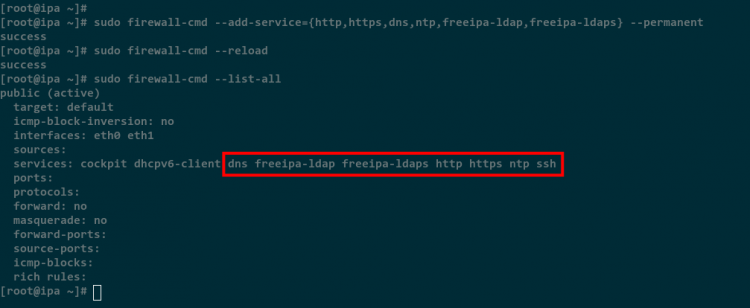
运行下面的 firewall-cmd 命令,将一些用于 FreeIPA 服务器的服务添加到 Firewalld。
sudo firewall-cmd --add-service={http,https,dns,ntp,freeipa-ldap,freeipa-ldaps} --permanent之后,使用下面的命令重新加载 Firewalld 规则。
sudo firewall-cmd --reload最后,使用下面的命令验证 Firewalld 的规则列表。
sudo firewall-cmd --list-all在下面的截图中,你将看到用于 FreeIPA 服务器的所有服务都已添加到 Firewalld。
验证 Kerberos 管理员身份认证
设置完 Firewalld 后,现在你将验证针对 FreeIPA 服务器上 Kerberos 的身份认证。
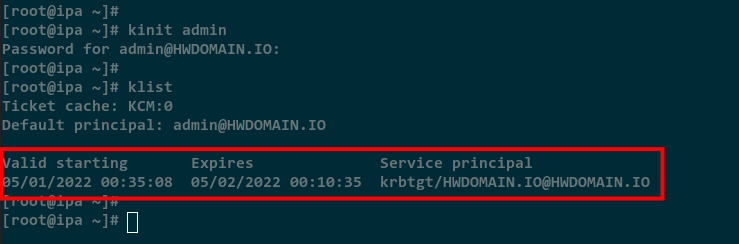
运行下面的命令,使用 admin 用户针对 Kerberos 服务器进行身份认证。
kinit admin现在系统将提示你输入 IPA 服务器的密码。输入正确的密码。
成功通过身份认证后,运行下面的命令验证服务器上的 Kerberos 票据列表。
klist在下面的截图中,用户 admin 的新 Kerberos 票据已生成,且针对 Kerberos 服务器的身份认证成功。
登录 FreeIPA 仪表板
在这一步中,你将通过登录 FreeIPA Web 管理仪表板来验证 FreeIPA 的安装。
打开你的 Web 浏览器,访问如下所示的服务器 IP 地址或 FQDN。现在你将看到 FreeIPA 登录页面。
https://ipa.example.local/ipa/ui/
输入 FreeIPA admin 用户和密码,然后点击 Log In 按钮。
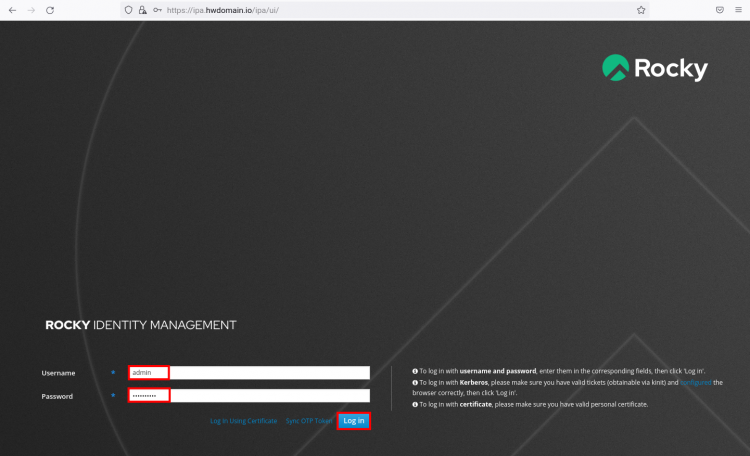
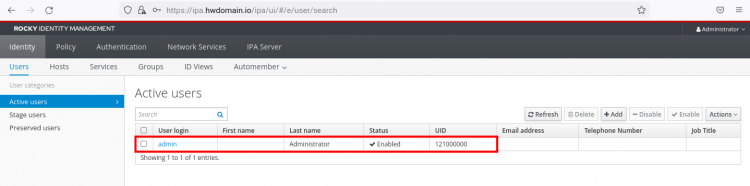
登录后,你将看到下面的 FreeIPA 管理仪表板。
结论
恭喜!你现在已在 Rocky Linux 上成功安装并配置了 FreeIPA。此外,你还使用 IPA admin 用户成功通过了针对 Kerberos 服务器的身份认证,并登录到了 FreeIPA 服务器。